

- Name Unlock FPS for Game
- Category Utilities & tools
- Available on PC, Mobile, Surface Hub, HoloLens
- OS Windows 10 version 17763.0 or higher
- languages English (United States)
A Handy Tool to Unlock Your Gaming Performance with Ease
If you're a gamer frustrated by built-in caps restricting your gameplay potential, Unlock FPS for Game for Windows offers a straightforward solution. Designed to boost your gaming experience by unlocking frame rate limits, this application appears as an accessible utility for users who want more fluid and responsive visuals. Whether you're into competitive shooting, racing, or immersive adventure titles, this app promises to remove barriers that keep your game from reaching its true performance potential.
Sleek and User-Friendly Interface Make Unlocking FPS a Breeze
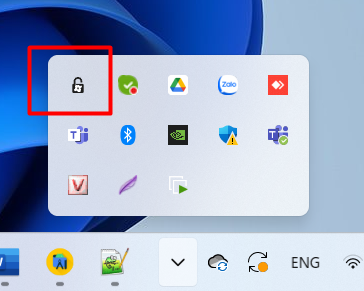
The app sports a clean, intuitive interface that feels more like a well-organized control panel than a complex toolkit. Upon opening, users are greeted with a straightforward dashboard showing a list of installed games. The minimalistic design ensures that even those with limited technical background can navigate without confusion. The operation is smooth and responsive, with quick loading times and clear labels guiding you through the process. For newcomers, the learning curve is gentle—simply select your game, enable the FPS unlock feature, and you're set to go. Advanced users will appreciate the minimal fuss, allowing more time for actual gaming rather than fiddling with settings.
Core Functionality Highlights: Unlocking FPS Effortlessly
One-Click FPS Enhancement
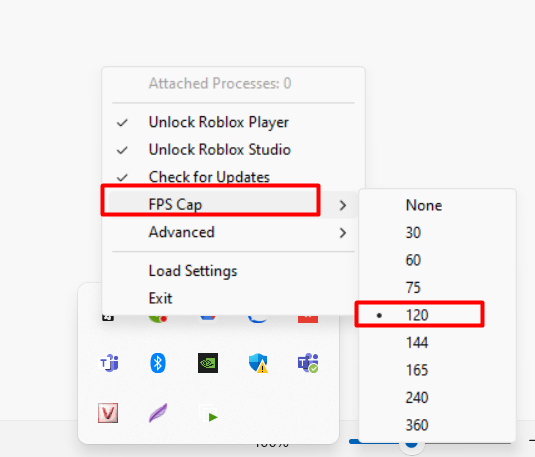
The standout feature is undoubtedly its one-click FPS unlocking. Once your game is listed, a simple toggle button grants you immediate access to uncap the frame rate limits—whether it's 60, 120, or higher, depending on your hardware. This is akin to removing superglue from your gaming graphics, letting your visuals flow more naturally and smoothly. The process is fast, reliable, and minimally invasive, reducing the risk of crashes or glitches common in more complicated hacks.
Auto-detection and Compatibility
The app intelligently scans your installed games, detecting titles that are compatible with FPS unlocking. It reduces manual setup, which is a blessing for non-technical users, and ensures broad compatibility with many popular game platforms on Windows. Moreover, its lightweight nature means it doesn't interfere with other gaming tools or background processes, maintaining system stability while boosting performance.
What Sets It Apart from Other Utilities & Tools?
Unlike generic performance tweaking apps, Unlock FPS for Game for Windows zeroes in on a specific goal—removing frame caps—making it extremely focused. Its most distinctive advantage lies in its simplicity combined with effectiveness. Many similar tools either require intricate configurations or risk destabilizing games; this app avoids those pitfalls with a streamlined approach. Additionally, it's designed to be non-intrusive, preserving game integrity and preventing unwanted side effects. For users tired of complex mods or risky registry edits, this utility offers a safe yet powerful alternative.
Final Thoughts and Recommendations
If boosting your gaming performance is your goal but you prefer a straightforward, no-nonsense solution, Unlock FPS for Game for Windows merits serious consideration. It's particularly ideal for casual gamers who want to improve visual fluidity without diving into technical setups, as well as for those interested in squeezing extra frames out of their existing hardware. For competitive players, having a higher and more consistent frame rate can make a real difference in responsiveness and immersion. However, as with any utility that modifies game behavior, users should use it responsibly, keeping backups and understanding that results may vary across titles.
Overall, I'd recommend this app if you're seeking an uncomplicated way to enhance your gaming experience, especially considering its focus on a single, well-executed purpose. It's a practical tool for anyone wanting a little more from their Windows gaming sessions without the hassle of complicated tweaks.
Pros
- Improves game performance by unlocking higher frame rates
- Easy to use with a simple interface
- Supports a wide range of games and system configurations
- Provides real-time FPS monitoring during gameplay
- Offers additional settings to customize performance optimizations
Cons
- Potential stability issues with some games after unlocking FPS
- Limited official support or updates from the developer
- Some antivirus or security software may flag the app as suspicious
- No extensive documentation or user guide available within the app
- Temporary performance dips in specific system configurations during initial use











