

- Name Twinkle Tray: Brightness Slider
- Category Utilities & tools
- Developer Alexander "Xander" Frangos
- Available on PC
- OS Windows 10 version 14316.0 or higher
- languages English (United States)
Brighten Up Your Screen: An In-Depth Look at Twinkle Tray
If you're tired of fiddling with your monitor's brightness settings through menus and buttons, Twinkle Tray offers a sleek, intuitive solution that puts brightness control right at your fingertips. Designed by Alexander "Xander" Frangos, this Windows utility transforms the way you manage display luminance, making it easier, faster, and more precise—all with a simple slider.
Who's Behind the Magic?
Developed and published by Alexander "Xander" Frangos, Twinkle Tray is crafted by a passionate individual developer dedicated to enhancing Windows user experience. Its streamlined nature reflects a focus on user convenience, ensuring it remains lightweight yet powerful—a true testament to individual ingenuity in the vibrant world of app development.
The Bright Spots: Key Features of Twinkle Tray
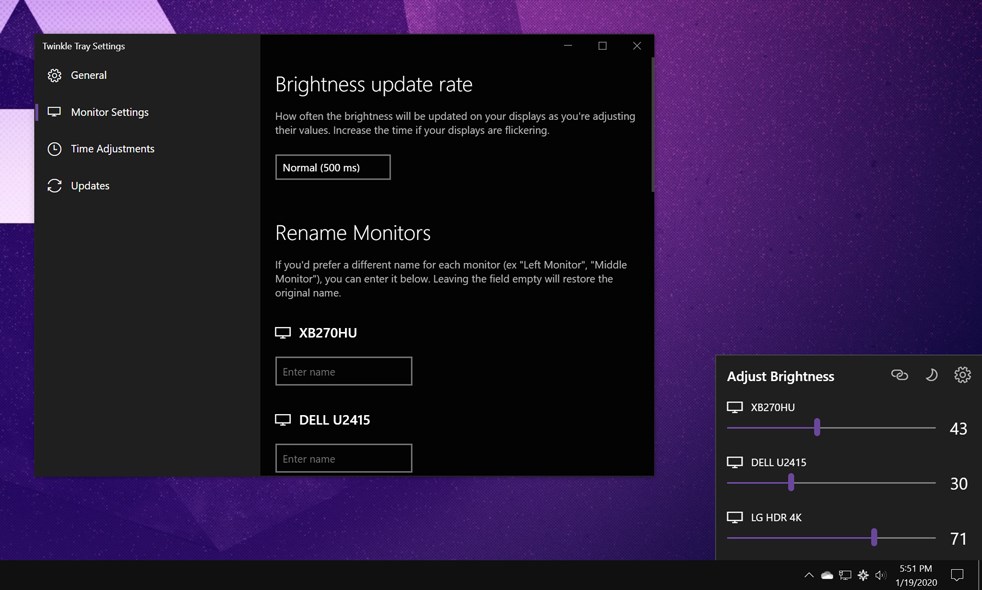
- Multi-Monitor Brightness Management: Effortlessly adjust the brightness of multiple displays simultaneously or individually, eliminating the need to tweak each monitor separately through hardware buttons.
- Customizable Brightness Profiles: Save different brightness settings suited for various activities—like working during the day and relaxing at night—and switch between them with a click.
- Accessibility & Quick Access: Integrate the brightness slider into your system tray, offering quick, on-the-fly adjustments without navigating through cumbersome settings menus.
- Compatibility and Stability: Supports a wide range of display configurations and works seamlessly across different Windows versions, providing a stable and reliable experience.
A Playful Punch: Engaging with Twinkle Tray
Imagine sitting at your desk, working late into the night. The room is dim, and your eyes strain against the harsh glare of your monitor. With Twinkle Tray, a gentle glide of your mouse wheel or a quick click on the icon in your system tray brings your screen to a more comfortable brightness without breaking your flow or taking you away from your work. Its minimalistic interface is like a well-designed dashboard—simple, clean, and just a little bit satisfying.
Three Core Features: Brightness Made Beautifully Simple
Intuitive Interface and Seamless Operation
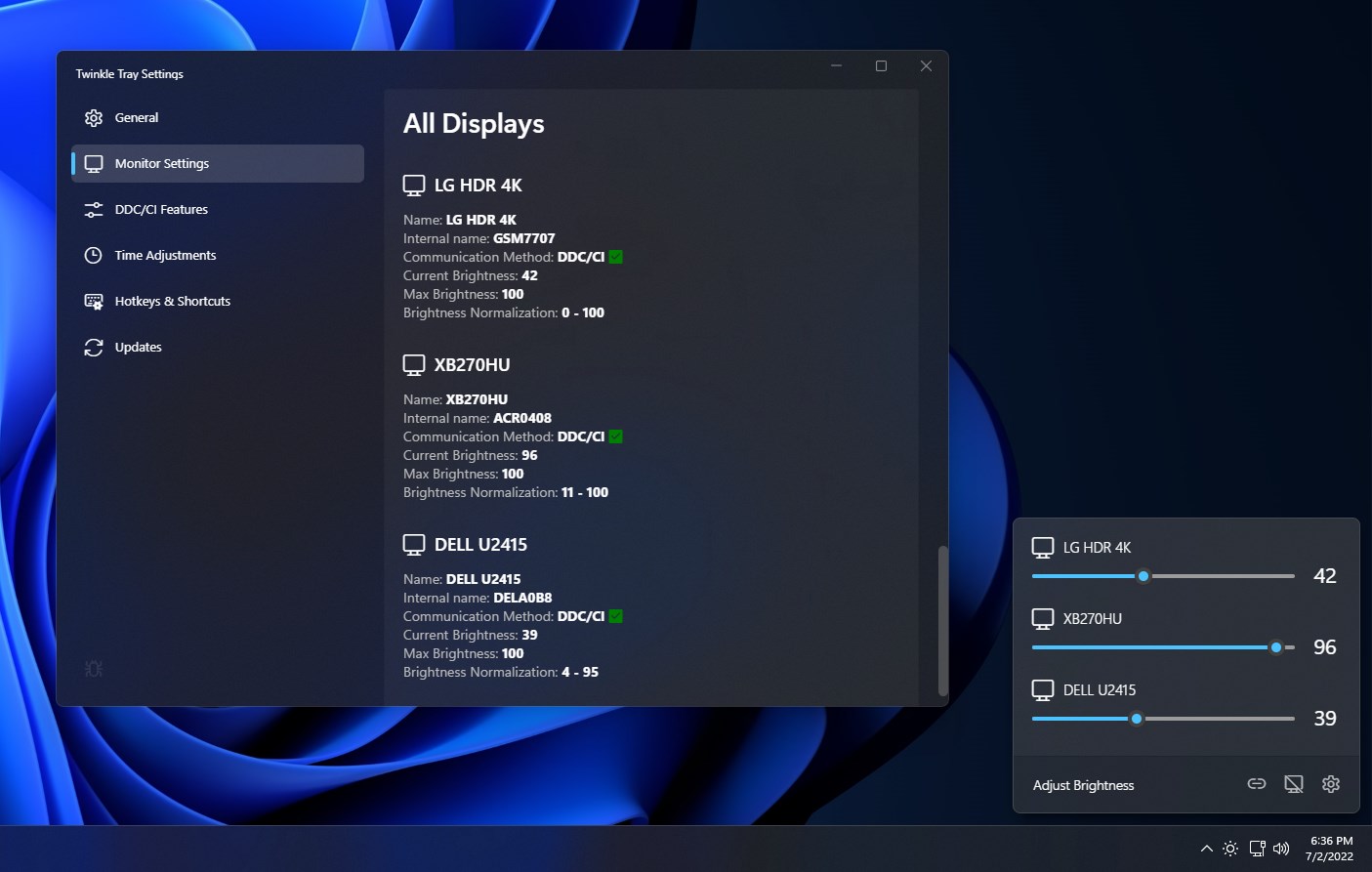
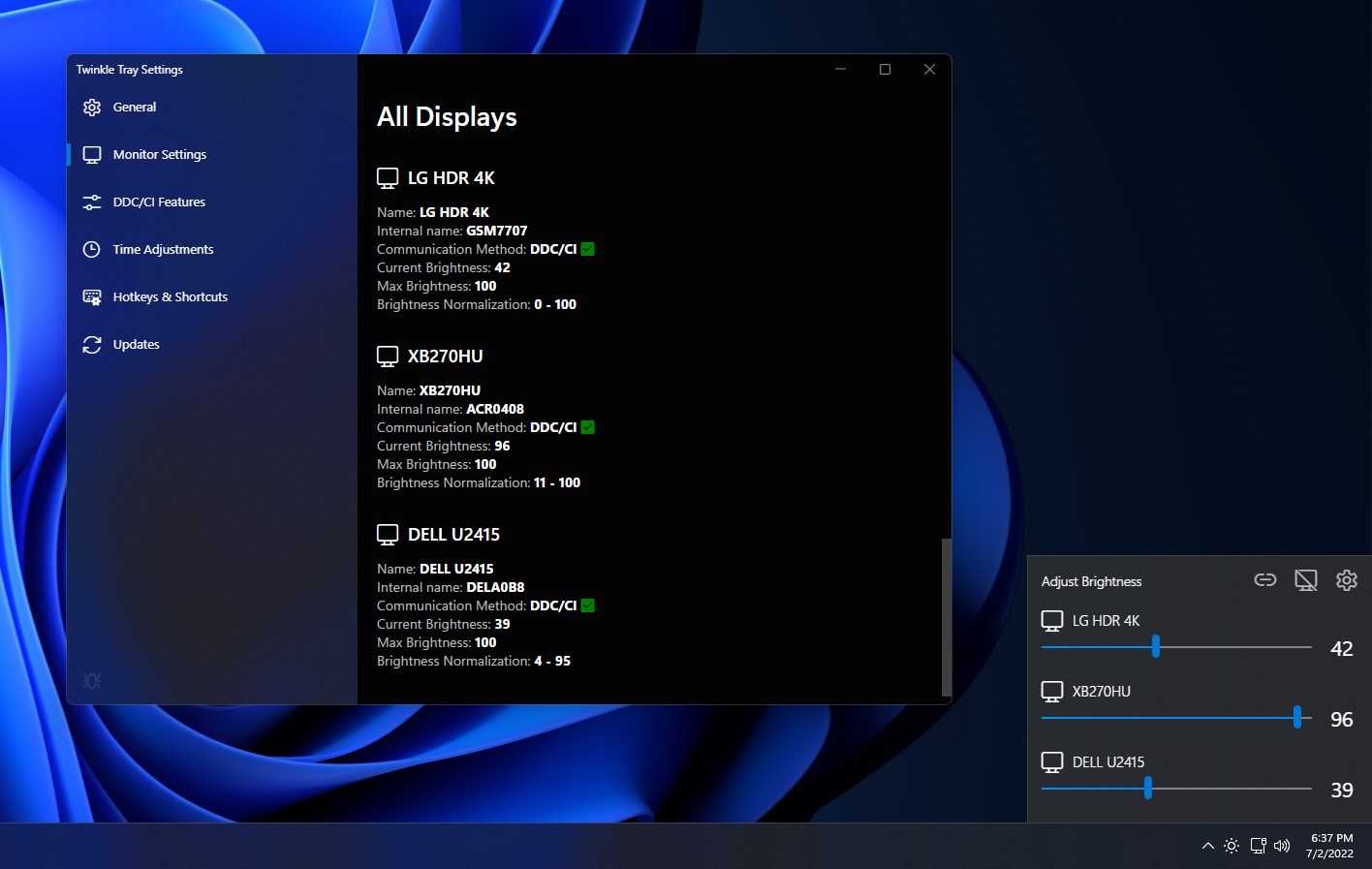
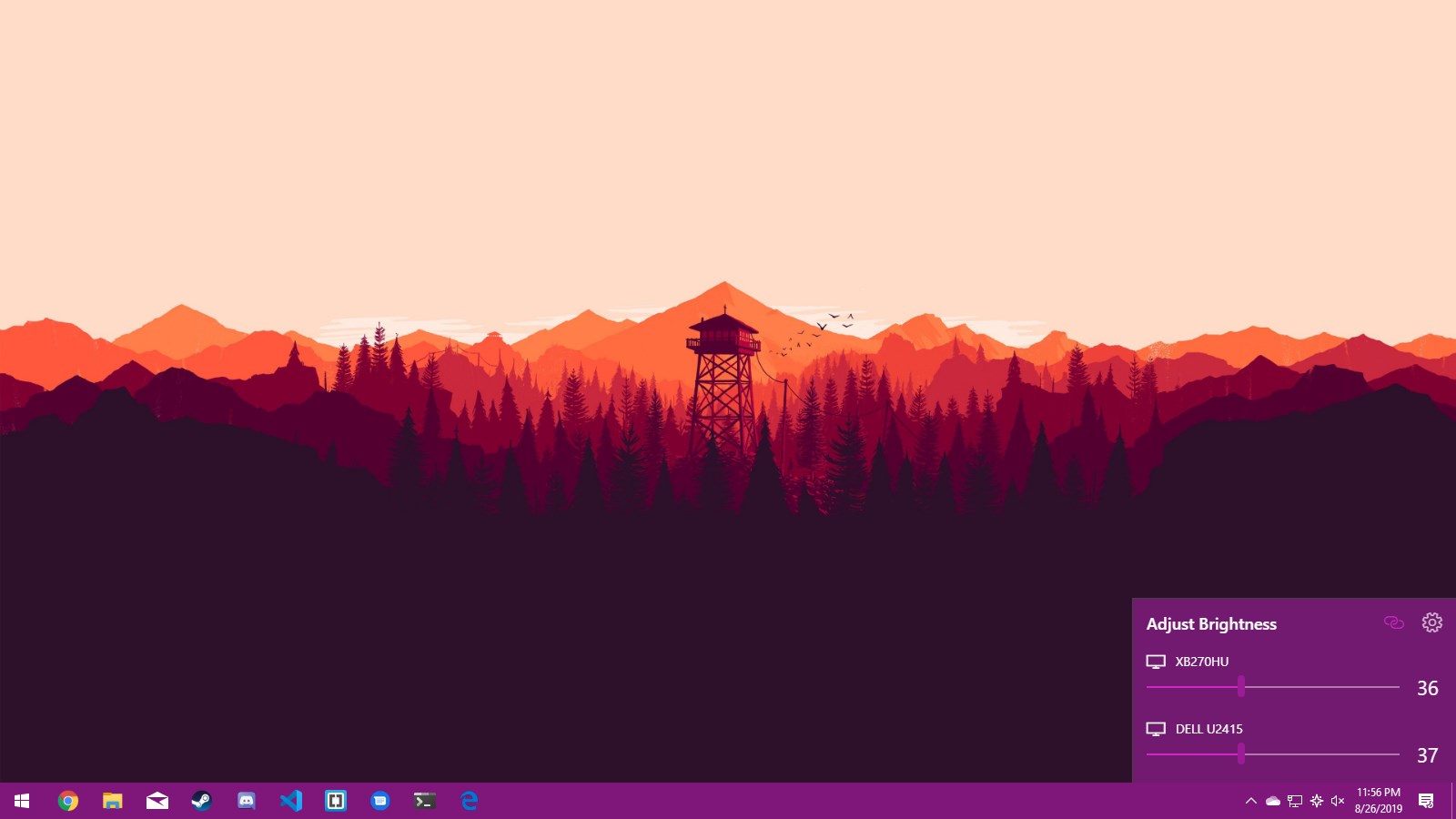
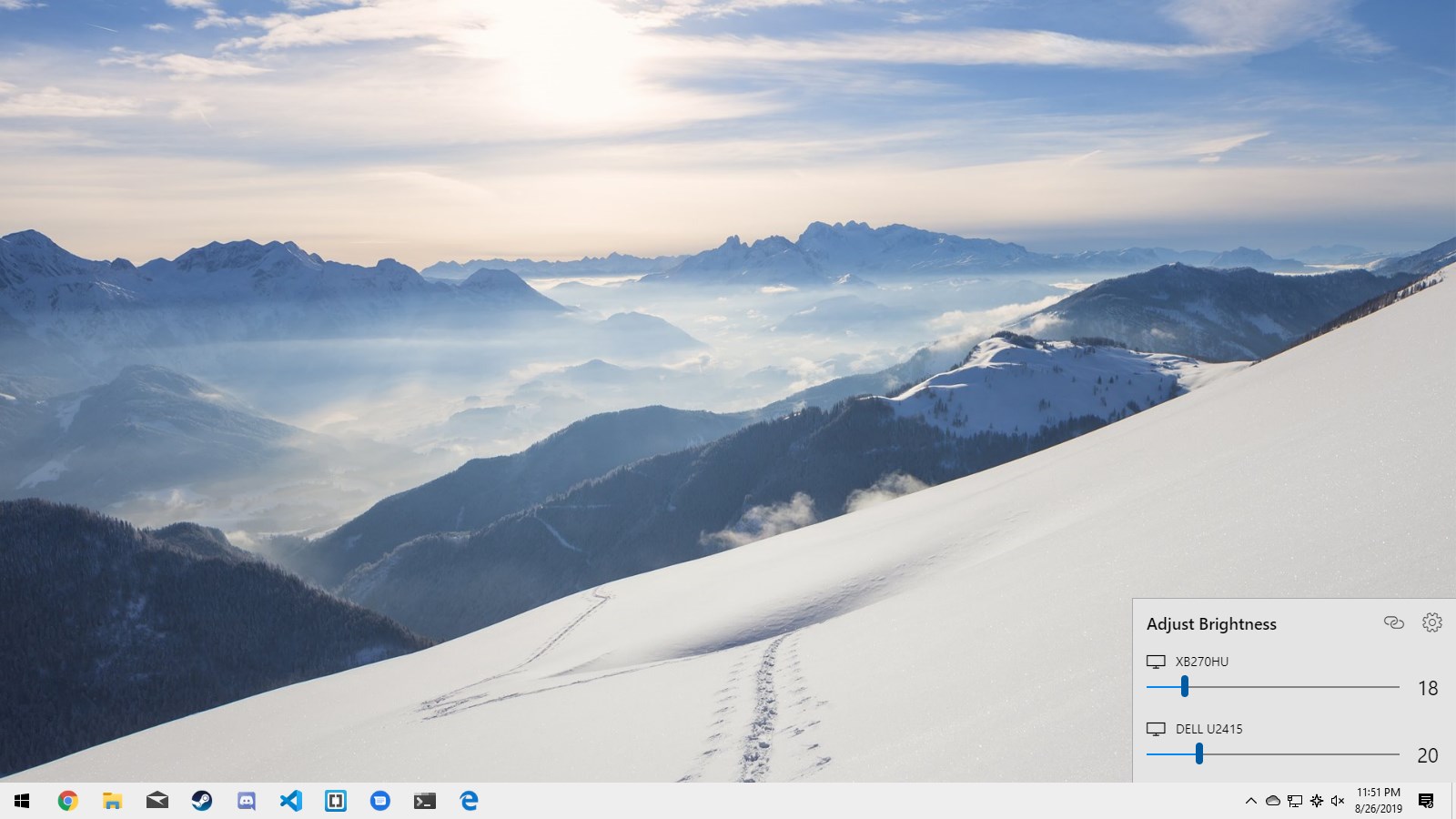
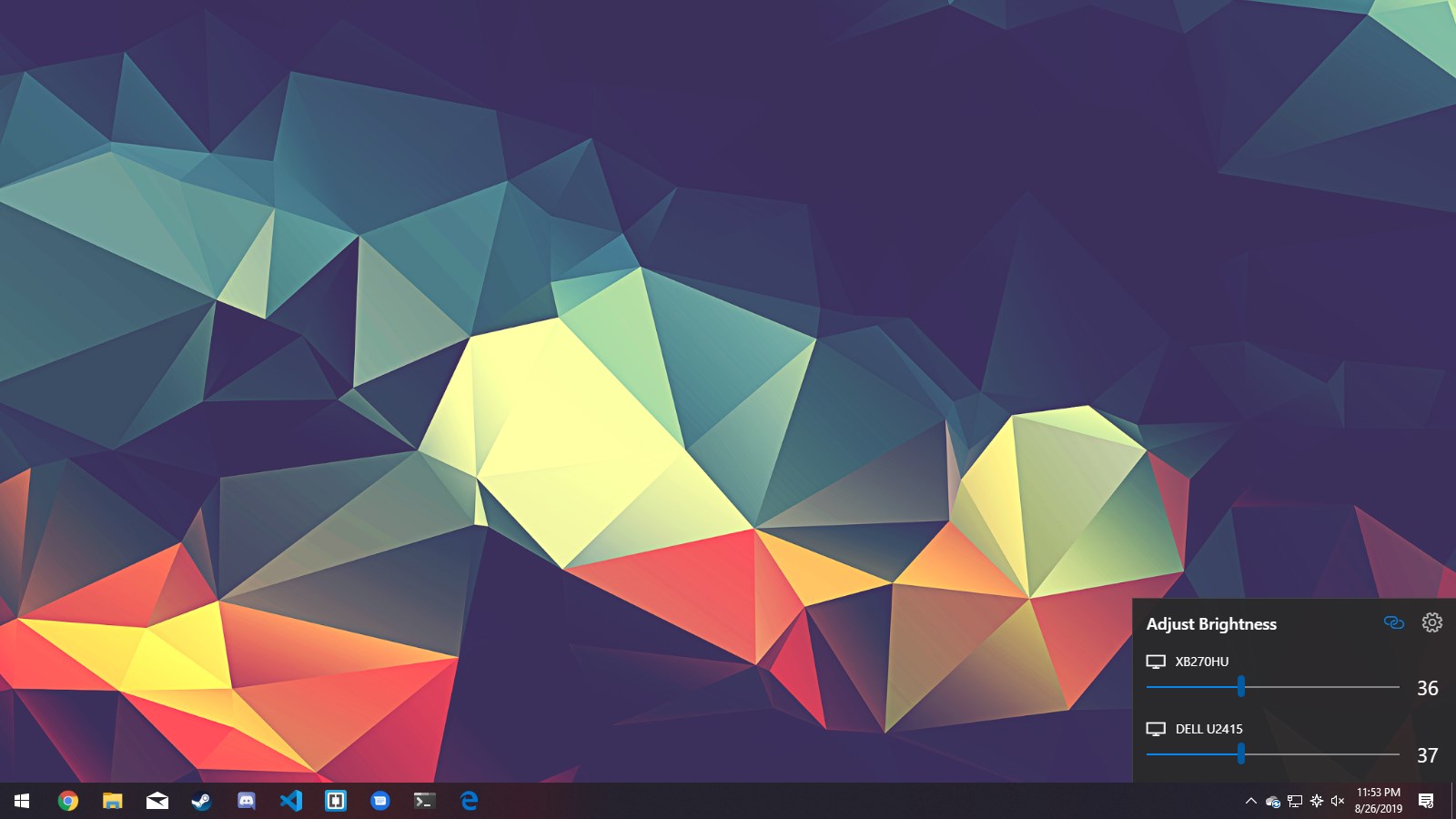
The app's interface is refreshingly straightforward. Upon launch, it resides quietly in your system tray, ready whenever you need it. Clicking the icon opens a slider that feels as natural as turning a physical knob—smooth, responsive, and precise. The design avoids unnecessary clutter, focusing solely on what matters: control. User experience shines here as even first-timers can adjust brightness settings intuitively, with little to no learning curve.
Multi-Monitor and Custom Profiles: Mastering Your Display World
This is where Twinkle Tray truly stands out. Managing multiple monitors can often feel like juggling flaming torches—dangerous and frustrating. The app simplifies this with straightforward controls that let you adjust each monitor independently or synchronize their brightness. Plus, the ability to save and switch between custom profiles means your preferred settings for work, gaming, or media consumption are always within reach, saving time and preventing eye fatigue.
Performance and Compatibility: Works as Smooth as Butter
In terms of performance, Twinkle Tray impresses with its responsiveness and low resource consumption. It reacts instantly to your commands, ensuring no lag or hiccups—crucial for users working under tight deadlines or during late-night sessions. Compatibility across various monitor setups and Windows versions means it's like a versatile toolbox, ready to handle almost any configuration you throw at it.
What Sets Twinkle Tray Apart?
While many utilities offer brightness adjustments, few do so with such elegance and ease of use. Twinkle Tray's standout feature is its ability to control multiple displays with a single, unified interface—something that often requires additional software or complicated settings elsewhere. Its quick-access system tray integration ensures you can fine-tune brightness without interrupting your workflow. Furthermore, the app's lightweight nature means it won't bog down your system or clutter your workspace, making it ideal for power users and casual viewers alike.
Is It Worth Giving a Try?
Absolutely. If brightness adjustment is a constant hassle in your daily routine, Twinkle Tray offers a practical, well-designed solution. Its intuitive controls, multi-monitor support, and profile management make it a valuable addition for anyone who spends long hours in front of screens. While it may not have flashy gimmicks, its reliability and straightforwardness are its biggest strengths.
In summary, Twinkle Tray is like a trusty sidekick for your display—quiet, effective, and easy to use. For those seeking a simple yet robust brightness management tool, this app warrants a warm recommendation. Whether you're a professional, gamer, or casual user, it's a handy utility that keeps your display just the way you like it—bright and comfortable.
Pros
- Smooth brightness adjustment via slider
- Supports multiple monitor brightness control
- Easy to access from system tray
- Customizable brightness profiles
- Lightweight and non-intrusive
Cons
- Limited compatibility with certain monitor models
- Lacks advanced scheduling features
- Minor UI glitches on high-DPI screens
- No native support for Windows tablet mode
- Occasional setup issues with display detection











