- Name Trello
- Category Business
- Available on PC
- OS Windows 10 version 14316.0 or higher
- languages English (United States)
Trello for Windows: Streamlining Team Collaboration and Task Management
As a professional tech reviewer, I've explored countless productivity tools, but Trello for Windows stands out as a visual project management marvel that simplifies collaborative workflows. Designed for teams and individuals alike, it promises to turn chaos into organized clarity with an intuitive interface and innovative features.
What's in the Box? Basic Info & Key Highlights
At its core, Trello for Windows is a digital Kanban board system that helps users visualize tasks and workflows effortlessly. Developed by Trello, Inc.—a team renowned for user-friendly project tools—the app spotlights collaborative efficiency, seamless task tracking, and flexible customization.
The main features extend across:
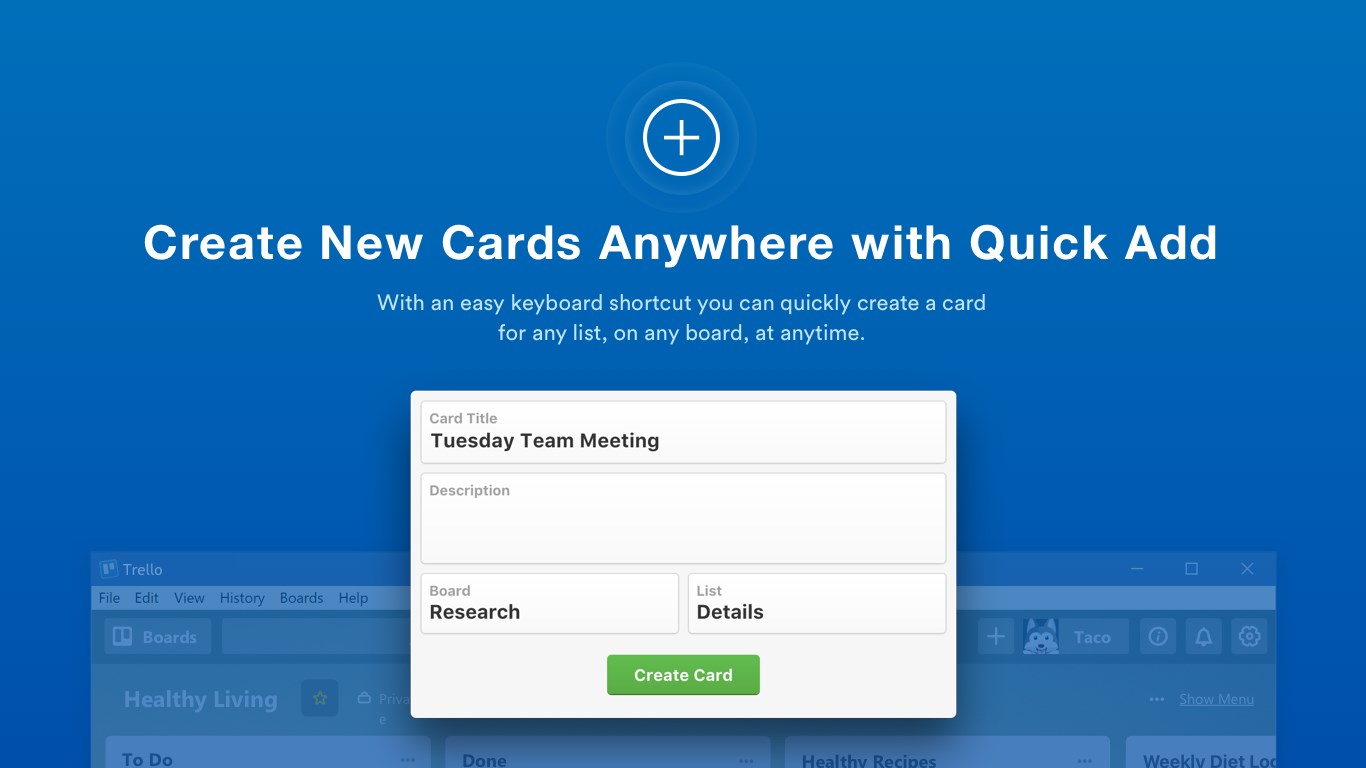
- Drag-and-drop interface for intuitive task organization
- Real-time collaboration with instant updates and comments
- Powerful automation capabilities to reduce manual work
- Integration with a multitude of productivity apps, enhancing workflow connectivity
- Intuitive User Interface
- Flexible Card and Board System
- Powerful Collaboration Features
- Robust Integration Options
- Cross-Platform Accessibility
- Limited Advanced Features in Free Version
- Complexity with Large Boards
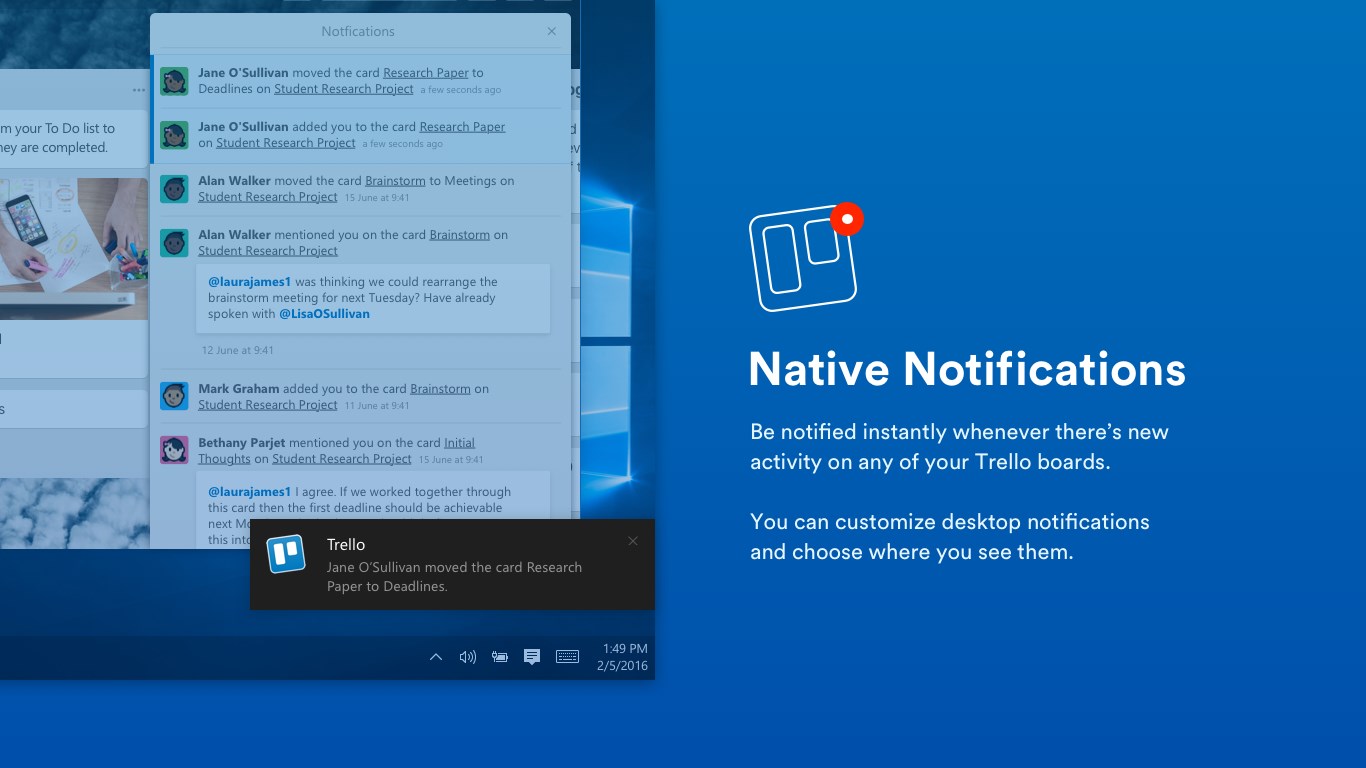
- Notification Settings Are Basic
- No Built-in Gantt Chart View
- Offline Mode Limitations
Target users span from project managers and remote teams to students managing assignments, making it a versatile tool for any group aiming for smooth coordination.
Engaging and Effortless: The User Experience Journey
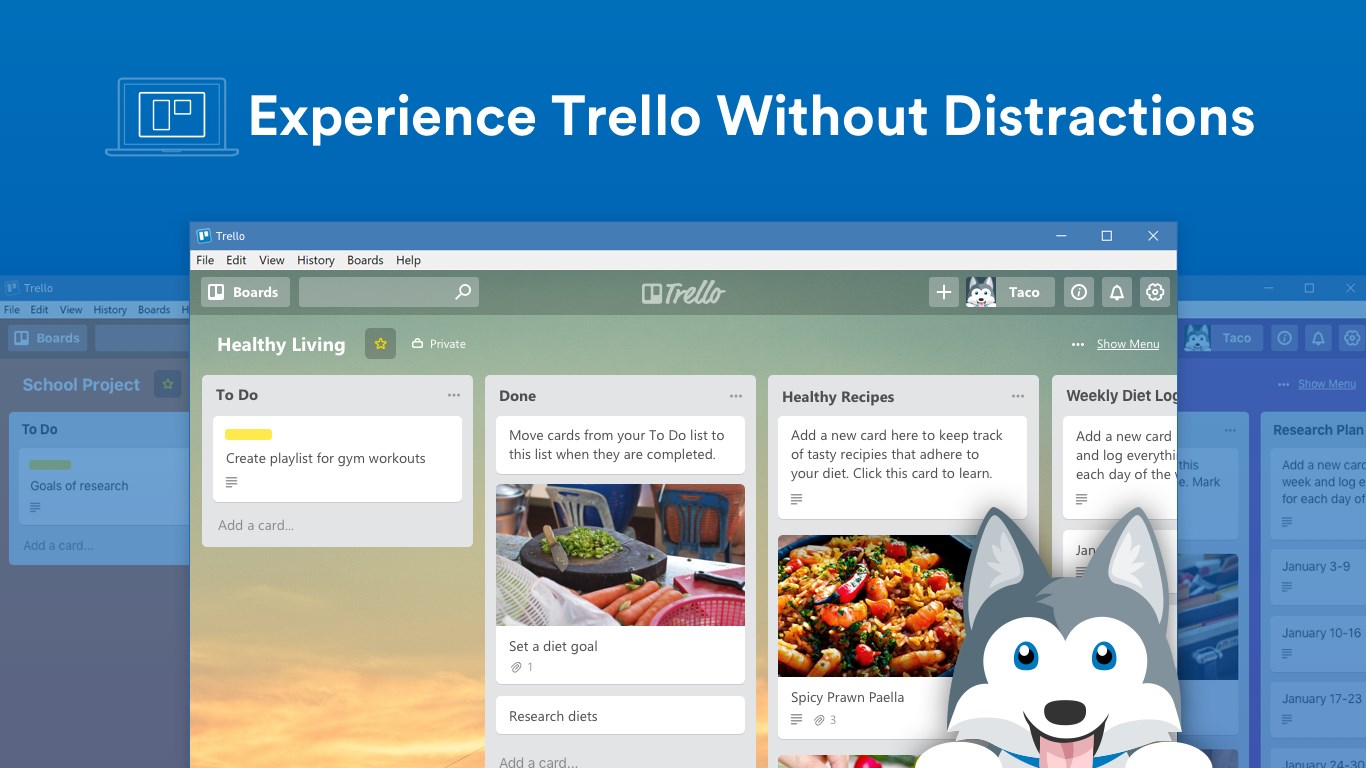
Imagine stepping into a digital workspace where your ideas bloom on colorful cards, each representing a task—Trello's interface greets you like a well-organized whiteboard, but with the convenience of digital flexibility. From the moment you launch Trello for Windows, its clean, modern design beckons you to start visualizing your projects effortlessly. The interface's layout is straightforward: boards, lists, and cards, all accessible with a few clicks.
Smooth, Intuitive Operations
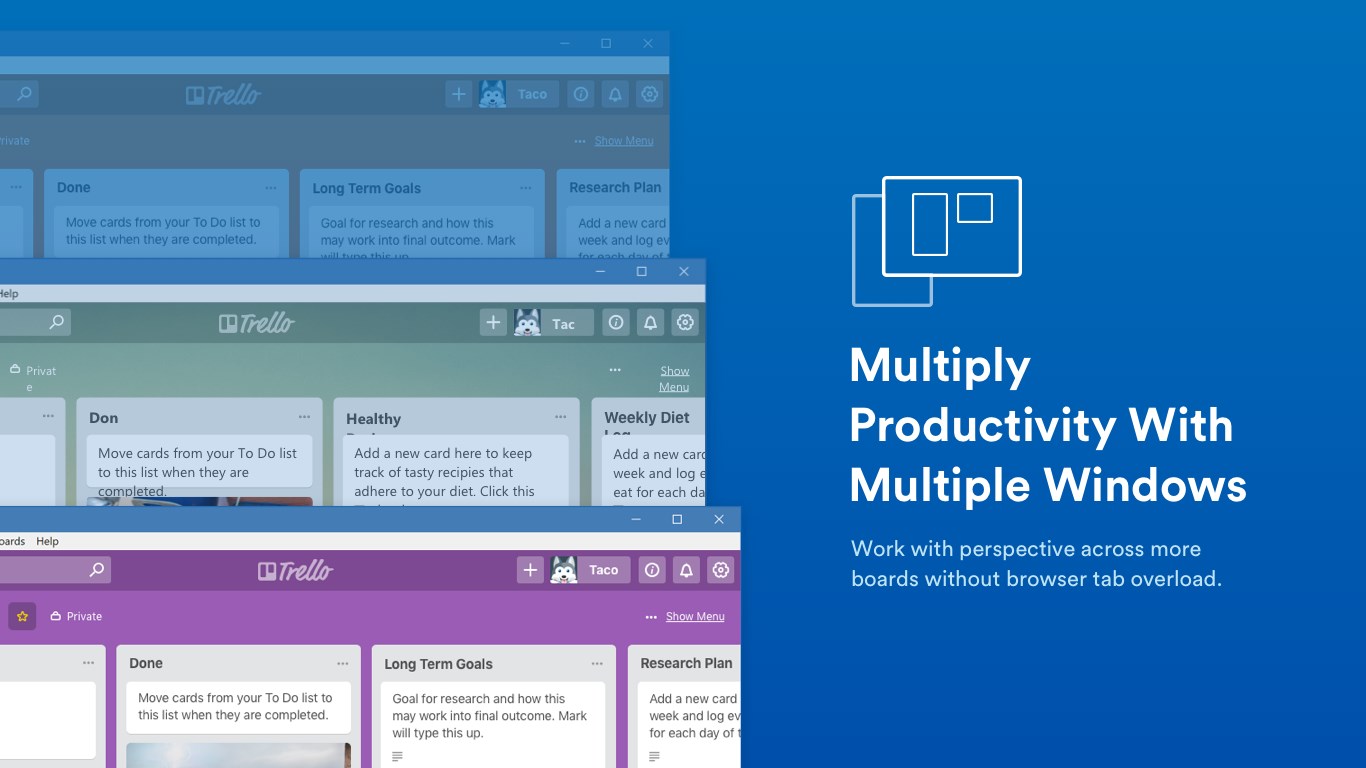
Interacting with Trello feels akin to playing a well-crafted board game—dragging cards around is fluid, with snappy responses that make task management feel almost fun. The app performs seamlessly, even with multiple boards open, ensuring that switching tasks or updating statuses happens in real time without lag. The learning curve is gentle; users unfamiliar with project management software will find it easy to adapt, thanks to clear icons and minimal clutter.
Design & Customization
The visual appeal is both practical and inviting: vibrant card colors and flexible labels help distinguish task types at a glance. Users can customize boards with backgrounds, stickers, and custom fields. This level of personalization makes the tool not just functional but also a canvas for creativity—perfect for teams that want to express their unique workflow style.
What Sets Trello Apart? Unique Collaborative & Task Features
Compared to other business productivity tools, Trello's突出特色在于其直观的协作功能与高度自定义的任务管理方式。特别值得一提的是,它的“Power-Ups”功能,像是为您的项目添加专属的超能力,让团队可以集成诸如Slack、Google Drive、Jira等各种工具,从而打造一站式工作平台。这不仅避免了多窗口多标签的混乱,也保证信息同步的即时性,特别适合需要跨平台、多团队协作的复杂项目。
此外,它的“卡片评论”和@提及功能极大提升了团队沟通效率,确保每一个决策和讨论都能被完整记录和快速反馈。这种以视觉为核心的协作模式,像是在团队桌面上搭建了一个虚拟的“白板会议室”,每个人都可以轻松地添加想法和调整任务优先级。
总结与推荐:值得一试的协作利器
综上所述,Trello for Windows是一款将直观设计与强大功能完美结合的项目管理工具。它最特别的地方在于其极具亲和力的用户界面,以及通过Power-Ups实现的灵活扩展能力。这使得它不仅适合轻松组织日常任务,也能胜任复杂团队项目的协调工作。
我会推荐给任何希望提高团队合作效率、寻求直观可视化工具的用户。无论是小型创业团队,还是大型企业,都能在Trello中找到适配自己Workflow的宝藏功能。总体来说,这是一个兼具实用性与趣味性的项目协作工具,值得一试!