

- Name TIFF Viewer and Converter
- Category Utilities & tools
- Developer RC Tech
- Available on PC, Mobile, Surface Hub, HoloLens
- OS Windows 10 version 17763.0 or higher
- languages English (United States)
Introducing TIFF Viewer and Converter for Windows: Your Ultimate TIFF Companion
If you've ever wrestled with stubborn TIFF files or needed a straightforward way to convert and view them without bogging down your system, TIFF Viewer and Converter for Windows by RC Tech might just become your new best friend. Designed with simplicity and functionality in mind, this app aims to streamline how you handle TIFF images, making it a handy tool for professionals and casual users alike.
Developed by RC Tech: A Dedicated Team for Image Excellence
RC Tech, a reputable developer known for user-friendly utility apps, brings its expertise to this TIFF-focused application. Their goal is to offer a seamless experience that merges powerful features with an intuitive interface, eliminating the need for bulky software or complicated workflows when managing TIFF files.
Key Features That Stand Out
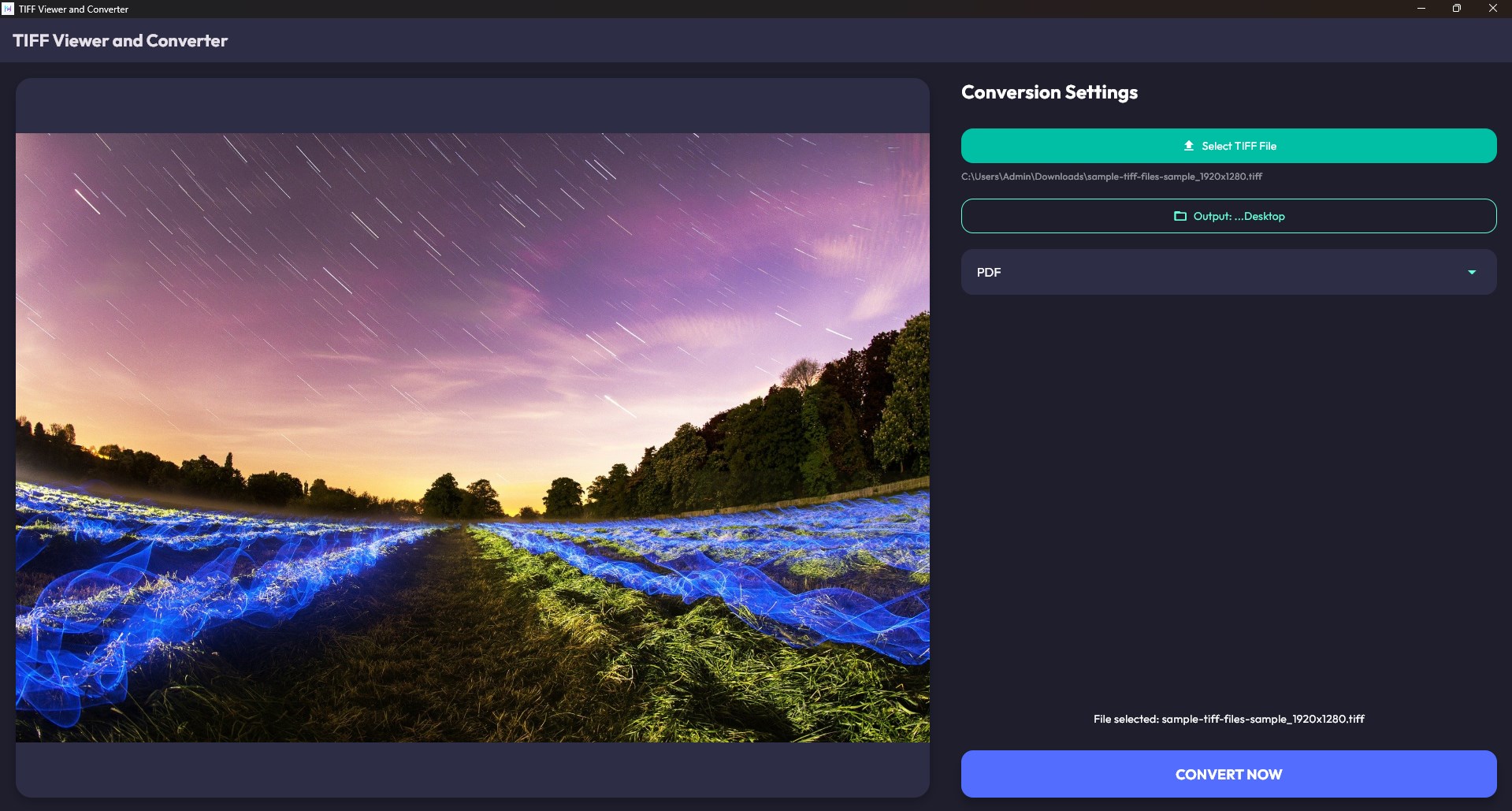
- Comprehensive TIFF Viewing: Effortlessly open and browse multiple TIFF files with crisp clarity, supporting various color depths and resolutions.
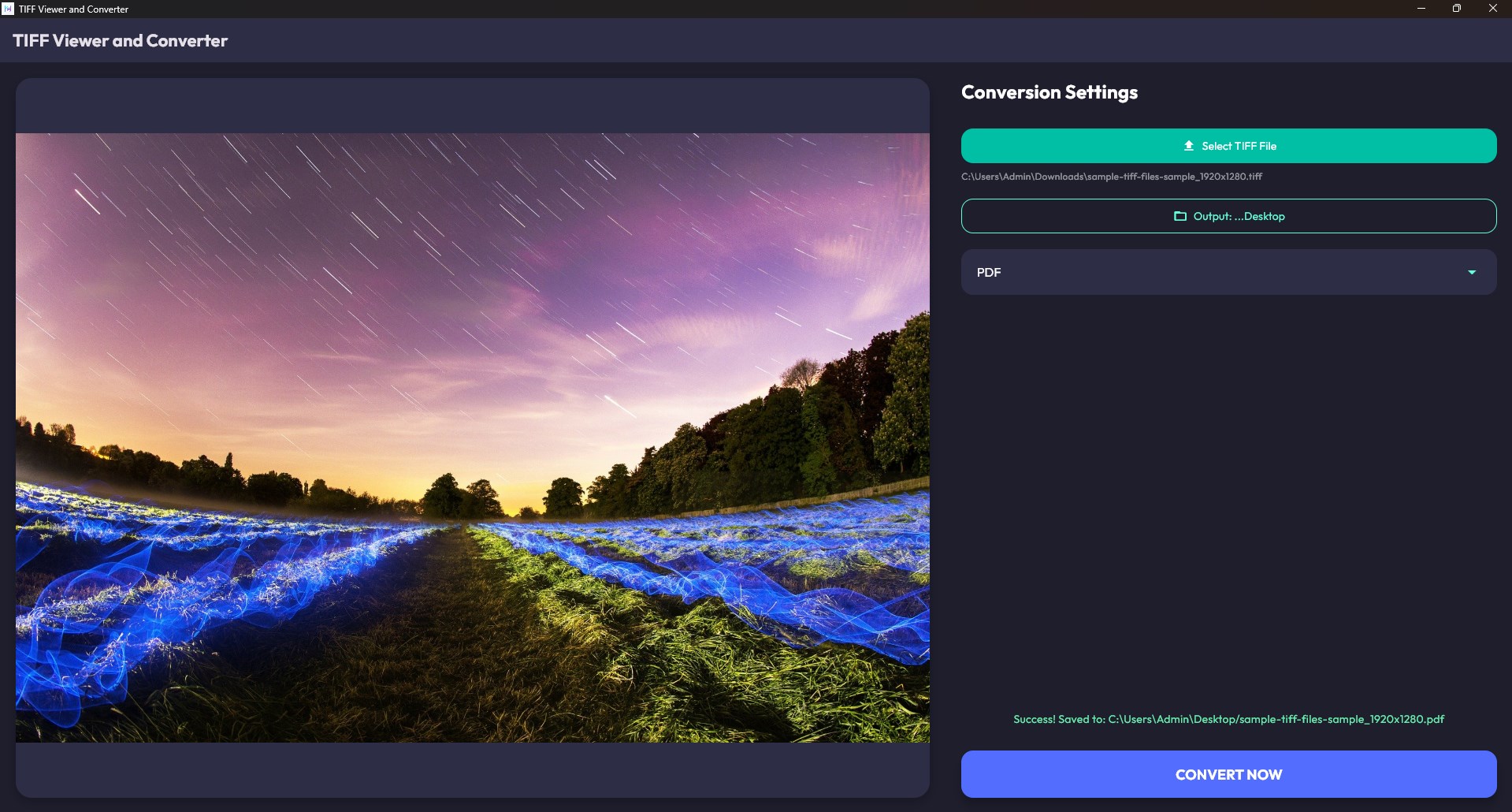
- Multiple Conversion Options: Convert TIFF files into popular formats such as JPEG, PNG, or BMP with just a few clicks—ideal for sharing or editing in other software.
- Batch Processing Capabilities: Transform large batches of images simultaneously, saving time for users handling extensive image libraries.
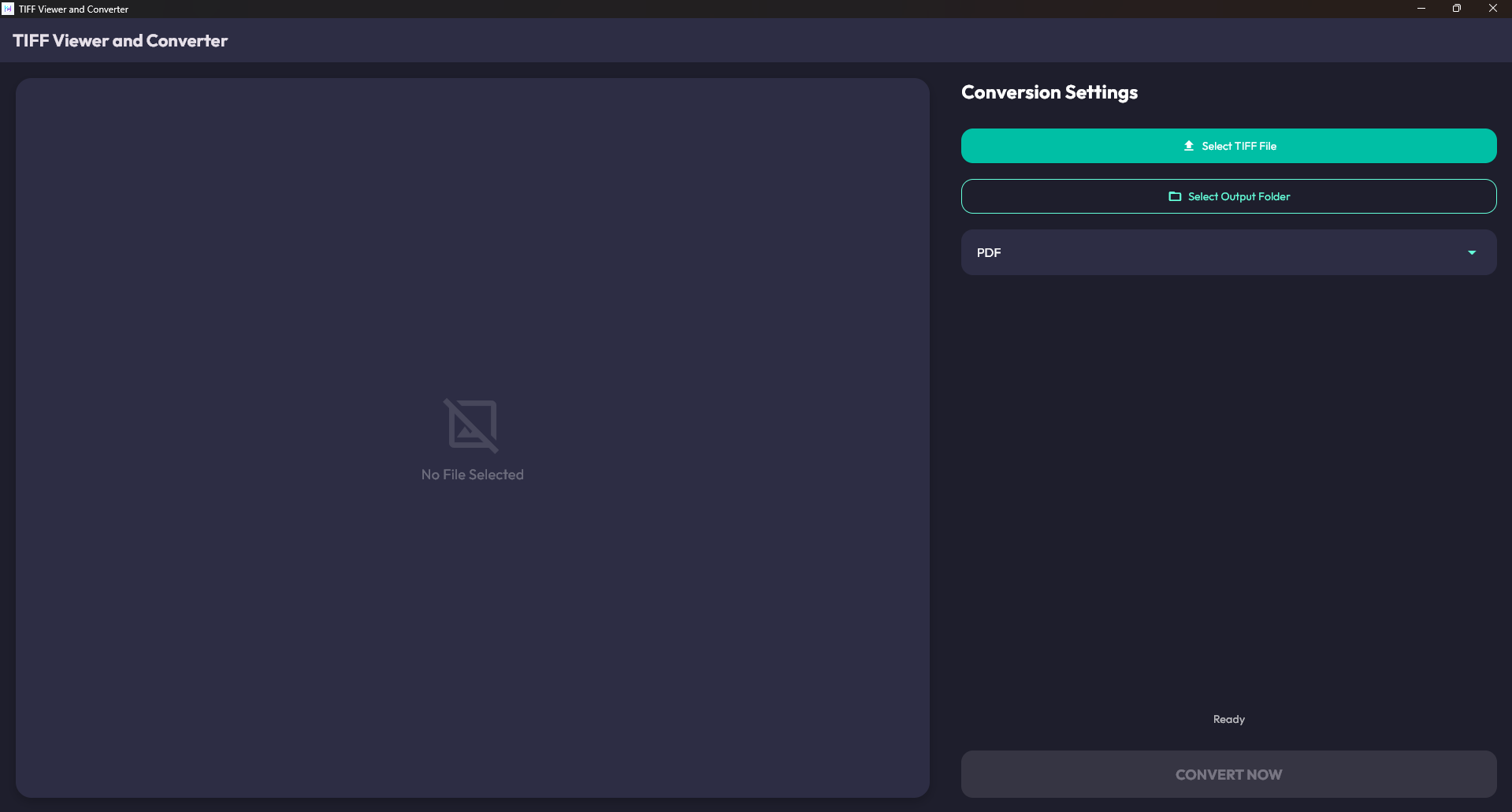
- Simple Interface for Quick Access: The clean layout ensures users spend less time searching and more time working on their projects.
Engaging the User: Ease of Use Meets Practicality
Imagine opening an app that feels like walking into a well-organized art gallery—everything is precisely where it should be, and navigation is as intuitive as flipping through a photo album. The TIFF Viewer and Converter excels in providing a smooth, frustration-free experience. Its interface is sleek yet straightforward, with clearly labeled icons and an uncluttered workspace that welcomes both tech-savvy users and novices. Operations are snappy; clicking to open a file or selecting conversion options feels instantaneous, making your workflow seamless.
Deep Dive into Core Functionalities
The real beauty of this tool lies in its core functions. The TIFF viewer supports high-resolution images, ensuring no detail is lost while browsing large files. This means whether you're inspecting intricate technical diagrams or high-quality scans, your images stay sharp and vibrant. On the conversion front, the app's batch processing feature shines brightest; picture converting a folder of hundreds of TIFF files into JPEG format for an online gallery, all in a matter of minutes. This ability drastically reduces repetitive manual work and boosts efficiency.
Unique Advantages: What Sets It Apart?
Compared to other utilities in the same category, TIFF Viewer and Converter offers a notable balance of simplicity and power. Its standout feature—batch conversion—carries a real weight in practical scenarios. While many apps offer single-image processing, few handle large batches with ease, and fewer still maintain quick processing speeds without overloading system resources. Furthermore, its support for nuanced TIFF qualities ensures that professional users, such as photographers or archivists, won't compromise on image fidelity.
Final Verdict: Is It Worth Your Time?
Overall, TIFF Viewer and Converter for Windows emerges as a well-rounded, reliable companion for anyone needing to handle TIFF images efficiently. Its user-friendly design combined with powerful batch processing capabilities makes it a versatile addition to your toolkit. I recommend it particularly for users who frequently work with large volumes of TIFF files and need an efficient, straightforward solution. While it may not boast overly flashy features, its core strengths—speed, simplicity, and batch handling—make it a solid choice. Think of it as a trusty Swiss Army knife: modest but remarkably effective for everyday image tasks.
Pros
- User-friendly interface
- Fast processing speed
- Supports multiple formats
- Batch conversion feature
- Built-in editing tools
Cons
- Limited advanced editing features
- Occasional crashes on large files
- In-app ads may interfere with user experience
- Limited customization options for output quality
- No cloud storage integration











