

- Name Tansee Message Transfer for iPhone
- Category Utilities & tools
- Developer Tansee LTD
- Available on PC
- OS Windows 10 version 0.0 or higher
- languages English
Simplifying iPhone Data Transfers on Windows: An Honest Look at Tansee Message Transfer for iPhone
Navigating the digital bridge between your iPhone and Windows PC can sometimes feel like decoding an obscure secret language. Thankfully, Tansee Message Transfer for iPhone offers a streamlined solution, making the process intuitive and hassle-free. But does it truly stand out in a crowded marketplace of utilities? Let's delve into this Windows-friendly app to find out.
What Is Tansee Message Transfer for iPhone?
In essence, Tansee Message Transfer for iPhone is a dedicated data migration tool designed to facilitate the transfer of messages and other data from an iPhone to a Windows computer. Developed by Tansee LTD, this application aims to fill the gap for users who want a straightforward, reliable way to back up or view their iPhone messages without relying on cloud services or complex software ecosystems.
The app shines with features like selective message export, comprehensive file management, and a user-friendly interface tailored for those who seek simplicity without sacrificing functionality. Its target audience spans from casual users wanting to preserve family conversations to professionals needing to archive important business messages securely.
An Engaging Ride Through Core Features
Seamless Message Retrieval and Export
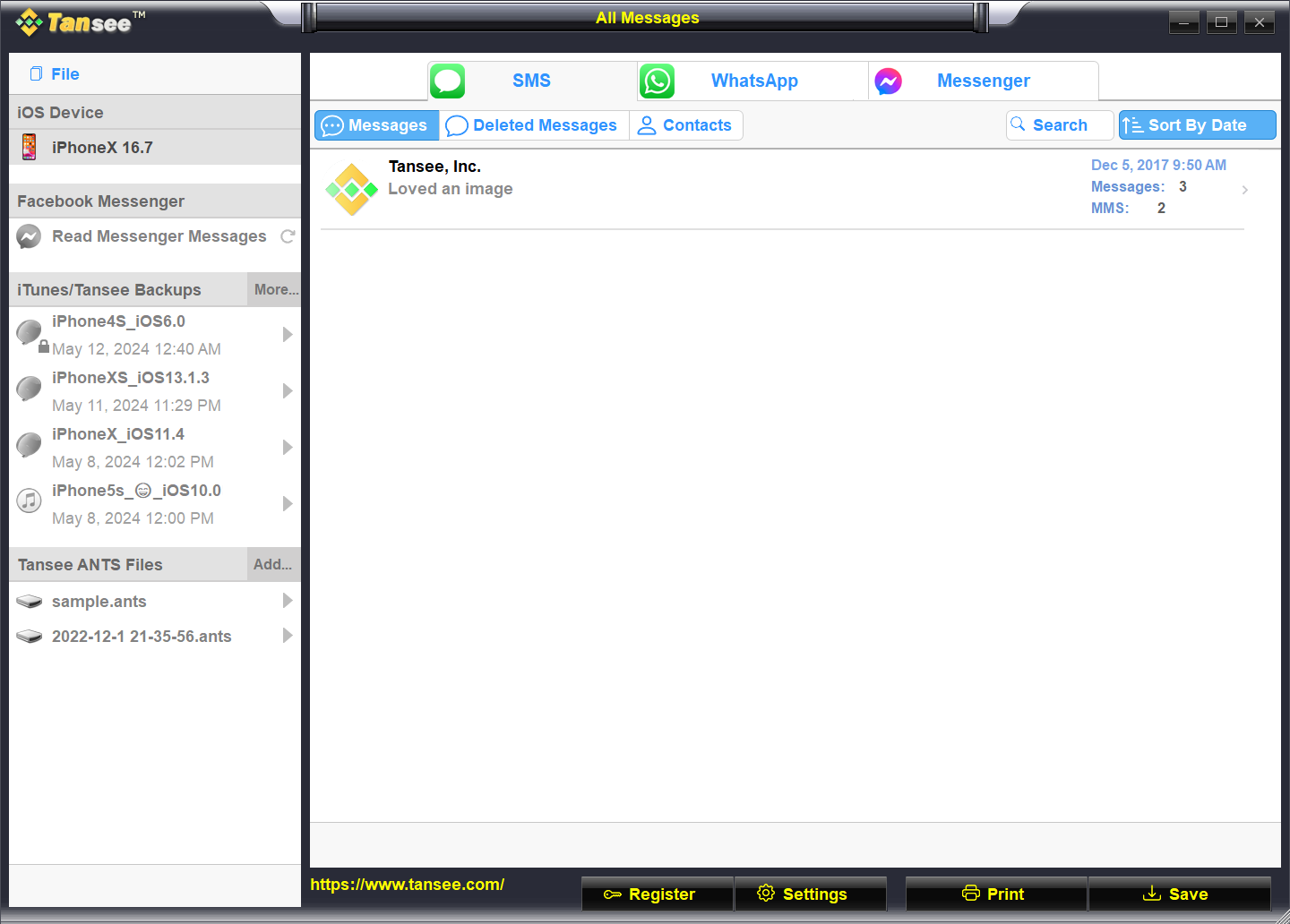
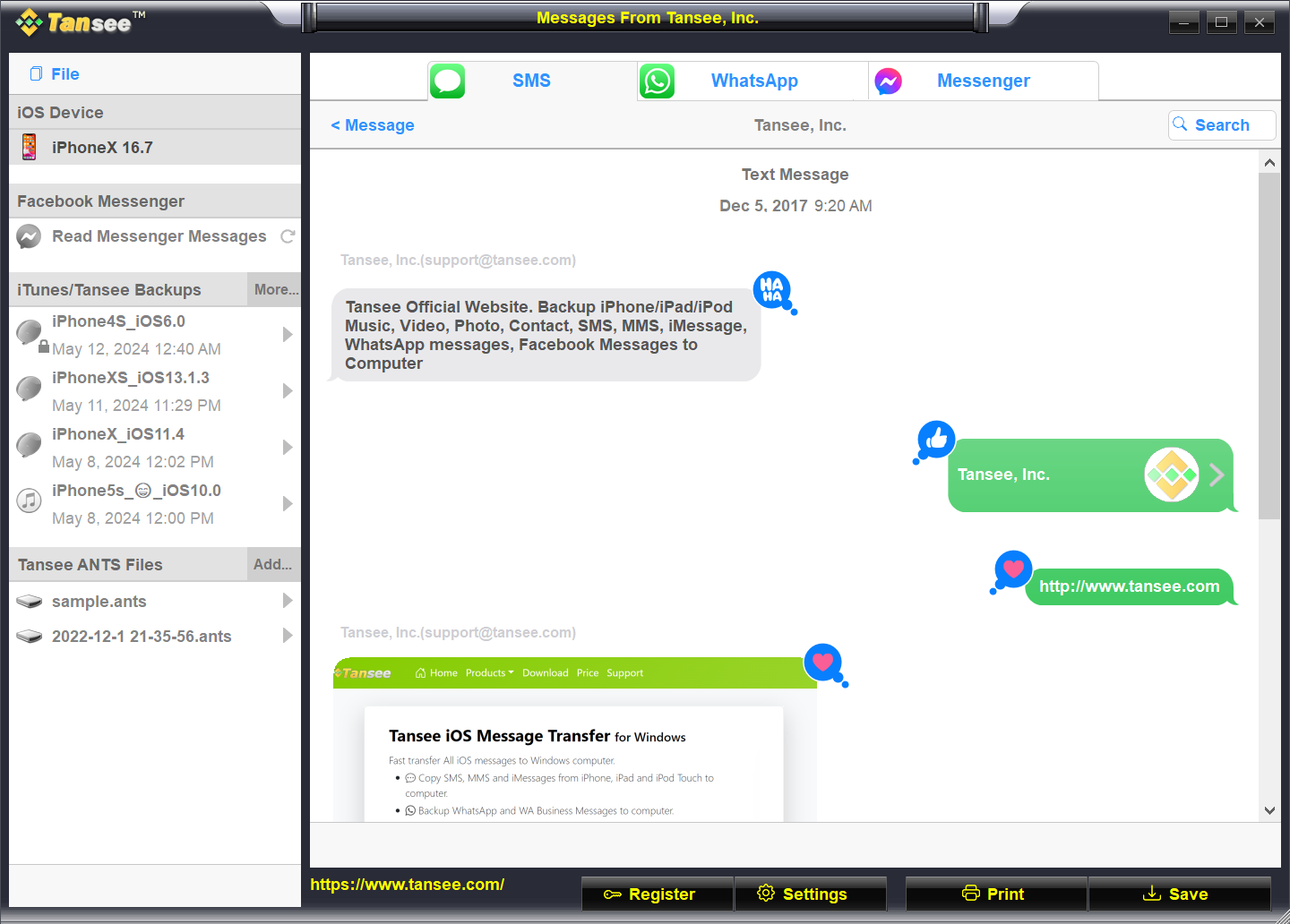
Imagine being able to pluck your cherished iPhone conversations from the digital tree with the ease of harvesting ripe fruit—that's what Tansee offers. The app enables users to scan their device and fetch SMS, iMessages, WhatsApp, and other message types effortlessly. The exported messages are typically saved in accessible formats like HTML or TXT, making them easy to share or archive. This feature is particularly valuable for legal or personal reasons when preserving message history matters.
Pure Simplicity in User Interface
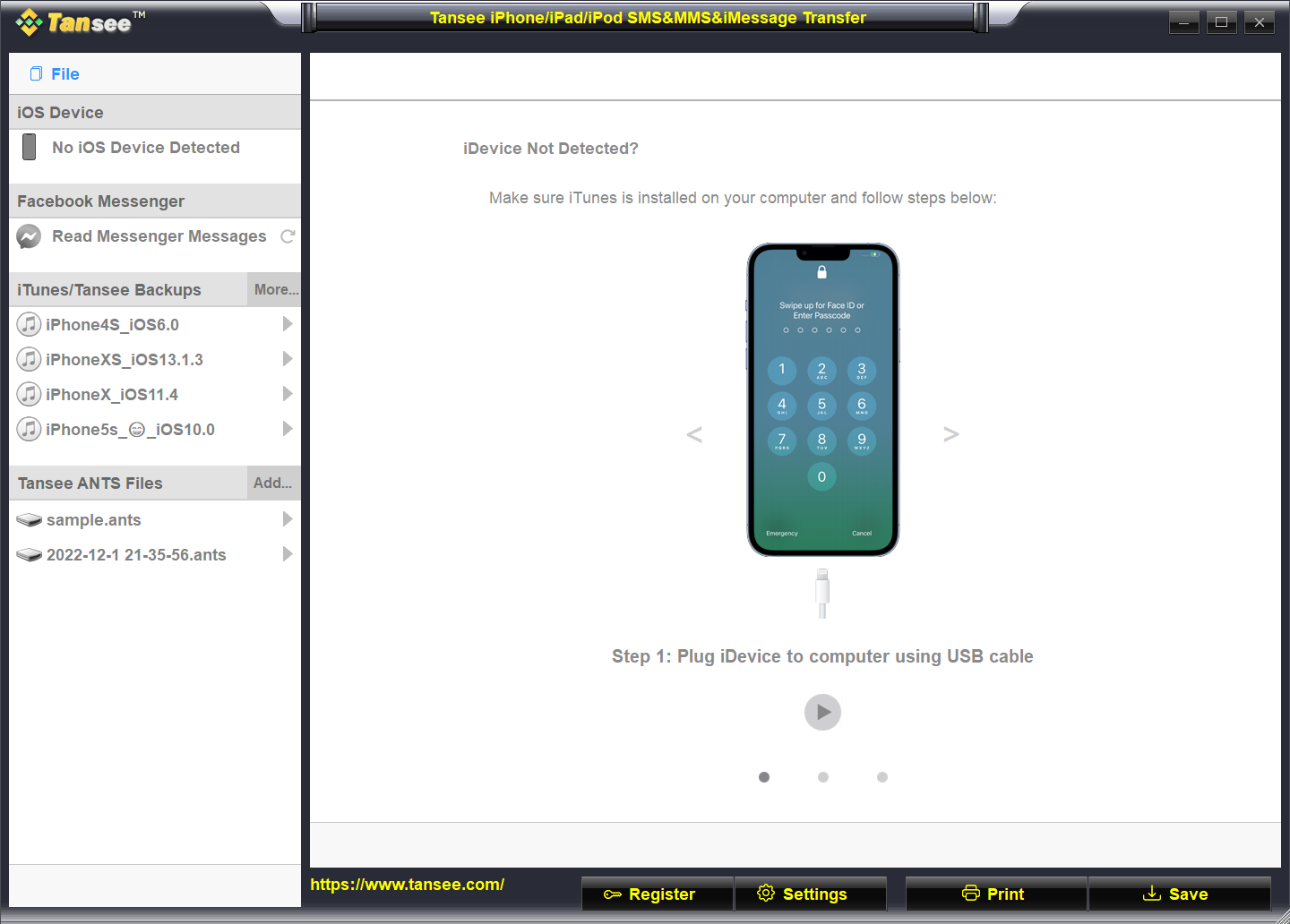
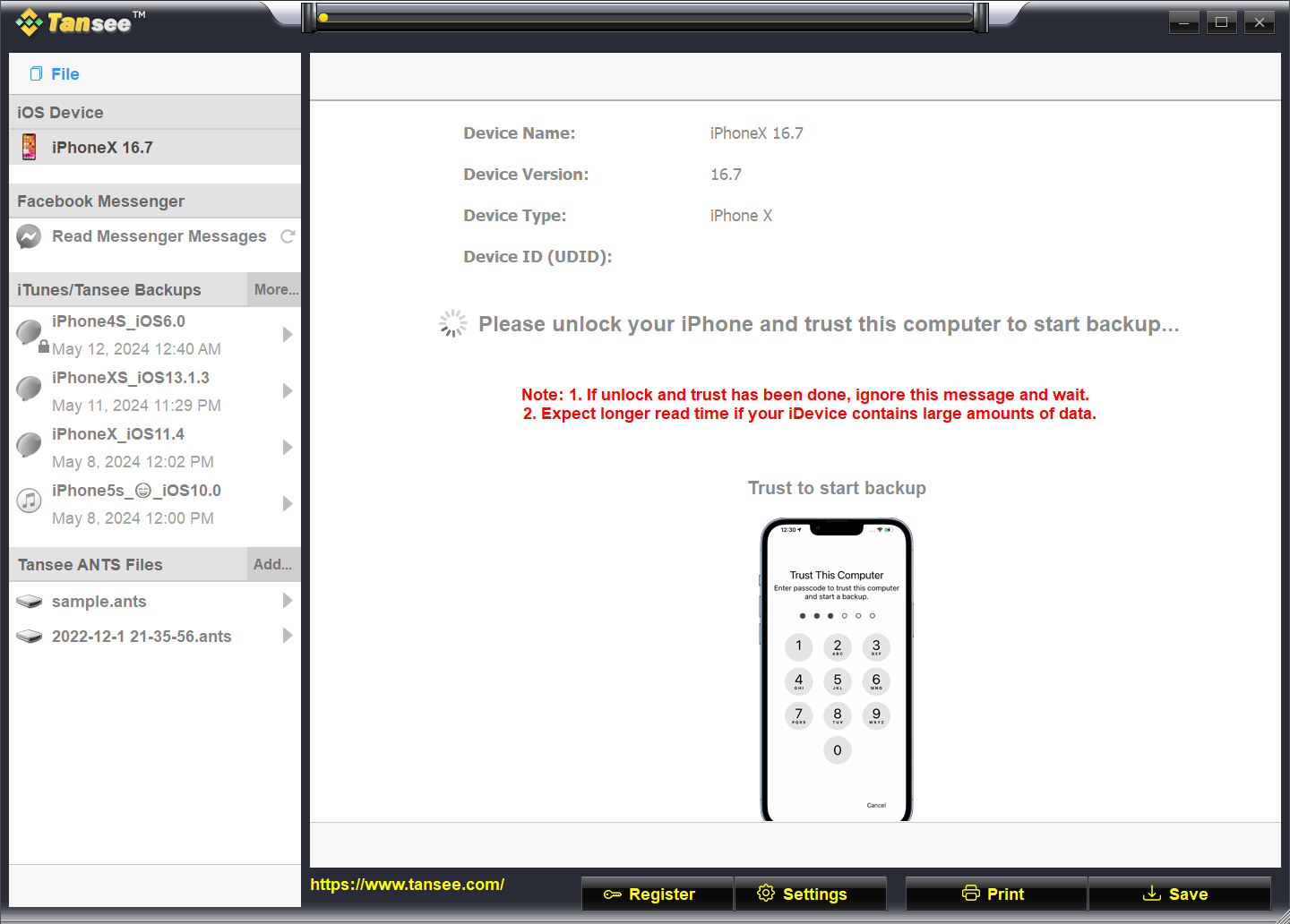
One of Tansee's standout qualities is its clean, straightforward interface—think of it as the dashboard of a well-designed car: intuitive, uncluttered, and responsive. Even users with minimal technical background can navigate through the tool's options without a steep learning curve. The process guides you step-by-step, from connecting the device to selecting the messages you wish to export, fostering confidence at every stage.
Reliable Performance and Compatibility
The application's performance is akin to a well-oiled machine—fast, stable, and consistently reliable. It supports various iPhone models and iOS versions, ensuring broad compatibility. The transfer process is smooth, with minimal lag or glitches, even when handling large conversation histories. Users appreciate how it conserves system resources, allowing multitasking without sluggishness.
Experience Matters: Design, Ease, and Unique Advantages
From an aesthetic perspective, Tansee Message Transfer maintains a professional yet approachable appearance, avoiding overly flashy elements. It feels like flipping through a well-organized photo album—each step obvious and well-structured. Innovatively, the application sets itself apart by supporting selective message export, meaning users can choose specific conversations or contacts rather than exporting entire message histories—a feature that adds precision and control to the process.
Additionally, compared to other utilities that might bundle multiple features or require complex configurations, Tansee's dedicated focus ensures a lean, efficient experience. Its emphasis on direct message transfer, coupled with straightforward operation, makes it a handy tool in the arsenal of Windows users needing iPhone data access.
Final Thoughts: Is It Worth Trying?
Overall, Tansee Message Transfer for iPhone proves to be a competent, user-centric utility that excels in making message transfer simple and reliable. Its core strengths—such as selective exporting and a clean interface—are especially appealing for those who want clarity and efficiency without fuss.
We recommend it to users seeking a dedicated, no-nonsense solution for backing up or exporting iPhone messages on Windows. Like a trusted map guiding you through unfamiliar territory, this app will serve as a dependable companion for your data transfer needs. If you're tired of convoluted software or unreliable cloud backups, give Tansee a try—your messages deserve a straightforward journey to your computer.
Pros
- User-Friendly Interface
- Reliable Transfer of Messages
- Supports Multiple Data Types
- Fast Transfer Speed
- Broad Compatibility
Cons
- Occasional Transfer Failures
- Limited Free Trial Functionality
- Slow Customer Support Response
- Compatibility with New iOS Versions
- Lack of Advanced Filtering Options











