

- Name SystemTrayMenu
- Category Utilities & tools
- Developer Markus Hofknecht
- Available on PC
- OS Windows 10 version 17763.0 or higher
- languages English (United States)
Streamlining Your Windows Tray: An Introduction to SystemTrayMenu
In the bustling world of Windows utilities, finding a tool that simplifies system tray management without sacrificing performance can be a game-changer. SystemTrayMenu, developed by Markus Hofknecht, positions itself as a clean, customizable, and efficient solution to elevate your desktop experience. For anyone seeking a smarter way to handle quick access menus, this application promises to be a versatile companion.
Core Features That Stand Out
1. Seamless Customization & Quick Access
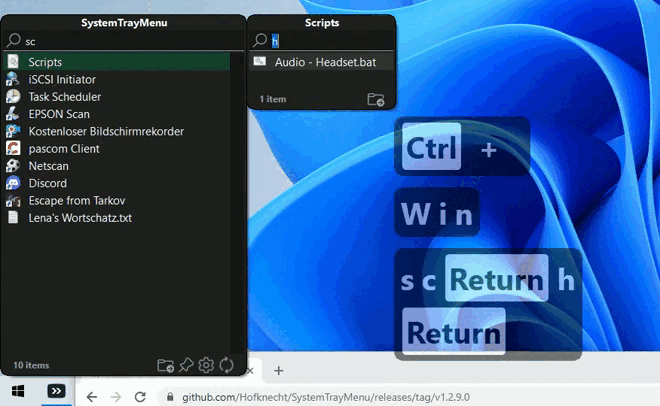
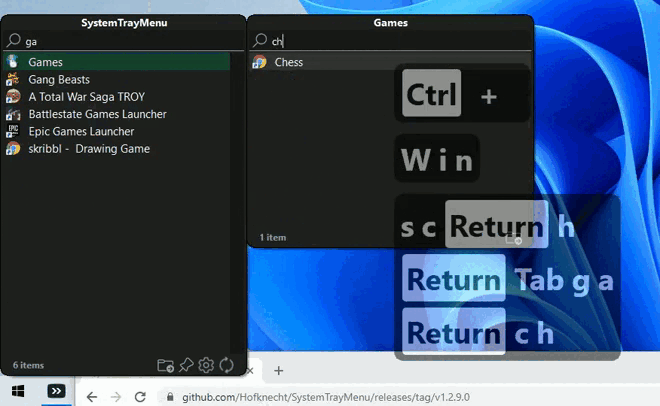
One of SystemTrayMenu's most compelling features is its focus on personalization. Users can create and organize their own context menus with a simple drag-and-drop interface. Whether you want quick links to favorite apps, system functions, or scripts, it allows for swift customization. This means your most-used tools are just a click away, bypassing the clutter of multiple desktop icons or navigating through various menus.
2. Smooth and Intuitive User Interface
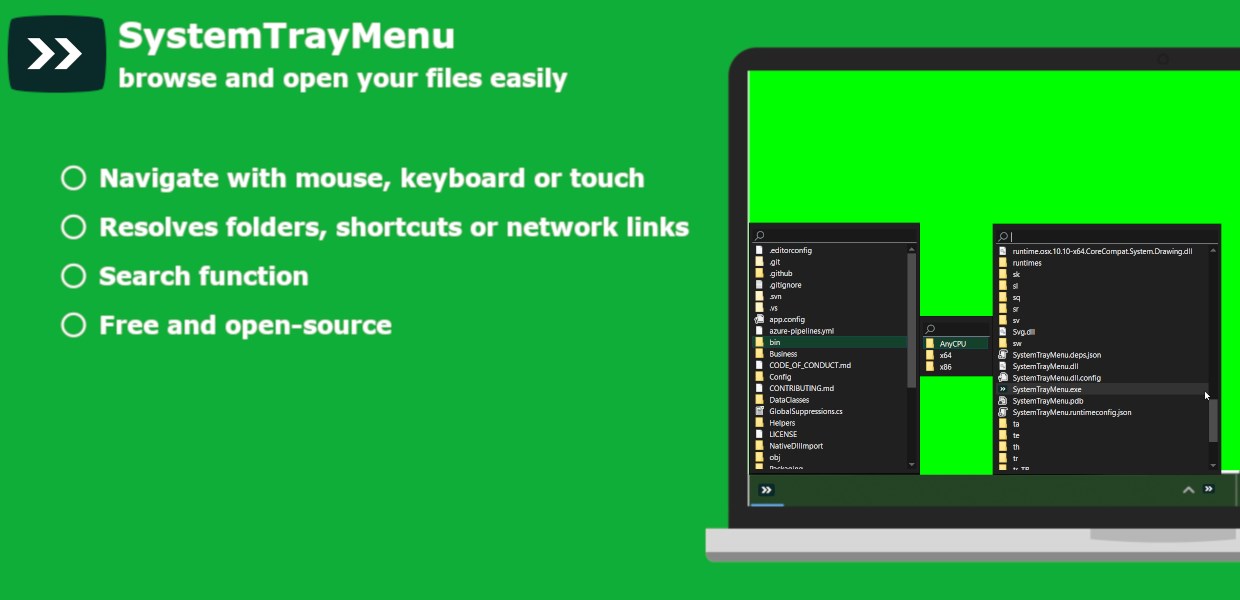
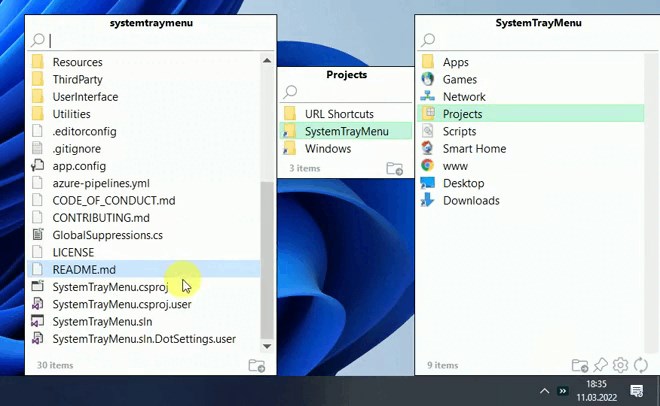
Imagine entering a tech-savvy workspace where every tool is precisely where you need it—no fuss, no clutter. SystemTrayMenu offers an elegant, unobtrusive interface that makes navigation intuitive. The design employs a minimalistic approach, ensuring it doesn't overwhelm your desktop while remaining accessible. Operating the app is as fluid as flipping through a well-organized file cabinet—responsive, quick, and straightforward for both novices and seasoned power users.
3. Enhanced System Integration & Automation
What makes SystemTrayMenu particularly appealing is its ability to integrate with system functions and automate common tasks. You can set up actions like opening specific folders, executing scripts, or controlling system volume—all from your customized menu. This level of integration essentially transforms your tray into a control center, saving you time and reducing your reliance on multiple third-party apps.
Design, Usability, and Overall Experience
From a visual perspective, the app strikes a balanced chord—clean, crisp icons and straightforward controls make it inviting to use. The learning curve is gentle; even first-time users can set up their menus within minutes, thanks to clear instructions and an intuitive layout. The responsiveness of menu expansion and actions feels snappy, which ensures a satisfying user experience akin to a well-oiled machine. For those concerned about resource consumption, SystemTrayMenu remains lightweight—no noticeable lag or system slowdown has been observed during extended tests.
What Sets It Apart from Similar Utilities?
While many system tray tools focus solely on customization, SystemTrayMenu shines with its robust scripting support and automation capabilities. Unlike basic menu editors, it enables users to assign complex tasks, combining multiple actions into single menu items. Its unobtrusive yet powerful design means it doesn't interfere with everyday workflows, making it suitable for both casual users and professionals needing advanced shortcuts. Moreover, its minimalistic interface ensures it doesn't turn your desktop into a chaotic control panel, maintaining a clutter-free workspace.
Final Verdict & Recommendations
Overall, SystemTrayMenu by Markus Hofknecht is a well-crafted utility offering notable advantages for users looking to optimize their Windows trays. Its combination of deep customization, seamless operation, and automation makes it a standout among similar tools. I recommend it for those who appreciate efficiency, enjoy tailoring their desktop environment, and desire a tool that is both powerful and unobtrusive. Whether you're a casual user wanting quick access or a power user seeking advanced system controls, SystemTrayMenu is a reliable choice worth exploring.
Pros
- User-Friendly Interface
- Lightweight and Fast
- Customizable Options
- Seamless Integration
- Regular Updates
Cons
- Limited Compatibility
- Minimal Customization Options
- Occasional Minor Glitches
- Lack of Detailed Documentation
- No Advanced Automation Features











