

- Name Sysinternals Suite
- Category Utilities & tools
- Available on PC
- OS Windows 10 version 18362.0 or higher
- Keyboard Not specified
- Mouse Not specified
- languages English (United States)
Introducing Sysinternals Suite for Windows: Powerhouse Tools for Windows Administrators
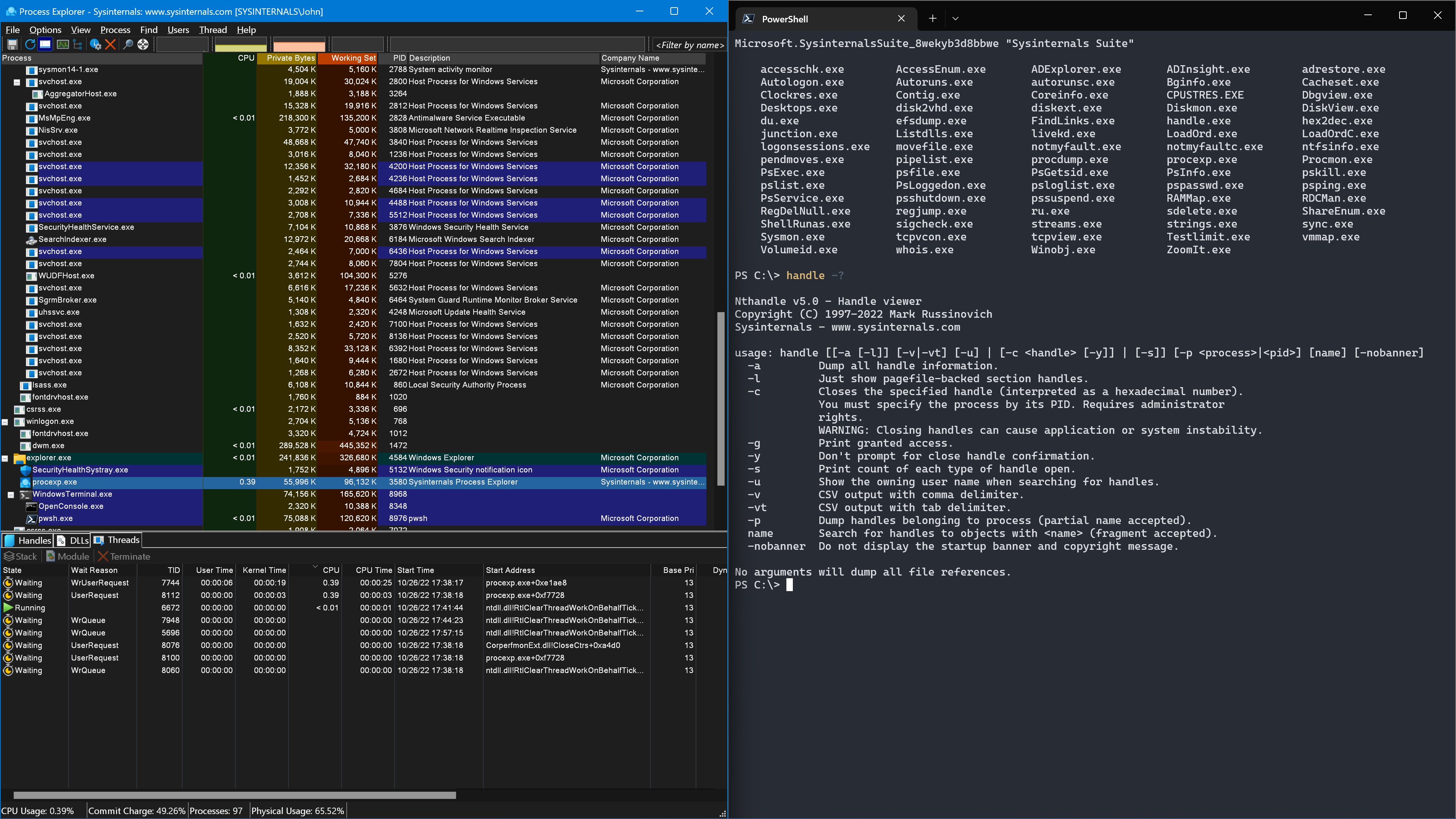
Sysinternals Suite for Windows is a comprehensive collection of advanced troubleshooting and diagnostic utilities designed to empower IT professionals, system administrators, and power users to understand and manage their Windows systems more effectively. By aggregating some of the most potent tools for system analysis, process management, and security auditing, it acts as a developer's swiss army knife for Windows troubleshooting.
About the Developer: Microsoft Corporation
Developed and maintained by Microsoft, the Sysinternals Suite has become a trusted companion for Windows experts worldwide, offering a curated set of utilities often used in professional environments for deep system inspection and maintenance.
Key Features That Make It Stand Out
- Comprehensive Diagnostic Tools: From process explorers to disk utilities, it offers a wide array of tools for in-depth system analysis.
- Portable and Lightweight: Most tools can run independently without installing, making them quick to deploy on multiple machines.
- Regular Updates & Community Support: Maintained by Microsoft with active community engagement, ensuring reliability and up-to-date features.
- All-In-One Convenience: Bundle of multiple utilities integrated into a single suite, simplifying workflow management.
Engaging with the Suite: A Friendly Dive into Its Power
Imagine being a detective in a busy city — every building and street a part of your investigation. Sysinternals Suite hands you the magnifying glass and the toolkit necessary to scrutinize Windows like never before. Whether you're troubleshooting stubborn system errors or hunting down malware footprints, these tools act as your trusted detectives, providing deep insights with just a few clicks.
Deep System Insights with Process Explorer and Process Monitor
The two crown jewels of this suite are Process Explorer and Process Monitor. Think of Process Explorer as a detailed family tree for your processes, revealing not just their names but their parentage, associated DLLs, and resource consumption. Meanwhile, Process Monitor functions like a high-definition CCTV camera recording all disk and registry activity in real-time, revealing exactly what your system is doing underneath the hood. These tools make troubleshooting a matter of easy detective work instead of guesswork.
Security and Network Analysis Made Simple
Security threats often lurk invisibly within a system. Tools like Autoruns help users scrutinize every startup item, so you can disable malicious autoloaders before they cause damage. Network monitoring utilities within the suite let you observe active connections and data transfers, guiding you to suspicious activity. What makes this collection especially useful is its focus on transparency — helping users understand exactly what's happening behind the scenes rather than relying on opaque alerts.
User Experience: Clear, Efficient, and User-Friendly
The suite's interface remains straightforward, resembling a clean, no-nonsense toolbox rather than a cluttered dashboard. The tools are organized logically, and the learning curve is gentle enough for users who have a basic familiarity with Windows but powerful enough for technical professionals. Although many utilities are command-line based, they come with helpful descriptions, and some, like Process Explorer, offer intuitive graphical interfaces. Overall, the experience is smooth, with minimal lag or crashes, making it a dependable companion in urgent troubleshooting situations.
What Sets Sysinternals Apart from Similar Utilities?
Unlike many third-party diagnostics tools that range from hit-or-miss to overly simplistic, the Sysinternals Suite excels through its depth and accuracy. Its close integration with Windows, regularly tested and updated by Microsoft, means you get enterprise-grade reliability. Another standout is the level of detail these tools provide; for example, Process Explorer's ability to show real-time DLL loads offers insights that most general task managers simply cannot match. Furthermore, my most favorite aspect is its focus on transparency — the tools don't hide away data but present it in clear, accessible ways, making advanced troubleshooting approachable for dedicated users.
Final Recommendations & Usage Tips
I highly recommend Sysinternals Suite for IT professionals, system administrators, and serious Windows enthusiasts. It's particularly indispensable for troubleshooting complex issues that standard tools can't resolve. For new users, dedicating some time to explore individual utilities like Process Monitor or Autoruns can dramatically streamline future diagnostics. Given its lightweight nature and the fact that most tools are portable, you can keep the suite on a USB drive or desktop for instant access whenever needed. Overall, consider it a must-have toolkit that turns a Windows machine into a transparent, analyzable system — essential for those who want to go beyond the surface and truly understand their systems.
Pros
- Comprehensive suite of tools
- Lightweight and portable
- Real-time system monitoring
- Deep system insights
- Free to use and regularly updated
Cons
- Steep learning curve
- User interface is utilitarian
- Limited integration between tools
- No official support for macOS or Linux
- Potential for misuse











