

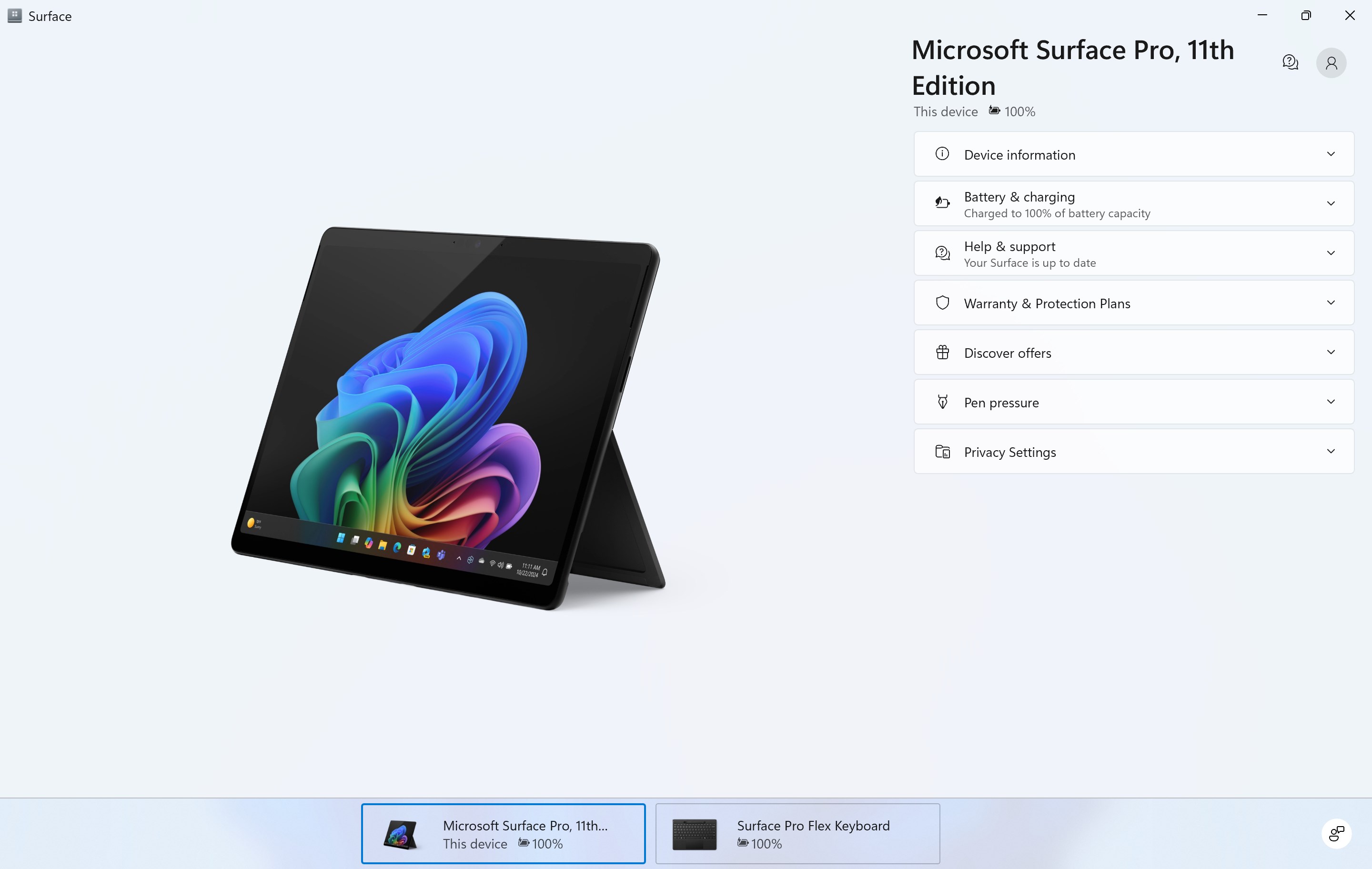
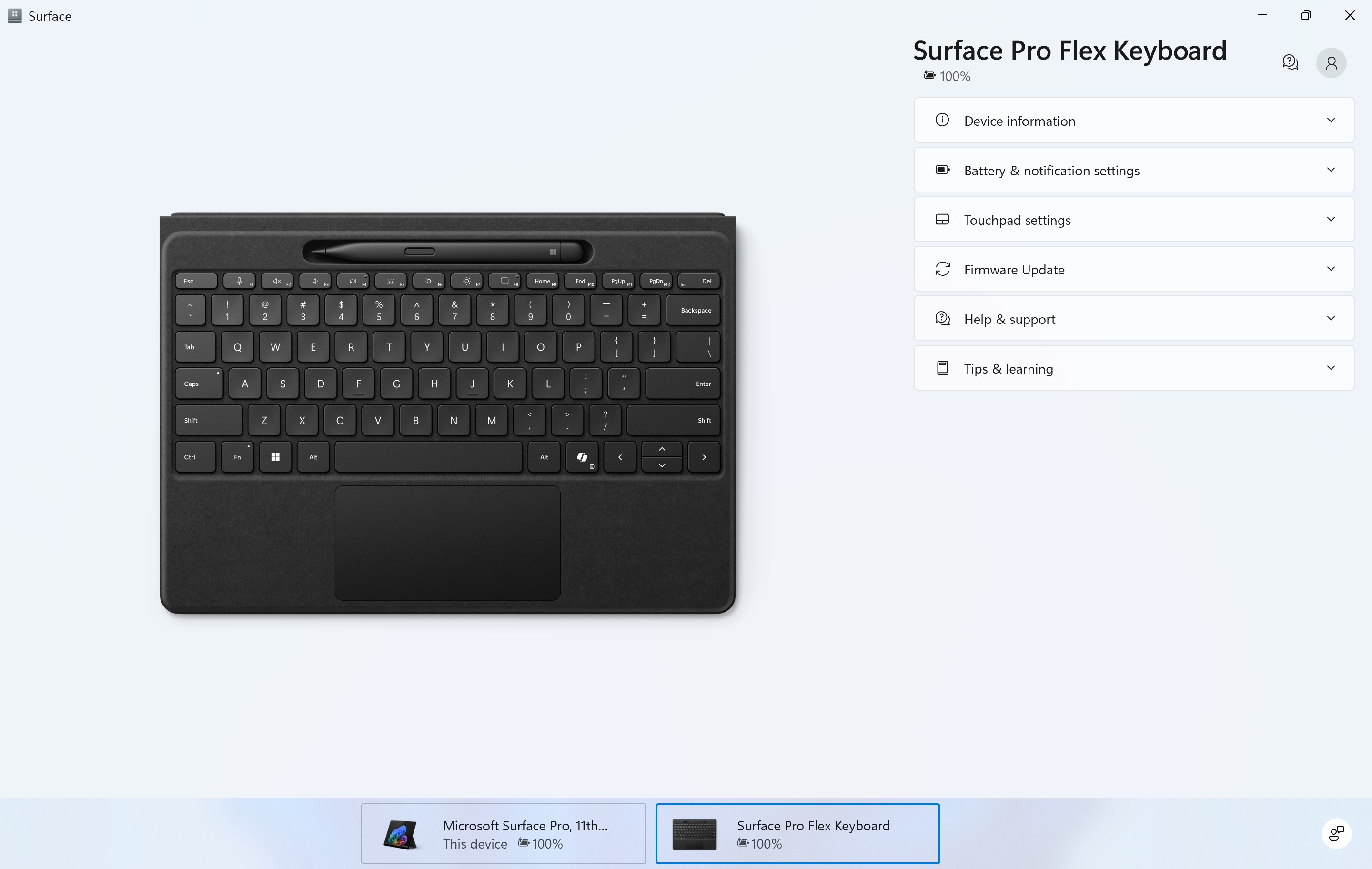
- Name Surface
- Category Utilities & tools
- Available on PC, Surface Hub
- OS Windows 11 version 22621.0 or higher
- languages Bulgarian, Chinese (Simplified), Chinese (Traditional), Chinese (Traditional, Hong Kong SAR), Croatian, Czech, Danish, Dutch, English, English (Australia), English (Singapore), English (United Kingdom), English (United States), Estonian, Finnish, French, French (Canada), German, Greek, Hungarian, Italian, Japanese, Korean , Latvian, Lithuanian, Malay, Norwegian (Bokmål), Polish , Portuguese (Brazil), Portuguese (Portugal), Romanian, Slovak, Slovenian (Slovenia), Spanish (Mexico), Spanish (Spain), Swedish, Thai, Turkish
Introducing Surface for Windows: A Versatile Utility for Seamless Productivity
Surface for Windows is a thoughtfully designed app aimed at enhancing your Windows device experience by integrating essential tools and features into an intuitive interface. Developed by Microsoft Corporation, this app streamlines common tasks, boosts your productivity, and offers a touch of personal customization—all accessible in one place. Whether you're a busy professional, a student, or a tech enthusiast, Surface for Windows is crafted to serve a broad audience seeking efficiency and convenience.
Core Features That Make a Difference
Unified Home Dashboard for Effortless Management
Imagine having your digital command center at your fingertips—Surface for Windows provides a clean, organized dashboard that consolidates notifications, quick settings, and access to frequently used apps. This central hub simplifies managing your device, reducing the need to switch between multiple windows, and ensures key information is always within reach.
Intelligent Task Automation and Customization
The app excels in allowing users to set up customizable routines and shortcuts. Whether it's automating routine actions, setting quick responses, or integrating with other Microsoft services, the automation features are both powerful and user-friendly. This level of personalization means your device adapts to your workflow rather than forcing you to change habits.
Enhanced Security and Privacy Controls
Security is a top priority, and Surface for Windows provides easy access to privacy settings, quick security scans, and app permissions management. These features give users peace of mind, knowing they can quickly review and manage their data and app security without sifting through complex menus.
A Closer Look at User Experience
The interface design strikes a balance between minimalist aesthetics and functional clarity. The layout is akin to a well-organized workspace, where every tool is visible but unobtrusive. Navigating the app feels natural, akin to flipping through a well-structured magazine—intuitive and satisfying. The responsiveness of this app is commendable; actions are executed smoothly, ensuring minimal lag and frustration.
Learning curve? Very gentle. Even users unfamiliar with such utility apps will find onboarding straightforward. Clear icons, concise instructions, and contextual tips assist new users in quickly mastering the app's features. This accessibility makes it suitable not just for tech-savvy individuals but also for everyday users looking to add efficiency to their routines.
Unique Selling Points: What Sets It Apart?
Most utility apps in this category tend to focus on either automation or security — rarely both with such integration. Surface for Windows stands out through its tightly woven ecosystem, leveraging Microsoft's cloud services to synchronize settings and preferences across devices seamlessly. Additionally, its customizable home dashboard feels akin to having a personal assistant who anticipates your needs, grouping tools and shortcuts based on your habits.
Another notable aspect is its proactive security features, which not only protect your data but also offer preventive insights—that's like having a security guard who not only reacts to threats but also advises on how to stay safe proactively. These elements firmly position Surface for Windows as a well-rounded productivity enhancer, rather than just another utility app.
Should You Give It a Try?
If you're someone who values an integrated, streamlined experience and enjoys customizing your digital environment, this app is worth exploring. It's particularly beneficial for users who want quick access to common tasks without cluttering their workspace or navigating complex menus. For those who rely heavily on the Microsoft ecosystem and seek seamless synchronization, Surface for Windows can serve as a reliable companion.
However, if your workflow is highly specialized or you prefer a more minimalist or third-party-centric approach, you might find some features limited or redundant. Overall, I'd recommend giving it a try—especially since it's free and designed with user-centric flexibility in mind. Think of it as a smart work buddy that adapts to your patterns rather than forces you to adapt to it.
Pros
- Seamless integration with Windows 10 and 11
- Intuitive interface with easy navigation
- Regular updates improve app stability and security
- Wide selection of Surface and accessory products
- Personalized recommendations based on user preferences
Cons
- App loading times can be slightly slow on older devices
- Occasional app crashes during updates
- Limited offline browsing capabilities
- Inconsistent notification alerts
- Language support is not comprehensive for all regions











