

- Name Super Sound Amplifier
- Category Utilities & tools
- Developer Ape Apps
- Available on PC
- OS Windows 10 version 19041.0 or higher
- languages English (United States)
Introducing Super Sound Amplifier for Windows: Your Personal Hearing Enhancer
Super Sound Amplifier for Windows, developed by Ape Apps, is a utility designed to elevate your listening experience by amplifying sound from your system. Whether you're trying to catch every word in a lecture, enjoy your favorite music, or hear distant conversations more clearly, this app aims to serve as your digital hearing aid. Its straightforward approach and focus on enhancing audio clarity make it an intriguing tool in the realm of utility applications.
Core Features That Make a Difference
Powerful Sound Amplification with Customization
At its core, Super Sound Amplifier offers robust sound amplification capabilities. Unlike generic volume boosters, it provides fine-tuned control over audio frequencies, allowing users to adjust amplification levels for different sounds. Think of it as turning your ordinary sound system into a premium surround setup—details become sharper, and distant sounds come forward with clarity. Whether you're in a noisy environment or trying to distinguish speech, the app's enhancement engine adapts to your needs seamlessly.
User-Friendly Interface and Smooth Operation
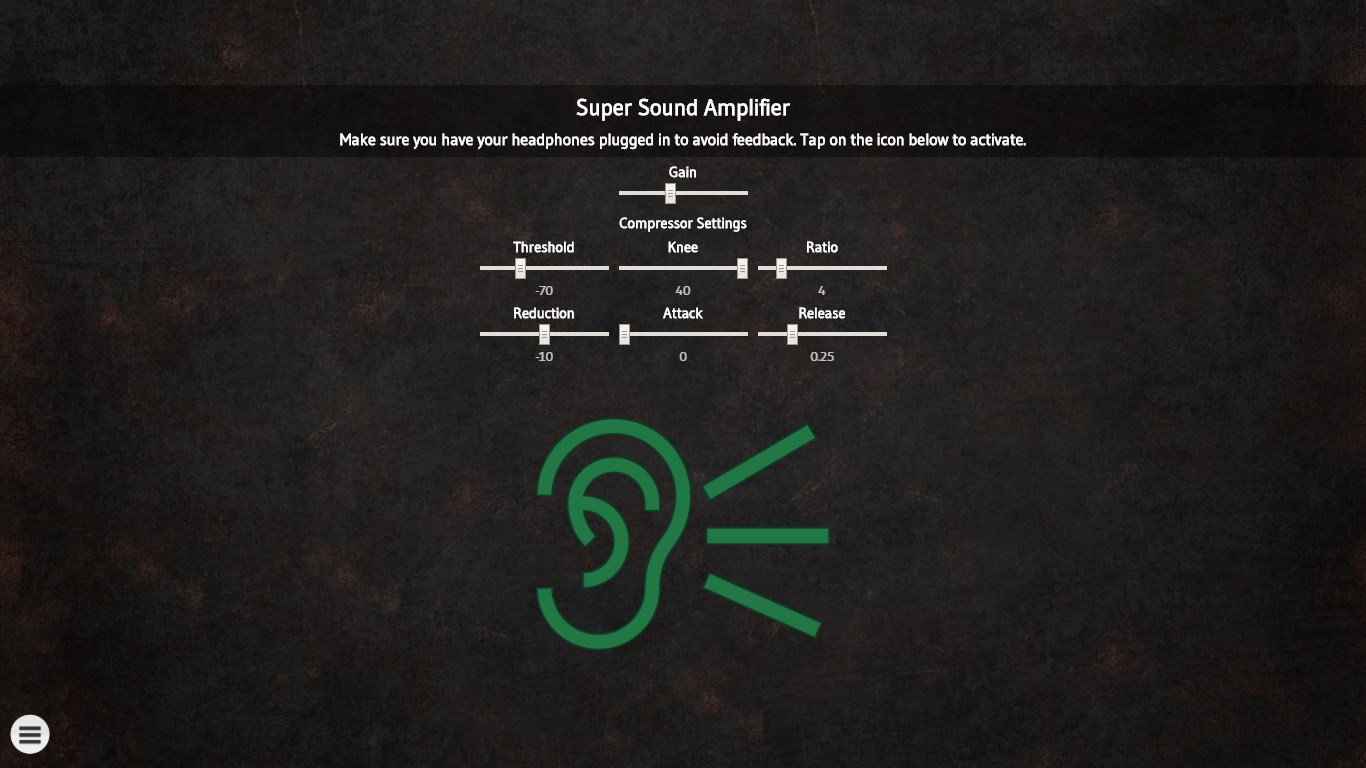
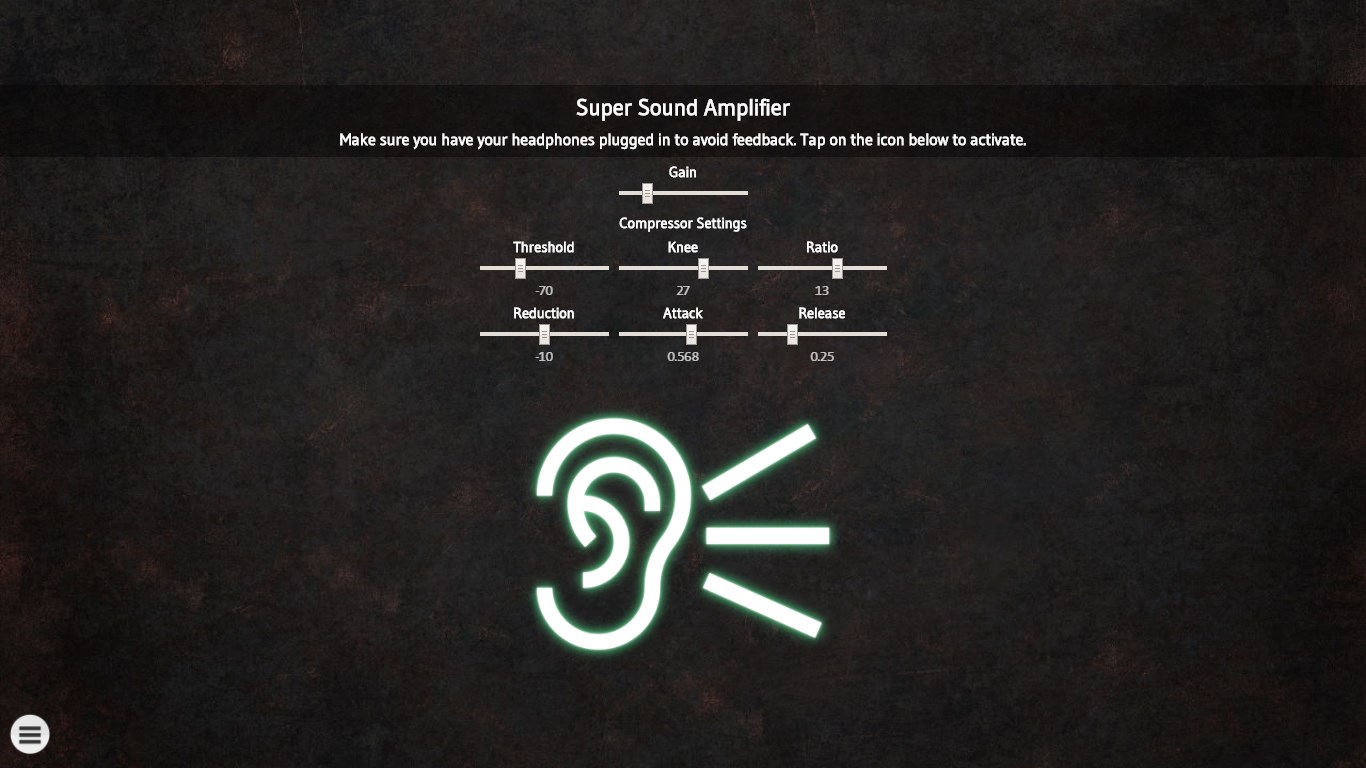
One of the standout features of this application is its clean, intuitive interface. Designed with simplicity in mind, it resembles a sleek audio dashboard, making it easy for both tech-savvy users and beginners to navigate. The app runs smoothly without lag, even on modest systems, thanks to optimized performance. Basic controls are accessible with just a few clicks, and real-time audio adjustments provide immediate feedback, ensuring an effortless user experience.
Specialized Mode for Different Listening Scenarios
What truly sets Super Sound Amplifier apart is its scene-specific modes. For instance, in a "Conversation Mode," the app emphasizes speech frequencies, making face-to-face talks more intelligible in noisy settings. Alternatively, a “Music Mode” enhances certain musical elements for richer listening. These preset modes serve as quick solutions that save time and improve audio clarity without complicated settings adjustments, highlighting the app's focus on versatility and user convenience.
Design, Performance, and Learning Curve
The interface design of Super Sound Amplifier is clean, modern, and remarkably accessible. It feels like adjusting a high-end stereo system—sleek sliders and toggles let you customize sound profiles intuitively. The app's operation is notably smooth, with negligible lag during real-time processing. For newcomers, the learning curve is gentle; basic adjustments feel natural, and advanced features are optional, making it friendly for users of all experience levels.
Unique Selling Points and Competitive Edge
Compared to other system amplifiers or general utility apps, Super Sound Amplifier's ability to provide scene-specific audio profiles and detailed frequency adjustments distinguishes it. Many similar tools offer volume boosting, but few deliver tailored modes that cater to different environments—be it speeches, music, or general listening. This focus on contextual optimization makes it particularly appealing to users who want more than just louder sound; they seek clarity and tailored enhancement, much like tuning a musical instrument for perfect pitch.
Final Recommendations: Worth a Try for Everyday Clarity
Overall, I consider Super Sound Amplifier a practical addition for anyone seeking to improve their audio experience on Windows. It's not a miracle cure nor a substitute for dedicated hearing devices, but it excels at providing clearer sound in everyday scenarios—whether during virtual meetings, media consumption, or social interactions. I recommend giving it a shot if you're often straining to hear or want a customizable way to amplify your system's audio. Just keep in mind that optimal results depend on your hardware and environment, but for its simplicity and focus, it's a commendable utility worth exploring.
Pros
- Clearer Audio Enhancement
- User-Friendly Interface
- Real-Time Sound Processing
- Customizable Audio Settings
- Compatibility with Various Devices
Cons
- Limited Noise Reduction
- High Battery Consumption
- Sound Quality Variability
- Limited Free Features
- Occasional App Crashes











