

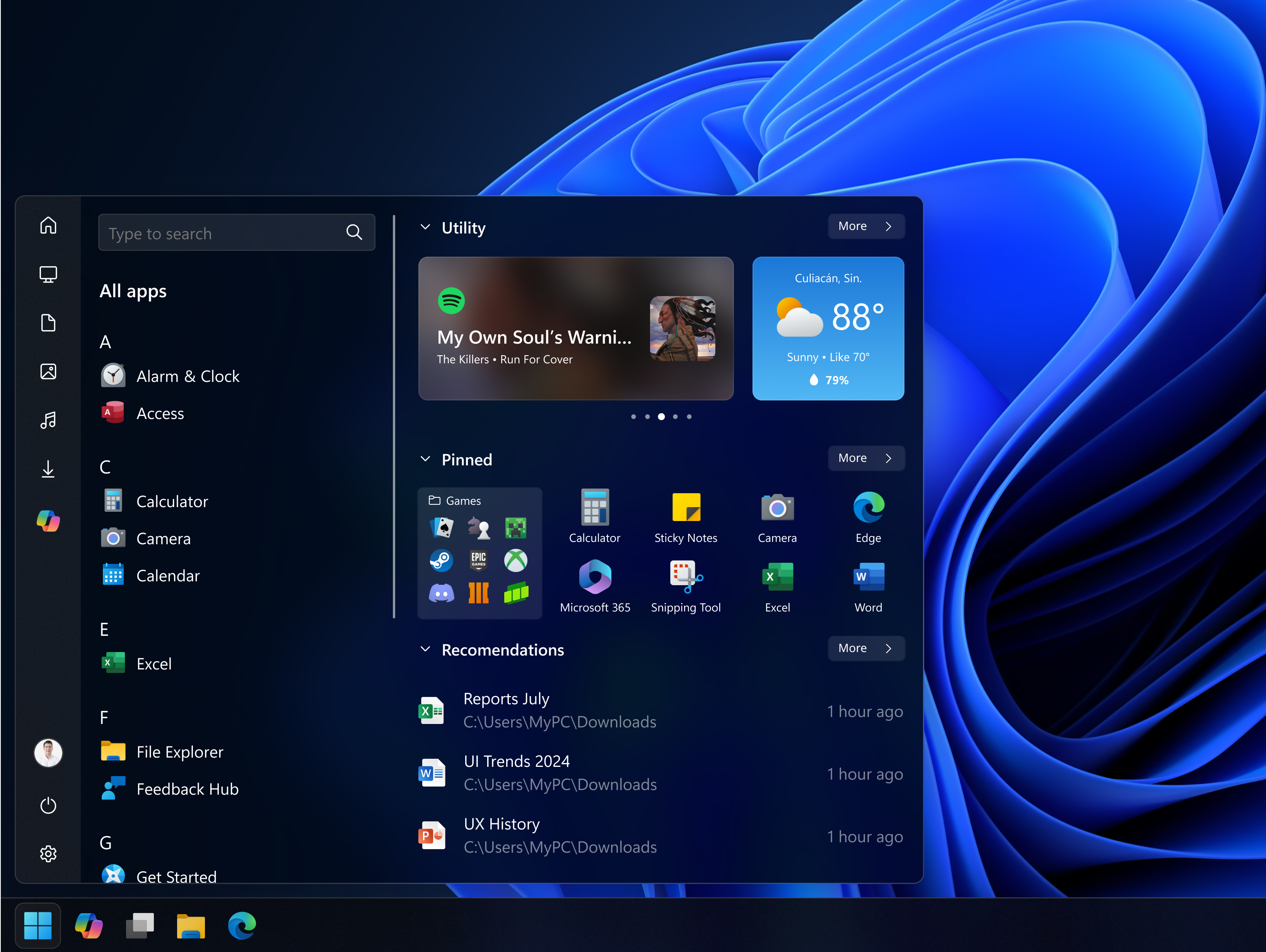
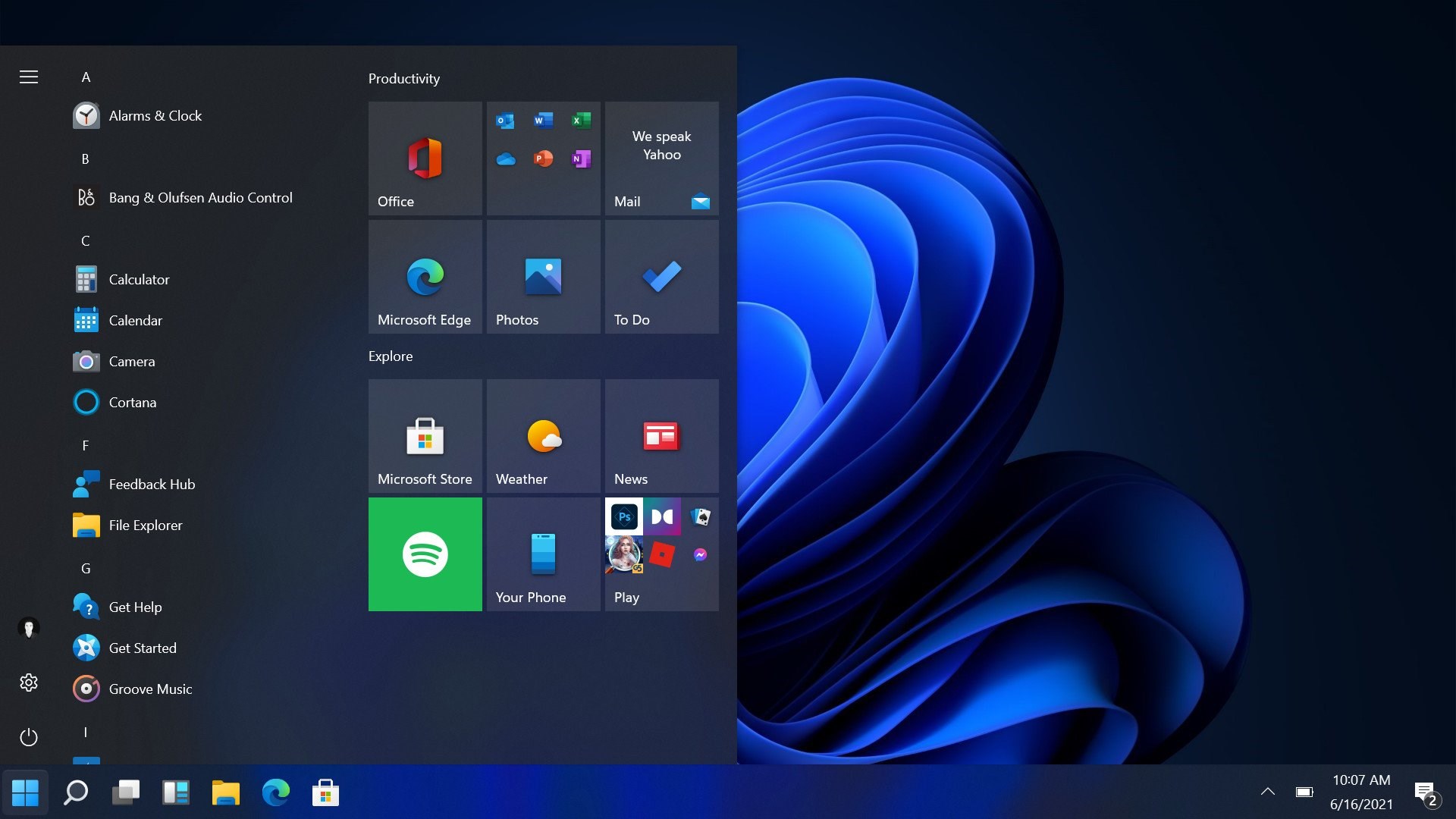
- Name StartBack Taskbar
- Category Utilities & tools
- Available on PC, Mobile, Surface Hub, HoloLens
- OS Windows 10 version 17763.0 or higher
- languages English (United States)
StartBack Taskbar for Windows: Reinventing Your Desktop Experience
If you've ever found the default Windows taskbar feeling a bit limiting or rigid, StartBack Taskbar offers a fresh perspective—think of it as giving your desktop a customizable makeover that's both intuitive and efficient. Developed by Shek Lab, this tool aims to streamline your workflow, personalize your interface, and bring a touch of modernity to an otherwise familiar environment.
Basic Information and Core Highlights
StartBack Taskbar is a Windows utility designed to enhance and customize your taskbar experience. Created by the innovative team at Shek Lab, it emphasizes flexibility, efficiency, and aesthetic appeal. Its key features include:
- Customizable taskbar layout options that allow for more intuitive access to frequently used apps and functions.
- Advanced grouping and pinning capabilities, enabling users to organize their icons more logically.
- Seamless integration with Windows, preserving the native feel while adding a layer of personalization.
- Lightweight operation ensuring no noticeable lag or resource hogging, ideal for both casual users and productivity enthusiasts.
This application targets users who wish to optimize their Windows taskbar, from tech-savvy professionals to everyday users seeking a cleaner, more organized workspace.
Turning Your Desktop into a Powerhouse
Imagine customizing your workspace as if assembling a personalized toolbox—StartBack Taskbar makes this a reality with its versatile features.
Flexible Layouts and Custom Grouping
StartBack empowers you to craft a taskbar layout that perfectly matches your workflow. Whether you prefer a minimalist line of icons or a detailed grid with grouped apps, this tool caters to your style. Its grouping feature is especially handy—think of it as creating folders for your desktop icons, but directly on the taskbar, reducing clutter and boosting productivity. The intuitive drag-and-drop interface makes rearranging items straightforward, akin to organizing a well-stocked desk.
Enhanced Pinning and Quick Access
One of StartBack's standout features is its advanced pinning system. Unlike the default Windows taskbar, which can sometimes feel limiting—pinning only a set number of apps—you get the freedom to pin shortcuts to folders, scripts, or frequent destinations. This effectively transforms your taskbar into a dynamic quick-launch hub, saving you precious clicking time during your busy day. Think of it as having your favorite tools always at your fingertips, in a neatly arranged toolbox.
Design, Usability, and User Experience
The interface of StartBack is clean and user-friendly, with a straightforward setup process. It closely mirrors Windows' native style, so it doesn't feel alien or intrusive. Customization options are accessible via an easy-to-navigate settings panel, ensuring minimal learning curve even for newcomers. The responsiveness is excellent; transitions and adjustments happen smoothly, making adjustments feel more like sculpting a personal masterpiece rather than wrestling with software.
Compared to other utility tools, StartBack's minimal resource footprint means it runs silently in the background without slowing down your system. Its logical layout contributes to a quick learning curve—just click, drag, and customize until your taskbar feels just right. Overall, it enhances the Windows experience without sacrificing familiarity or stability.
Unique Selling Points and Differentiation
What truly sets StartBack apart from similar utilities is its focus on personalized organization combined with seamless native integration. Unlike generic taskbar enhancers that often overhaul Windows to an unrecognizable extent, StartBack respects the original look while adding layers of customization. Its grouping and pinning features are granular yet intuitive, giving users a level of control usually reserved for advanced Windows tweaks.
Additionally, the lightweight design ensures a non-intrusive experience—standing out in a market filled with bulky tweaks and overlays. For those who appreciate subtle elegance paired with practical features, StartBack stands out as a refined, must-try tool.
Final Verdict and Recommendations
Starting with the premise of improving your Windows experience without complicating it, StartBack Taskbar proves to be a thoughtful addition to any desktop setup. It's best suited for users who value customization, organizational clarity, and a responsive interface. Given its ease of use and unique features, I'd recommend it to both everyday users looking for a tidier workspace and professionals needing quick access to multiple tools.
While it might not replace more comprehensive desktop managers for power users, StartBack offers a balanced, elegant solution that enhances your Windows taskbar's functionality without overwhelming you. Consider giving it a try if you're seeking a subtle yet effective way to personalize your digital workspace—your desktop will thank you!
Pros
- Intuitive User Interface
- Customizable Layouts
- Enhanced Productivity Features
- Lightweight and Fast
- Easy Installation and Updates
Cons
- Limited Compatibility with Windows Versions
- Occasional Bugs in Icon Synchronization
- Customization Options Could Be More Extensive
- Lack of Official Support for Multi-Monitor Setups
- Temporary Stability Issues on Some Systems











