

- Name Speedtest by Ookla
- Category Utilities & tools
- Available on PC, Mobile, Surface Hub, HoloLens
- OS Windows 10 version 10240.0 or higher
- DirectX Version 10
- languages Arabic, Chinese (Simplified), Chinese (Traditional Chinese), Dutch, English, French, German, Indonesian, Italian, Japanese, Korean, Polish, Portuguese, Russian, Spanish, Swedish, Thai
Introducing Speedtest by Ookla for Windows: Your Go-To Tool for Accurate Internet Speed Testing
Speedtest by Ookla for Windows is a straightforward yet powerful application designed to provide reliable internet speed measurements directly from your desktop. Whether you're a casual user wanting to check your Wi-Fi connection or a tech enthusiast troubleshooting network issues, this app aims to bring simplicity and precision to your digital life.
Developed by Ookla: A Trusted Name in Network Testing
Created by Ookla, a globally recognized company specializing in internet speed testing and network diagnostics, this application benefits from years of expertise and a vast worldwide testing network. Their commitment to accuracy and user-friendly design makes Speedtest for Windows a dependable choice for network diagnostics.
Key Highlights of Speedtest for Windows
- Real-Time Speed Testing: Instantly measures download, upload speeds, and ping latency to give you a clear picture of your internet connection status.
- Server Selection & Localization: Connects to the nearest or most suitable server from a massive global network, ensuring precision tailored to your location.
- Historical Data & Results Logging: Keeps track of your test results over time, allowing you to monitor changes and troubleshoot issues more effectively.
- Integration & Sharing: Easily share results via links or save reports for technical support or personal records.
First Impressions: A Clean, User-Friendly Interface That Feels Like a Digital Speedometer
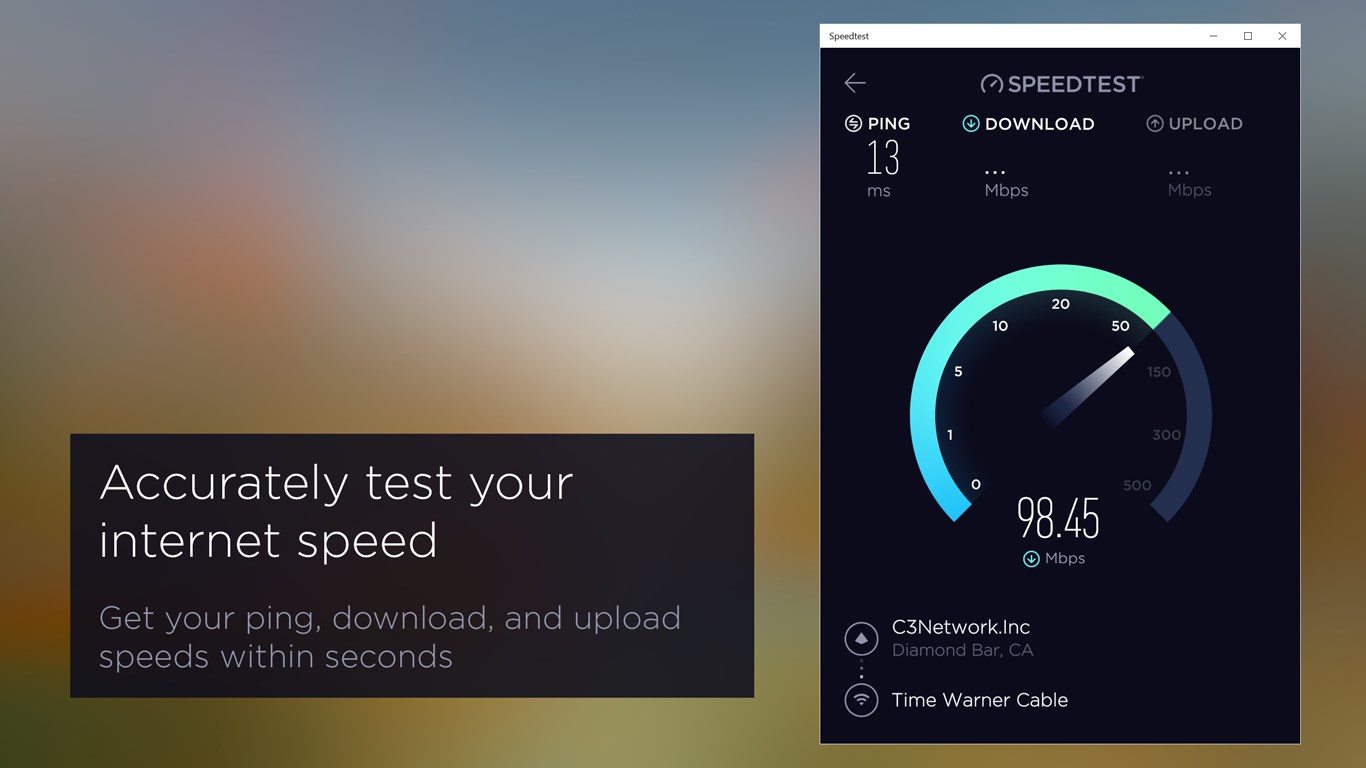
From the moment you launch Speedtest, you're greeted with an interface that feels akin to a sleek, modern dashboard. It's like sitting behind the wheel of a high-tech vehicle—everything is intuitively placed, with a clear “Start Test” button that beckons you to begin your ride into connectivity insights. The interface design is minimalist but vibrant, with colorful gauges and progress bars that keep you engaged without overwhelming. The app runs smoothly, with virtually no lag, making speed tests feel seamless and rewarding—kind of like watching a well-oiled machine in action.
Core Functionality: Precision, Speed, and Control at Your Fingertips
1. Instantaneous Speed Tests with a Single Click
The primary feature of Speedtest is its straightforward testing ability. A simple click on the prominent button kicks off a comprehensive measurement of your internet connection. The app communicates clearly throughout the process, displaying real-time updates for download and upload speeds, as well as ping latency. This feature is especially useful for quick checks—imagine you're troubleshooting your home Wi-Fi in a matter of seconds, rather than launching complex tools or visiting web-based testers.
2. Intelligent Server Selection and Network Localization
One of the app's standout features is its ability to automatically connect to the best server based on your location, or let you choose a specific server if needed. This ensures the results reflect your actual internet experience, whether you're streaming movies in your living room or gaming online. The app's vast server network, spanning the globe, is like having a personal network expert guiding your tests, ensuring accuracy and relevance.
3. Historical Tracking and Result Sharing for Better Insights
Beyond one-off readings, Speedtest keeps a detailed log of your past tests, painting a clearer picture of your connection's stability over time. You can compare days or hours to spot patterns or issues. Sharing results with support teams or friends is straightforward—simply copy a link or export a report, making troubleshooting or consultation much easier. It's like having a personal network diary that helps you track and improve your connection.
User Experience and Differentiation from Similar Tools
The app excels in delivering a smooth, intuitive experience. Unlike web-based testers that can be clunky or less reliable, Speedtest runs natively on your Windows device, ensuring faster performance and better integration with system features. Its minimalist design minimizes clutter without sacrificing essential information; it's like having a precision instrument rather than a cluttered dashboard.
What truly sets Speedtest apart are its real-time measurement accuracy and the depth of data it offers. While many utilities provide speed metrics, few combine speed, latency, server selection, and historical tracking in such a cohesive, user-friendly package. This makes it especially valuable for users who need reliable data to optimize or troubleshoot their network setups.
Final Verdict: A Reliable Companion for Your Internet Needs
Overall, I'd recommend Speedtest by Ookla for Windows to anyone looking for trustworthy, quick, and detailed internet speed testing. It's ideal for everyday users who want to verify their connection or tech enthusiasts wanting to monitor network performance over time. Its most unique strength—the combination of instant testing with comprehensive historical tracking—makes it a standout in a crowded field of utilities. Whether you're troubleshooting connectivity issues, checking Wi-Fi performance, or simply curious about your internet speed, this app delivers consistent and accurate results in a friendly package. I'd suggest giving it a try; after all, understanding your connection is the first step toward a better online experience.
Pros
- Accurate and reliable speed testing
- User-friendly interface
- Real-time results display
- Comprehensive network insights
- Multi-platform support and integration
Cons
- Limited customization options for test parameters
- Heavy reliance on internet connection speed during testing
- Some advanced features require a paid version
- Limited geographic server options for testing
- Initial app setup and updates can be slow on certain devices











