

- Name Snipping Tool
- Category Utilities & tools
- Available on PC
- OS Windows 11 version 22000.0 or higher
- languages Afrikaans, Albanian, Amharic, Arabic, Azerbaijani, Bangla (Bangladesh), Basque, Belarusian, Bulgarian, Catalan, Chinese (Simplified), Chinese (Traditional), Croatian, Czech, Danish, Dutch, English (United Kingdom), English (United States), Estonian, Filipino, Finnish, French, French (Canada), Galician , German, Greek, Hebrew, Hindi, Hungarian, Icelandic, Indonesian, Italian, Japanese, Kannada, Kazakh, Khmer, Kiswahili, Korean , Lao, Latvian, Lithuanian, Macedonian, Malay, Malayalam, Norwegian (Bokmål), Persian, Polish , Portuguese (Brazil), Portuguese (Portugal), Romanian, Russian, Serbian (Latin, Serbia), Slovak, Slovenian (Slovenia), Spanish (Mexico), Spanish (Spain), Swedish, Tamil, Telugu, Thai, Turkish, Ukrainian, Uzbek, Vietnamese
A Precise Snapshot of Snipping Tool for Windows
Snipping Tool for Windows is a streamlined screenshot capturing application designed to help users quickly and accurately snip, annotate, and share portions of their screen with ease. Developed by Microsoft Corporation, it offers essential screenshot functions with an emphasis on simplicity and accessibility.
Core Features That Make It Stand Out
Effortless Snipping Modes for Every Need
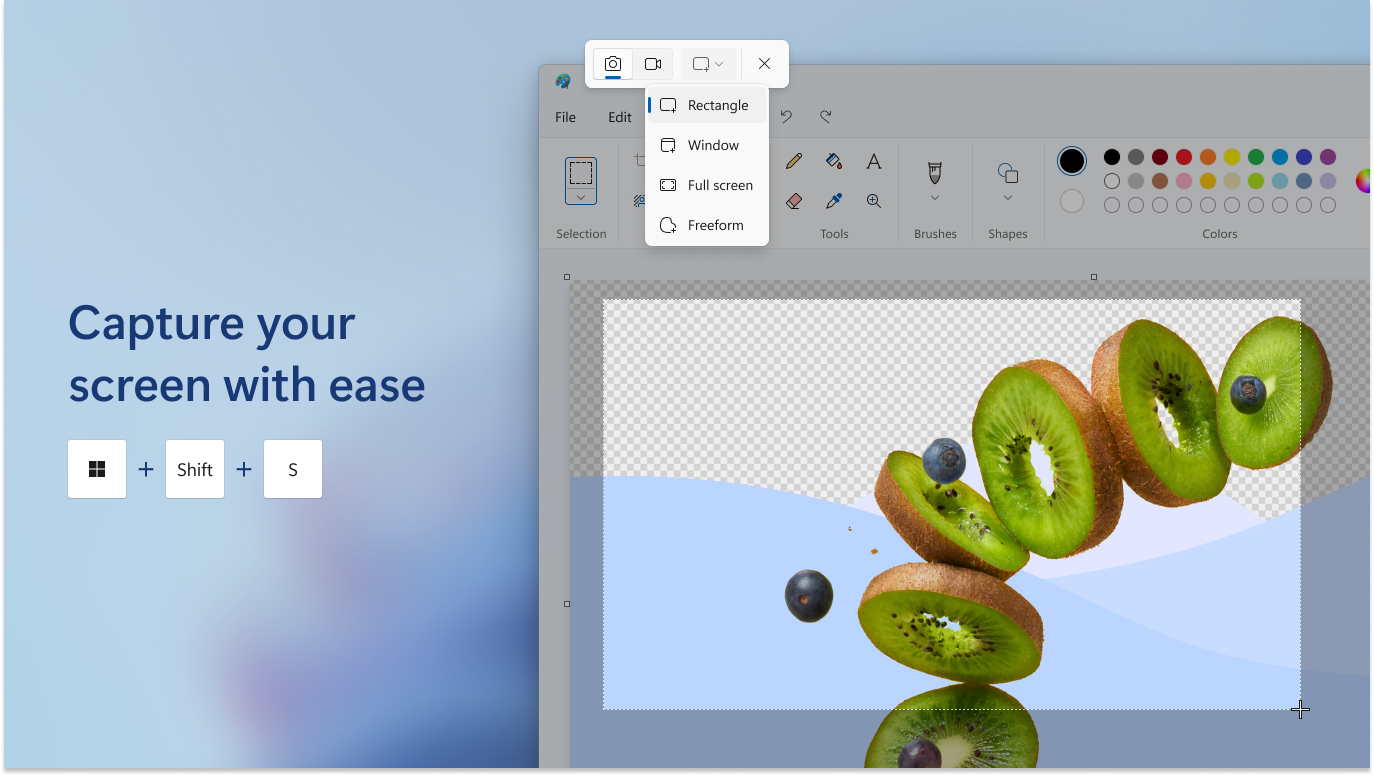
The application provides multiple snipping options—Free-form, Rectangular, Window, and Full-screen—allowing users to tailor their screenshots based on specific scenarios. Whether capturing a custom shape or grabbing an entire window, users can switch modes seamlessly, making the tool adaptable for diverse tasks, from creating tutorials to saving web snippets.
Intuitive Annotation and Editing Tools
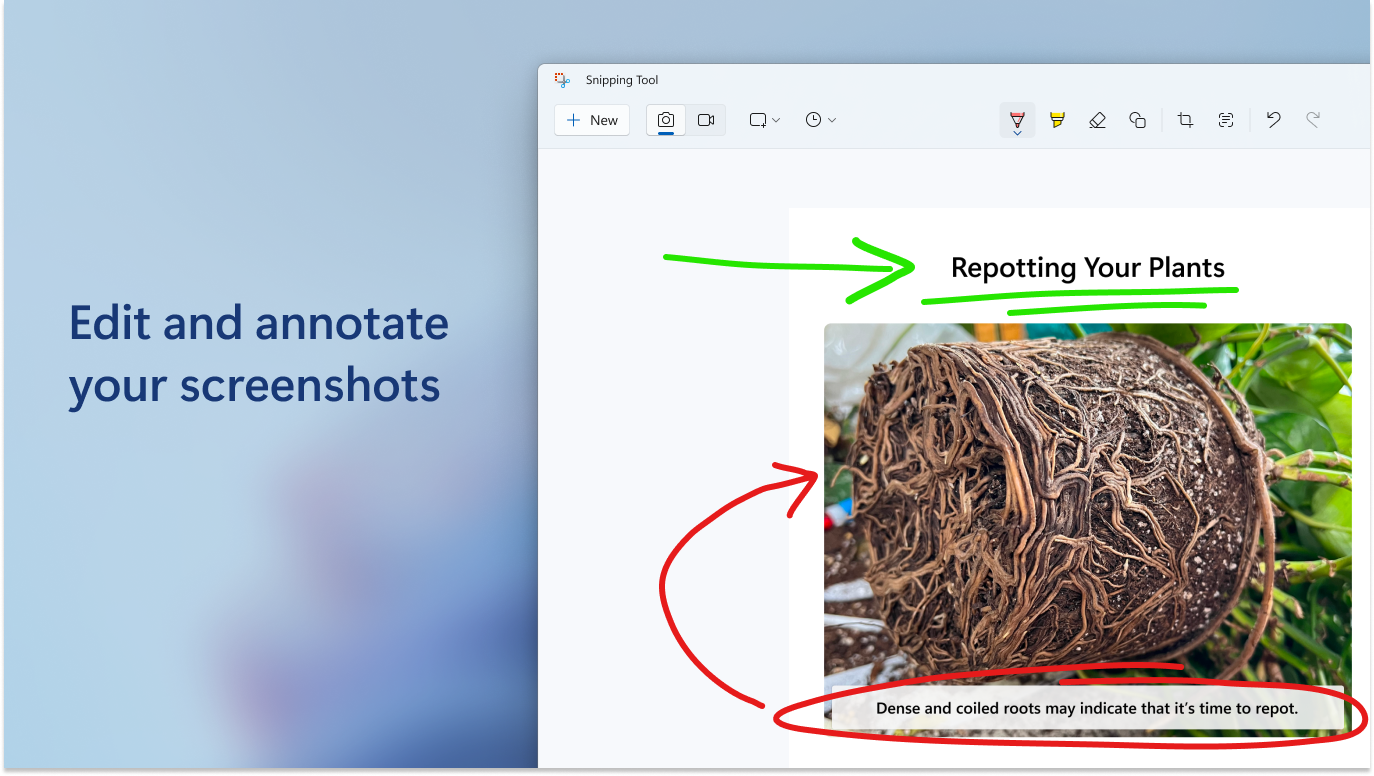
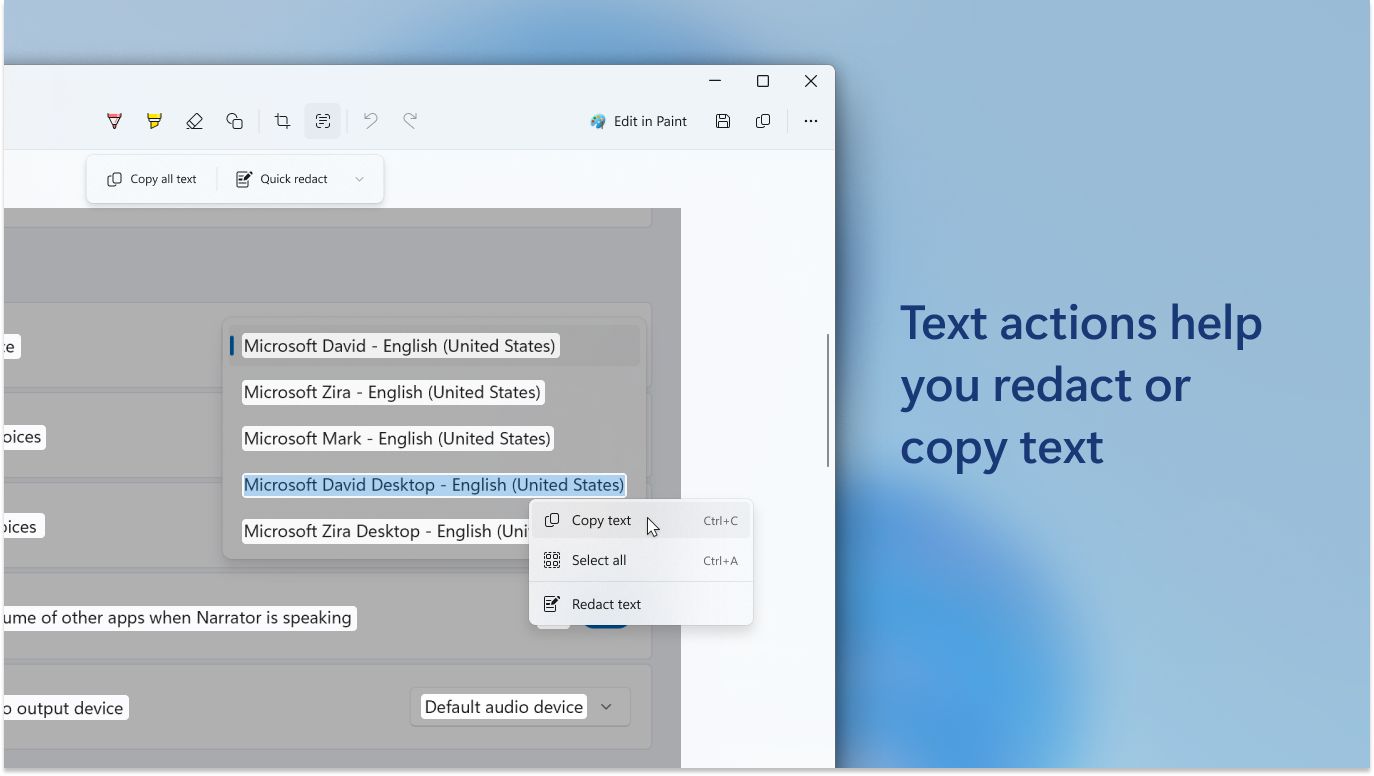
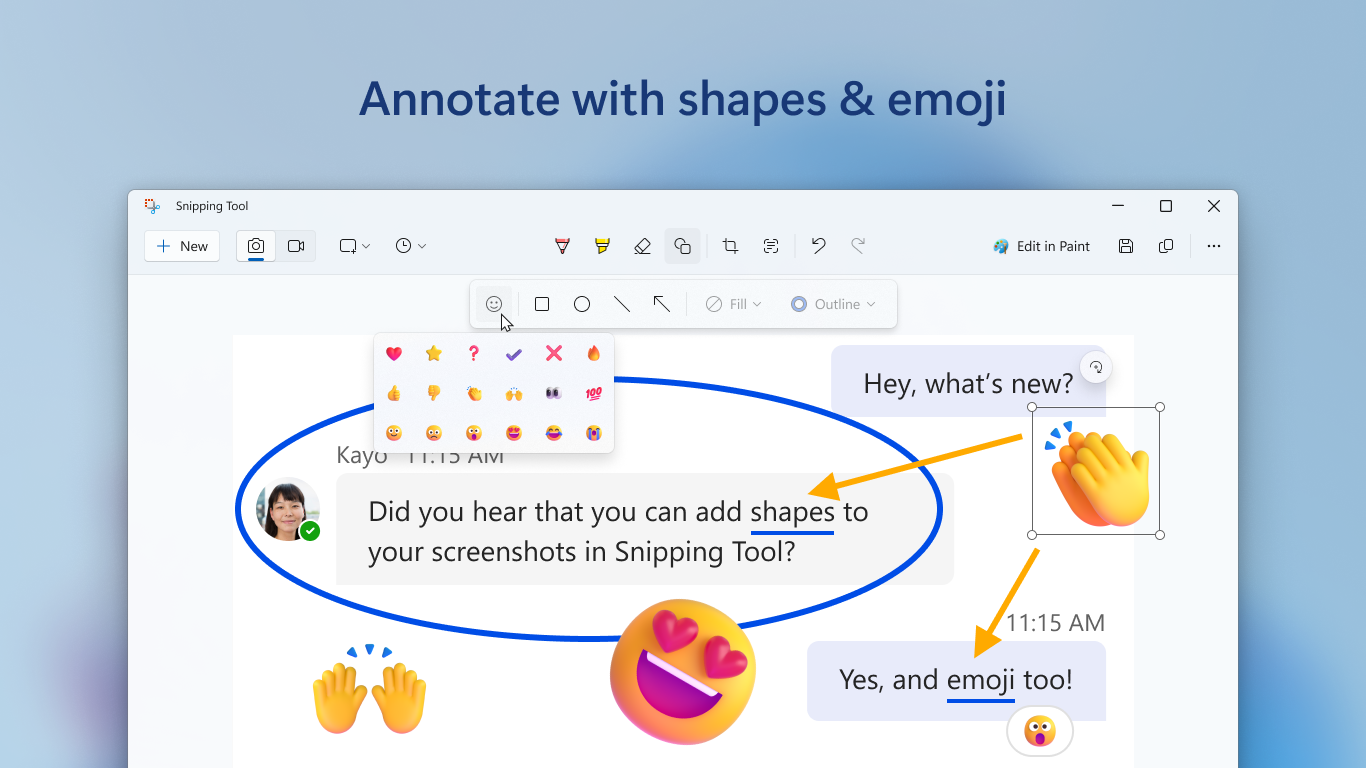
Once a snip is captured, users can immediately annotate, highlight, or draw on the image within the app. This integrated simplicity turns a basic screenshot into a quick visual note, ideal for onboarding, bug reporting, or highlighting key design elements—all without jumping between multiple apps.
Quick Sharing and Saving Options
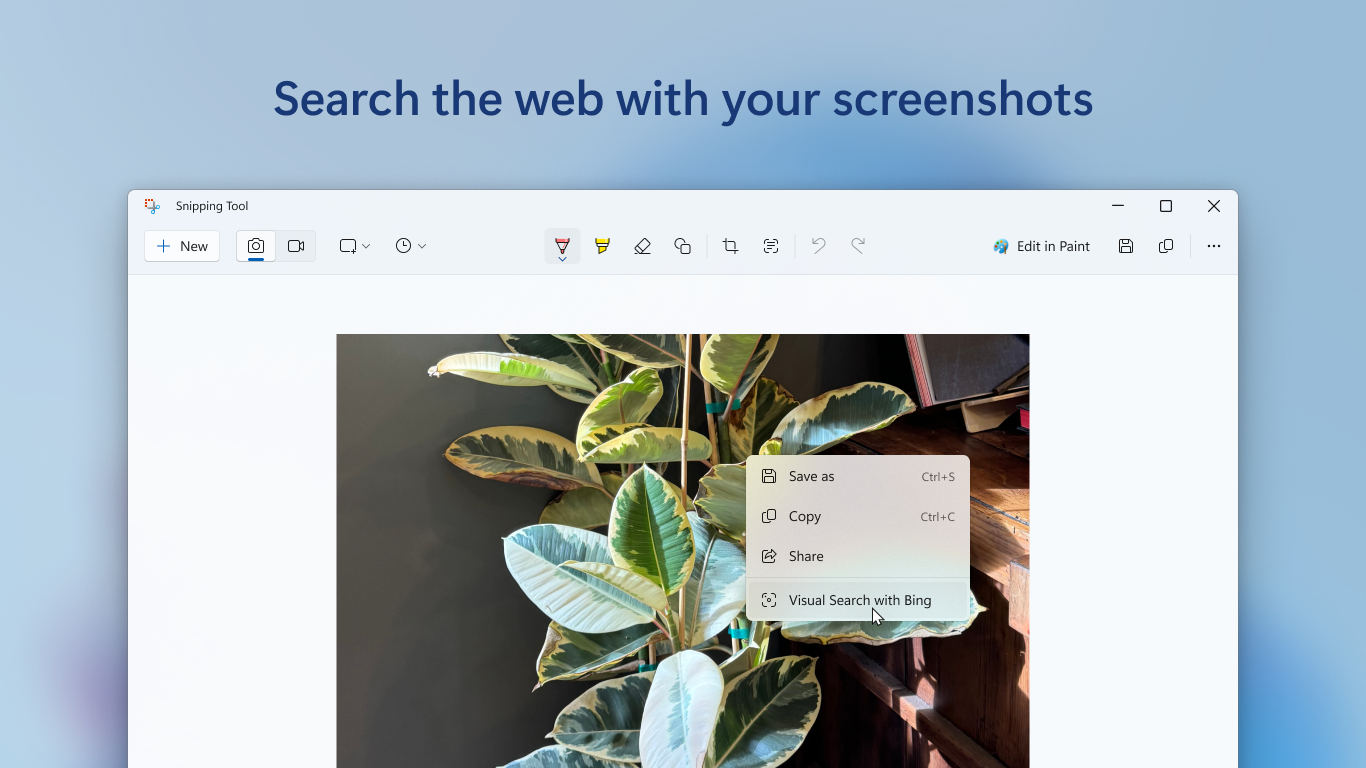
Snipping Tool for Windows supports direct saving to local storage or sharing via clipboard, email, or other applications. Its user-centric design enables professionals and casual users to streamline their workflow, reducing the steps needed to transfer or distribute captured content efficiently.
Design, Usability, and User Experience
The interface design embodies minimalism—think of opening a well-organized toolbox where every tool is just a click away. The layout is straightforward; a small toolbar appears when activating the snipping function, providing instant access without cluttering the workspace. Users encounter a gentle learning curve, especially if familiar with basic Windows tools, making adoption quick and frustration-free.
Operation is remarkably fluid. Snips are captured instantly, and annotations respond smoothly to user input. Even long or complex screenshots don't slow down performance, which is crucial for users whose work relies on speed and efficiency. The absence of distracting animations or complex menus enhances productivity, especially during fast-paced tasks.
What Sets It Apart from Competitors?
While many screenshot tools exist, Snipping Tool's integration into Windows offers unmatched convenience—eliminating the need to download third-party apps. Its core advantage lies in its simplicity combined with essential editing features, making it more accessible than feature-heavy utilities like Snagit or Lightshot, which often include advanced tools users might never tap into.
Moreover, its seamless operation within the Windows environment means fewer compatibility issues or learning curves. For users seeking a reliable, no-fuss solution for everyday screenshot needs, Snipping Tool stands out as a dependable, integrated choice—much like having a handy pocketknife in your digital toolkit.
Final Thoughts and Recommendations
Overall, Snipping Tool for Windows is a highly recommended utility for anyone who values quick, straightforward screenshot captures without the extra bells and whistles. It's ideal for students, professionals, or casual users needing a dependable tool for visual documentation, annotations, or sharing snippets. If you're already comfortable with Windows' ecosystem and prefer a lightweight solution that gets the job done efficiently, this app fits perfectly into your workflow.
While it may lack some advanced features seen in premium counterparts, its strength lies in accessibility and ease of use—making it a solid staple for daily screen capturing needs. I'd suggest giving it a try, especially if you're looking for a native, no-frills app that respects your time and keeps things simple.
Pros
- Intuitive and user-friendly interface
- Quick access through keyboard shortcuts
- Multiple snip types available
- Integrated editing features
- Seamless integration with Windows
Cons
- Limited editing tools
- Lack of automatically saving screenshots
- No cloud sync options
- Limited format export options
- Occasional lag with high-resolution displays











