- Name Slack
- Category Business
- Available on PC
- OS Windows 10 version 17763.0 or higher
- languages Chinese (Simplified), Chinese (Traditional), English, French, German, Italian, Japanese, Korean, Portuguese (Brazil), Spanish
Unveiling Slack for Windows: A Professional's Daily Companion in the Digital Workspace
Slack for Windows emerges as a sleek, robust communication hub designed to streamline team collaboration, bringing a familiar yet enhanced experience directly onto your desktop. Developed by Slack Technologies Inc., this application elevates workplace connectivity, ensuring that your team stays in sync no matter where you are. Whether you're coordinating projects, sharing files, or firing off quick questions, Slack for Windows positions itself as an indispensable tool for modern professionals seeking efficiency and clarity in their workflows.
Slick Interface and Seamless Usability
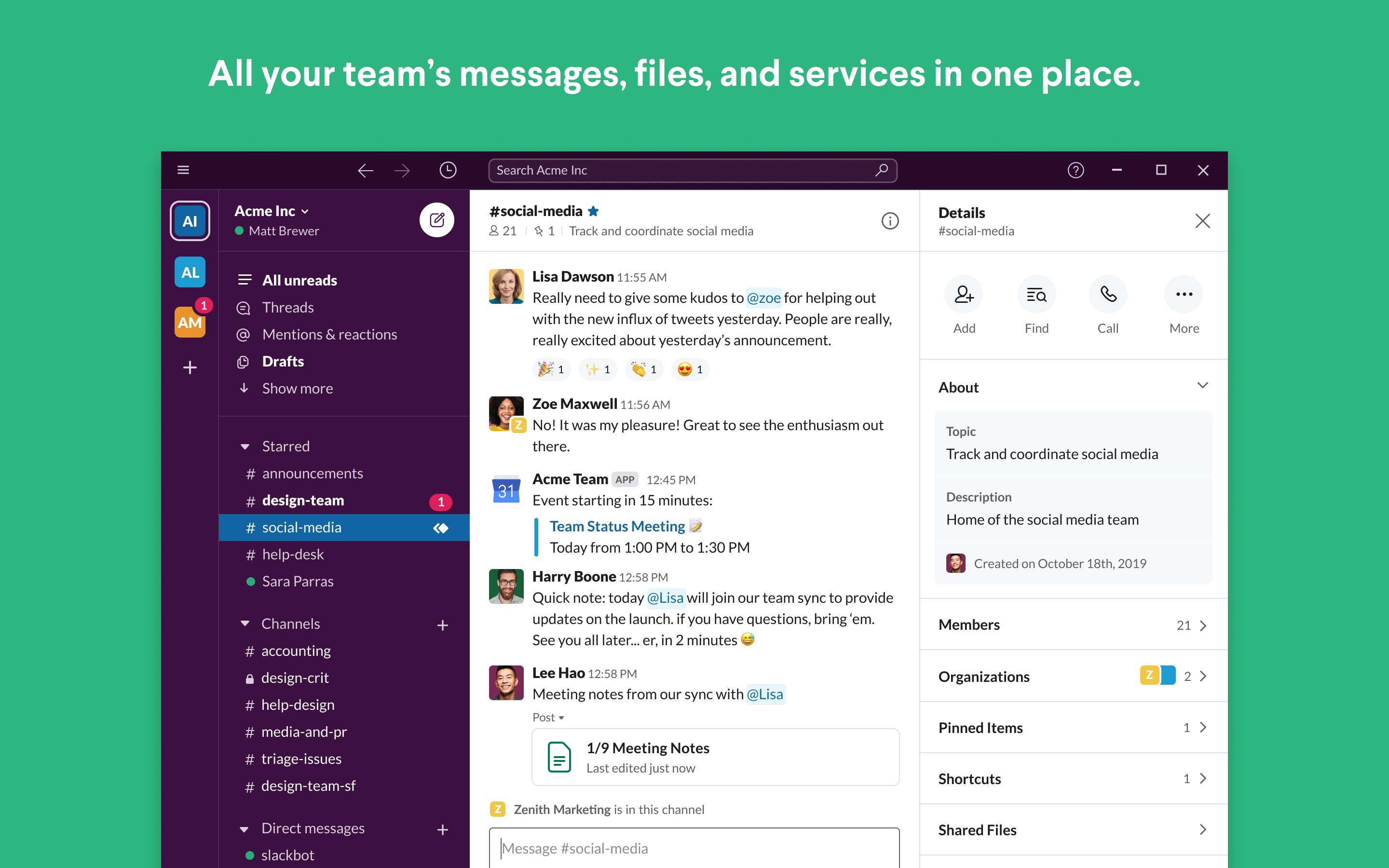
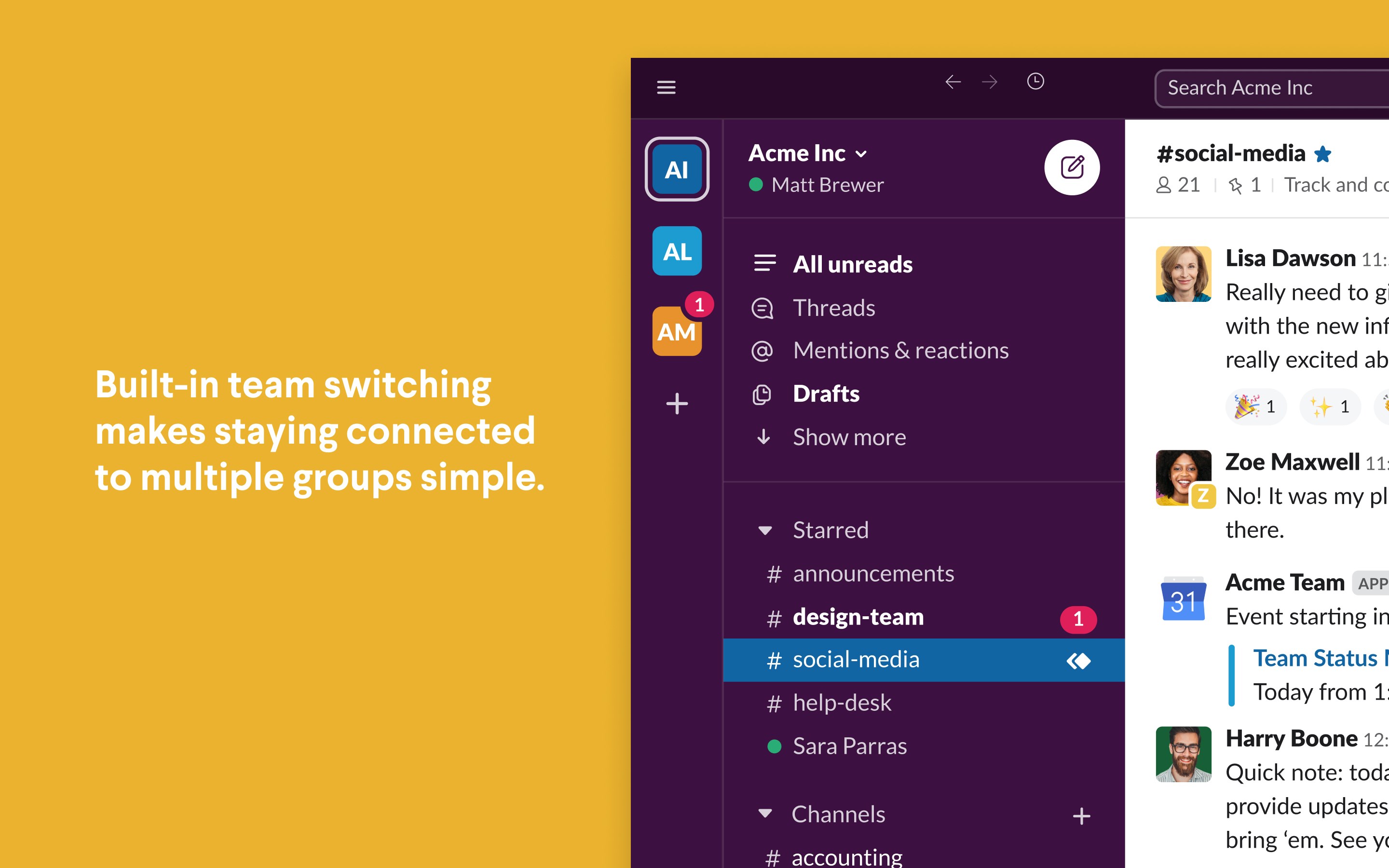
Imagine walking into an organized, vibrant office where everything is in its place—Slack for Windows provides that sense of familiarity through its clean, intuitive interface. The layout mimics modern messaging apps but is optimized for productivity. The sidebar neatly categorizes your channels, direct messages, and integrated apps, allowing you to dive into conversations effortlessly. Navigation feels smooth, with transitions that respond swiftly—no frustrating lag to break the flow of your work. Learning curve-wise, even newcomers find themselves composing messages, searching histories, or configuring notifications within minutes, thanks to clear icons and contextual prompts.
Core Features: The Nuts and Bolts of Collaboration
1. Dynamic Communication Channels
At its heart, Slack is about conversations. The application offers real-time messaging in channels dedicated to specific teams, projects, or topics. These channels can be public or private, giving you control over your information flow. The addition of thread replies ensures discussions remain tidy, preventing conversations from spiraling into chaos. Plus, with rich media support—images, videos, and files—you can share your ideas visually, making collaboration more engaging.
2. Task and Workflow Integration
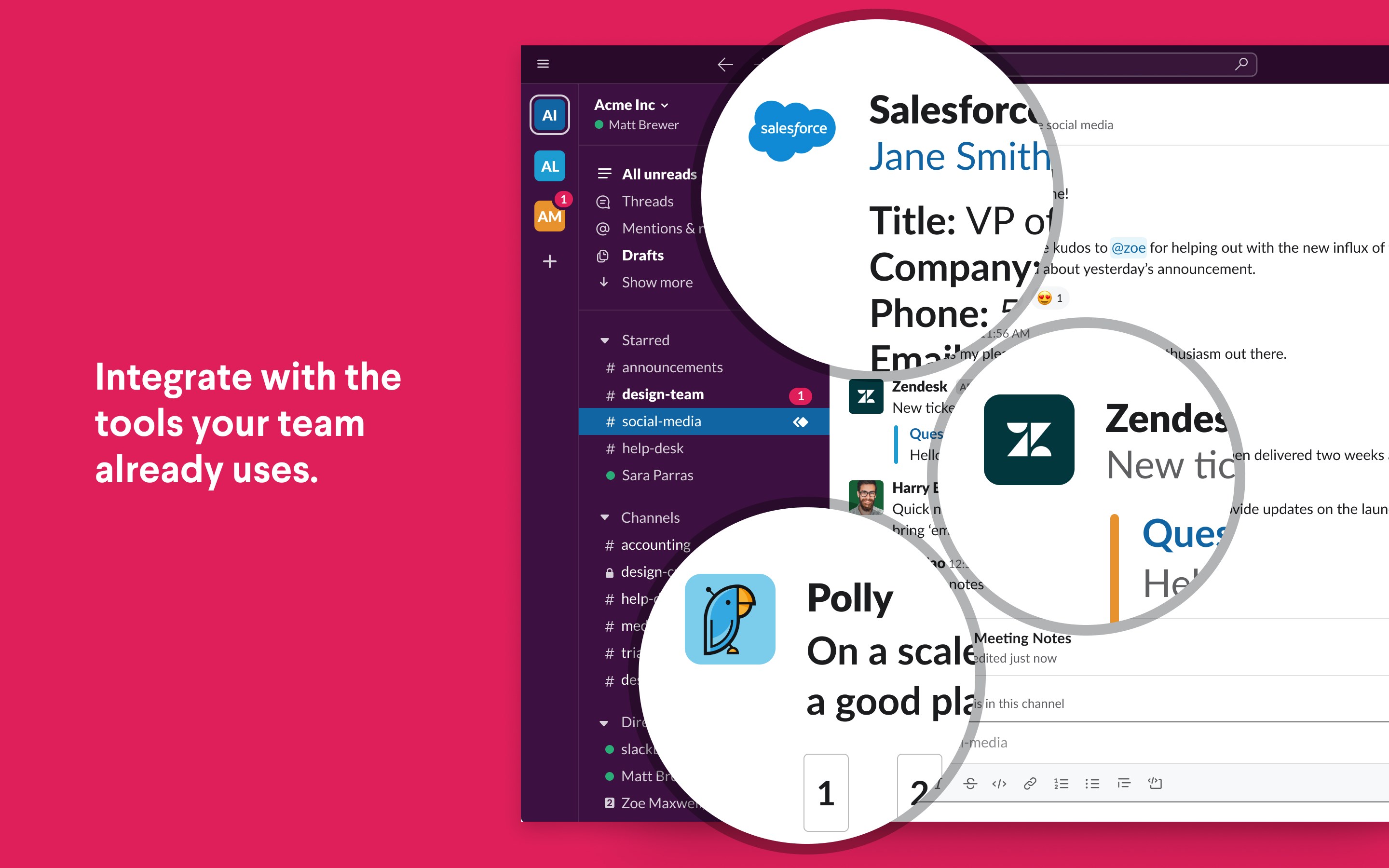
One of Slack's standout attributes is its extensive integration ecosystem. With seamless compatibility with tools like Trello, Asana, and Jira, you can manage tasks without switching apps. For instance, creating a new task from a Slack message or getting notified about updates keeps your work organized. The app also supports custom workflows via Slack Workflow Builder, allowing teams to automate routine processes—think onboarding new members or gathering approvals—saving valuable time and reducing manual errors.
3. Search and Accessibility Features
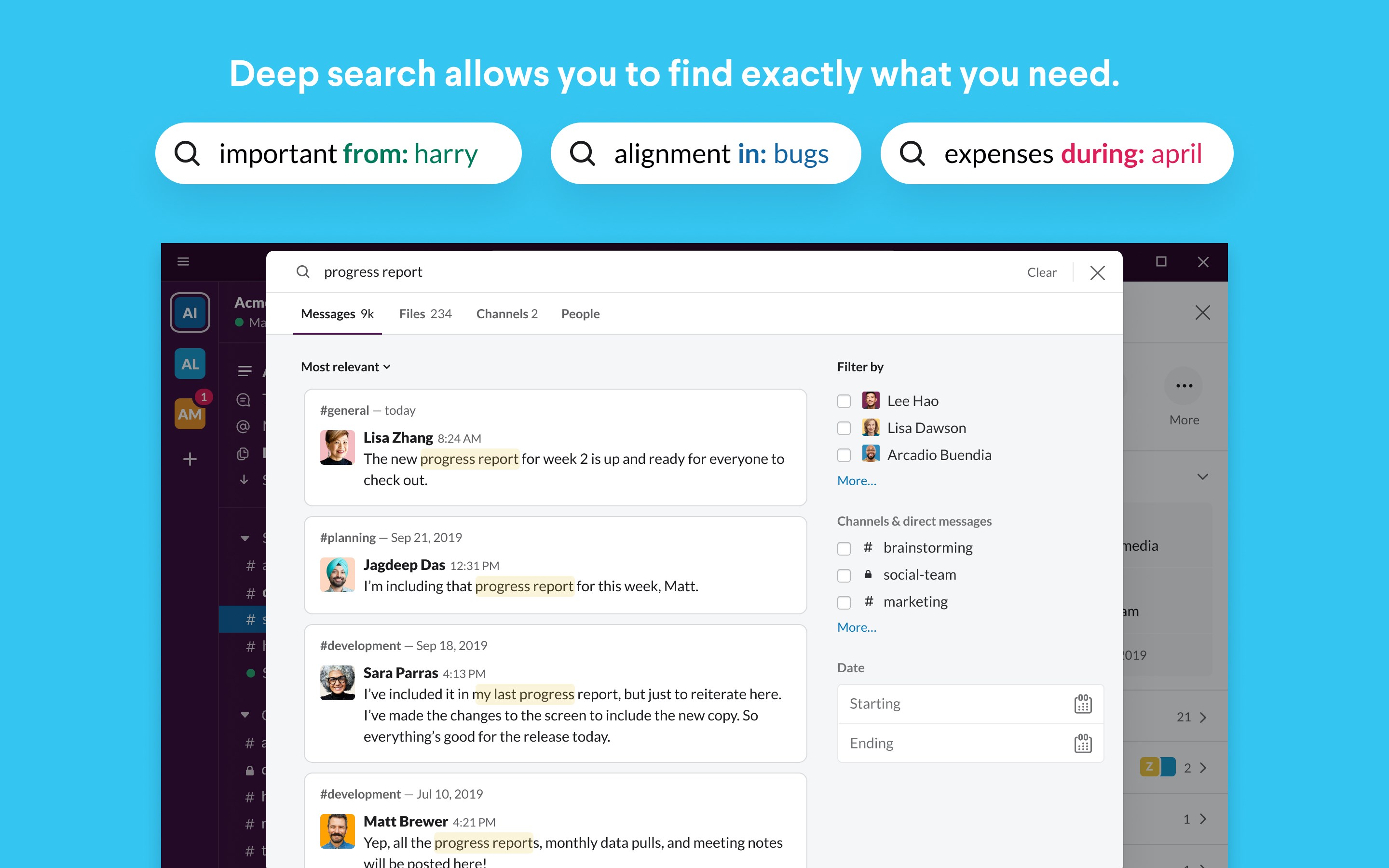
Ever wished you could find that one important message buried months ago? Slack for Windows excels here, offering a powerful search function that indexes all conversations, files, and links. Filters and keyword searches make retrieval quick and accurate. Additionally, features like keyboard shortcuts, dark mode, and adjustable notification settings enhance accessibility and user comfort, making sure users can personalize the experience to fit their needs—whether during a late-night coding session or in broad daylight.
Distinctive Differentiators in the Business App Arena
Compared to other collaboration tools like Microsoft Teams or Google Chat, Slack's real strength lies in its highly customizable integration environment and its focus on community-driven enhancements. Its collaborative work features—especially the threaded conversations and custom workflow automations—offer a lot of flexibility for teams that need to adapt communication dynamically. Task management, while often a separate tool, is seamlessly woven into Slack's ecosystem through integrations, giving you a unified dashboard for both messaging and task tracking. This approach enables a more holistic workspace that balances communication, coordination, and productivity in a single interface.
Final Thoughts and Recommendations
Overall, I find Slack for Windows to be a thoughtfully designed and highly functional application suited for teams of various sizes. Its standout features—particularly the intuitive interface combined with powerful integration capabilities—make it more than just a messaging app; it's a digital workspace enabler. For teams already immersed in collaborative tools or those seeking a flexible, customizable communication platform, Slack is certainly worth exploring. I recommend this app especially for organizations prioritizing real-time interaction, file sharing, and task automation. While not a complete project management solution on its own, it forms a vital part of an efficient, connected work environment.
Pros
- User-friendly interface
- Robust integration options
- Effective team communication
- Customized notifications
- Cross-platform support
Cons
- Occasional lag during high server load
- Limited free message history
- Notifications can be overwhelming in busy channels
- Occasional app crashes on older devices
- Limited offline functionality