

- Name ShareX
- Category Utilities & tools
- Developer ShareX Team
- Available on PC
- OS Windows 10 version 18362.0 or higher
- languages English (United States)
Efficiency and Versatility in a Screen Capture Tool
ShareX for Windows stands out as a comprehensive open-source utility designed to simplify and enhance the process of capturing, annotating, and sharing screenshots. With a sleek interface and a suite of powerful features, this app is built for users who need reliable screen capture solutions without the bloated overhead typical of all-in-one multimedia suites.
A Closer Look at ShareX: Developer and Core Capabilities
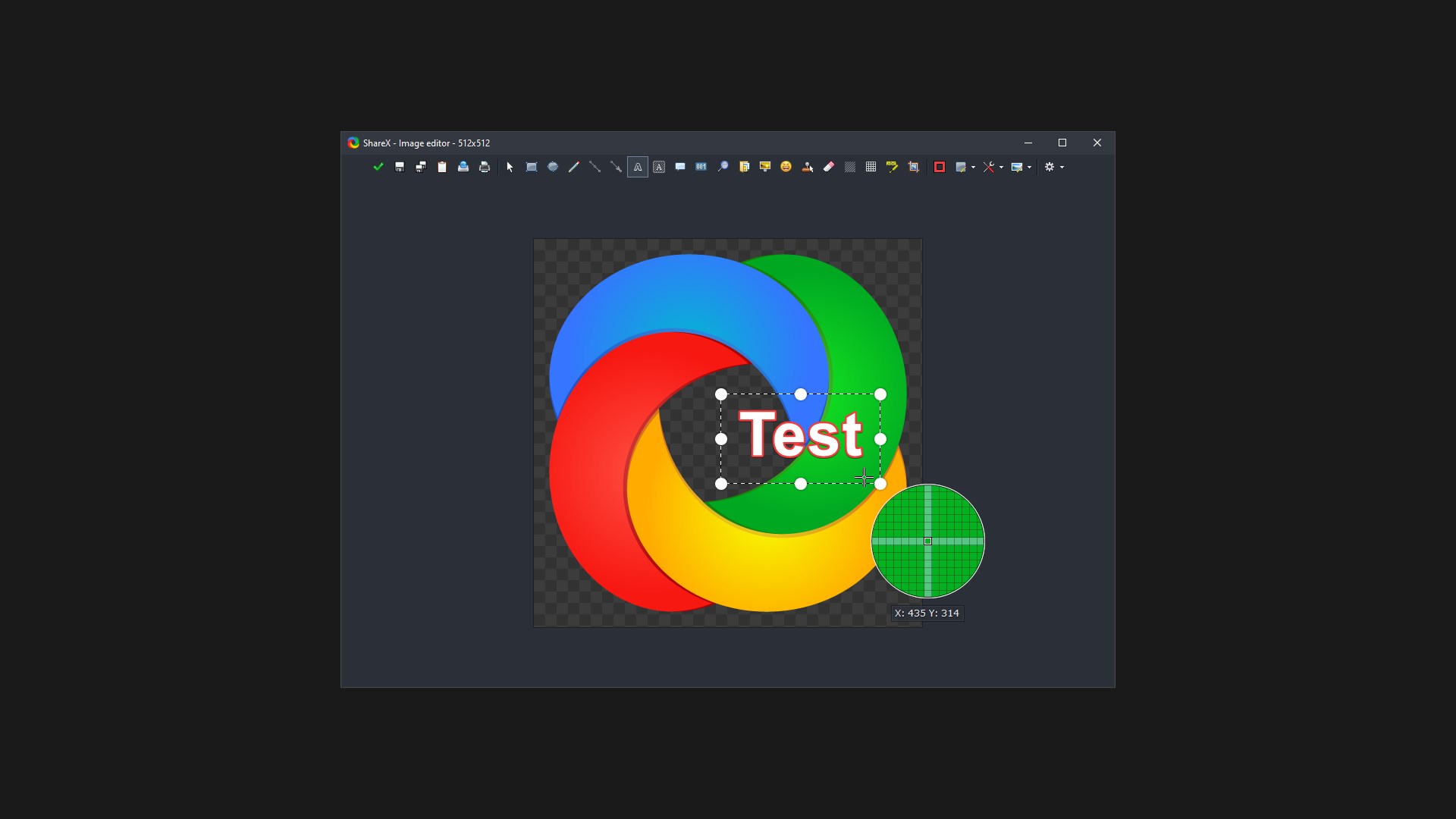
Developed and published by the dedicated ShareX Team, this application is tailored for a broad audience—from developers and designers to everyday users who want to streamline their workflow. Its primary features include customizable capture regions, automatic uploading with link copying, and advanced image editing tools. These capabilities make it more than just a screenshot tool; it's an automation powerhouse aimed at enhancing productivity.
Jump into the Action: How ShareX Elevates Your Screen Capture Game
Capturing Made Simple and Precise
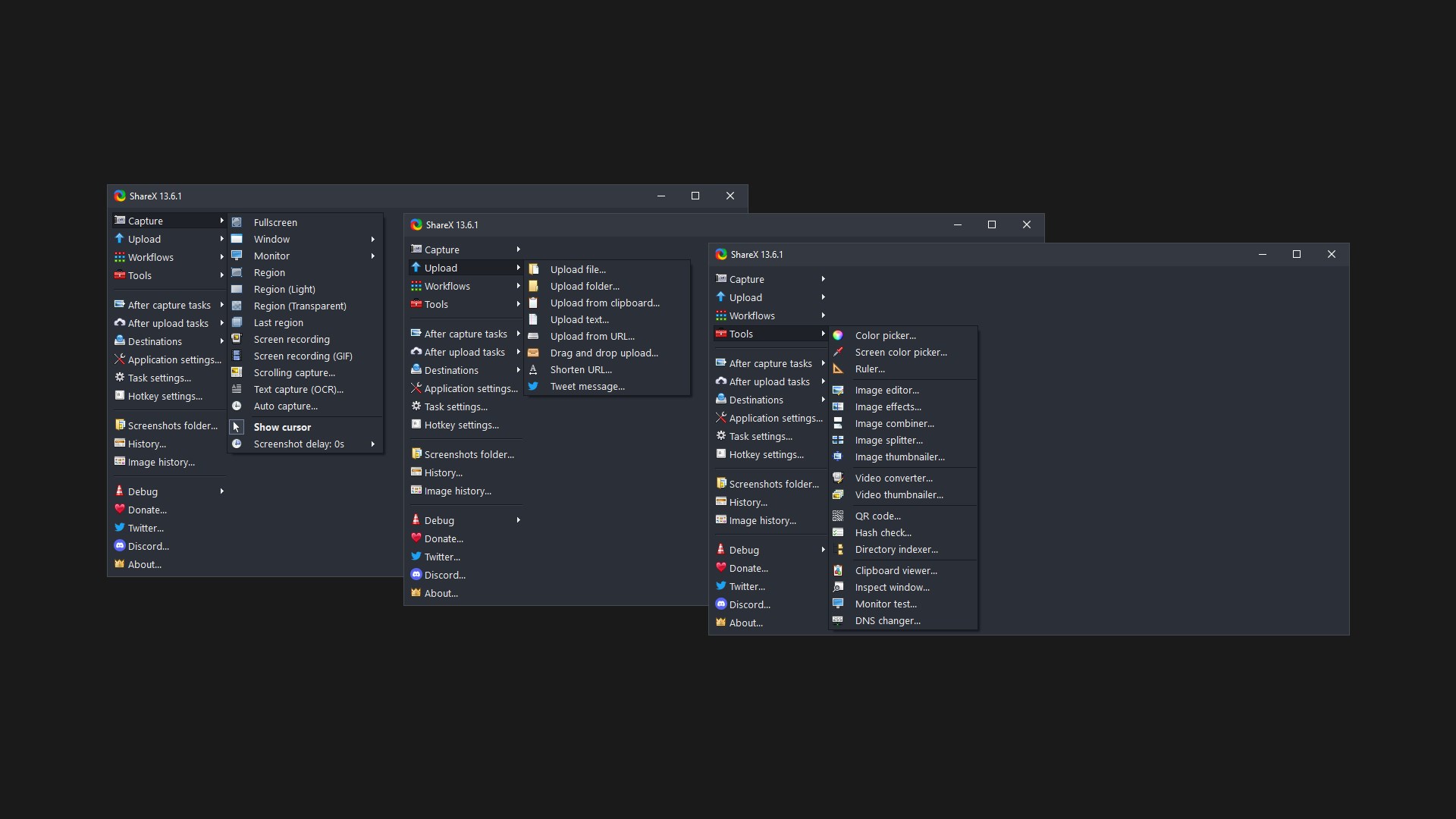
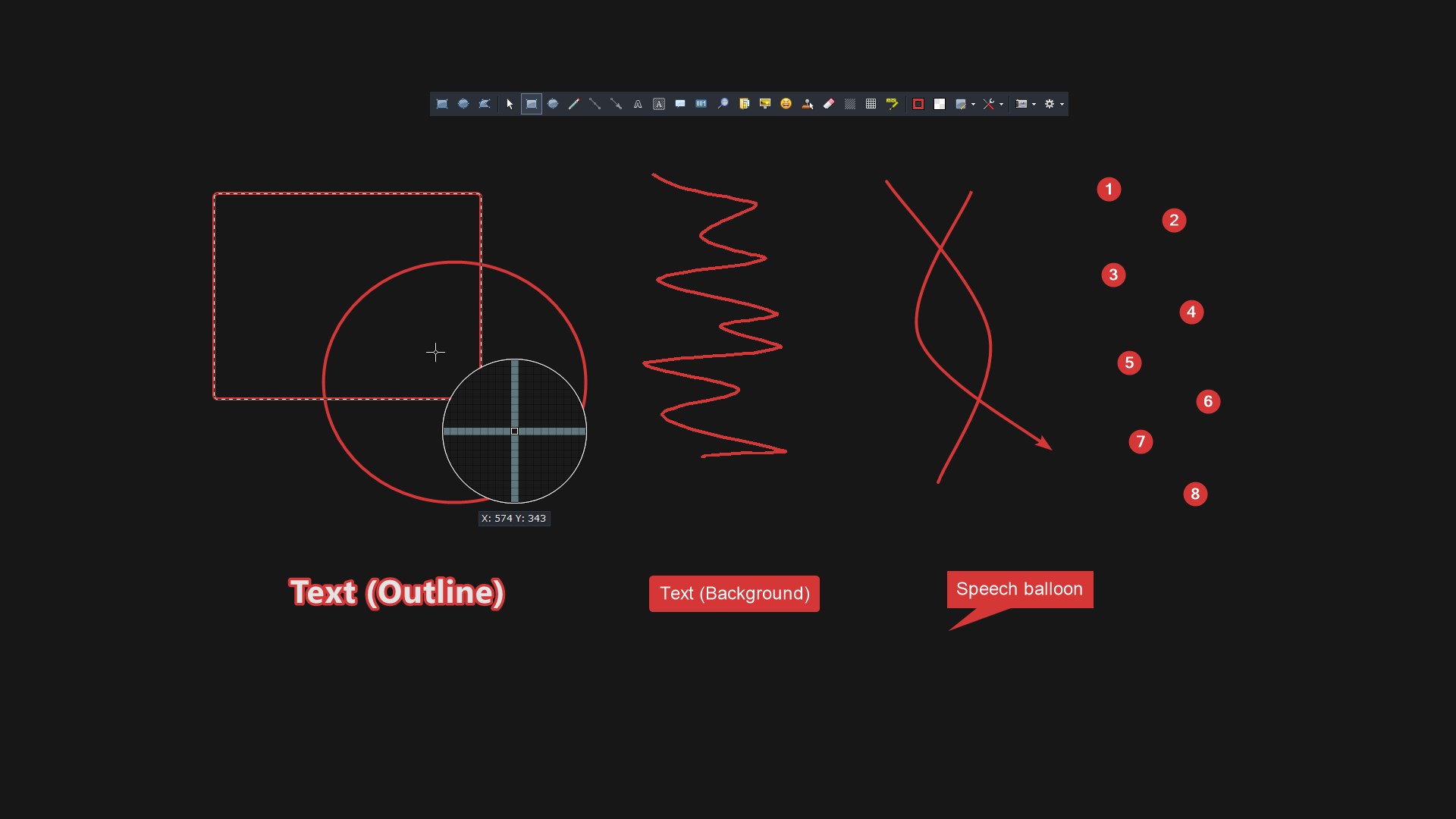
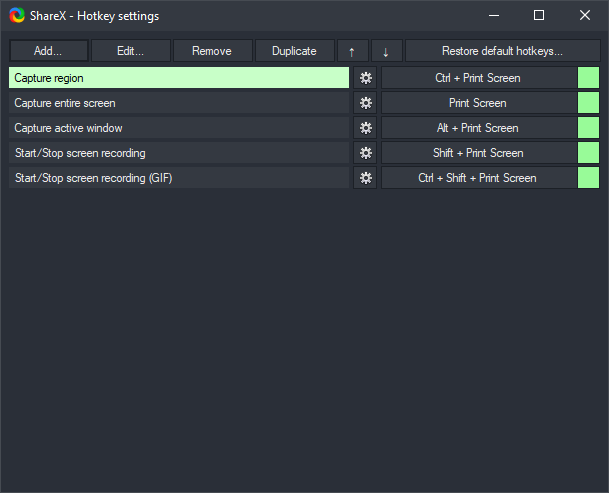
ShareX's core strength lies in its intuitive yet robust capturing modes. Whether you need a full-screen snapshot, a specific window, or a customizable region, the app offers a straightforward interface that makes selection easy—think of it as having a photographic assistant at your fingertips. The addition of hotkeys accelerates the process, turning what could be a cumbersome task into a fluid experience. Picture capturing a portion of your screen like selecting a perfect frame in a cinematic shot—that's how precise and user-friendly it feels.
Powerful Uploading and Sharing Features
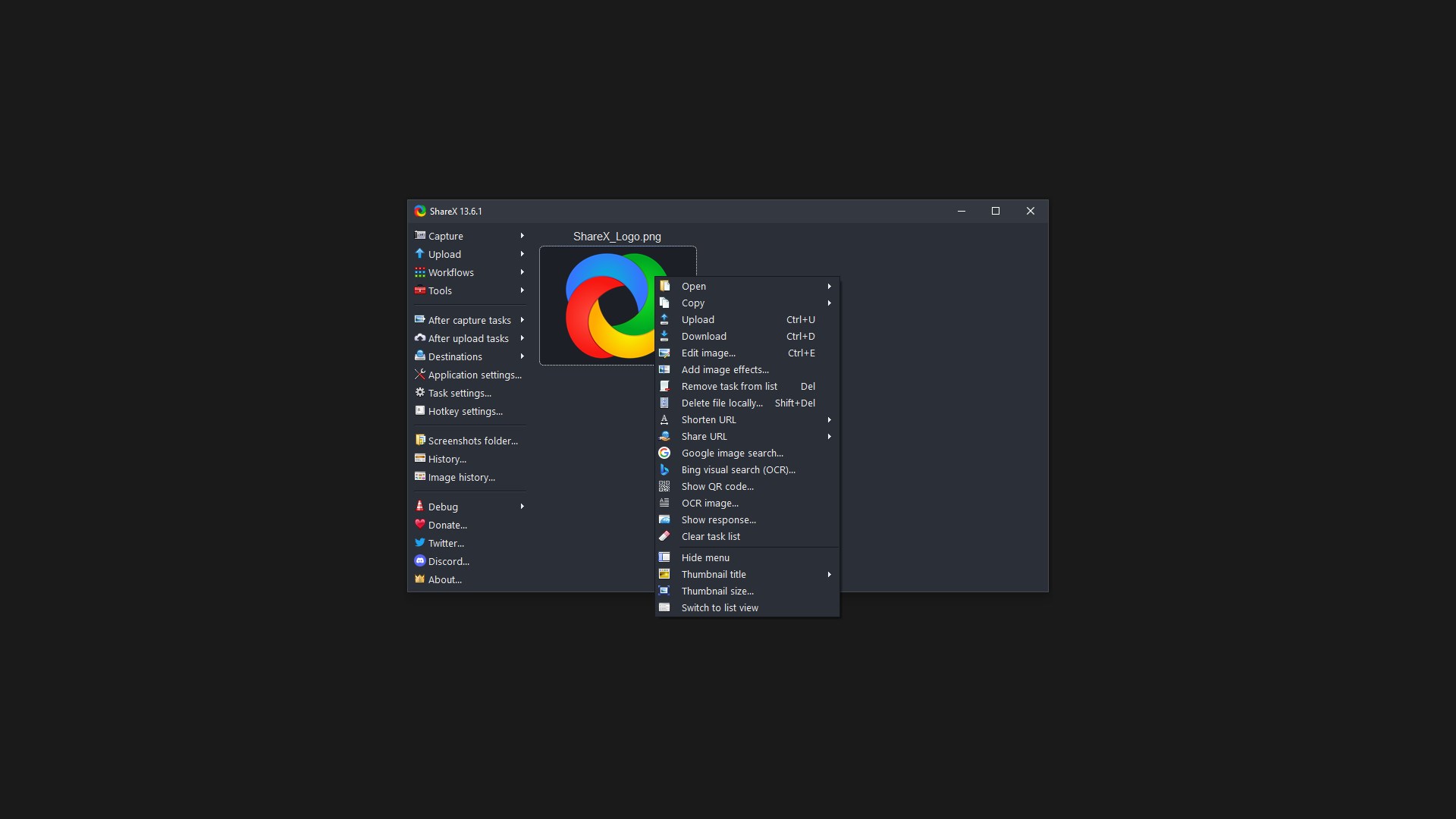
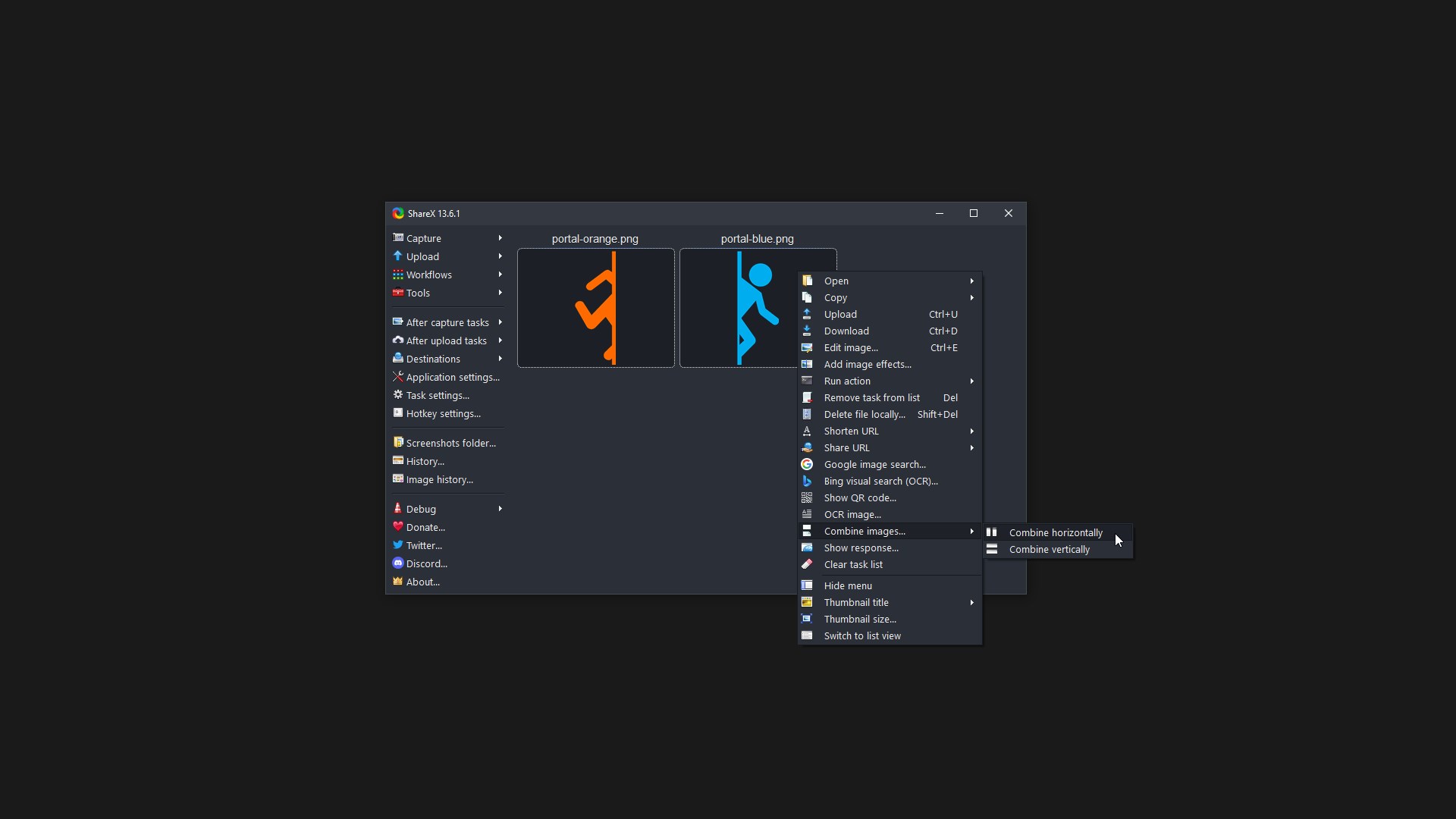
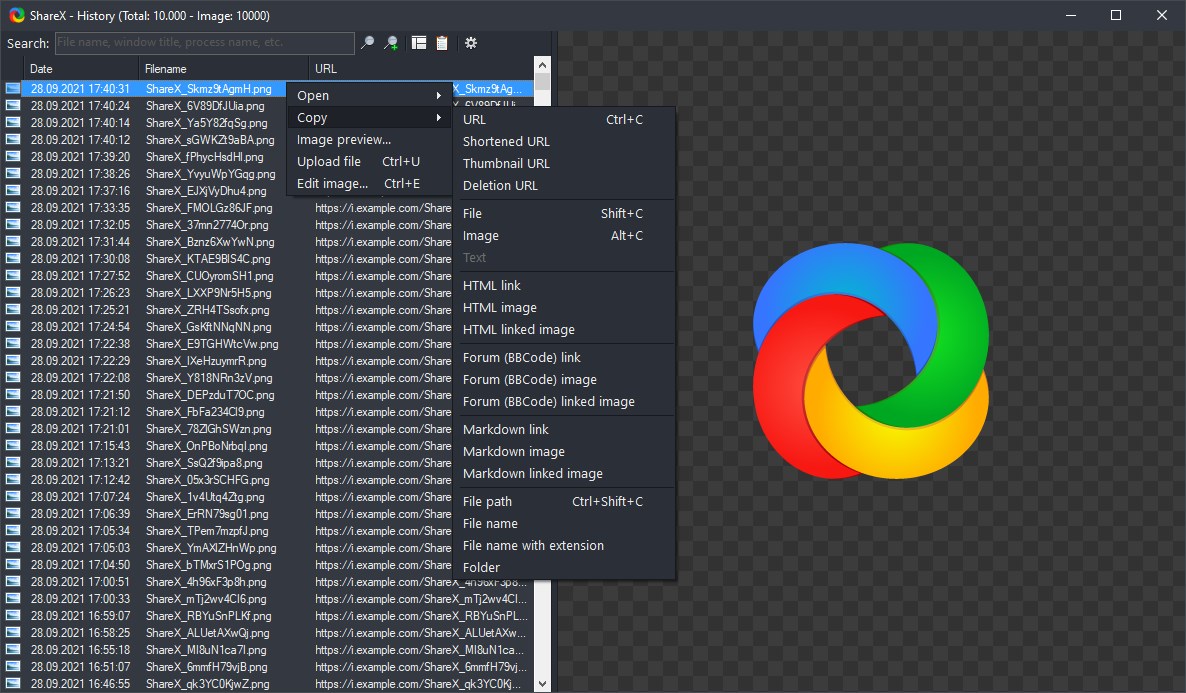
This application truly shines with its seamless upload and sharing functionalities. Once you capture an image, ShareX can automatically upload it to various hosting services like Imgur, Dropbox, or customized servers. It then automatically copies the generated link to your clipboard—imagine having a virtual assistant that takes a photo, uploads it, and hands you the link, ready for sharing in messages, emails, or social media. This automation dramatically reduces the time-consuming steps often associated with sharing visual content, making it ideal for quick workflows or professional reporting.
User Experience: Interface, Ease of Use, and Learning Curve
ShareX sports a clean and organized interface that balances functionality with simplicity. Designed for users with some technical familiarity, it might seem daunting initially, but its customizable workflows and comprehensive documentation ease the onboarding process. The learning curve is moderate; seasoned users will appreciate the depth of options, while newcomers can start with basic features and explore advanced settings as needed. The app runs smoothly on most Windows configurations, ensuring responsive operation even during intensive tasks.
What Sets ShareX Apart: Unique Strengths in a Crowded Market
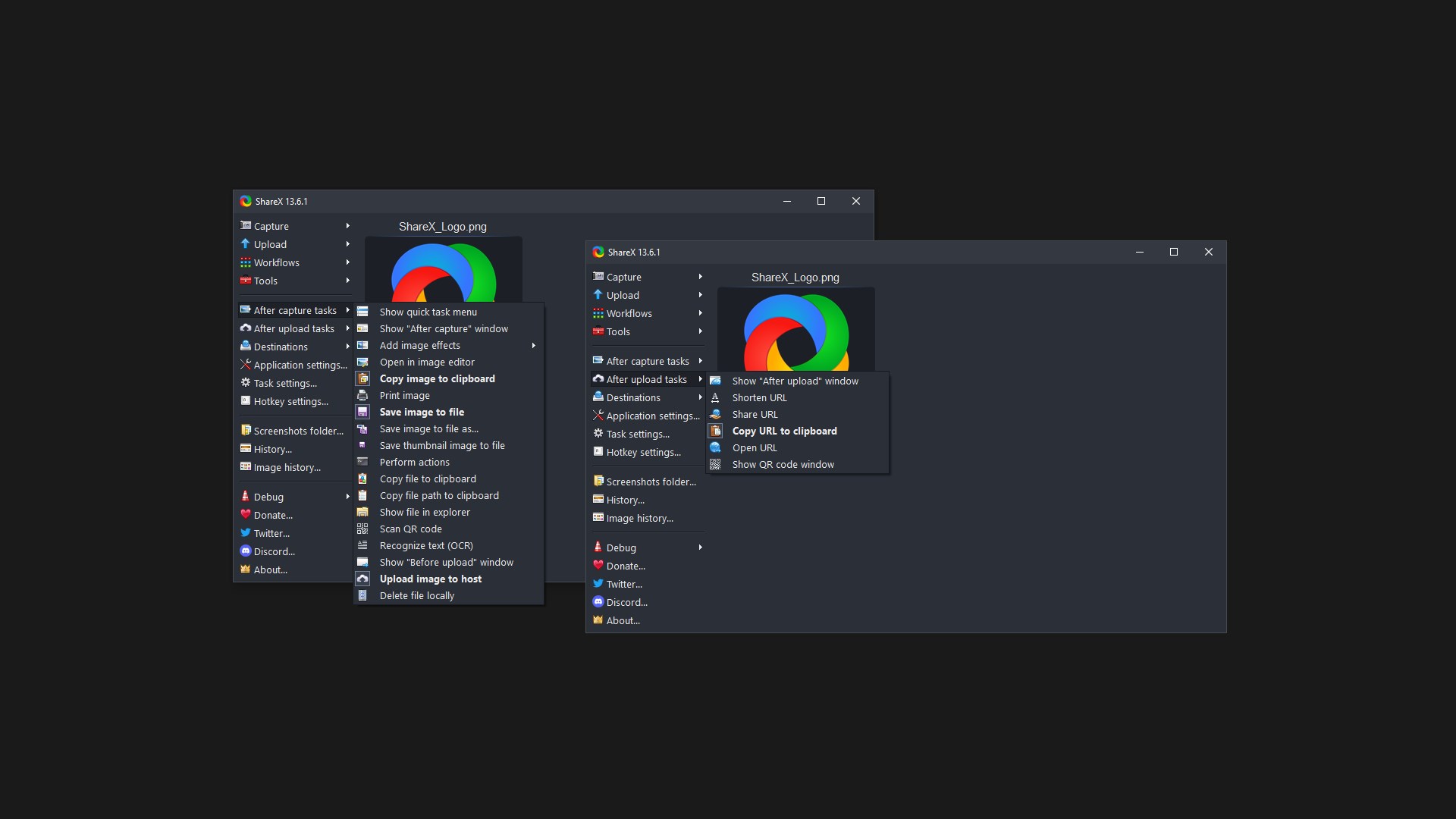
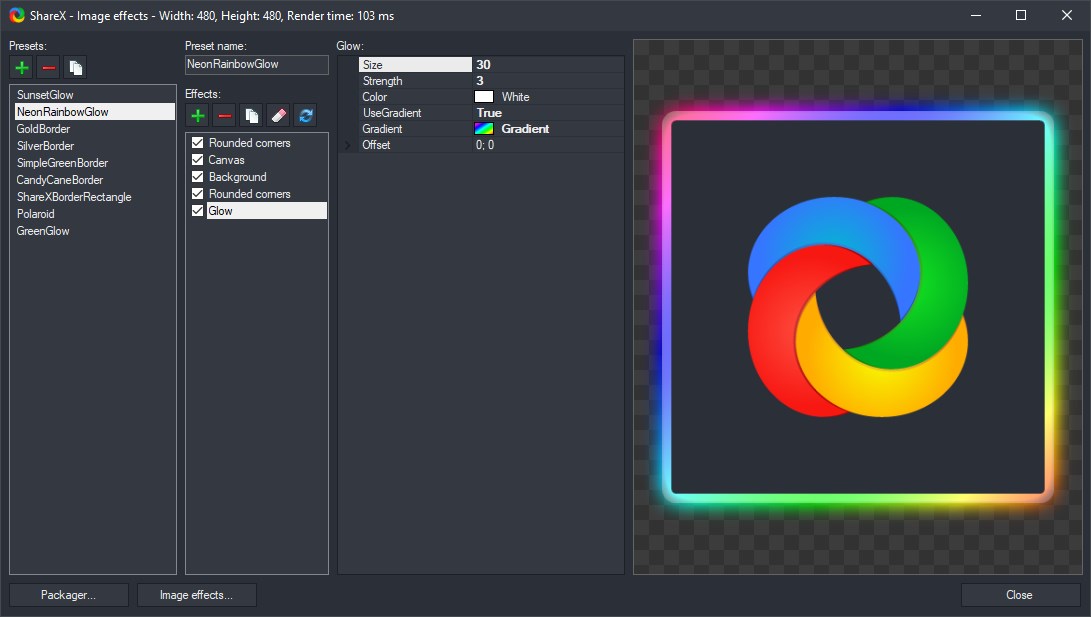
Compared to other utilities, ShareX's standout feature is its extensive automation capabilities. Its ability to create custom workflows—automatically capturing, processing (like adding watermarks or annotations), and uploading—makes it a standout choice for power users. Additionally, the open-source nature invites community-driven enhancements, ensuring it stays updated with modern needs and security practices. Unlike some alternatives that offer limited sharing options, ShareX's wide range of integrations and scripting support provide unmatched flexibility and control.
Final Recommendations: Is ShareX Right for You?
For users seeking a powerful, customizable, and free screen capture tool, ShareX is highly recommended. It's particularly well-suited for professionals who need to automate routine tasks—such as developers documenting bugs, designers sharing prototypes, or educators creating instructional content. While beginners may face a slight initial learning curve, the wealth of tutorials and active community support make it accessible. In summary, if automation, flexibility, and quality are your priorities, ShareX is an excellent tool worth integrating into your digital toolkit.
Pros
- Highly versatile screenshot options
- Powerful automation and workflow features
- Extensive format and output customization
- Open-source and free to use
- Built-in sharing and uploading capabilities
Cons
- Steep learning curve for new users
- Interface may feel dated or cluttered
- Occasional stability issues with large captures
- Limited support for advanced editing compared to dedicated image editors
- Configuration can be complex for customization











