
- Name Scanner - Quick and Easy Document Scanning
- Category Utilities & tools
- Developer Simon Knuth
- Available on PC
- OS Windows 10 version 18362.0 or higher
- languages Arabic (Tunisia), Catalan, Chinese (Simplified), Czech, Dutch, English, English (Canada), English (United Kingdom), French, French (Belgium), German, Hebrew, Hindi, Hungarian, Indonesian, Italian, Norwegian (Bokmål), Polish, Portuguese, Portuguese (Brazil), Romanian, Russian, Slovak, Spanish, Ukrainian
Introducing Scanner – Your Fast and Friendly Document Scanner for Windows
In today's digital age, efficiently transforming paper documents into usable digital files is more critical than ever, and Scanner offers a streamlined solution tailored for Windows users seeking quick, reliable, and user-friendly scanning. With its straightforward design and core functionalities, it positions itself as a handy tool for both casual and professional users who need to digitize everyday paperwork without fuss.
Who's Behind the App?
Developed and published by Simon Knuth, a developer dedicated to creating intuitive utility applications, Scanner is crafted with the intent to simplify the often tedious task of document scanning. The developer's focus on minimalism combined with functional excellence ensures the app remains lightweight yet powerful enough to handle everyday scanning needs effectively.
Core Features That Shine
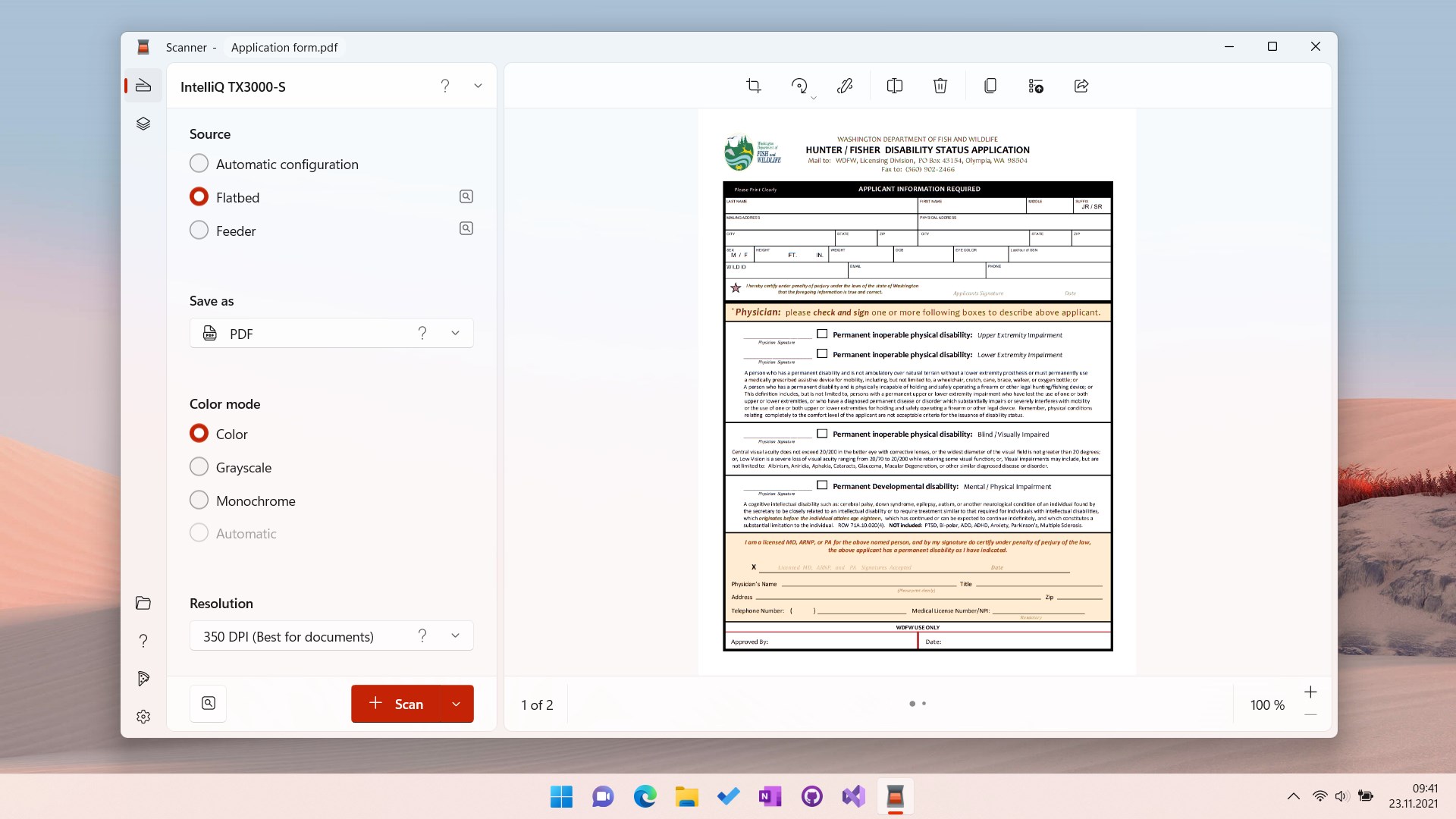
- One-Click Scanning for Speed and Simplicity: The app's hallmark is its “quick and easy” approach, enabling users to start scanning with minimal clicks. Just open the app, hit scan, and get a clear digital copy instantly—perfect for those in a hurry.
- High-Quality Image Output: Despite its simplicity, Scanner produces crisp, clean scans that retain important details, making it suitable for both personal record-keeping and professional documentation.
- Flexible Export Options: Users can save scanned documents in various formats, such as PDF or image files, and effortlessly organize files for ongoing use or sharing.
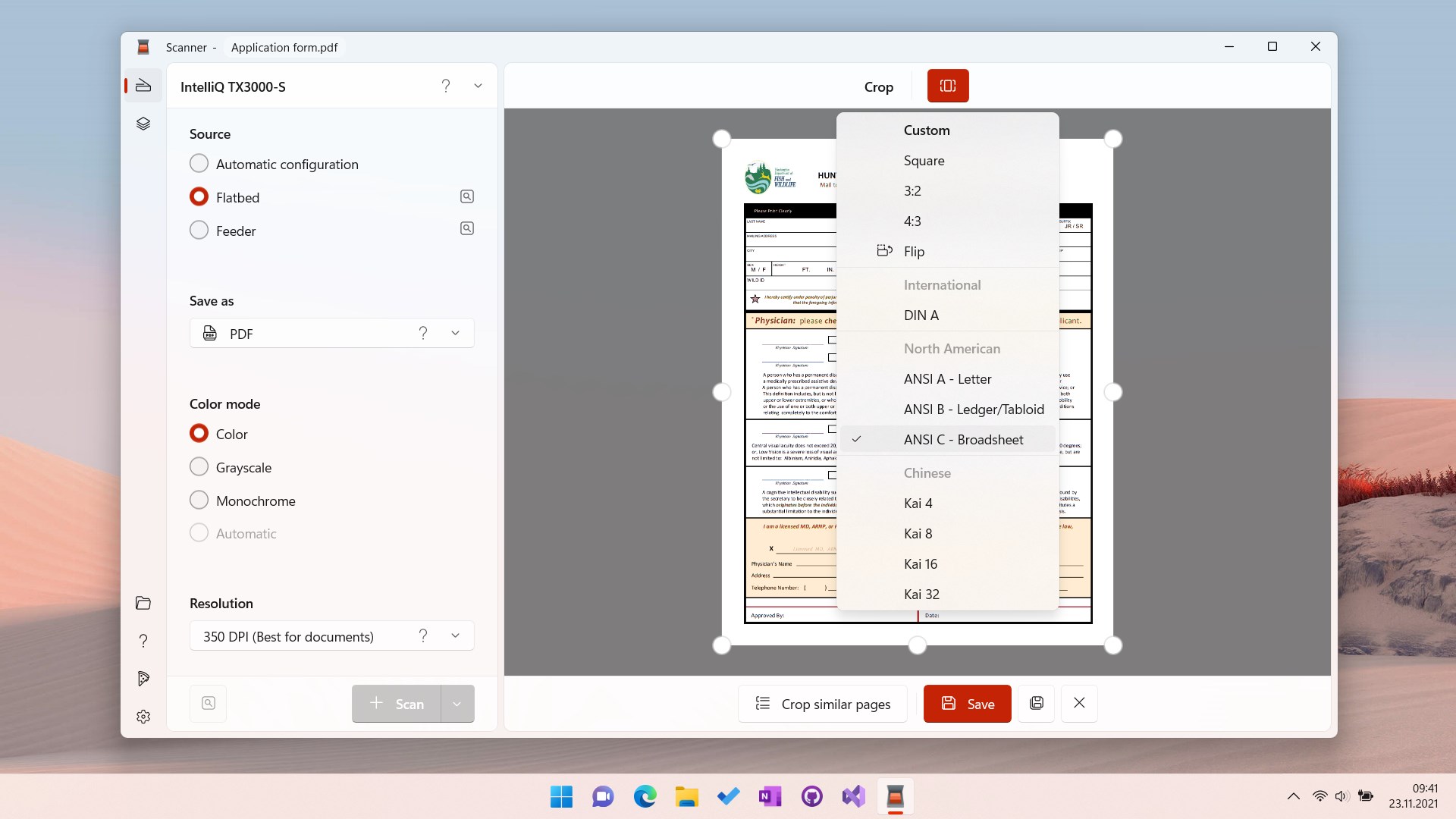
- Automatic Edge Detection and Cropping: This feature intelligently identifies document edges, cropping away unnecessary background, which reduces post-scan editing time—like having an invisible assistant tidy up your digital papers.
Digging Into the User Experience
The interface of Scanner is refreshingly minimalist—think of it as the clean countertop of your digital workspace. Navigating through the app feels fluid; there's a tangible sense of responsiveness, making the act of scanning almost as intuitive as flipping through a photo album. The learning curve is gentle, with most users able to get started within a minute or two, thanks to clear prompts and straightforward controls.
One notable aspect is how well the app balances functionality with simplicity. Unlike heavier, feature-burdened scanning tools full of settings and options, Scanner keeps things streamlined, focusing on what most users need—fast, decent-quality scans. This makes it particularly appealing for typical office tasks, personal documentation, or quick on-the-go scans.
What Sets it Apart? The Unique Edge
While many document scanning apps emphasize extensive editing features or cloud integration, Scanner's standout feature is its emphasis on speed without sacrificing quality. Its intelligent edge detection combined with instant processing sets it apart, especially for users who need quick results without navigating complex settings. Moreover, the app's minimal interface ensures users aren't overwhelmed—making it an ideal choice for those who value efficiency over feature bloat.
Should You Give It a Try?
Absolutely, especially if you're someone who periodically needs to digitize documents without fuss. Scanner is most suitable for students, freelancers, or household users who value simplicity and speed. Its straightforward workflow means you can forget about adjusting settings and focus on getting the job done.
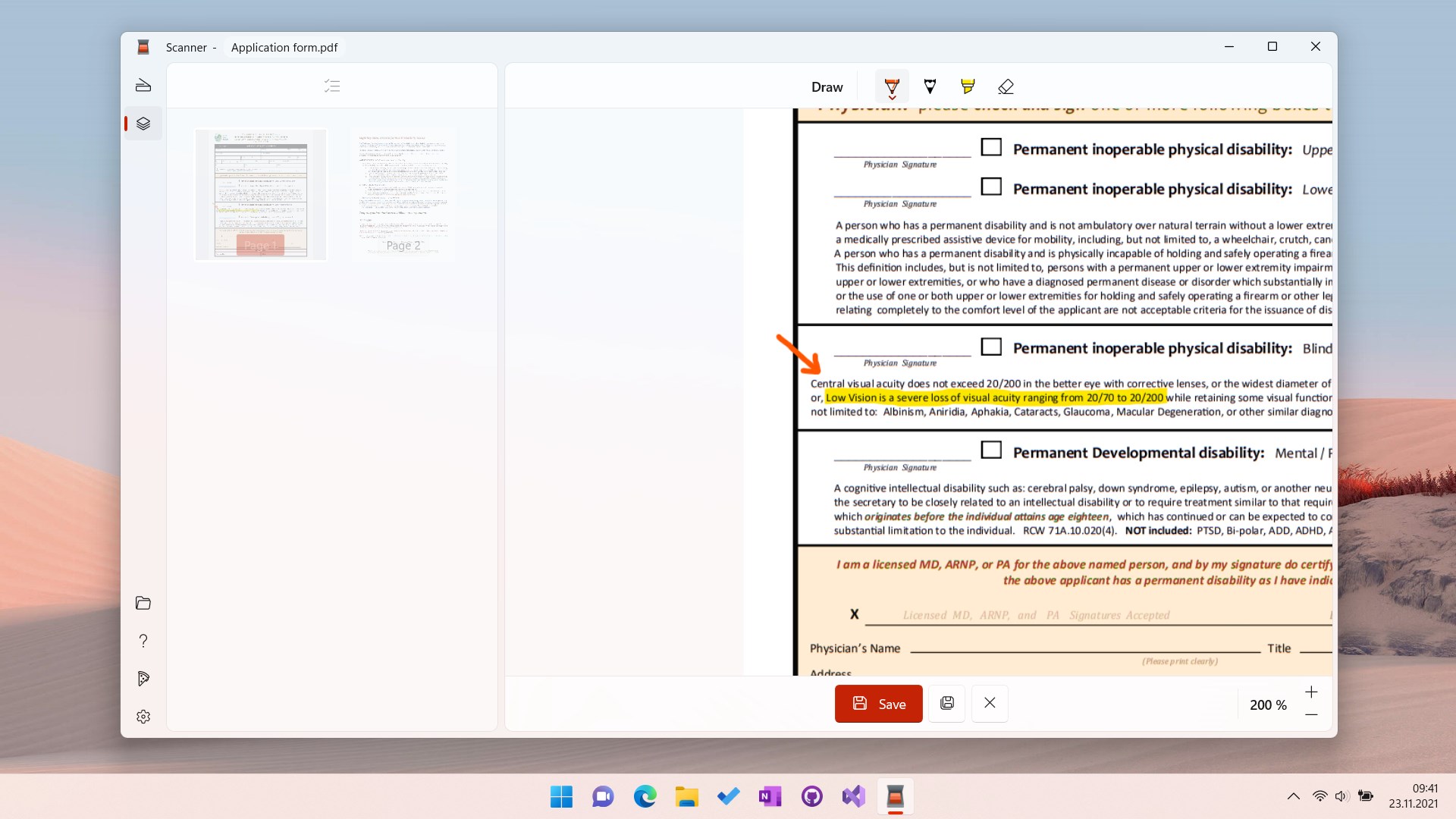
While it might lack advanced editing or OCR capabilities that some professional scanning suites offer, its core strengths—speed, ease of use, and decent output quality—make it a dependable tool for everyday needs. For users seeking a lightweight, no-nonsense scanner app, this is a solid recommendation.
Pros
- High-quality scans
- Fast scanning process
- Easy-to-use interface
- Automatic edge detection
- Multiple export options
Cons
- Limited editing features
- Occasional misdetection of edges
- No cloud storage integration by default
- Limited OCR accuracy for handwriting
- Occasional app crashes on older devices











