
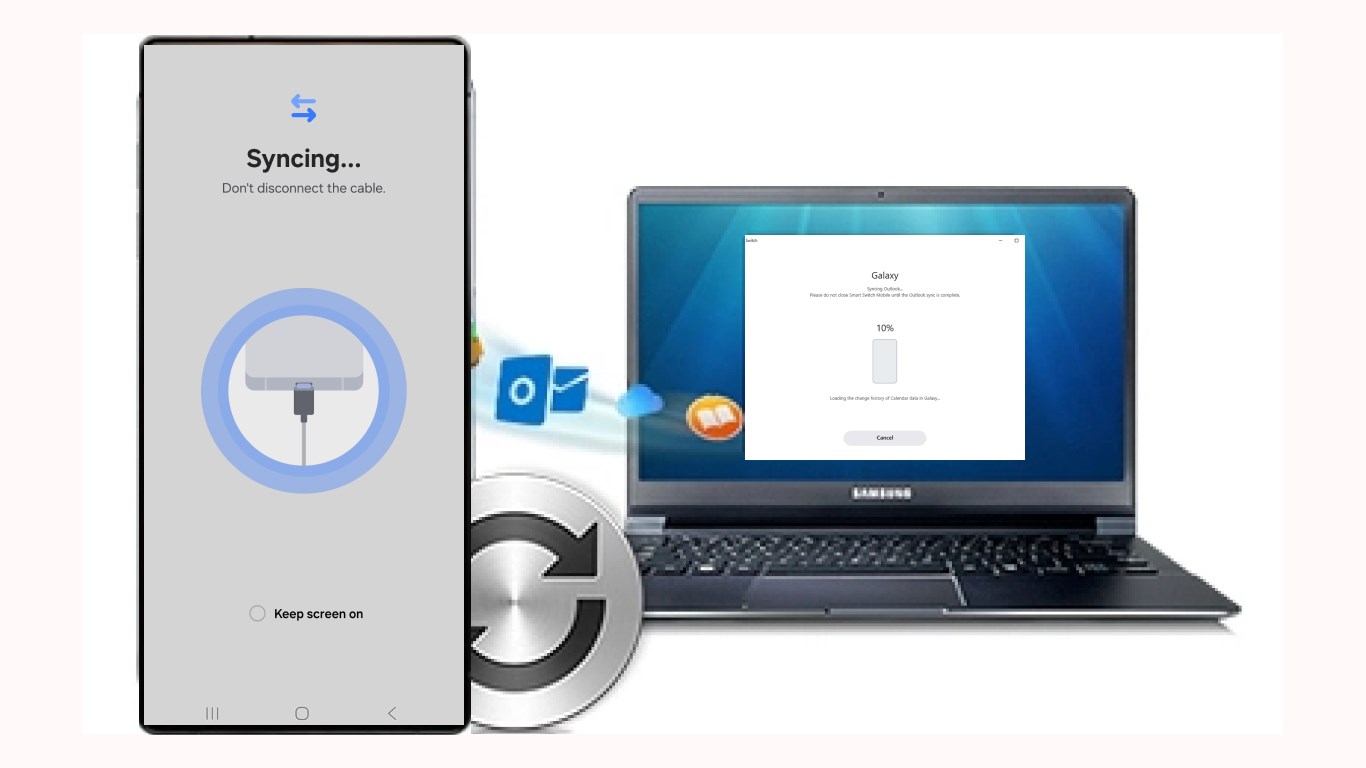
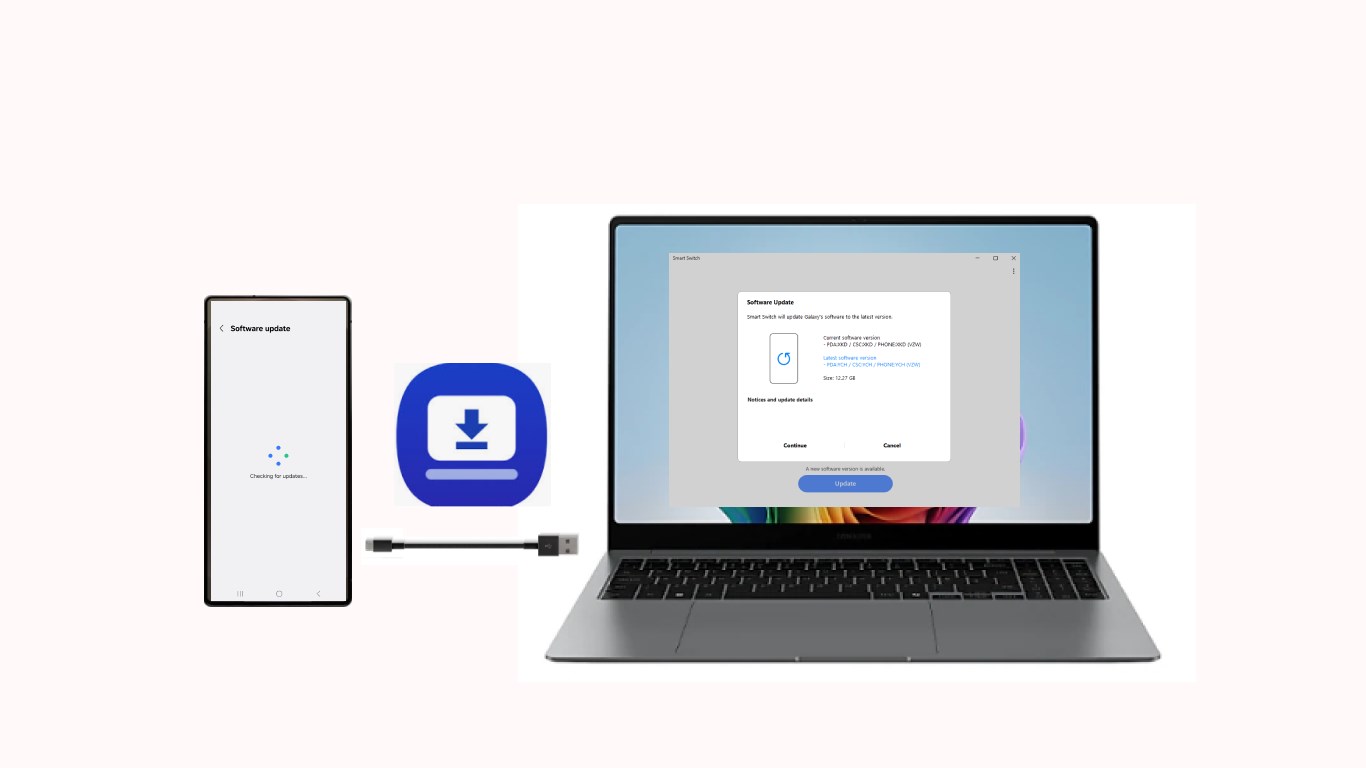
- Name Samsung Smart Switch
- Category Utilities & tools
- Developer Samsung Electronics Co. Ltd.
- Available on PC
- OS Windows 10 version 19041.0 or higher
- languages Arabic, Arabic (United Arab Emirates), Bulgarian, Chinese (Simplified), Chinese (Traditional), Chinese (Traditional, Hong Kong SAR), Croatian, Czech, Danish, Dutch, English (United Kingdom), English (United States), Estonian, Finnish, French, French (Canada), German, Greek, Hebrew, Hindi, Hungarian, Indonesian, Italian, Japanese, Korean , Latvian, Lithuanian, Malay, Norwegian (Bokmål), Polish , Portuguese (Brazil), Portuguese (Portugal), Romanian, Russian, Slovak, Slovenian (Slovenia), Spanish (Argentina), Spanish (Chile), Spanish (Latin America), Spanish (Mexico), Spanish (Paraguay), Spanish (Spain), Spanish (Uruguay), Swedish, Thai, Turkish, Ukrainian, Vietnamese
Introducing Samsung Smart Switch for Windows: A Seamless Data Transfer Experience
Samsung Smart Switch for Windows is a dedicated application designed to simplify the process of transferring data between devices, especially for Samsung users. With its user-friendly interface and robust features, it aims to make device migration smooth and hassle-free, whether setting up a new Samsung smartphone or managing backups.
Developed by Samsung Electronics Co. Ltd.
As the flagship software division of a global electronics giant, Samsung Electronics Co. Ltd. has a longstanding reputation for innovation and quality. Their development team behind Smart Switch is focused on providing reliable and easy-to-use transfer solutions that cater to Samsung's diverse user base.
Key Features That Shine
- Comprehensive Data Transfer: Supports moving contacts, messages, photos, music, videos, call logs, and even app data, ensuring a complete migration.
- Multiple Transfer Methods: Enables wireless, wired (via USB), or PC-based transfers, offering flexibility based on user preference and scenario.
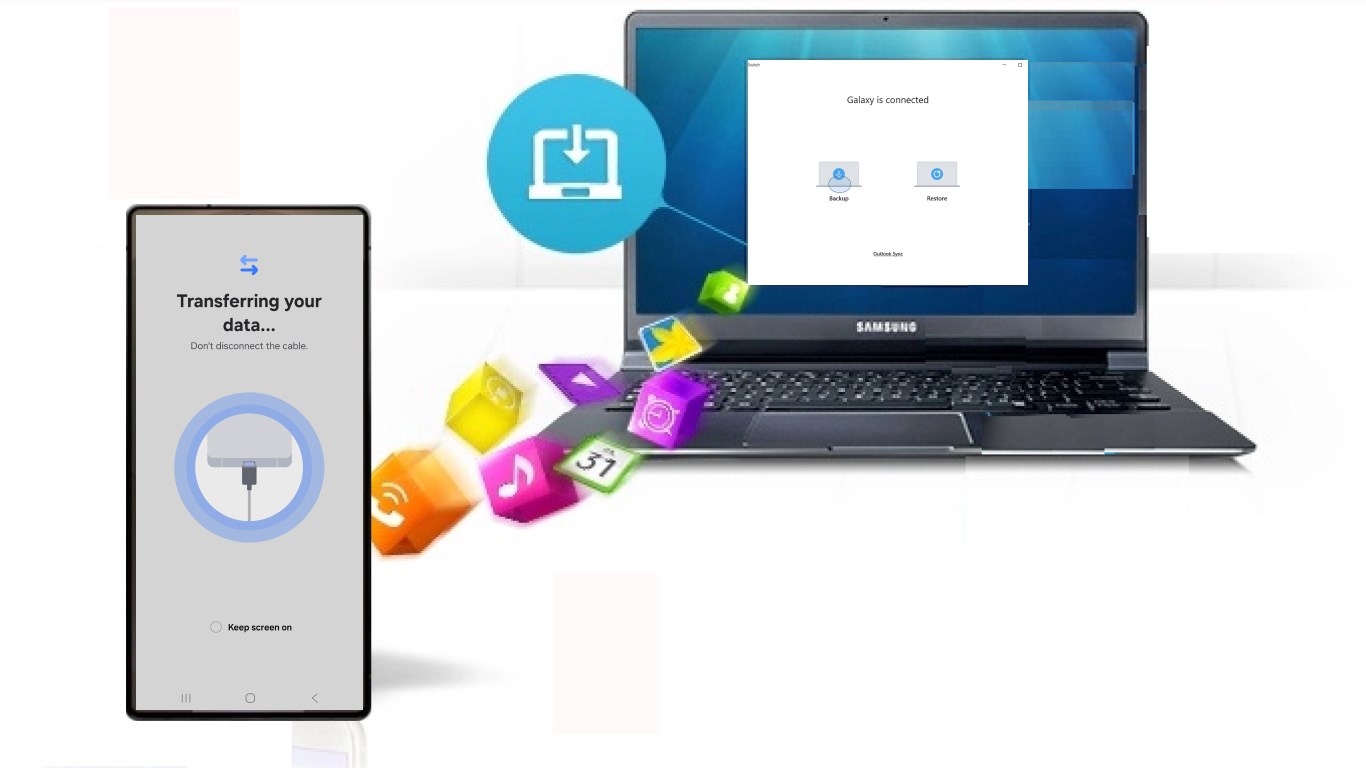
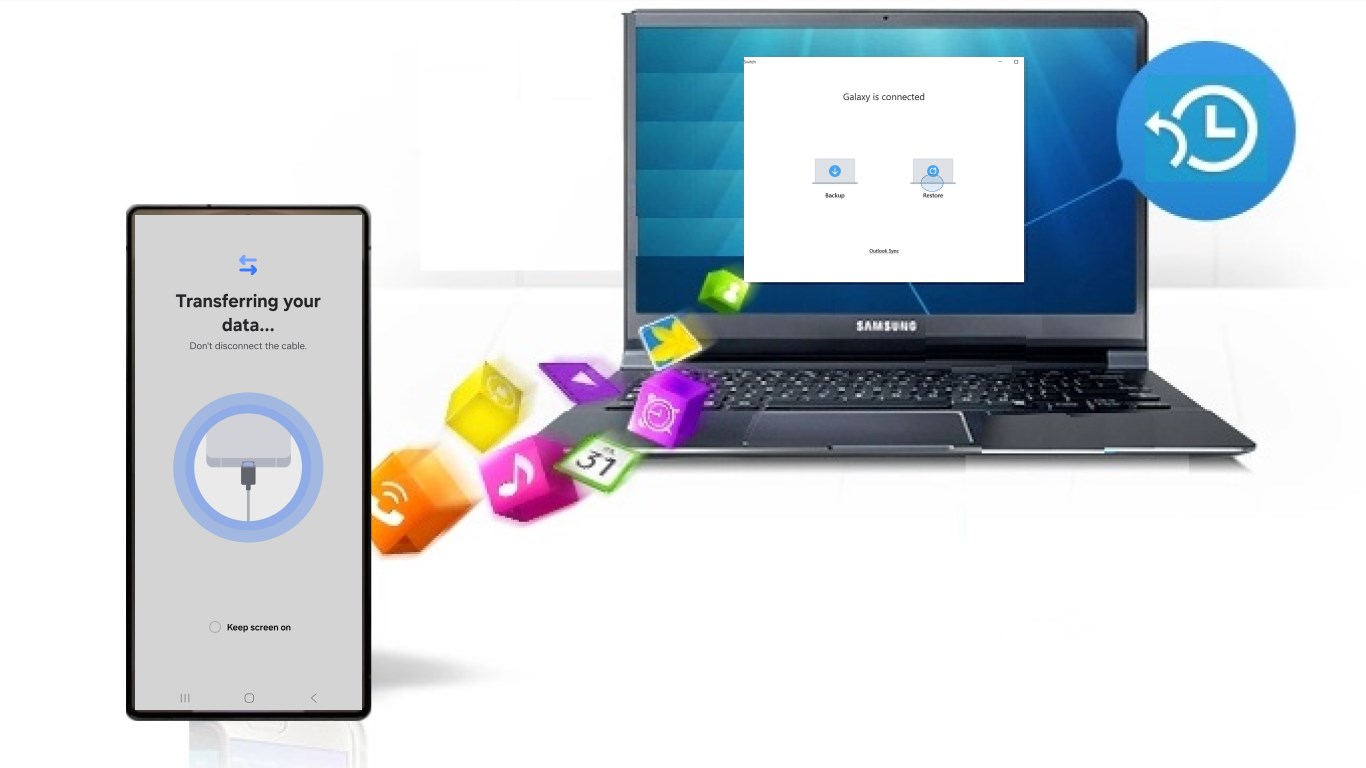
- Backup and Restore: Allows users to back up their device data to PC securely and restore it anytime, protecting against data loss.
- User-Friendly Interface: Designed for simplicity, making the setup process approachable even for tech novices.
Engaging and User-Centric Design
Sitting at the intersection of functionality and ease, Samsung Smart Switch for Windows greets you with a clean, intuitive layout. Navigating through its options feels akin to having a friendly assistant guiding your hand—clear buttons and straightforward prompts remove any guesswork. The application's responsiveness ensures smooth operation; even large data sets are transferred with minimal lag. The learning curve is gentle—you'll be up and running within minutes, without slogging through complex settings or confusing menus.
Core Functionalities in Detail
Seamless Data Migration Made Easy
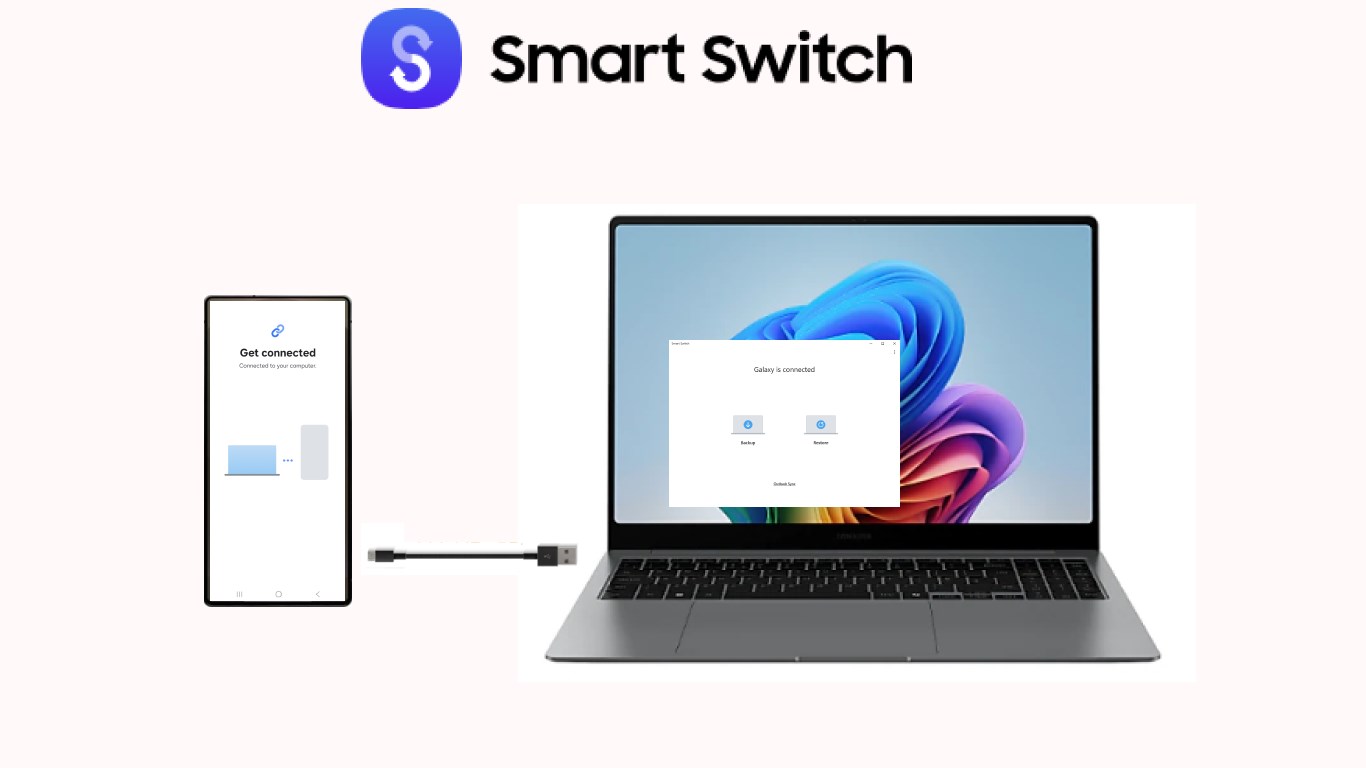
The core strength of Smart Switch is its ability to facilitate effortless data migration. Whether you're switching from an Android or even an older Samsung device, the app intelligently detects available transfers—be it via Wi-Fi, wired connection, or over the network. The process is streamlined: just connect your phones or select the backup file on your PC, and the app handles the rest. Notably, its capability to transfer app data where possible sets it apart, providing a more complete device clone.
Flexible Transfer Options Tailored to You
Unlike some competitors that rely solely on wired connections, Samsung Smart Switch offers versatile transfer modes. For instance, wireless transfer is convenient when cable setup isn't feasible—imagine it as a fast lane during a busy highway, saving you time and effort. The wired option guarantees speed and stability for larger data sets, akin to a freight train carrying your digital belongings swiftly across the tracks. This flexibility ensures users can adapt the transfer method to their preferences and situational needs.
Secure Backup and Restore Capabilities
Beyond migration, the application provides reliable backup options. Think of this as creating a digital safety deposit box—your precious data is kept securely, with easy restore options in case of accidental deletion or device issues. The process is straightforward: connect your device, select backup, and let Smart Switch save your info. Restoring is just as easy, restoring your digital life with a few clicks, making it especially useful for users who frequently experiment with device setups or upgrade regularly.
What Makes Samsung Smart Switch Exceptional?
Compared to other utility tools, Smart Switch's biggest advantage lies in its tailored optimization for Samsung devices, ensuring compatibility and efficiency. Its ability to transfer app data—that's often a headache for users—is particularly noteworthy. Additionally, the multi-method transfer approach sets it apart, providing users with options tailored to their circumstances and comfort levels. Unlike generic data transfer tools, Smart Switch's integration with Samsung's ecosystem offers a more comprehensive and reliable experience.
Is It Worth Your Time? Final Recommendations
Given its intuitive design, flexible transfer modes, and focus on comprehensive data migration, Samsung Smart Switch for Windows is highly recommended for Samsung users, especially those setting up new devices or performing regular backups. It functions quietly in the background, akin to a trusty assistant—reliable, straightforward, and effective. While it may not be as feature-rich as some third-party utilities, its tight integration with Samsung's ecosystem makes it a top choice for users within that universe. Overall, if you're looking for a simple, dependable tool to handle device data transfers, this app deserves a top spot in your toolkit.
Pros
- User-Friendly Interface
- Seamless Data Migration
- Supports Multiple Platforms
- Secure Data Handling
- Free of Charge
Cons
- Limited Backup Options
- Occasional Connection Issues
- Not Compatible with All Devices
- Limited Customization Settings
- Potential Data Loss in Rare Cases











