
- Name Rufus
- Category Utilities & tools
- Developer Pete Batard
- Available on PC
- OS Windows 10 version 14316.0 or higher
- languages Arabic, Bulgarian, Chinese (Simplified), Chinese (Traditional), Croatian, Czech, Danish, Dutch, English (United States), Finnish, French, German, Greek, Hebrew, Hungarian, Indonesian, Italian, Japanese, Korean , Latvian, Lithuanian, Malay, Norwegian (Bokmål), Persian, Polish , Portuguese (Brazil), Portuguese (Portugal), Romanian, Russian, Serbian (Latin, Serbia), Slovak, Slovenian (Slovenia), Spanish (Spain), Swedish, Thai, Turkish, Ukrainian, Vietnamese
Rufus for Windows: The Reliable USB Boot Creator You Can Trust
If you've ever found yourself stuck needing to create a bootable USB drive for installing or repairing Windows systems, Rufus is your go-to companion—simple, efficient, and dependable. Developed by Pete Batard and published by Akeo Consulting, this tool stands out as a must-have utility for tech enthusiasts and IT professionals alike.
Basic Information: A Clear Snapshot
Rufus is a lightweight application designed to create bootable USB drives from ISO images, streamlining the process of installing or repairing Windows and other OSes on your computer.
Developer and Publisher
Developed by Pete Batard, an experienced software engineer, Rufus is distributed by Akeo Consulting, a small but dedicated team committed to simplifying system setup processes.
Main Features Highlights
- Supports a wide range of ISO images, including Windows, Linux, and other Linux-based distributions.
- Fast creation speed due to efficient writing algorithms.
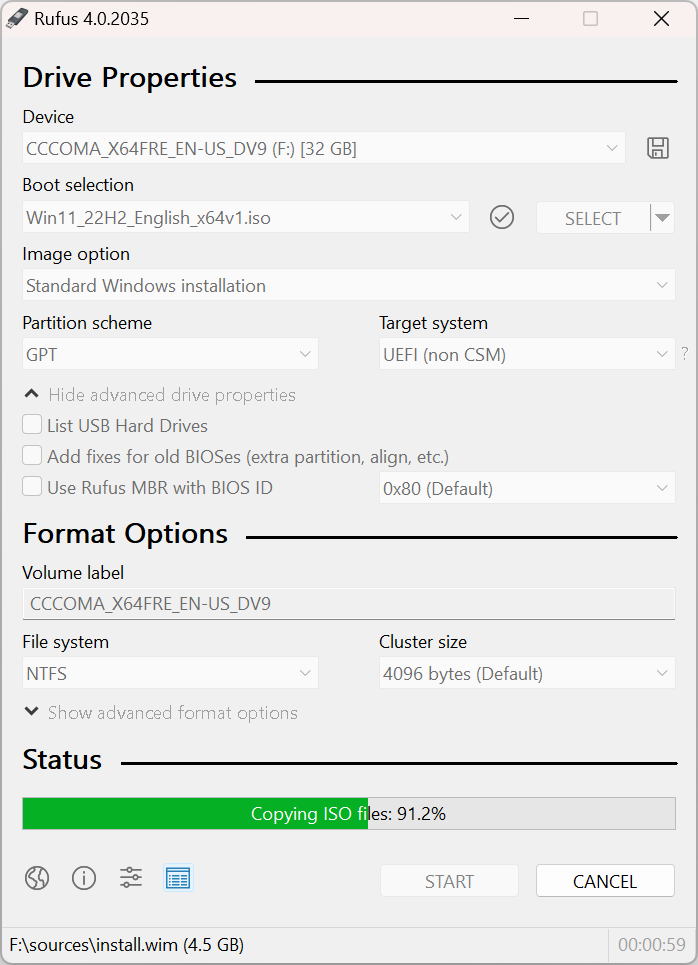
- Offers advanced options for partition schemes (MBR, GPT) and target systems (UEFI, BIOS).
- Ensures high compatibility, minimizing boot issues across different hardware.
Target User Group
This application is perfect for system administrators, IT technicians, and tech-savvy individuals who frequently work with OS installations, troubleshooting, or creating recovery media.
A Fun Dive into Rufus: Why It Stands Out
Imagine you're embarking on a tech adventure—your trusty USB drive becomes your portable toolkit for installing fresh operating systems or fixing stubborn boot problems. Rufus makes this journey smooth sailing, like a well-oiled engine powering your digital endeavors. Its straightforward interface and lightning-fast performance make the otherwise daunting task of creating bootable drives feel like a walk in the park.
Core Functionalities Explored
Seamless ISO to USB Conversion
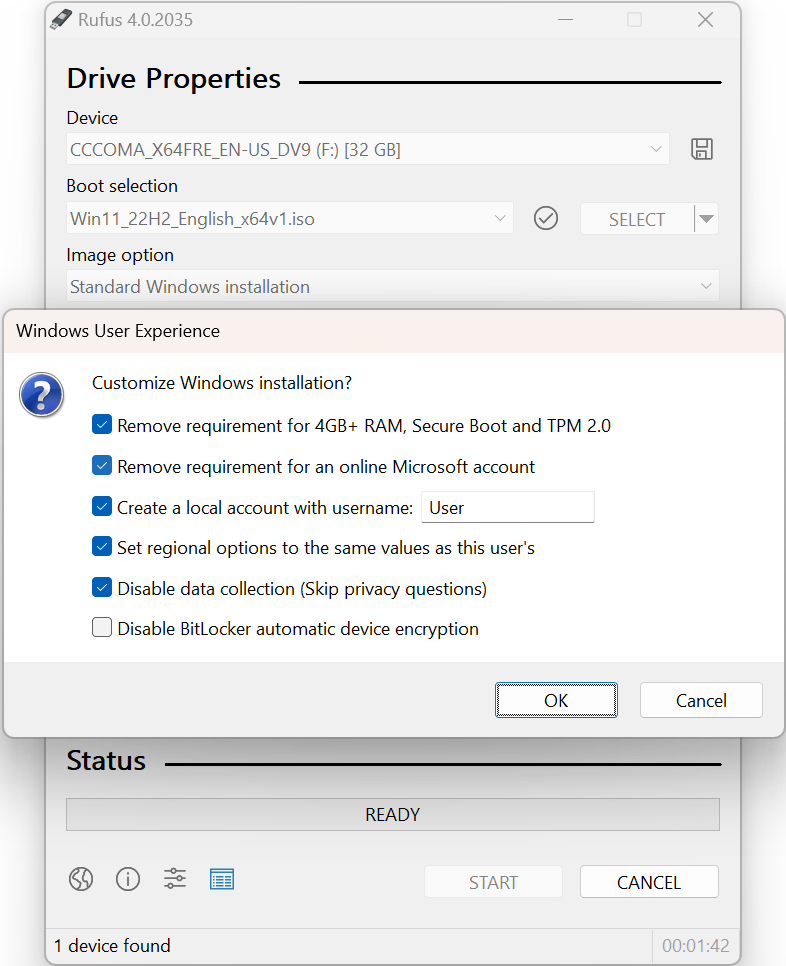
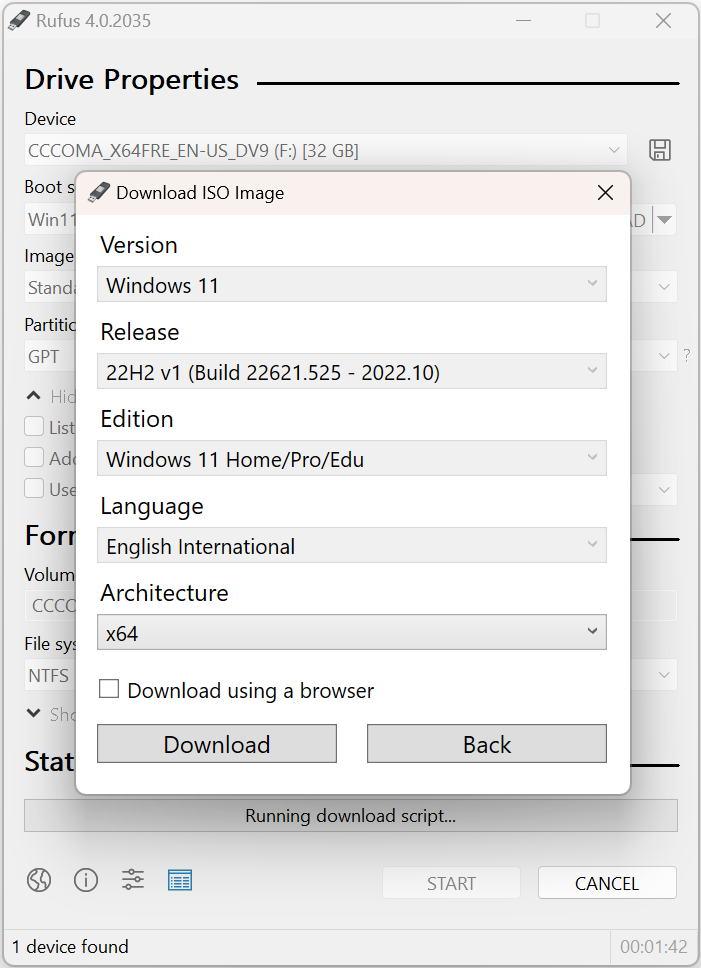
At the heart of Rufus is its robust ability to convert ISO images into bootable USB drives. The process is akin to translating a complex foreign language—Rufus manages the translation swiftly and accurately. Whether you're crafting a Windows installation media or deploying a Linux distribution, Rufus handles the complexities behind the scenes, presenting a simple interface that guides you through each step. Its support for various ISO types, especially Windows 10 and Windows 11, guarantees broad compatibility and reduces the frustration of boot failures.
Flexible Partitioning and Boot Options
One of Rufus's most notable features is its versatility in configuration. Need to create a UEFI-bootable drive for the latest systems? Done. Prefer a traditional BIOS-compatible setup? No problem. The application allows you to select between MBR and GPT partition schemes and target different firmware interfaces. Think of Rufus as a multi-tool; its adaptability ensures that whether you're troubleshooting an older machine or deploying on cutting-edge hardware, your bootable media will work flawlessly.
User Experience: Intuitive and Efficient
The interface is clean and uncluttered, resembling a familiar wizard guiding you through setup like a friendly GPS. Even beginners will find it easy to navigate—selecting the ISO file, choosing the partition scheme, and clicking start are about as complicated as making a cup of coffee. Operation speed is impressive; Rufus writes data rapidly, minimizing wait times. The learning curve is gentle, with straightforward defaults that suit most scenarios, but also offering advanced options for seasoned users seeking more control.
Unique Selling Points and Differentiators
What makes Rufus particularly special compared to other utilities? Primarily, its blistering speed and high compatibility set it apart. Unlike some tools that add layers of complexity or require installation, Rufus is portable—no installation needed—and runs seamlessly. Its ability to intelligently detect the best partition scheme for your ISO and target system reduces user errors, making it the reliable first choice for creating boot media. Moreover, regular updates from Pete Batard ensure compatibility with the latest Windows versions and emerging hardware standards, maintaining Rufus's position at the forefront of USB creation tools.
Should You Give It a Try? Recommendations & Usage Tips
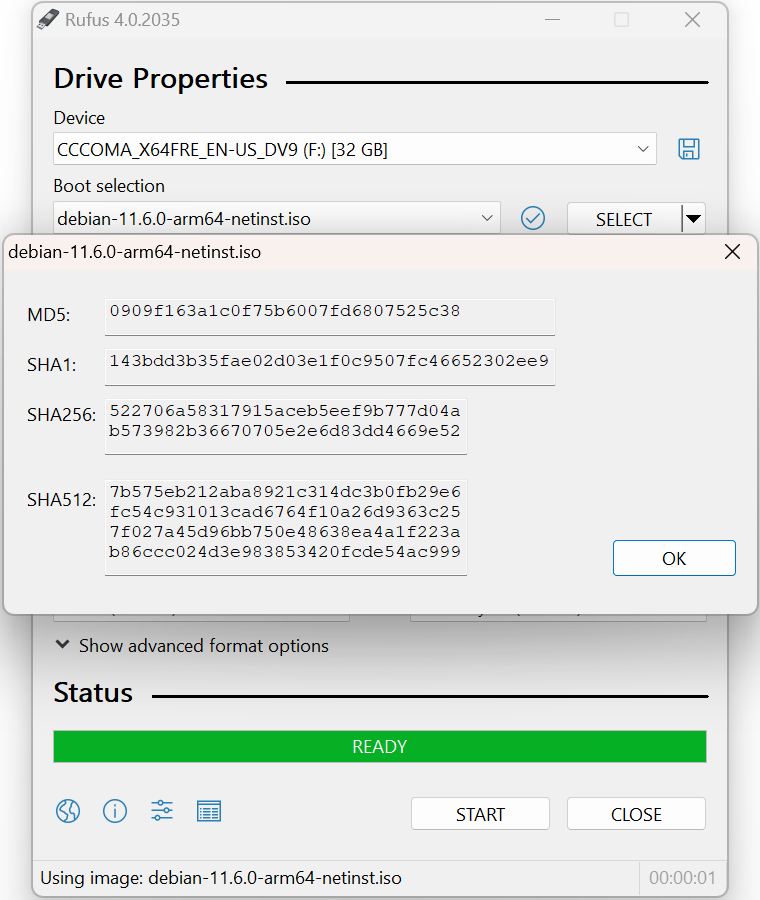
Given its straightforward nature, speed, and reliability, I wholeheartedly recommend Rufus for anyone who frequently works with OS deployments or recovery tasks. Whether you're a professional managing multiple machines or a hobbyist preparing rescue drives, Rufus simplifies the process without sacrificing control. For best results, ensure you use the latest version to benefit from recent updates, and double-check your ISO files' integrity before proceeding.
Pros
- User-Friendly Interface
- High-Speed Creation
- Wide Compatibility
- Open Source and Free
- Minimal Resource Usage
Cons
- Lack of Advanced Customization Options
- Limited Support for UEFI Secure Boot
- No Multi-Partition Support
- Occasional Compatibility Issues with Newer ISO Files
- Limited Documentation for Troubleshooting











