

- Name RoboCopy GUI
- Category Utilities & tools
- Available on PC
- OS Windows 10 version 17763.0 or higher
- languages English (United Kingdom)
RoboCopy GUI for Windows: Your Friendly Assistant for Smarter File Management
If you're tired of the command line nightmares of copying massive files or automating backups, RoboCopy GUI offers an intuitive graphical interface that transforms a complex task into a breeze. Developed by PC Assist Software, this application stands out by simplifying robust copying processes, making advanced file management accessible for everyday users and tech enthusiasts alike.
About the Developer and Core Features
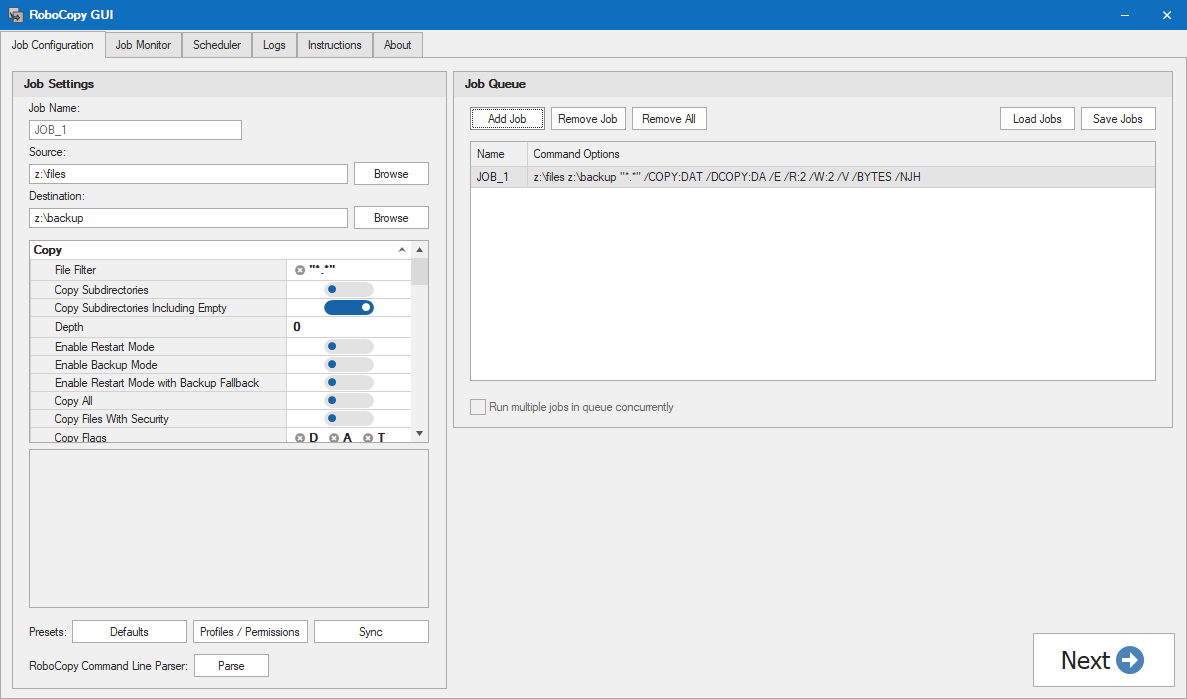
Created by PC Assist Software, RoboCopy GUI is designed to bridge the gap between powerful command-line options and user-friendly interfaces. Its main highlights include multi-threaded copying for speed enhancement, intricate scheduling capabilities to automate backups, and detailed logging for transparency and troubleshooting. These features empower users to craft tailored copy jobs without wrestling with complex scripts.
Engaging with RoboCopy GUI: A User-Friendly Experience
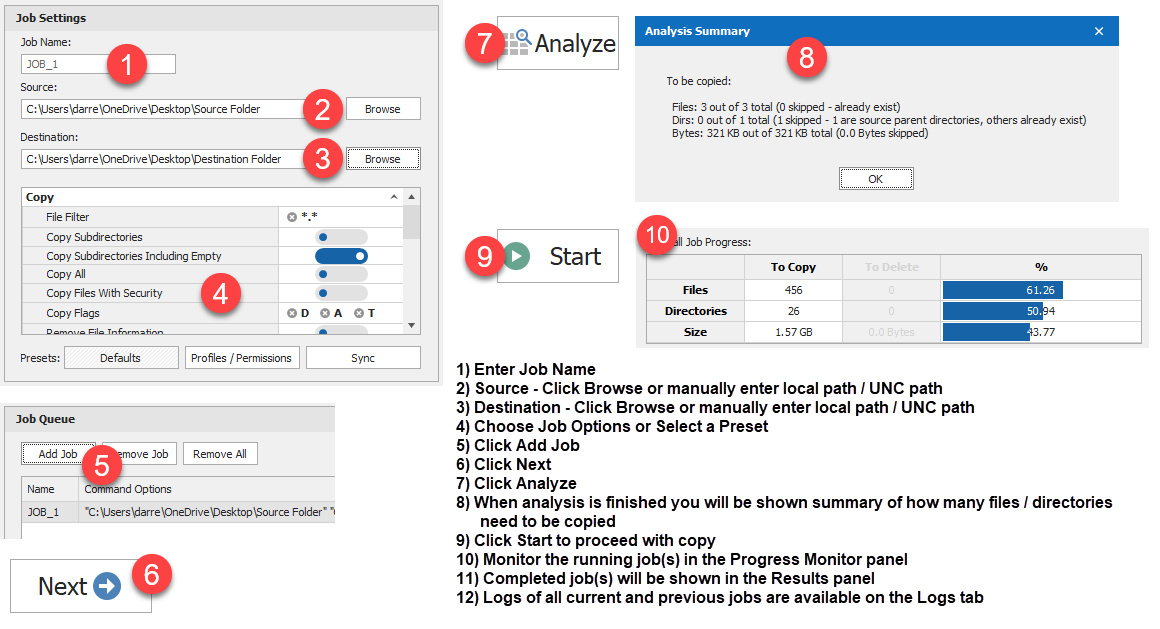
Imagine a seasoned librarian guiding you through the maze of your digital library—precise, calm, efficient. That's the experience RoboCopy GUI aims to deliver. The interface welcomes newcomers with clean, organized layouts and logical workflows. From setting up backup sources to choosing destinations, the process feels almost like navigating a familiar map. The responsiveness is impressive; tasks that once took command-line finesse now run smoothly with just a few clicks, making file management less of a chore and more of a delight.
Core Functionality Breakdown
Multi-Threaded Copying: One of the most notable features is its multi-threaded operation, which accelerates the copying process considerably. Imagine trying to move several boxes—doing it one at a time is slow, but coordinating multiple workers speeds things up; similarly, RoboCopy GUI utilizes multiple threads to handle large transfers efficiently, saving you time especially when dealing with hefty data sets.
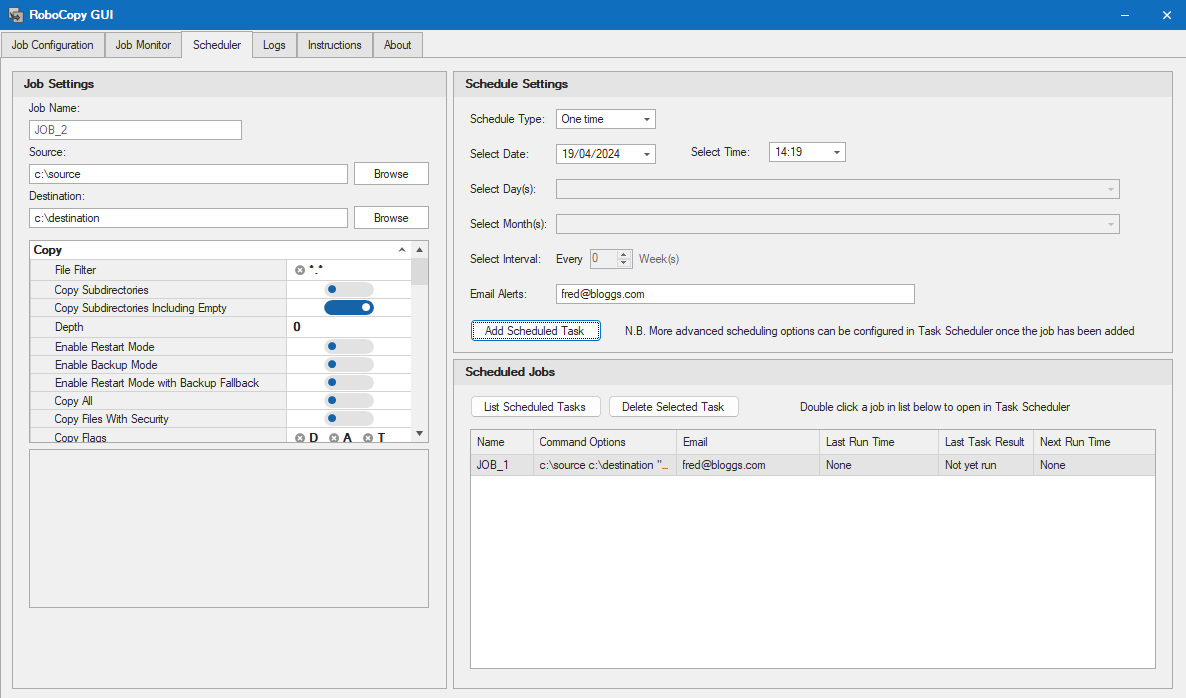
Task Scheduling and Automation: The application excels in automating routine backups. You can schedule copy jobs to run at specified times, which is akin to having a diligent assistant working around the clock. This feature ensures your data stays up-to-date without manual intervention, ideal for small business backups or personal data safety routines.
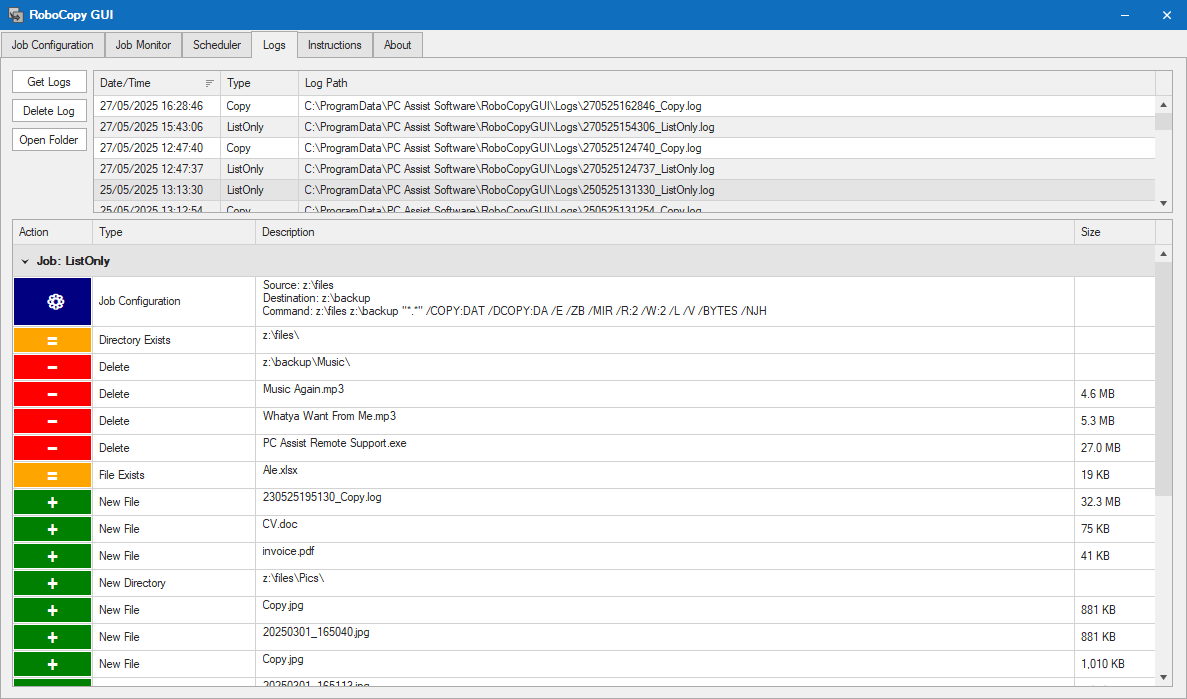
Detailed Logging and Error Handling: Transparency is crucial in file operations, and RoboCopy GUI offers clear logs that document every step and any errors encountered. Whether it's a failed transfer due to permission issues or a successful backup, you're kept in the loop with easy-to-understand reports. This aspect is especially beneficial for troubleshooting and maintaining data integrity.
Design, Usability, and Unique Selling Points
The interface strikes a perfect balance—simple enough for beginners but versatile for power users. Icons are intuitive, and the layout is logically arranged, allowing users to set up complex copy tasks with minimal learning curve. Response times are snappy, and the guided setup wizards help users understand each step, making the learning curve gentle.
Compared to other utilities like TeraCopy or FastCopy, RoboCopy GUI's standout features lie in its ability to handle large and complex copying jobs with multi-threading and scheduling capabilities—functions typically reserved for more technical command-line tools. The GUI wraps these features in a friendly package, making advanced copying strategies accessible to a broader audience. Its logging system also adds a layer of transparency that many similar tools lack, facilitating troubleshooting and ensuring peace of mind.
Final Verdict and Recommendations
RoboCopy GUI for Windows presents a compelling option for users seeking a competent, easy-to-use tool that leverages the power of RoboCopy without the steep learning curve. It's particularly recommended for those who regularly manage large data transfers or require automated backups with detailed oversight. While it may not replace highly specialized backup solutions, its balance of simplicity and advanced features makes it a versatile addition to any user's toolkit.
In summary, if you're looking for a reliable, user-friendly interface to handle the backbone of your file operations—speed, automation, and transparency—RoboCopy GUI deserves a spot on your desktop. It's like having a seasoned IT assistant quietly working behind the scenes, ensuring your data Copy tasks are done swiftly, safely, and intelligently.
Pros
- Intuitive GUI for RoboCopy
- Enhanced scheduling options
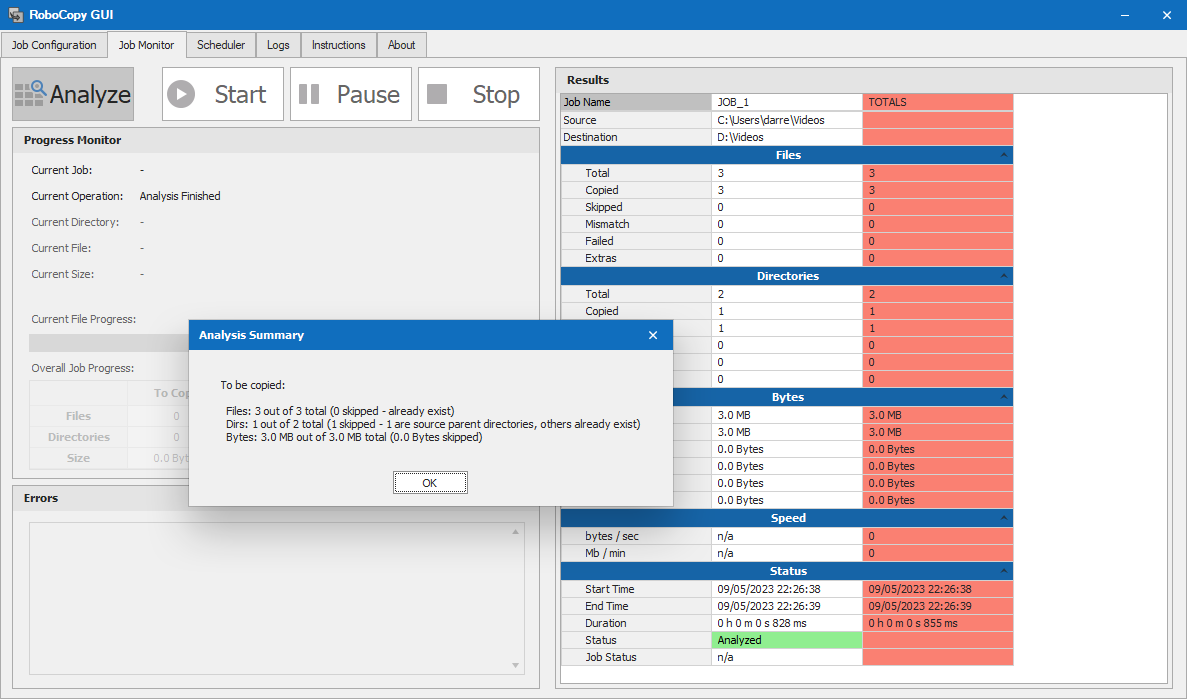
- Real-time progress monitoring
- Customizable transfer settings
- Lightweight and fast performance
Cons
- Limited advanced features compared to command-line RoboCopy
- Occasional UI freezes during large transfers
- Inconsistent error logging details
- Lack of detailed help documentation within the app
- Limited support for networked drives on some systems











