
- Name Remote Control For Roku Devices
- Category Utilities & tools
- Developer Syntrix
- Available on PC
- OS Windows 10 version 17763.0 or higher
- Keyboard Integrated Keyboard
- Mouse Integrated Mouse
- languages English (United States)
Seamless Roku Control on Windows: An In-depth Look at Remote Control For Roku Devices
If you're someone who has ever felt frustrated juggling between multiple remotes or navigating a cluttered interface, then the Remote Control For Roku Devices app for Windows might just be your new best friend. Designed to bring the convenience of your Roku remote directly onto your PC, this app promises a more streamlined streaming experience—no more fumbling in the dark trying to find the right button. Let's dive into what makes this app stand out and whether it deserves a spot on your desktop.
Basic Information: Making Your Roku Experience Smarter
At its core, Remote Control For Roku Devices is a Windows application that transforms your PC into a fully functional remote for Roku devices. Developed and published by Syntrix, a team known for their utility and productivity apps, this tool aims to enhance your streaming setup with ease and efficiency. Its main features include quick device pairing, intuitive interface design, and responsive control functions—all tailored to improve user convenience.
Primarily targeting Roku owners who seek a more comfortable control method—whether at home or during presentations—this app is ideal for users looking to consolidate their entertainment controls into a single, accessible software panel. It's particularly useful for those who prefer managing their media devices from their computer rather than juggling multiple physical remotes or navigating on-screen menus.
Electrifying Control at Your Fingertips: Core Features Explored
Smart Device Pairing and Easy Connectivity
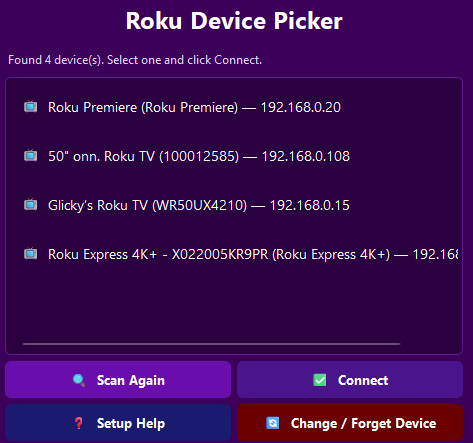
The first standout feature is the app's ability to detect and connect to your Roku device seamlessly over your Wi-Fi network. Once installed, the app scans your local network, recognizes compatible Roku units, and enables instant pairing. This automatic detection eliminates the hassle of entering IP addresses or fiddling with complex configurations. Think of it as having a friendly concierge who quickly finds your device and sets up the controls with just a few clicks.
Intuitive and User-Friendly Interface
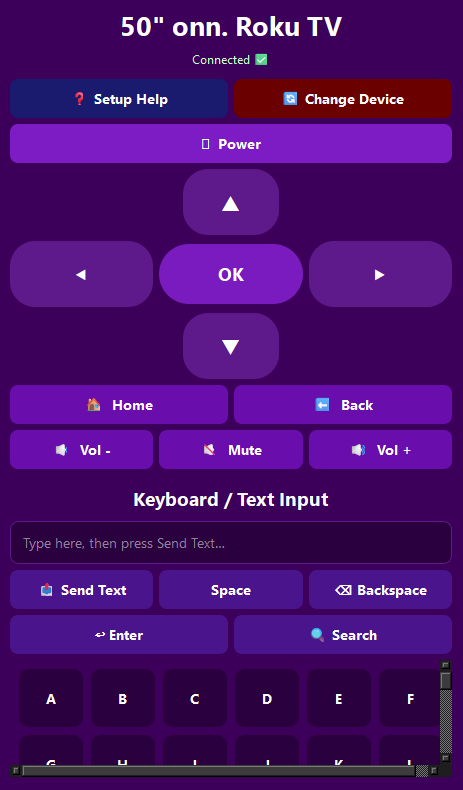
The interface design is reminiscent of a sleek, modern remote control, with clearly labeled buttons and a clean layout. Larger icons for navigation, playback controls, and custom shortcuts make it easy to find functions on the fly—perfect for those late-night binge sessions or quick media adjustments. The interface's simplicity ensures even tech novices can get started without a steep learning curve, akin to holding a familiar remote rather than fumbling through menus on a small screen.
Responsive and Fluid User Experience
Responsiveness is key when it comes to remote controls, and this app doesn't disappoint. Controls respond swiftly, with minimal lag, making the experience feel natural—almost like using the physical remote. The app's stability also means you can navigate through different functions such as volume, playback, or menu selection without unexpected crashes or delays. This fluidity transforms your Windows device into an extension of your Roku's remote control, enhancing your overall entertainment experience.
Unique Selling Points: What Sets This App Apart?
Compared to other utility apps that merely mimic remote functions, this app's most compelling advantage lies in its seamless device discovery and straightforward connectivity. Unlike many remote apps that require manual IP input or complicated setup procedures, Syntrix's solution automates the process—saving time and frustration. Moreover, its user-friendly interface provides quick access to essential controls, making it especially suitable for casual users who want reliable performance without a steep learning curve.
Another distinctive feature is the app's ability to manage multiple Roku devices within the same network. For households or offices with several units, this capability simplifies switching control between devices without needing separate remotes or multiple apps—turning your Windows PC into a centralized controller hub.
Final Verdict: Is It Worth Your Time?
All in all, Remote Control For Roku Devices for Windows is a thoughtfully designed utility that caters to Roku fans seeking convenience and efficiency. Its standout features—automatic device detection and an intuitive interface—offer practical advantages that can genuinely enhance your media experience. While it may not feature advanced customization options or extensive remote functionalities, it hits the sweet spot for everyday use.
If you're looking to streamline your Roku control experience with a reliable, easy-to-use solution, this app earns a solid recommendation. It's particularly well-suited for those who prefer managing their media from their desktop rather than juggling multiple gadgets. As a friendly tech aid, it transforms your Windows device into a smart, handy remote—just like having your favorite streaming device's remote right in your hands, but without the clutter.
Pros
- User-Friendly Interface
- Wide Compatibility
- Easy Setup Process
- Remote Control Functionality
- Additional Features
Cons
- Occasional Connectivity Issues
- Lag in Response Time
- Limited Customization Options
- Ads in Free Version
- Initial Setup Complexity for Some Users











