

- Name Razer Controller Setup For Xbox
- Category Utilities & tools
- Available on Xbox console, PC
- OS Windows 10 version 14393.0 or higher
- languages Chinese (Simplified), Chinese (Traditional), English (United States), French, German, Japanese, Korean , Portuguese (Brazil), Russian, Spanish (Spain)
Razer Controller Setup for Xbox for Windows: Your Gaming Companion's New Best Friend
Imagine seamlessly connecting your favorite Xbox controller to your Windows PC with a personalized setup that feels intuitive and robust—this app aims to do just that, making your gaming experience smoother and more customizable than ever.
Developer and Core Highlights
Developed by Razer USA Ltd, a leader in gaming peripherals and software, this application is crafted to optimize controller functionality on Windows platforms. Its main features include effortless controller configuration, extensive customization options, and advanced firmware update management—paving the way for tailored gaming experiences. The target audience includes casual gamers, competitive eSports enthusiasts, and content creators who demand precision and personalization from their controllers.
Getting Started: A Friendly Welcome to Your Controller Setup
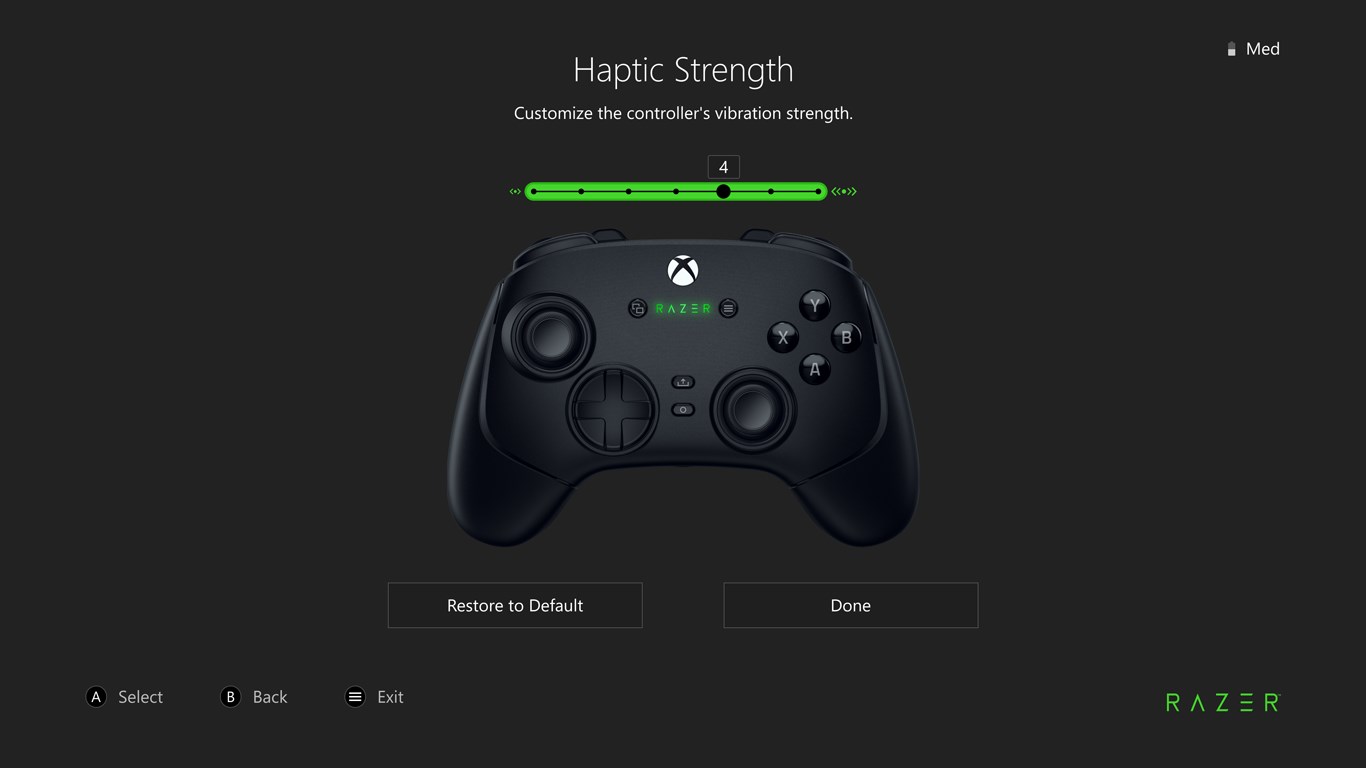
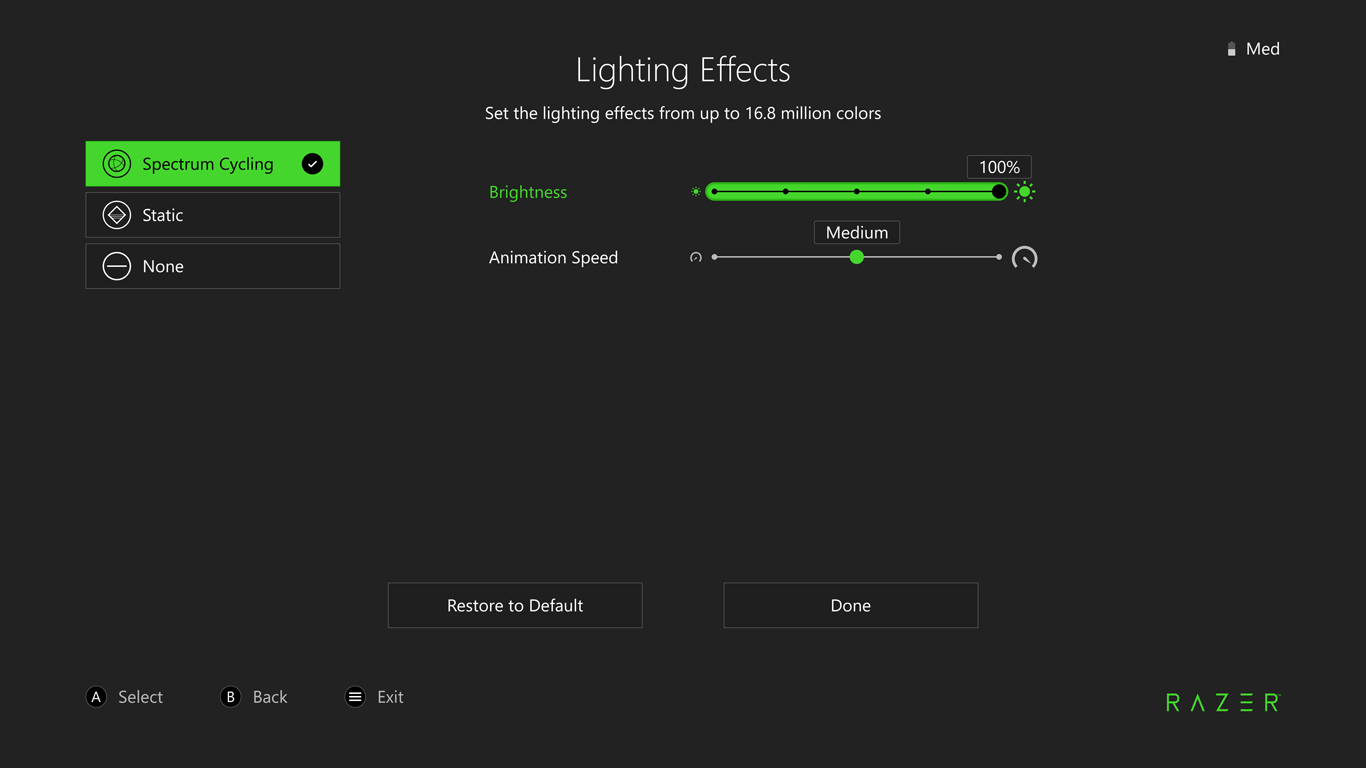
From the moment you open the Razer Controller Setup app, it's like walking into a high-tech control room—clean, organized, yet inviting. The interface design strikes a balance between professional finesse and user-friendly simplicity. Even if you're new to controller modding, the app's step-by-step guided setup feels more like a friendly tutorial than a complex tech manual. Navigating menus is effortless, with intuitive icons and clear labels guiding you through configuration, calibration, and update processes. Overall, the learning curve is smooth—most users will find themselves up and running in just a few minutes.
Customizable Control Mapping and Profiles: Your Gaming, Your Rules
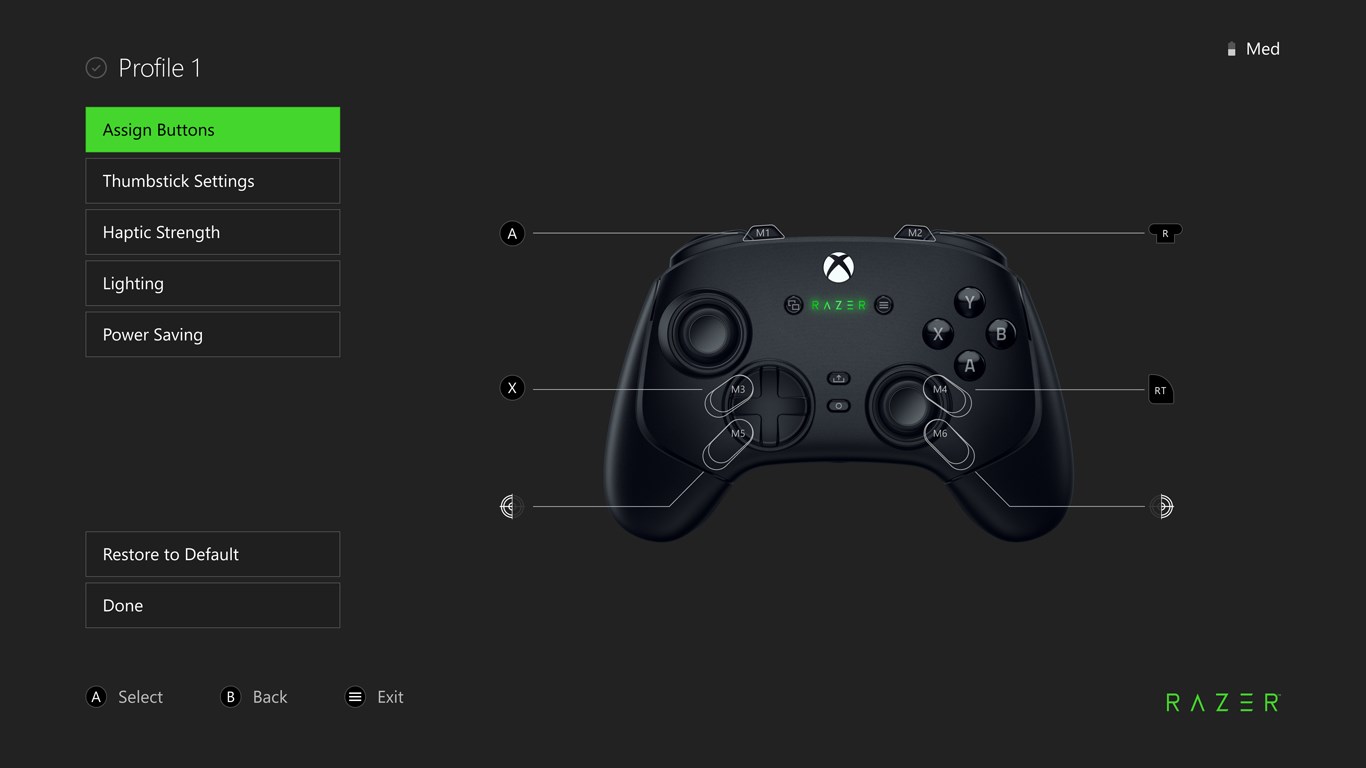
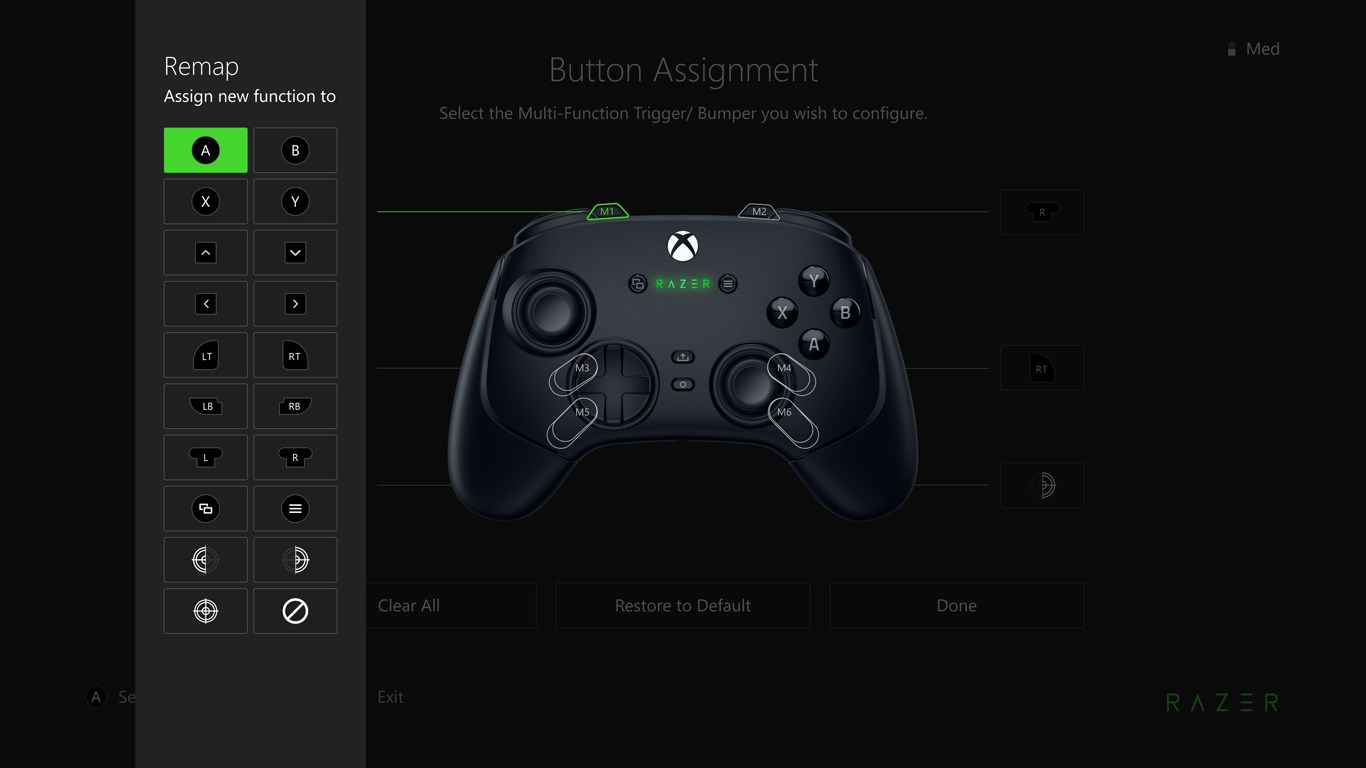
One of the app's standout features is its robust control mapping system. Imagine creating a custom control scheme that perfectly matches your gaming style—whether you're a seasoned FPS sniper or a casual puzzle solver. The app allows you to reassign buttons, create multiple profiles, and switch between them on the fly, all with a few clicks. The interface dedicated to this feature is detailed yet approachable, providing visual diagrams and preset templates for quick adjustments. This level of personalization transforms your controller into a truly extension of your gaming persona, helping you perform better and enjoy your games more.
Firmware Management and Device Calibration: Keeping Your Gear at Peak Performance
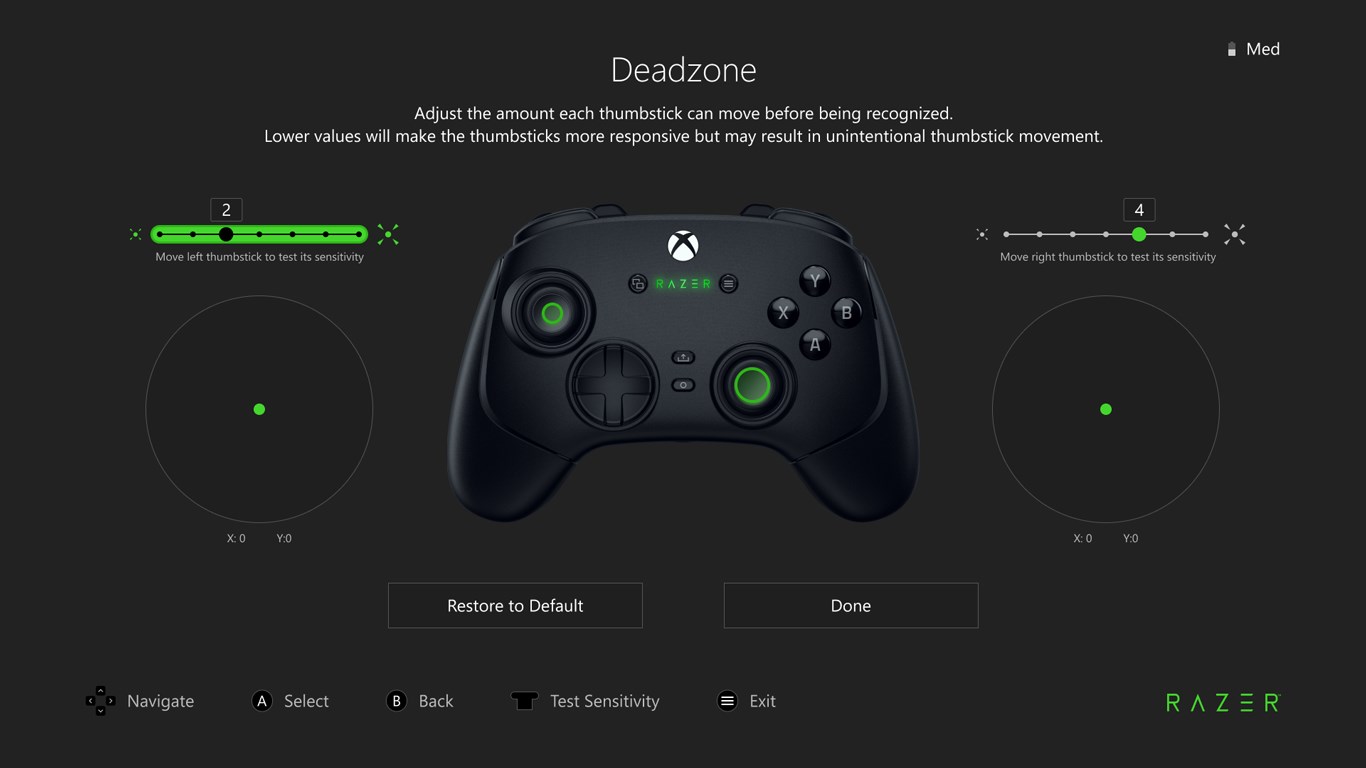
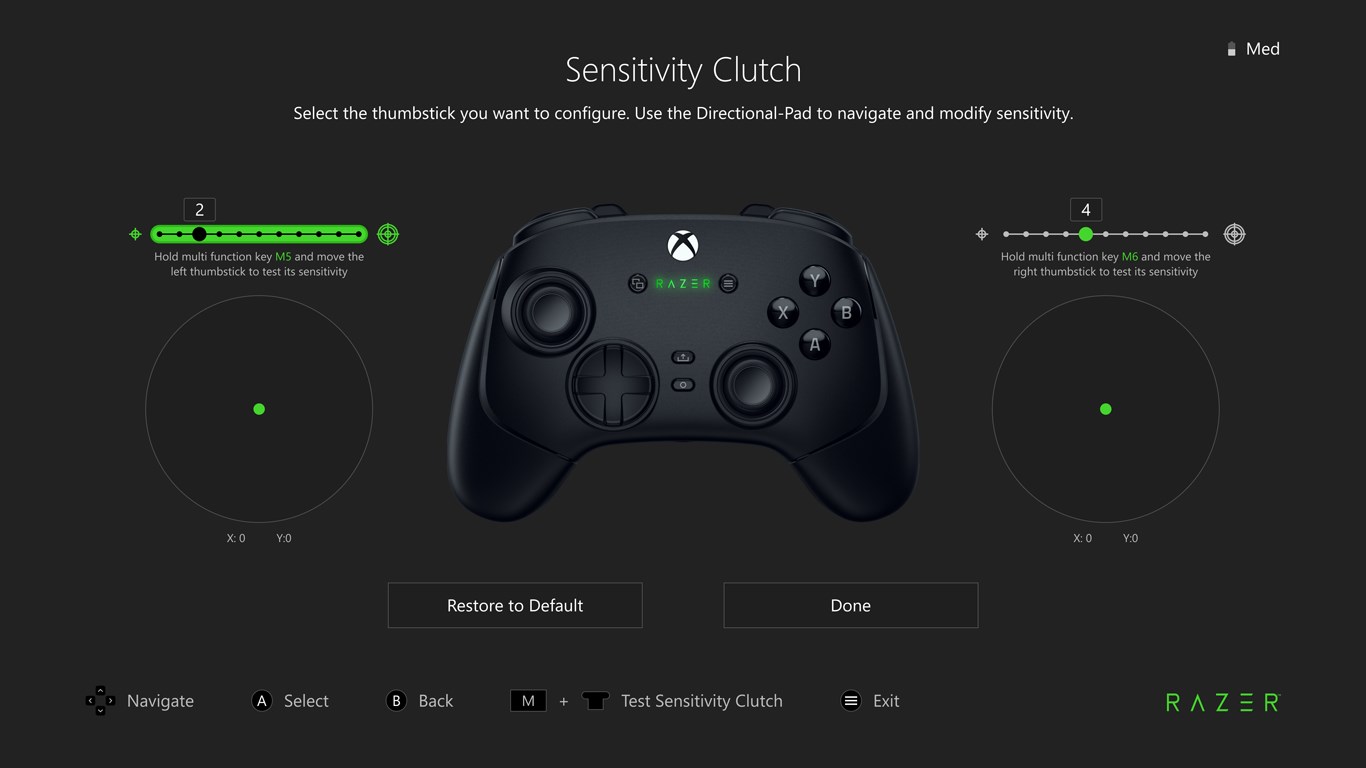
Another key feature is firmware updates and calibration tools. Think of firmware updates as tuning your car engine—ensuring everything runs smoothly and gains new functionalities. The app detects your controller automatically, providing straightforward prompts to update firmware, which can improve responsiveness, fix bugs, or add new features. Calibration tools help optimize stick and trigger sensitivity, giving you precise control. This combination ensures your controller remains in top shape, much like maintaining a finely tuned instrument—crucial for marathon gaming sessions or competitive play.
What Sets It Apart & Final Recommendations
Compared to other utility apps for gaming controllers, Razer Controller Setup for Xbox for Windows stands out with its dedicated focus on seamless integration and user-centric design. Unlike generic tools that function in a one-size-fits-all manner, this app offers tight Razer ecosystem integration, making it especially advantageous for Razer hardware users. Its step-by-step guidance, combined with comprehensive customization and firmware management, creates a comprehensive environment that's both powerful and approachable.
Overall, I'd recommend this app to any Windows gamer using an Xbox controller—especially those who like to fine-tune their gear and want a reliable, user-friendly setup process. Whether you're tweaking settings before a tournament or just enhancing your casual gaming experience, this app provides the tools you need without fuss. Just remember: taking a little time to explore its features can unlock a new level of control and comfort during your gaming sessions.
Pros
- User-Friendly Setup Process
- Customizable Button Mappings
- Profile Management Support
- Regular Updates and Improvements
- Wide Compatibility with Razer Devices
Cons
- Limited Device Diagnostics
- Occasional Connectivity Glitches
- Lack of Detailed User Guidance
- Inconsistent Profile Syncing Across Devices
- Limited Customization Options for Advanced Users











