
- Name QuickRemote for Roku
- Category Utilities & tools
- Developer Christopher Istvan
- Available on PC
- OS Windows 10 version 14316.0 or higher
- Keyboard Not specified
- Mouse Not specified
- languages English (United States)
QuickRemote for Roku on Windows: Your Gateway to Seamless Streaming Control
Imagine holding the magic remote for your Roku device right on your Windows PC—no more hunting for misplaced remotes or battling with clunky interfaces. QuickRemote for Roku makes this a reality, offering a streamlined way to manage your streaming experience with just a few clicks.
Developer and Core Features
Developed by Christopher Istvan and published by Webelity, QuickRemote for Roku aims to turn your Windows computer into a full-fledged remote control for your Roku devices. The app, available on the Microsoft Store (link: here), stands out for its straightforward design and focused functionality.
Its main features include:
- Easy Device Discovery: Instantly identify and connect to Roku devices on your network without hassle.
- Intuitive Remote Control Interface: Provides familiar remote functions, including navigation, playback controls, and menu access.
- Customizable Shortcuts: Lets users assign quick-access buttons for favorite apps or within-app controls, enhancing efficiency.
- Multi-device Management: Seamlessly switch between multiple Roku devices without needing to reconnect each time.
The app targets Roku users who want a more convenient way to manage their streaming experience from their PCs—be it for browsing, controlling playback, or switching devices during their movie marathons.
Engaging and User-Friendly Interface
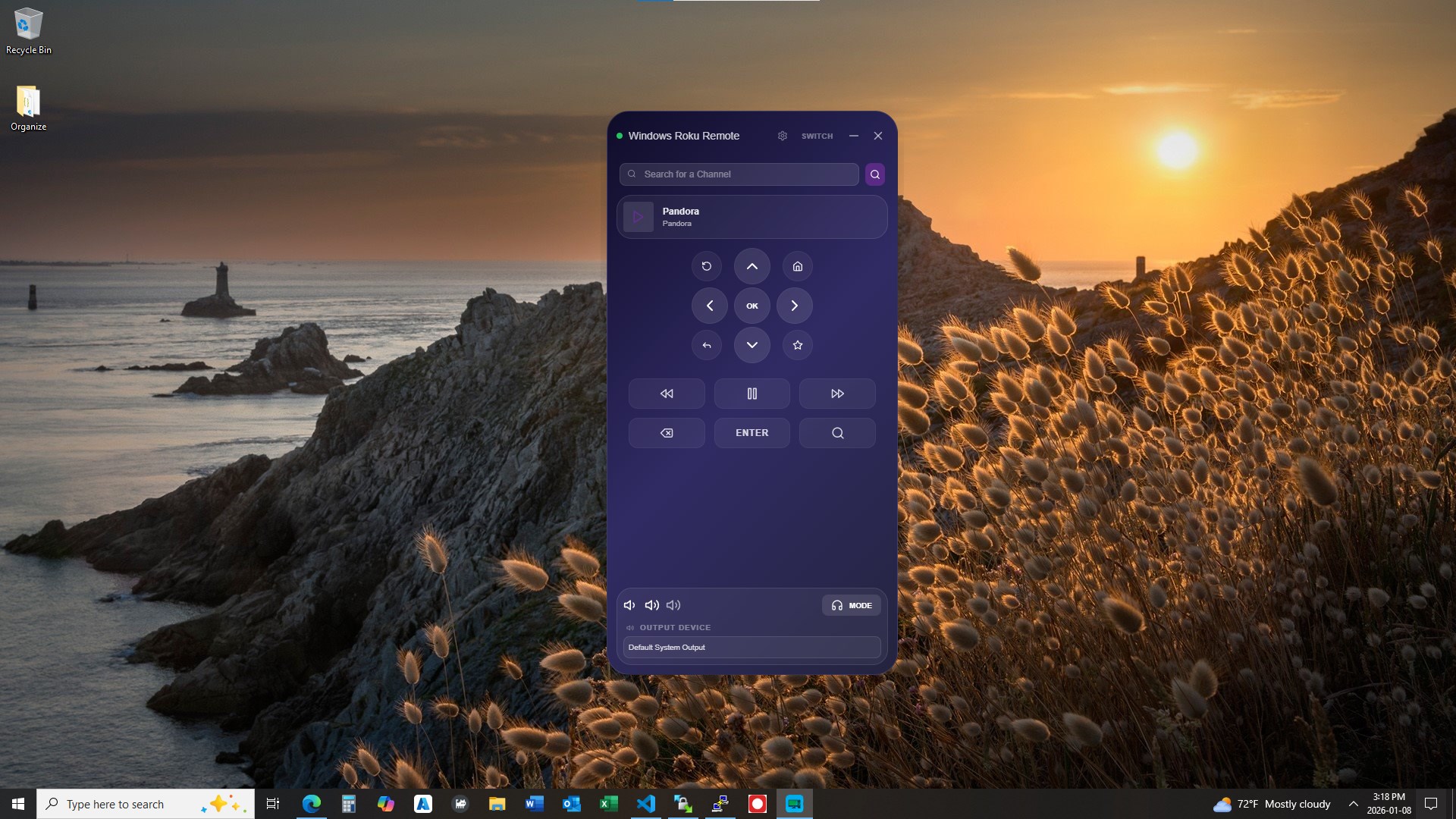
Launching QuickRemote feels like opening the dashboard of your tech spaceship—clean, organized, and inviting. The interface employs a sleek, intuitive layout that mimics traditional remote controls, making it easy for even newcomers to pick up and use confidently. With crisp icons and logical grouping of buttons, navigating through options feels natural, much like flipping through the channels on a familiar TV.
The app's responsiveness is noteworthy—clicking a button results in immediate action, which is crucial during moments where timing matters, such as pausing a tense scene or switching between apps.
Learning curve? Minimal. The app is designed for quick acclimation, so even less tech-savvy users will find themselves controlling their devices effortlessly after a brief initial exploration.
Core Functionalities: Power, Precision, and Personalization
Device Discovery and Connectivity
The first hurdle for remote apps is often establishing a solid connection. QuickRemote excels here—once launched, it scans your local network and displays all available Roku devices in an organized list. Connecting is as simple as clicking on your device's name, almost like sending a quick message to a friend. This feature significantly reduces setup time and frustration, especially in households with multiple Roku devices.
Full Remote Control Experience
Once connected, users gain access to a full suite of remote functions. The virtual buttons are clearly laid out—navigation arrows, OK/select, back, home, and playback controls—mirroring your physical remote. It's like having your TV remote sitting comfortably on your PC screen, ready to command your streaming universe. The app also supports menu hopping and app launching, giving you the power to browse or launch channels without reaching for the physical remote.
Customization and Multi-Device Switching
The standout feature—personalization—is where QuickRemote truly shines. Users can create custom shortcut buttons for favorite apps or specific actions, turning the remote into a personalized control hub. Additionally, managing multiple devices is straightforward; the app maintains a list of paired Roku devices, allowing quick toggling between them during a movie session with minimal fuss. This flexibility ensures that the app adapts to your household's varied setup, rather than forcing you into a one-size-fits-all solution.
Evaluating User Experience and Differentiators
From the user perspective, the app offers a smooth, frustration-free experience. Its interface, akin to a well-organized control panel, reduces cognitive load and increases efficiency—think of it as upgrading from a cluttered toolbox to a professional-grade setup. The immediate responsiveness means no lag detracts from the overall enjoyment, which is crucial during binge-watching marathons or presentations.
Compared to similar utilities, QuickRemote's key differentiator is its seamless device discovery combined with robust multi-device management. Many remote apps require manual IP entry or complicated setups, but this one leverages network scanning for instant connectivity—like having a friendly neighborhood map guiding you straight to your device.
The customization options further elevate it from generic remote controls, letting you tailor your controls to your habits. This personalized touch makes the app not just a utility but a true extension of your Roku experience.
Conclusion: Is it Worth Your Click?
All things considered, QuickRemote for Roku on Windows emerges as a practical and reliable solution for users who seek a more integrated, dynamic way to control their streaming setups. Its simple yet effective design, combined with smart device management features, makes it a strong contender among utility apps in this space.
While it may not boast flashy gimmicks or overly complex functionalities, its focus on core remote control needs—fast connection, intuitive interface, and customizable controls—ensures a satisfying user experience. I would recommend it to anyone who frequently uses their Roku device and prefers managing content from their PC rather than the distant, often infuriating physical remote.
In summary, if you're after a straightforward, efficient remote solution that plays well with multiple devices and offers a quick setup, QuickRemote for Roku deserves a place on your Windows desktop—and trust me, controlling your Roku has never felt so seamless and enjoyable.
Pros
- User-Friendly Interface
- Fast Response Time
- Customizable Buttons
- Supports Multiple Devices
- Additional Features
Cons
- Initial Setup Complexity
- Limited Offline Functionality
- Occasional Connection Drops
- Missing Advanced Controls
- App Updates Lag Behind Device Firmware











