

- Name Quick Screen Privacy Blackout
- Category Utilities & tools
- Available on PC
- OS Windows 10 version 14393.0 or higher
- languages English
A Stealthy Guardian: Quick Screen Privacy Blackout for Windows Review
In our increasingly digital world, safeguarding your privacy while working on your computer is more crucial than ever. Quick Screen Privacy Blackout offers a simple yet effective way to add a layer of security to your Windows device, ensuring prying eyes stay at bay. As a tech enthusiast and reviewer, I was eager to test this application and see how it stacks up in the realm of privacy tools.
Basic Info: Your Personal Privacy Shield
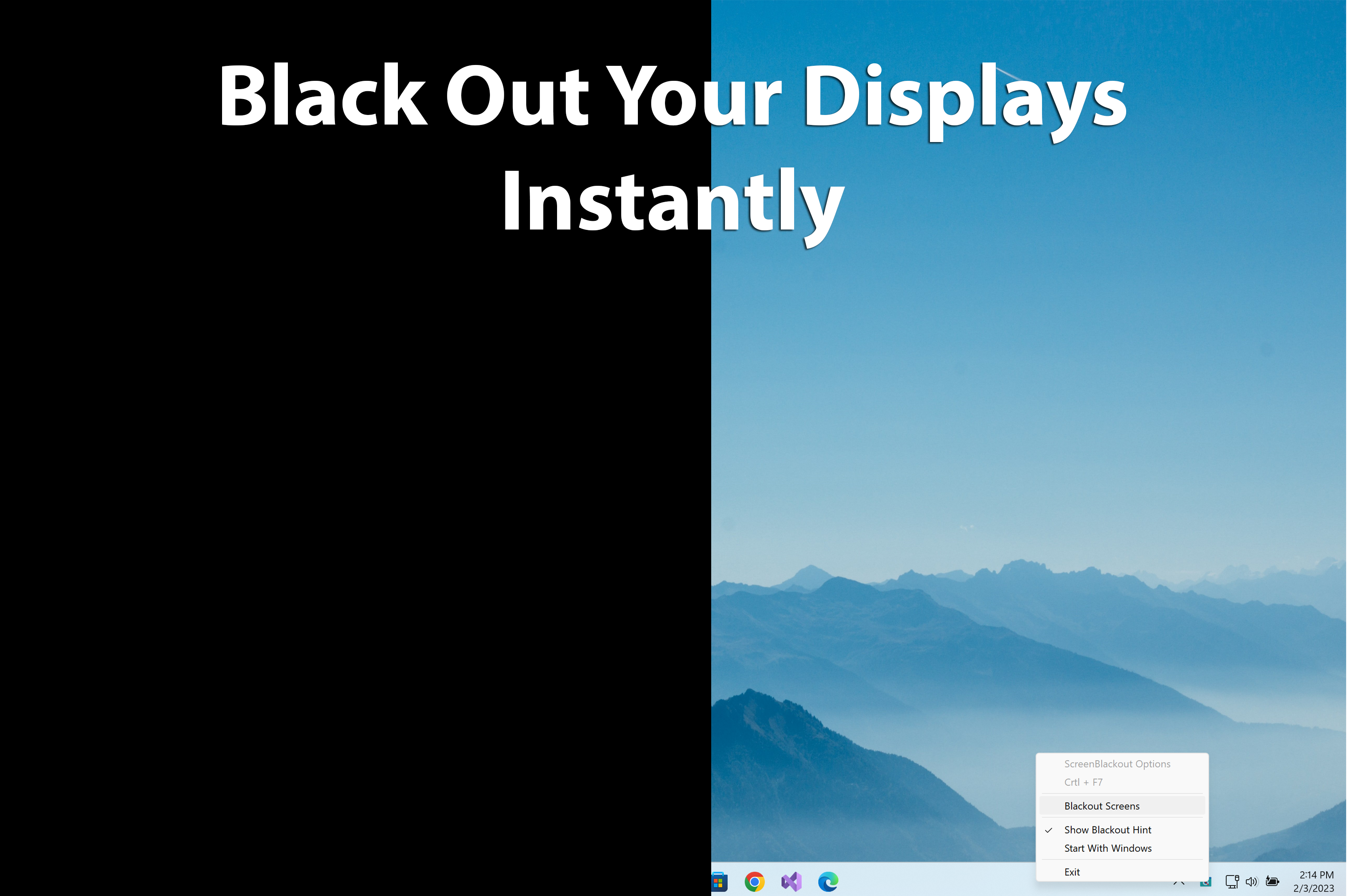
Quick Screen Privacy Blackout is a Windows utility designed to instantly obscure your screen with a blackout overlay, protecting sensitive information from being viewed by unauthorized persons.
Developer: EvlarSoft LLC
Main features highlight:
- One-click screen blackout to prevent accidental or intentional peeks.
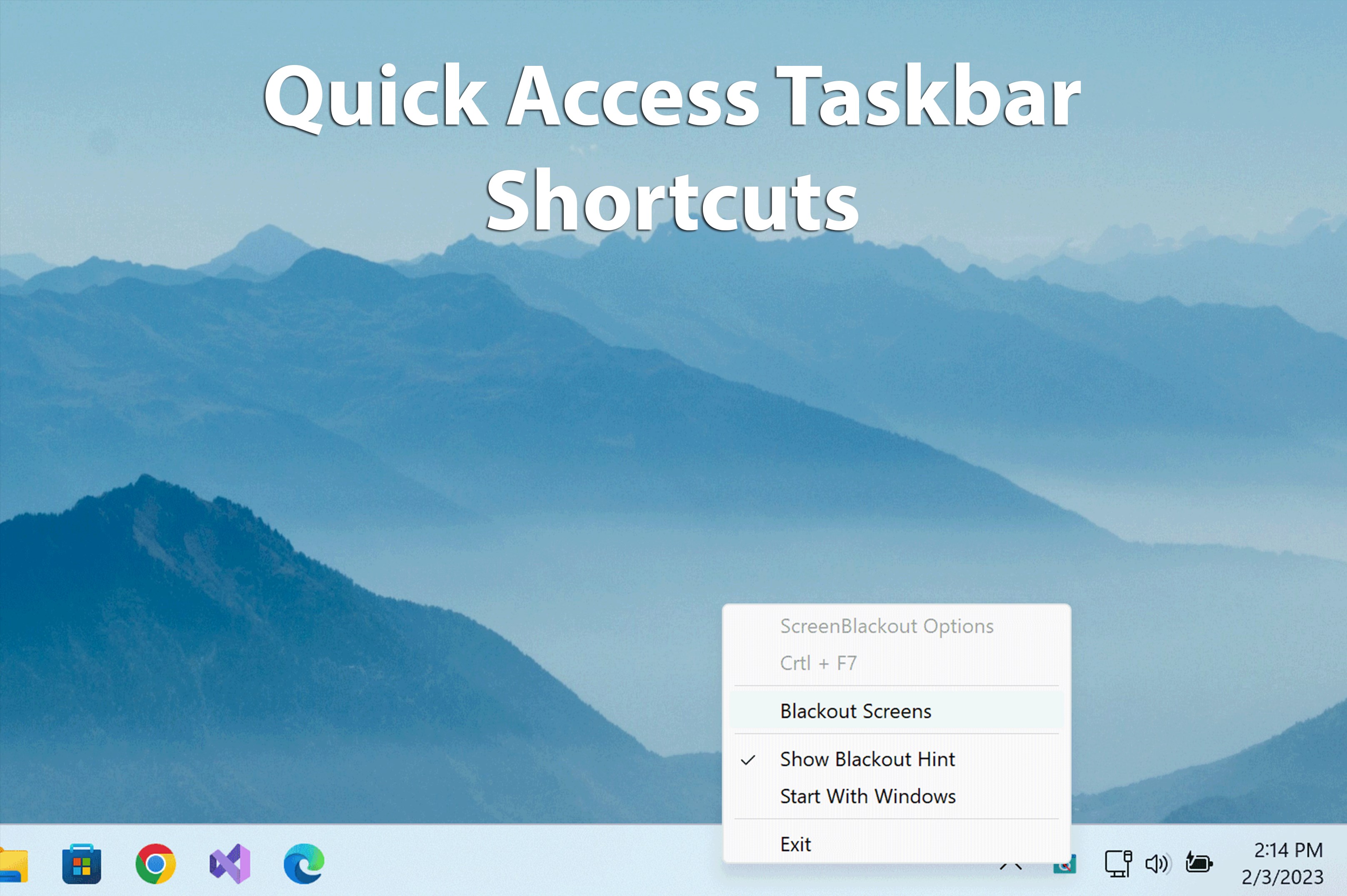
- Customizable toggle hotkeys for quick activation/deactivation.
- Minimalistic interface focusing on speed and simplicity.
- Seamless integration with existing Windows workflow.
- Easy to activate privacy blackout feature
- Supports customizable blackout regions
- Compatible with multiple applications
- Lightweight and unobtrusive
- Provides quick privacy assurance during sensitive activities
- Limited customization options for blackout shapes
- Occasional lag when toggling the blackout
- Basic user interface design
- Limited free trial duration
- No automatic activation based on application detection
Target Users: Professionals working with confidential data, remote workers, students, or anyone who values quick privacy protection on their screens.
Engaging the User: Privacy at Your Fingertips
Imagine sitting in a bustling coffee shop, your laptop open, displaying sensitive project details. Suddenly, a colleague approaches, eyeing your screen. With a flick of a hotkey, Quick Screen Privacy Blackout turns your display into a solid black canvas—no peeking required. It's like installing a digital shutter to your window, giving you control over who sees what, no matter where you are.
Core Features Breakdown
Instant Privacy with a Single Click
The app's hallmark feature is its ability to instantly blackout your screen with a single hotkey or mouse click. This function is invaluable for quick privacy needs—whether stepping away or needing to hide sensitive content discreetly. The blackout overlay is smooth and appears instantly, demonstrating the app's focus on speed and responsiveness.
Custom Hotkeys for Fast Access
Users can customize hotkeys according to their preferences, transforming privacy into a second nature. Whether it's a quick "Ctrl + Alt + P" or any combination, setup is straightforward through the app's minimalistic interface. This customization makes the blackout even more accessible, fitting seamlessly into your workflow without interrupting your tasks.
Minimalist Interface & User Experience
Upon launching the app, you're greeted with a clean, uncluttered interface that emphasizes ease of use. Its straightforward design ensures that even first-time users can grasp the functionality within seconds. The activation and deactivation process is fluid, with no lag or glitches, making it reliable in urgent situations. The app's lightweight footprint means it works silently in the background, without hogging system resources or cluttering your workspace.
What Sets It Apart? Unique Selling Points
Unlike many other privacy utilities that bundle multiple features, Quick Screen Privacy Blackout keeps it simple and focused—its primary strength lies in the seamless, immediate blackout function. Its customizable hotkeys differentiate it from built-in Windows options, offering a tailored quick-access experience. Additionally, the app's slight edge is in its unobtrusive design, ensuring it complements rather than complicates your workflow.
Furthermore, while some competitors may offer complex privacy suites or encryption tools, this application zeroes in on rapid visual concealment. This singular focus makes it an invaluable tool for quick, on-the-fly privacy management, especially when fleeting moments demand swift action.
Final Thoughts: A Handy, Reliable Privacy Sidekick
I'd recommend Quick Screen Privacy Blackout to anyone seeking a straightforward, effective way to protect their screen content in everyday situations. Its simplicity, speed, and customization options make it more than just a utility—it's a tactile safeguard that can be relied on in both professional and casual settings. While it may not replace comprehensive privacy tools, it excels in its niche, offering a quick, user-friendly solution to an ever-present concern: prying eyes.
All in all, if you value immediate and effortless privacy control during your daily digital routine, this app deserves a spot on your Windows device. It's like having a digital privacy curtain that you can draw in an instant—a subtle yet powerful shield maintaining your confidentiality, precisely when you need it.











