

- Name Quick Assist
- Category Utilities & tools
- Available on PC
- OS Windows 10 version 19041.1 or higher
- languages Arabic, Bulgarian, Chinese (Simplified), Chinese (Traditional), Croatian, Czech, Danish, Dutch, English (United Kingdom), English (United States), Estonian, Finnish, French, French (Canada), German, Greek, Hebrew, Hungarian, Italian, Japanese, Korean , Latvian, Lithuanian, Norwegian (Bokmål), Polish , Portuguese (Brazil), Portuguese (Portugal), Romanian, Russian, Serbian (Latin, Serbia), Slovak, Slovenian (Slovenia), Spanish (Mexico), Spanish (Spain), Swedish, Thai, Turkish, Ukrainian
Quick Assist for Windows: Your Remote Support Companion
Imagine having a tech-savvy friend just a click away to help solve your computer hiccups—that's exactly what Quick Assist for Windows offers. It's a straightforward yet powerful tool designed to facilitate remote assistance, bridging the gap between technical support and everyday users.
Developed by Microsoft Corporation: Trustworthy and Seamless
Created by Microsoft, a leader in software development, Quick Assist benefits from robust integration within Windows and a reputation for reliability and security. Its development team ensures continuous updates and a smooth experience across devices, making it a dependable choice for remote support needs.
Primary Features That Stand Out
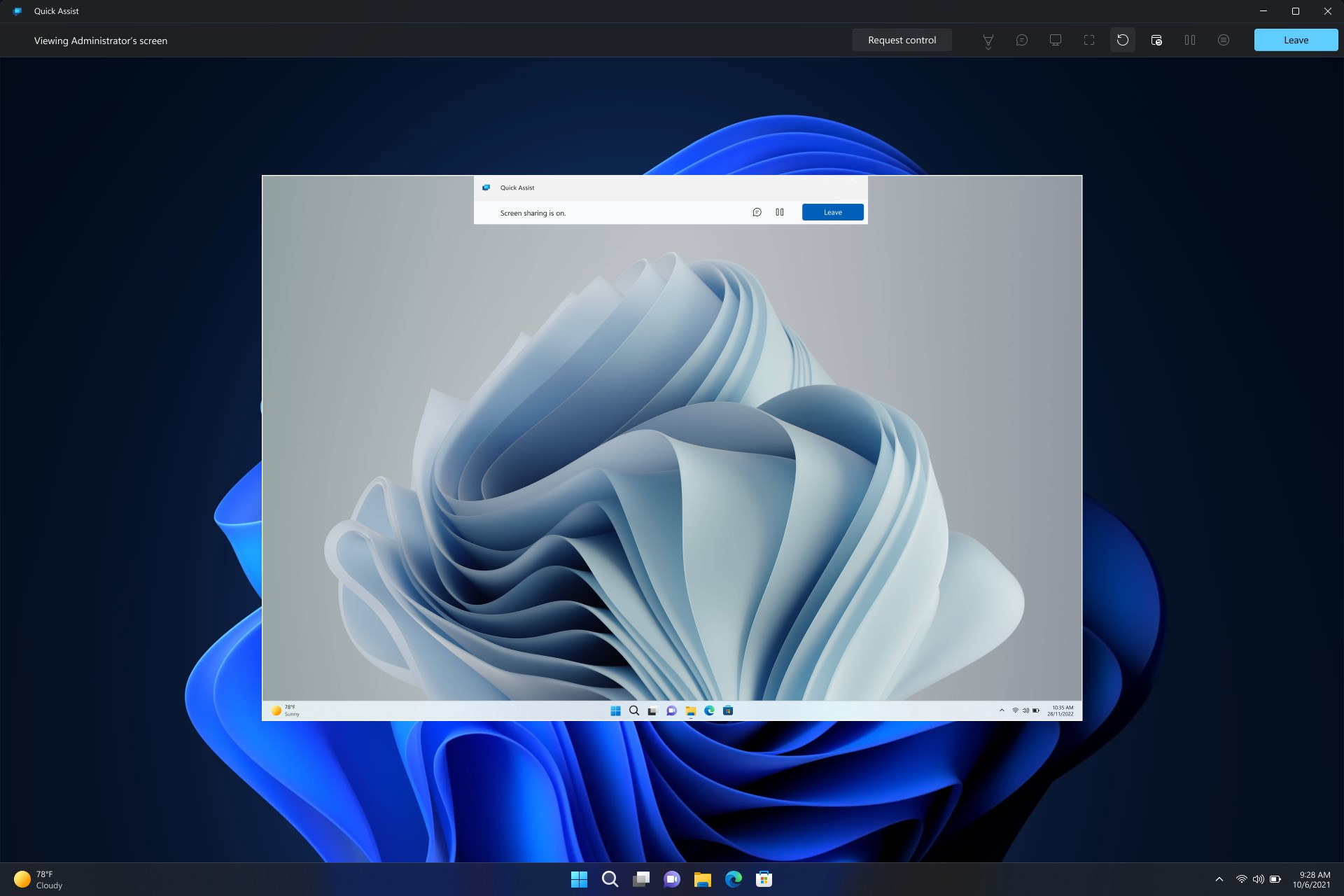
- Secure Remote Assistance: Enables real-time screen sharing and control, ensuring help is both effective and safe.
- Easy-to-Use Interface: Minimal setup with a clean, intuitive design allows users of all levels to connect effortlessly.
- Cross-Device Compatibility: Supports various Windows devices, offering flexibility whether you're helping a friend or troubleshooting your own PC.
- Session Management: Allows users to initiate, pause, or terminate assistance sessions seamlessly, maintaining control throughout the process.
An Engaging Dive into Quick Assist
Imagine you're miles apart from a friend or colleague, yet you need urgent help fixing a stubborn software glitch. Quick Assist transforms this scenario from a stressful logistics puzzle into a smooth, manageable task. Its straightforward process turns remote support into a hassle-free experience, almost like having a tech wizard by your side—without the wizard hat.
Streamlined Remote Support at Its Best
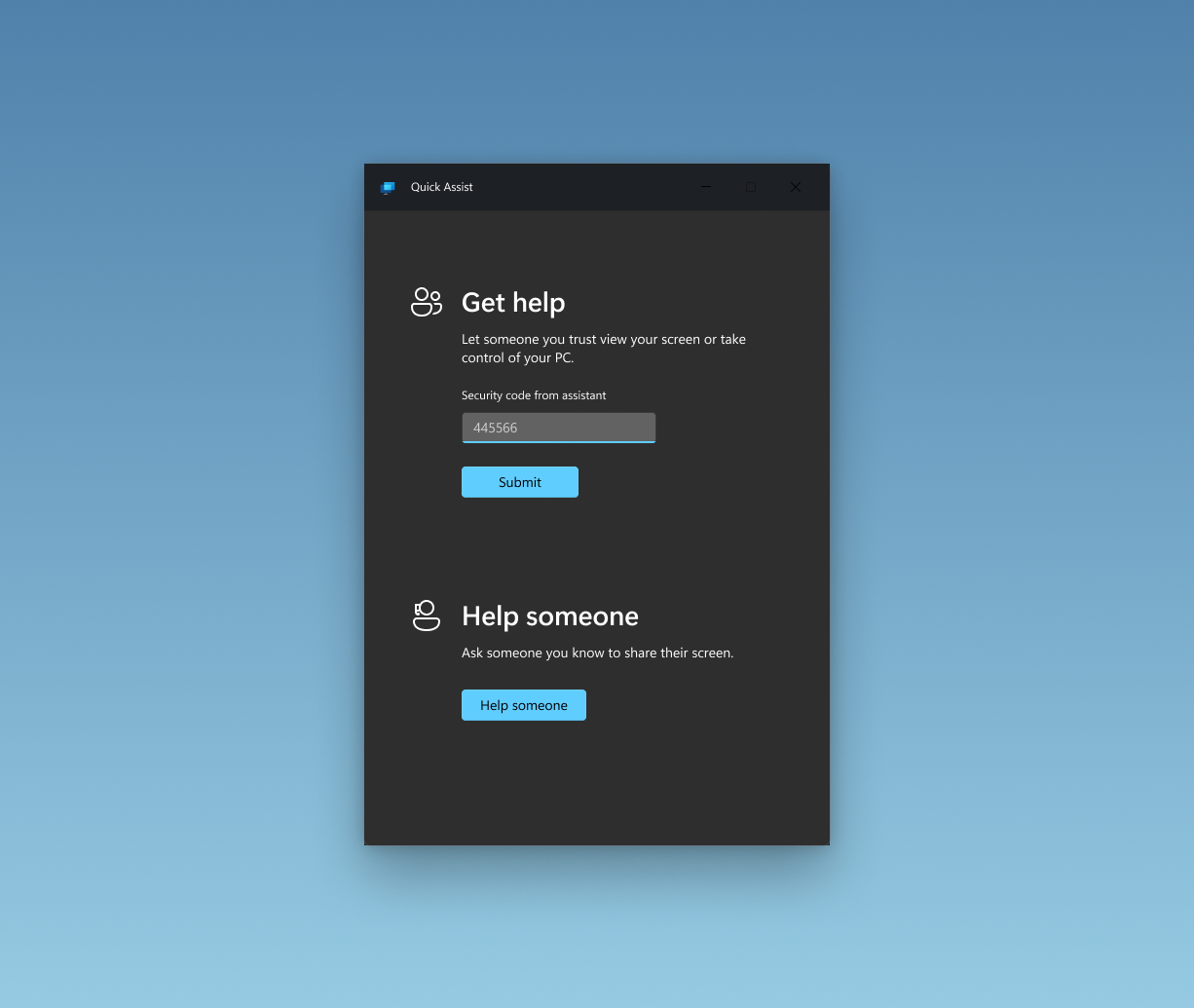
The core of Quick Assist's charm lies in its simplicity. Once opened, the app prompts the helper to generate a code, which the user then enters to establish a secure connection. The entire process feels akin to passing the secret handshake—quick, safe, and effective. The shared screen gives the helper full control, enabling troubleshooting steps that are often faster and more accurate than trying to explain via chat or email.
Intuitive User Interface & Effortless Navigation
Design-wise, Quick Assist keeps things minimalistic but functional. The interface resembles an inviting control panel—no clutter, just clear instructions. Users may be pleasantly surprised by how quickly they get the hang of initiating or joining a session. The learning curve is gentle, even for those less tech-savvy, making it accessible for elderly users or beginners who might find complex remote support tools intimidating.
Unique Selling Points and Differentiators
Compared to other remote assistance applications, Quick Assist's core advantage is its deep integration within Windows, eliminating the need for third-party downloads. Its focus on security—ensuring sessions are encrypted and controlled—stands out amidst a crowded market. Unlike more generic remote support tools, Quick Assist offers a frictionless experience primarily tailored for Windows ecosystems, making it our go-to choice for quick, secure help.
Final Thoughts: Should You Give It a Try?
If you frequently troubleshoot Windows PCs—either professionally or personally—Quick Assist is a reliable, no-fuss solution. Its seamless integration, ease of use, and focus on security make it highly recommended for users seeking swift remote support. For occasional help or tech support providers, it offers a practical and straightforward alternative to more cumbersome tools.
In summary, Quick Assist for Windows stands out as a practical, secure, and user-friendly remote support app. Whether you're fixing your own PC or assisting a friend, it's worth keeping accessible, like a trusty toolkit always at your side.
Pros
- User-friendly remote assistance setup
- No installation required
- Real-time remote control capabilities
- Secure and privacy-focused
- Free to use with a Microsoft account
Cons
- Limited platform support
- Basic feature set
- Occasional connectivity issues
- Limited customization options
- Requires Microsoft account login











