
- Name PushToTalk
- Category Utilities & tools
- Developer Mohamed Elhadj Zouaouid
- Available on PC
- OS Windows 10 version 0.0 or higher
- languages English
PushToTalk for Windows: Simplifying Voice Communication with a Sleek App
PushToTalk for Windows is a streamlined application designed to facilitate instant voice transmission, turning your Windows device into a powerful communication tool. Developed by Mohamed Elhadj Zouaouid and published by Zouaouid Tech, this app aims to make voice chats effortless, reliable, and accessible for a variety of users—from gamers to remote team members.
Who's Behind the App? Meet the Developer and Publisher
Mohamed Elhadj Zouaouid, the brain behind PushToTalk, brings a keen focus on user-friendly communication solutions. Partnered with Zouaouid Tech as the publisher, the team demonstrates a commitment to crafting efficient utilities that prioritize simplicity without sacrificing functionality. Their collective expertise results in a clean, purpose-driven application tailored to fit the chat needs of modern users.
The App's Standout Features: What Makes PushToTalk Special?
- Seamless Push-to-Talk Functionality: Converts your mic into an instant communication channel, mimicking walkie-talkie experiences, ideal for quick, hands-free conversations.
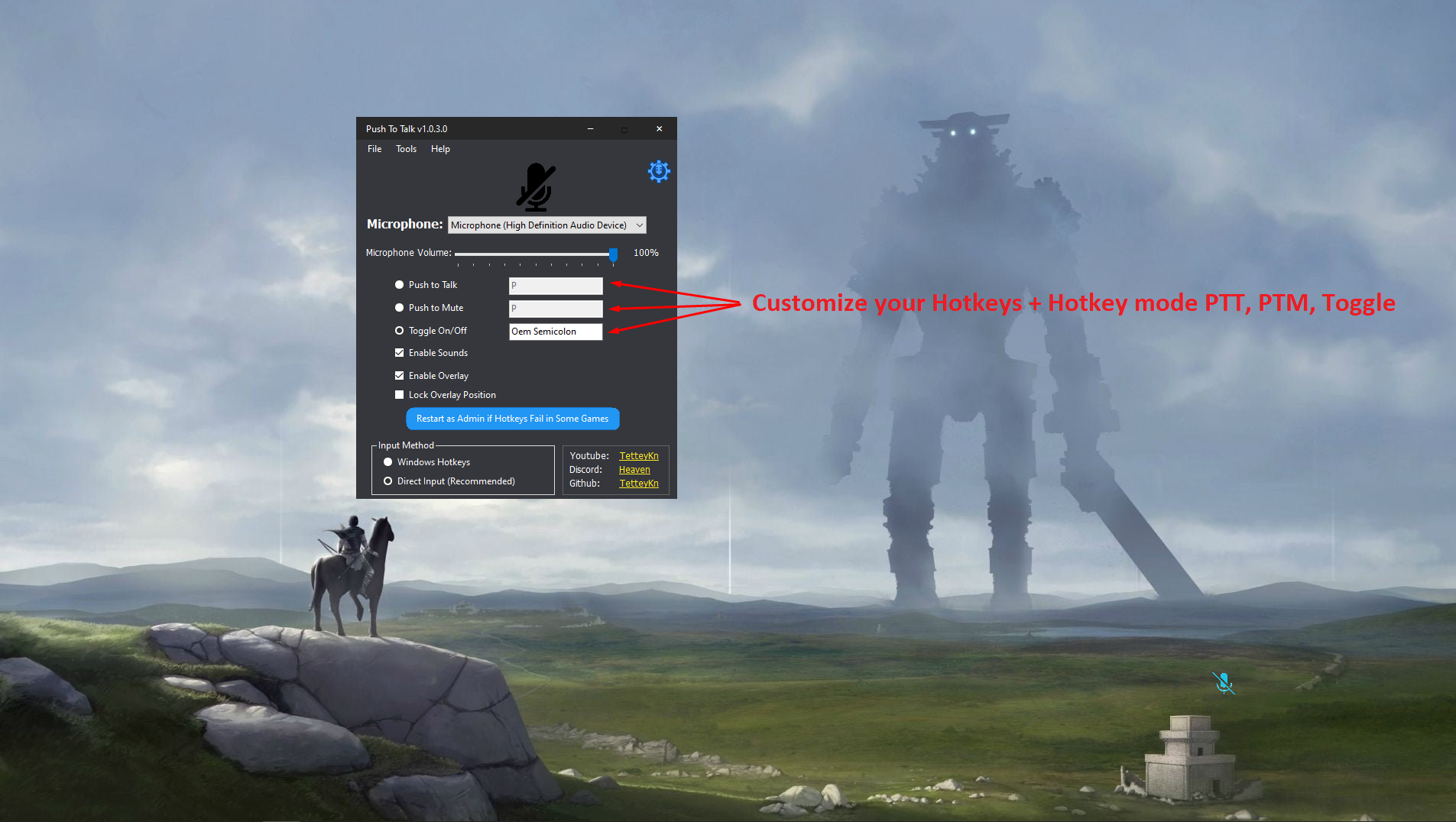
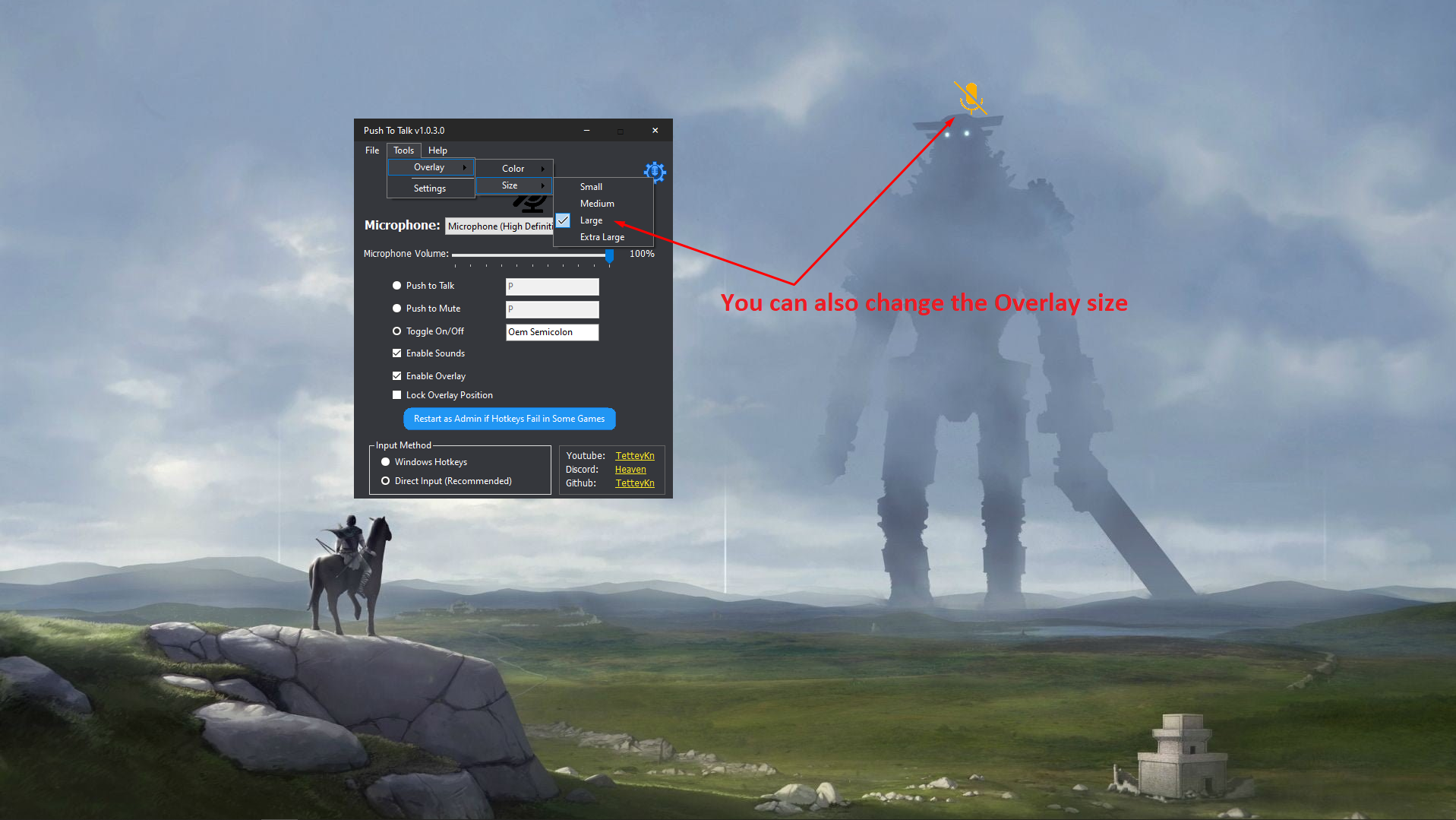
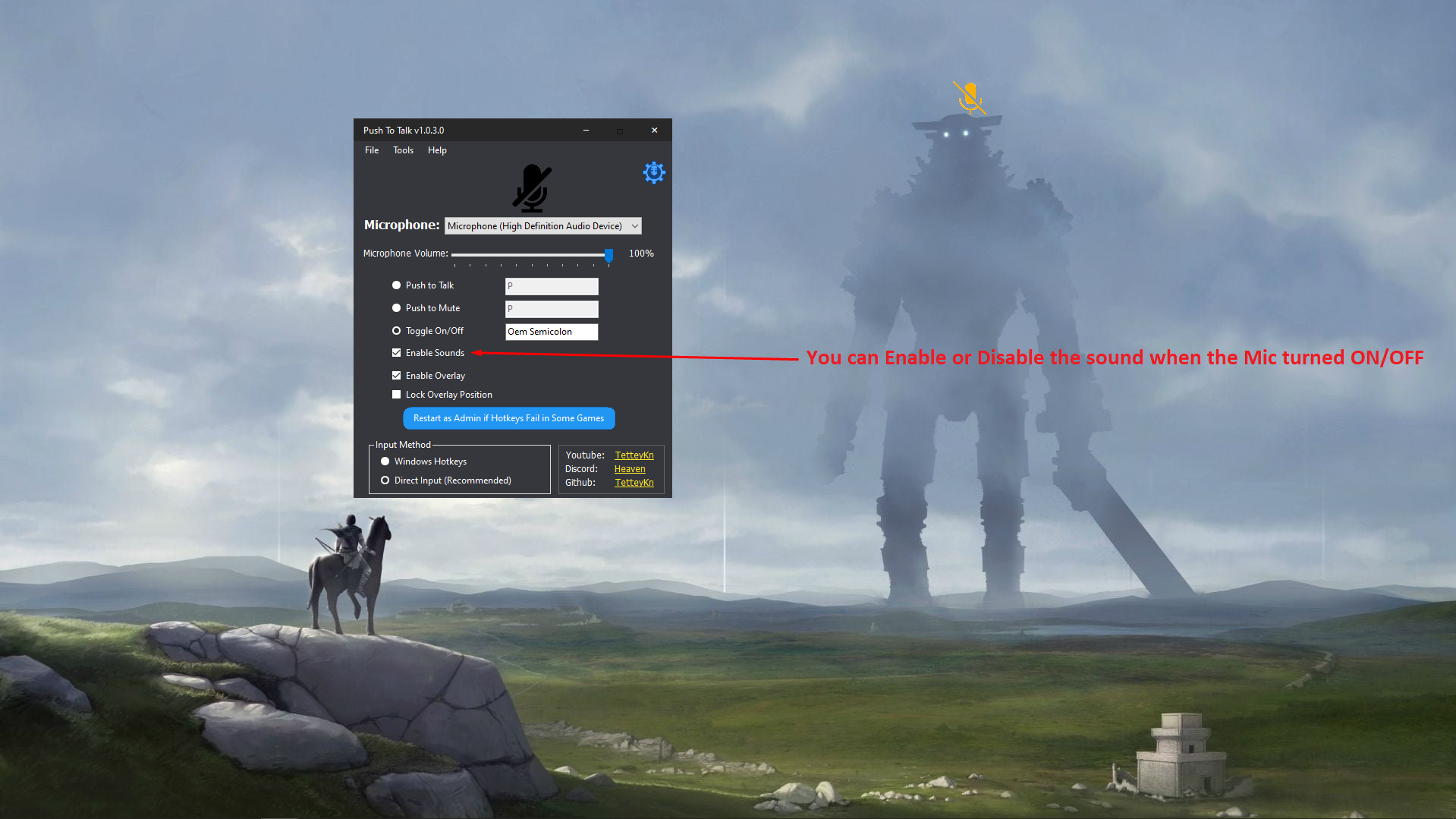
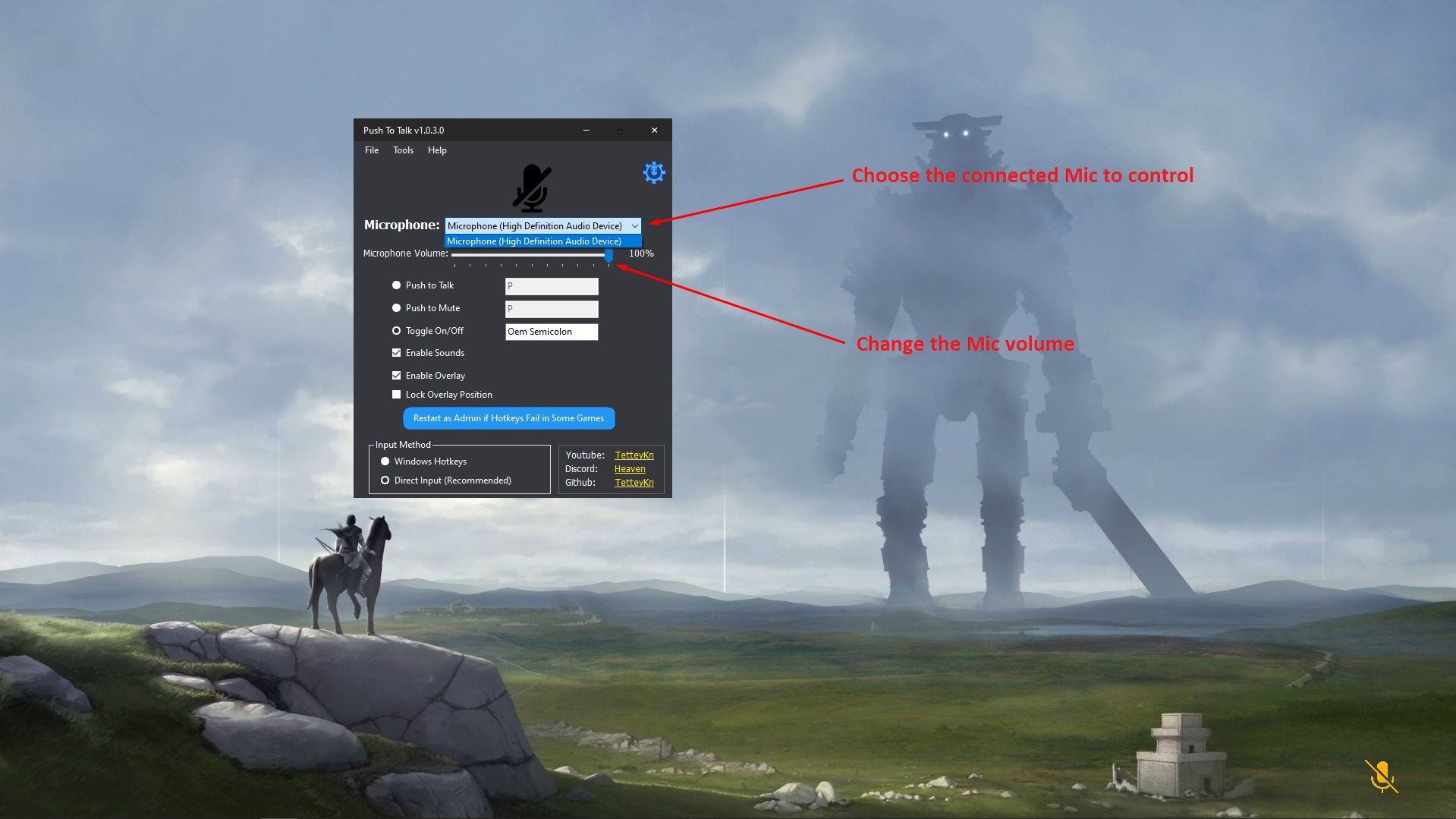
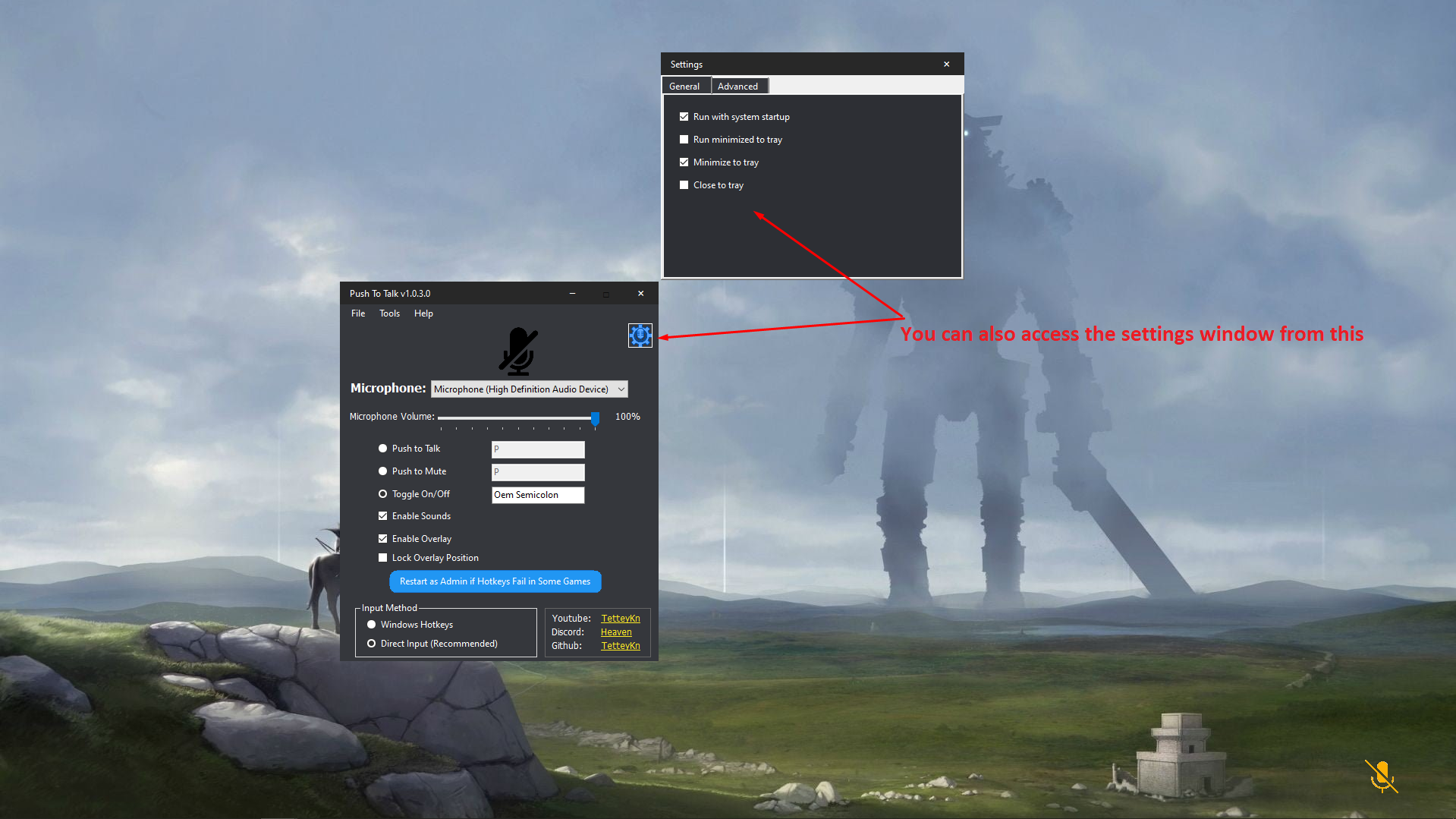
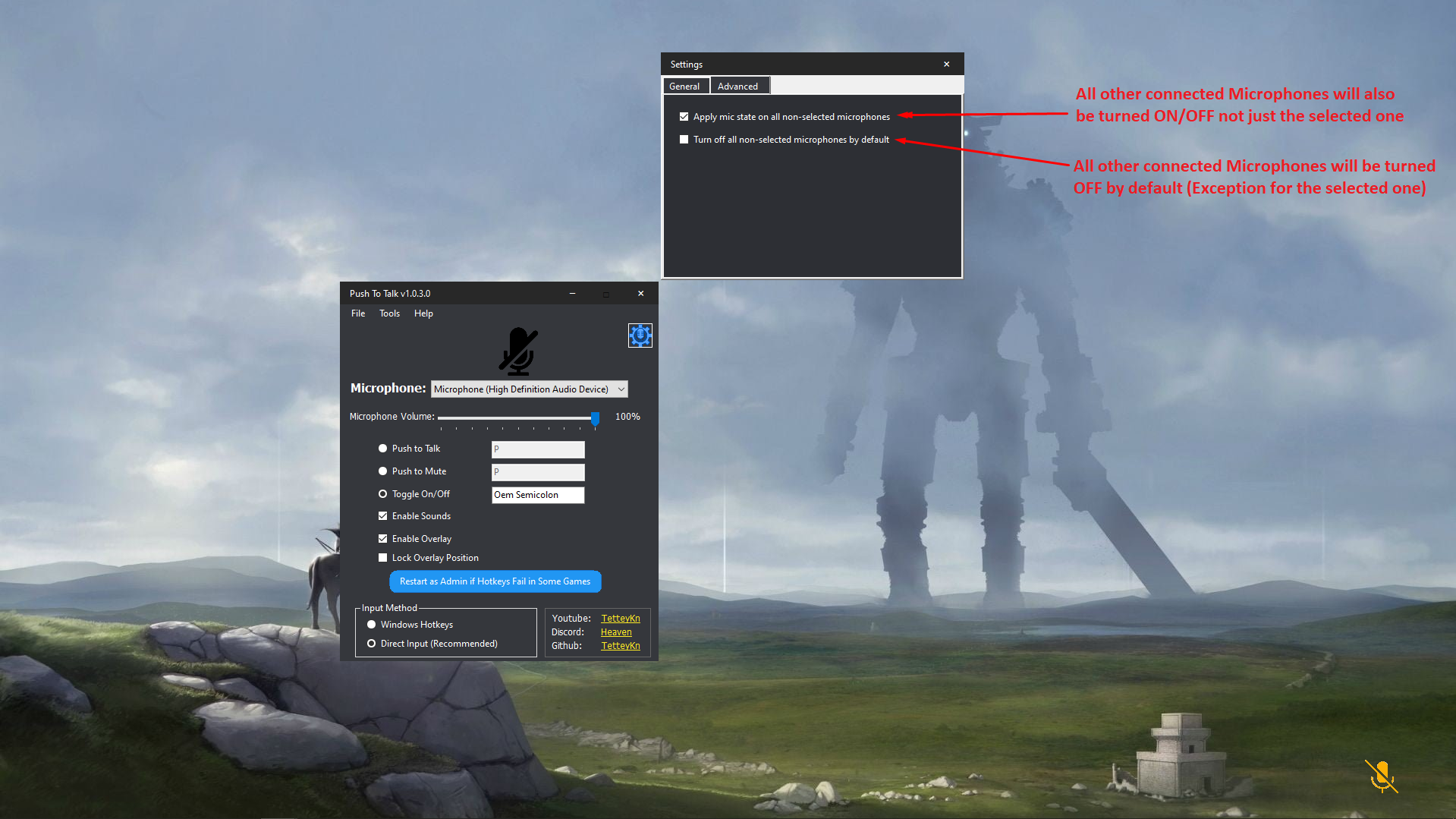
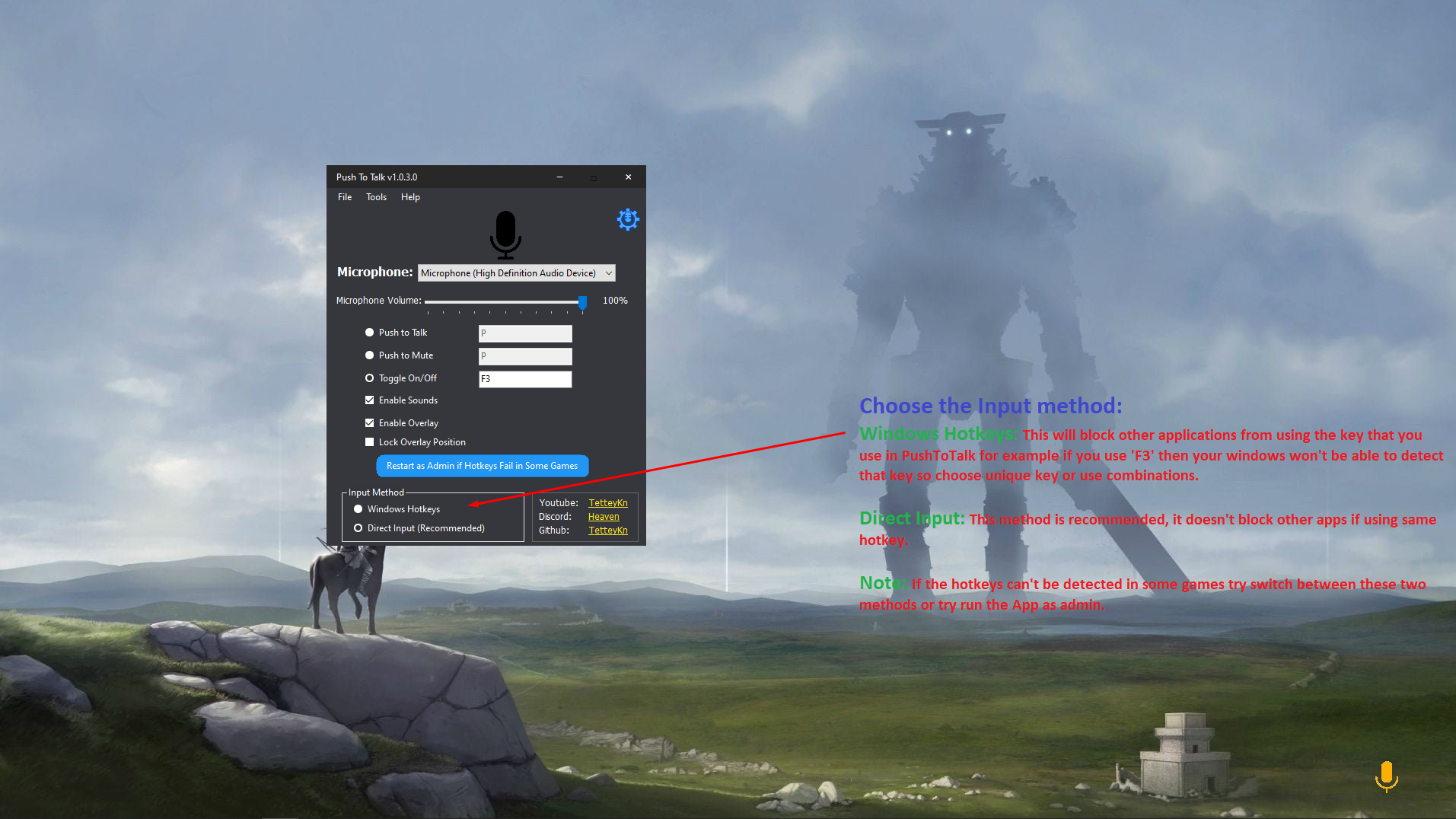
- Customization and Hotkeys: Allows users to assign specific hotkeys for pushing-to-talk, enabling effortless toggling without interrupting ongoing activities.
- Lightweight and Resource-Efficient: Designed to be minimalistic, ensuring it won't bog down your system, making it suitable even for older or less powerful hardware.
- Compatibility with Various Applications: Works smoothly across multiple Windows-based platforms, making it flexible for different use cases like gaming, remote work, or team coordination.
Assessing the User Experience: Interface, Ease of Use, and Performance
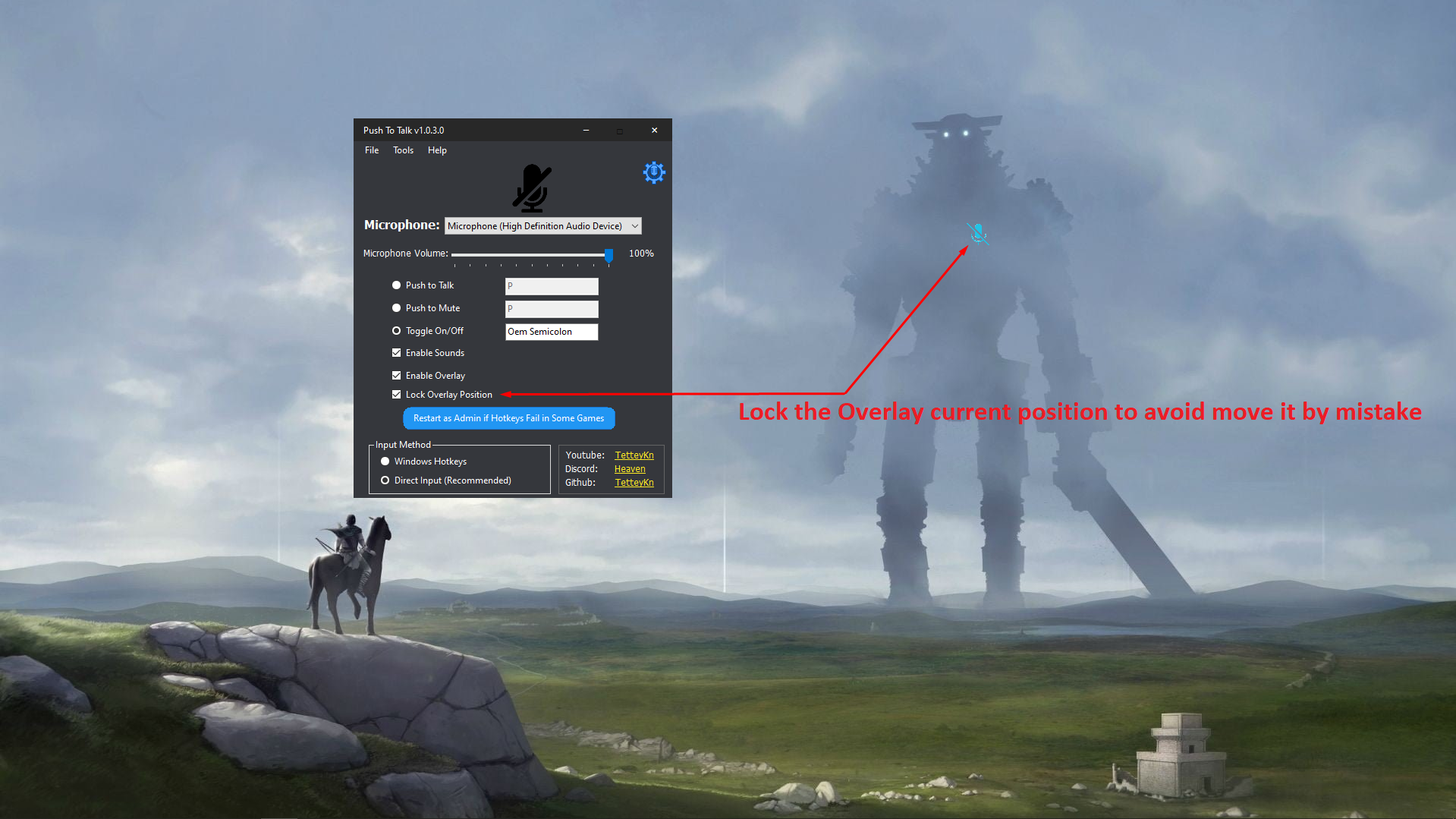
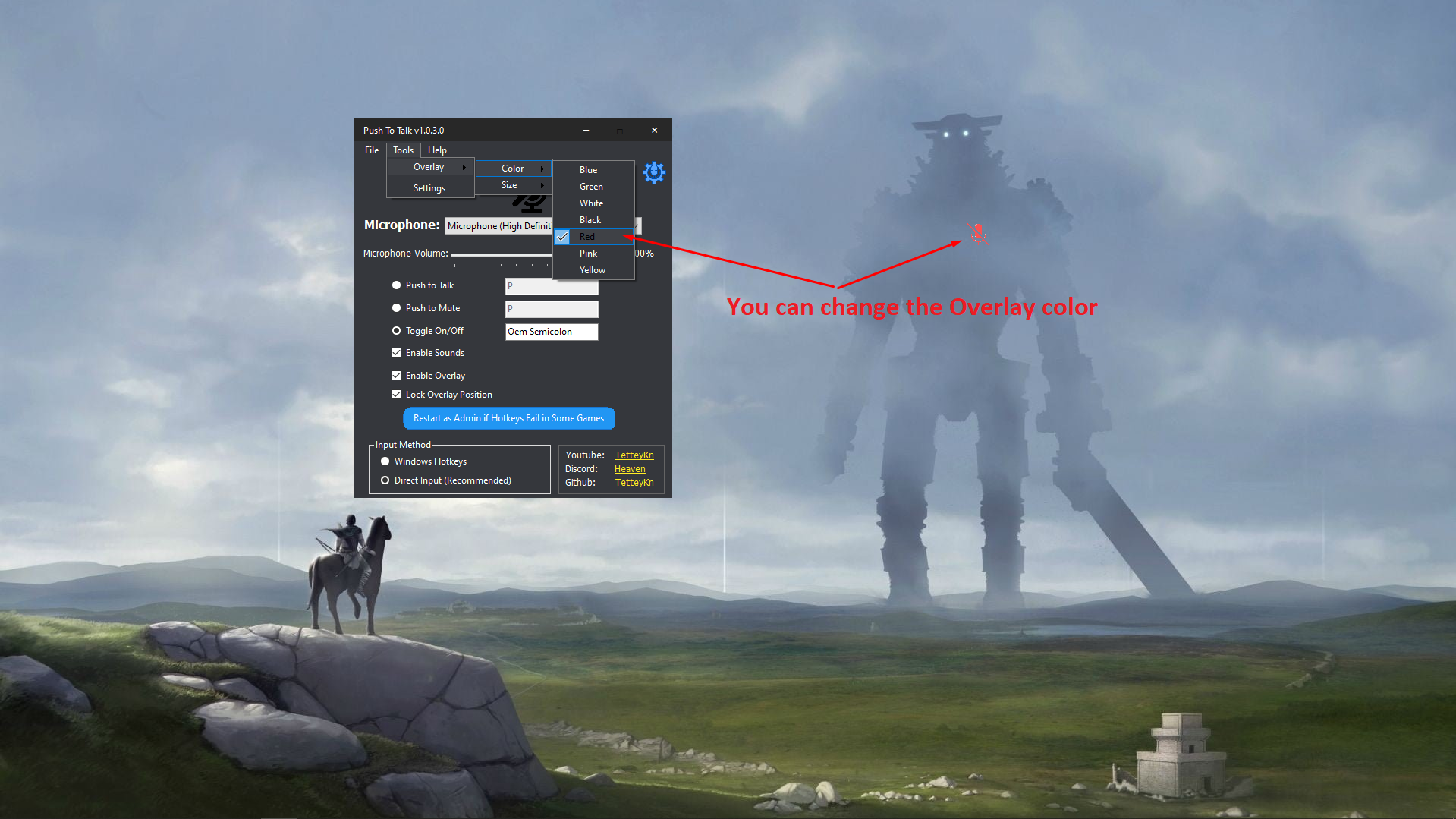
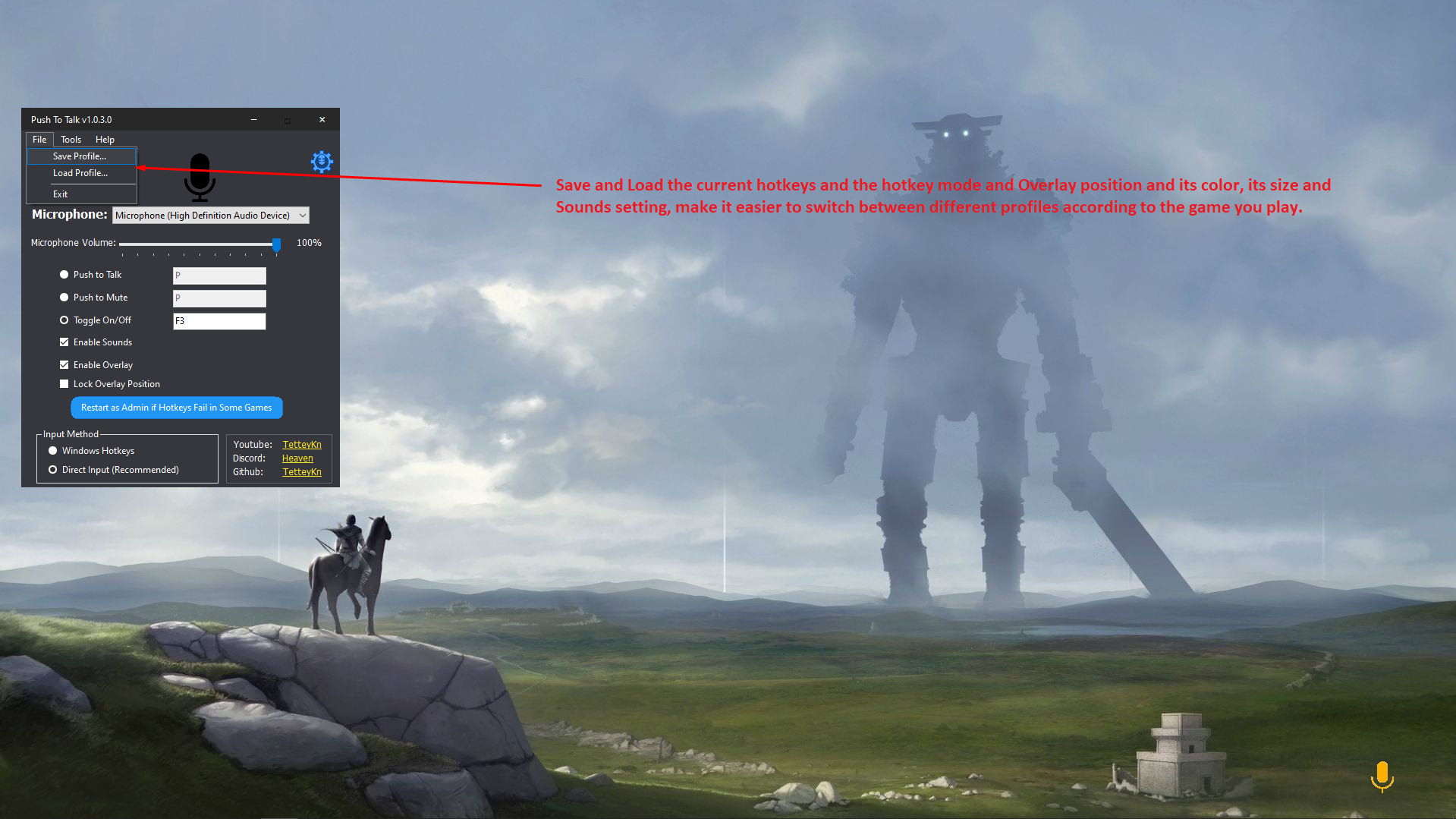
From the moment you open PushToTalk, it greets you with a straightforward, uncluttered interface that's reminiscent of a sleek control panel—a far cry from overwhelming dashboards. Navigating the app is as intuitive as flipping a light switch; everything from configuring hotkeys to adjusting microphone settings feels natural and effortless.
The app's operation is remarkably smooth. Latency is minimal, ensuring that when you press the hotkey, your voice transmits instantly—crucial during gaming sessions or urgent communications. The learning curve is gentle; even first-time users can start communicating effectively within minutes, thanks to clear icons and minimal setup steps.
What Sets PushToTalk Apart? The Unique Advantages
Compared to other voice communication utilities, PushToTalk's core strength lies in its unobtrusive design and customization capabilities. While many tools focus on extensive features or integrations, this app emphasizes reliability and simplicity. Its lightweight nature ensures it runs quietly in the background without impacting system performance, a key advantage over bulkier programs that can slow down your device.
Moreover, its hotkey customization makes it a perfect companion for gamers or remote workers who need quick toggling without diving into menus—think of it as a personal walkie-talkie that you can tailor exactly to your preferences.
Would I Recommend PushToTalk? Use Cases and Final Thoughts
For users seeking a fuss-free, efficient push-to-talk solution on Windows, this app hits the mark. Whether you're coordinating with teammates in multiplayer games, conducting remote work meetings, or making quick voice notes, PushToTalk provides the essentials wrapped in a neat package. I'd rate it as a solid, reliable utility that's best suited for those valuing straightforward functionality over bells and whistles.
In conclusion, if you want a no-nonsense voice app with intelligent hotkey customization and minimal resource consumption, give PushToTalk a try. It's like having a reliable, silent pillar of communication that's always ready when you need it, without getting in your way.
Pros
- Clear and instant voice transmission
- Easy to use interface
- Cross-platform compatibility
- Reliable connection stability
- Customizable push-to-talk keys
Cons
- Limited free features
- Occasional audio lag
- In-app advertisements in free version
- Limited customer support channels
- Requires consistent internet connection











