

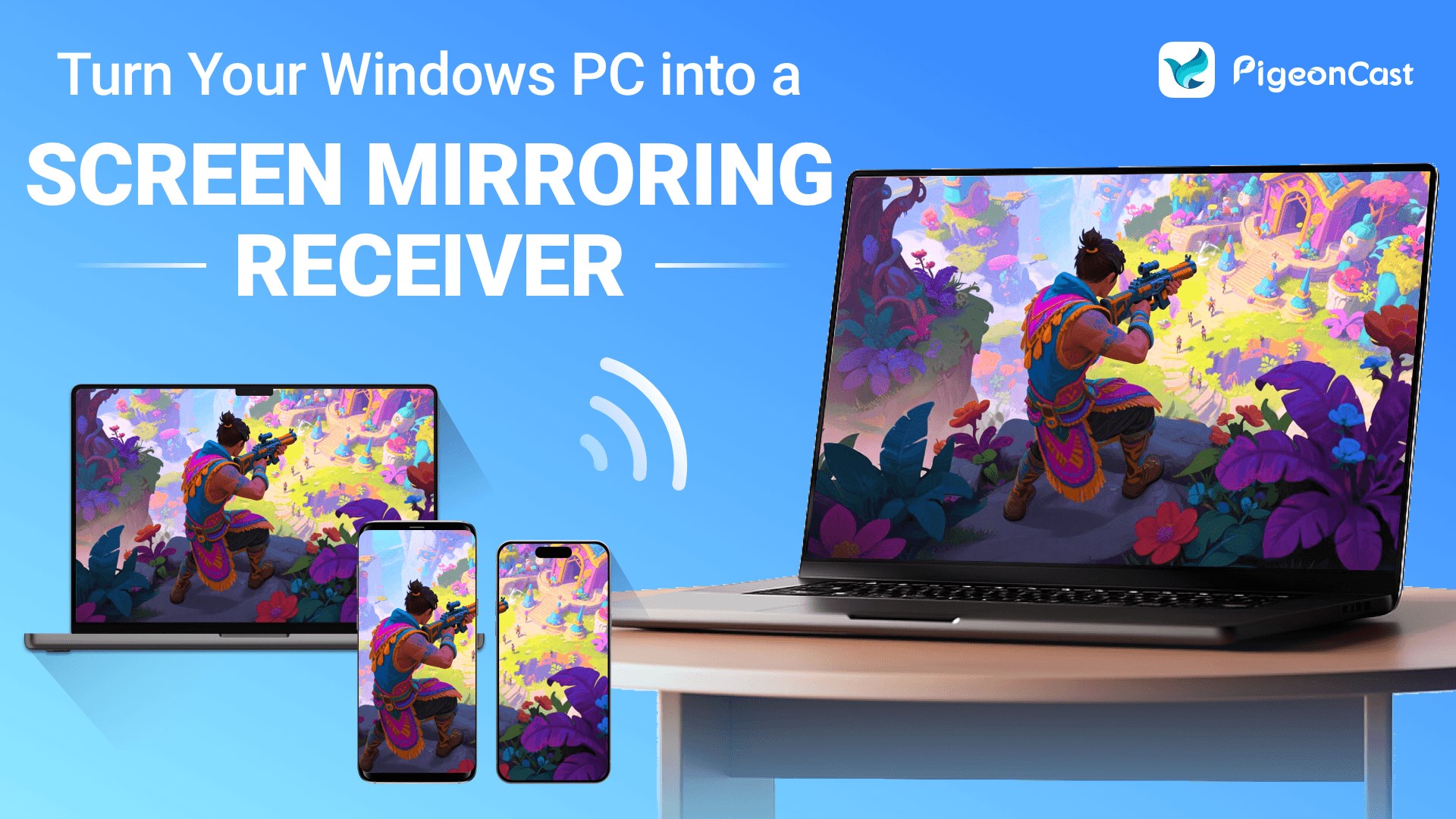
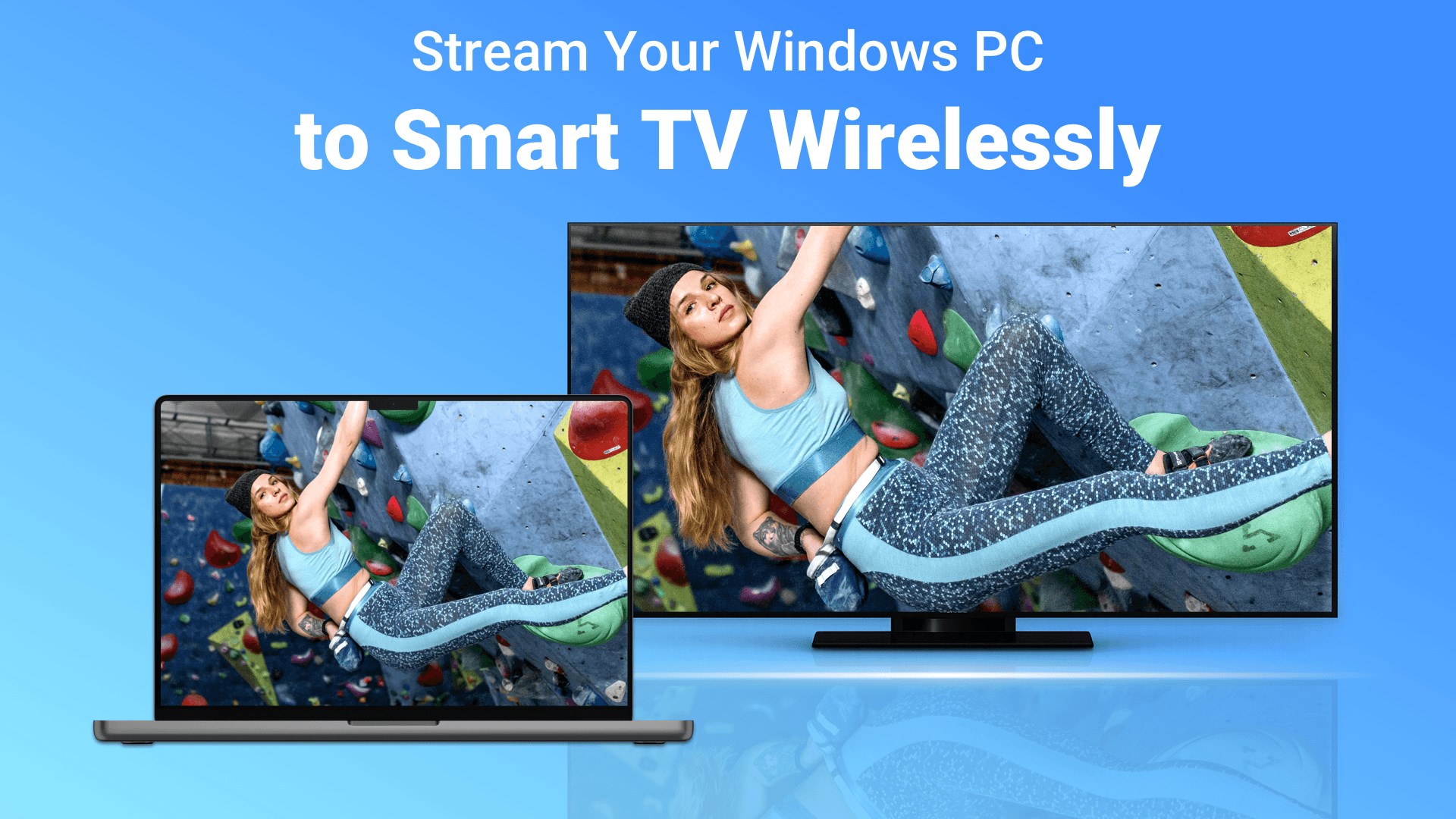
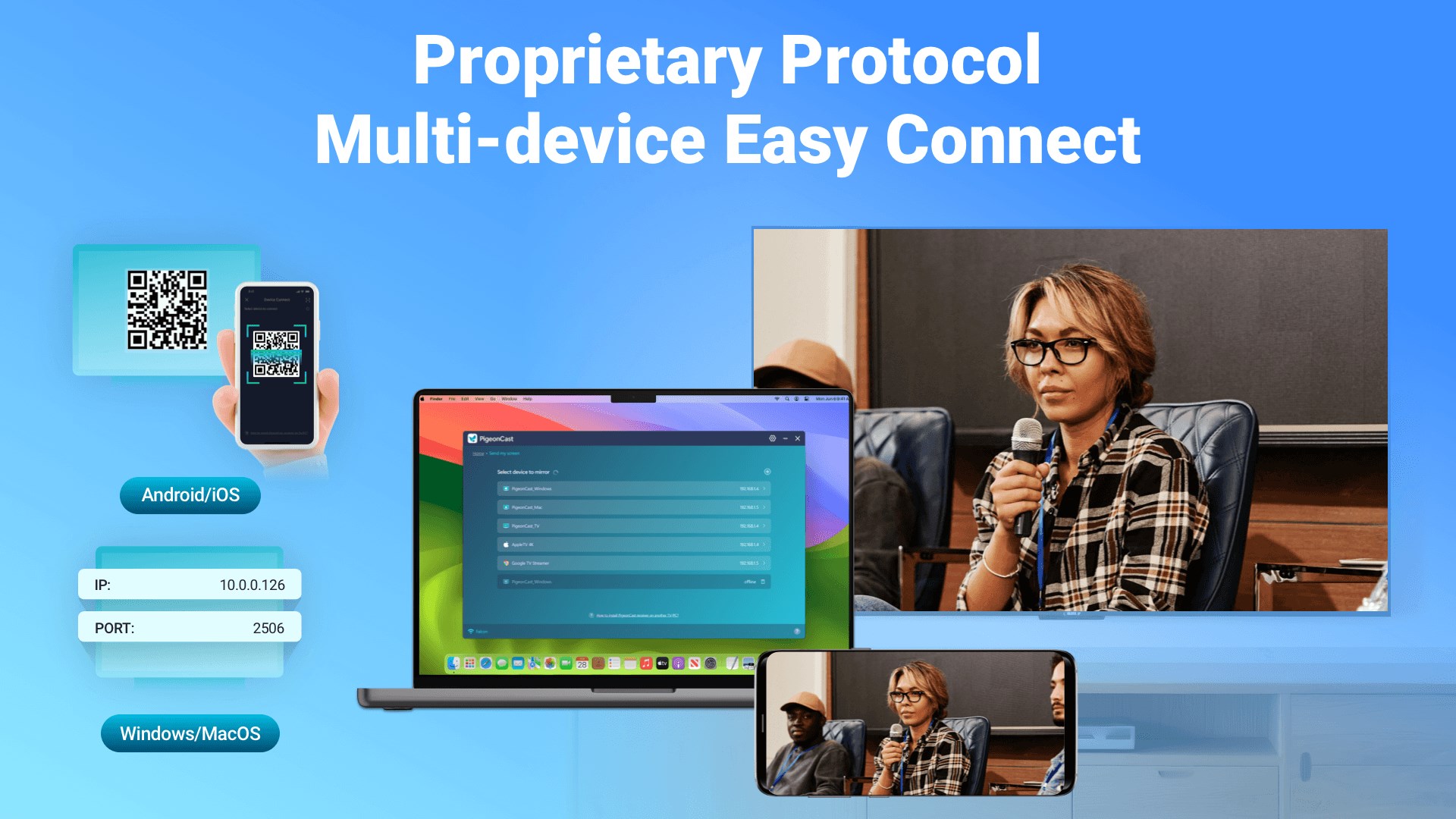
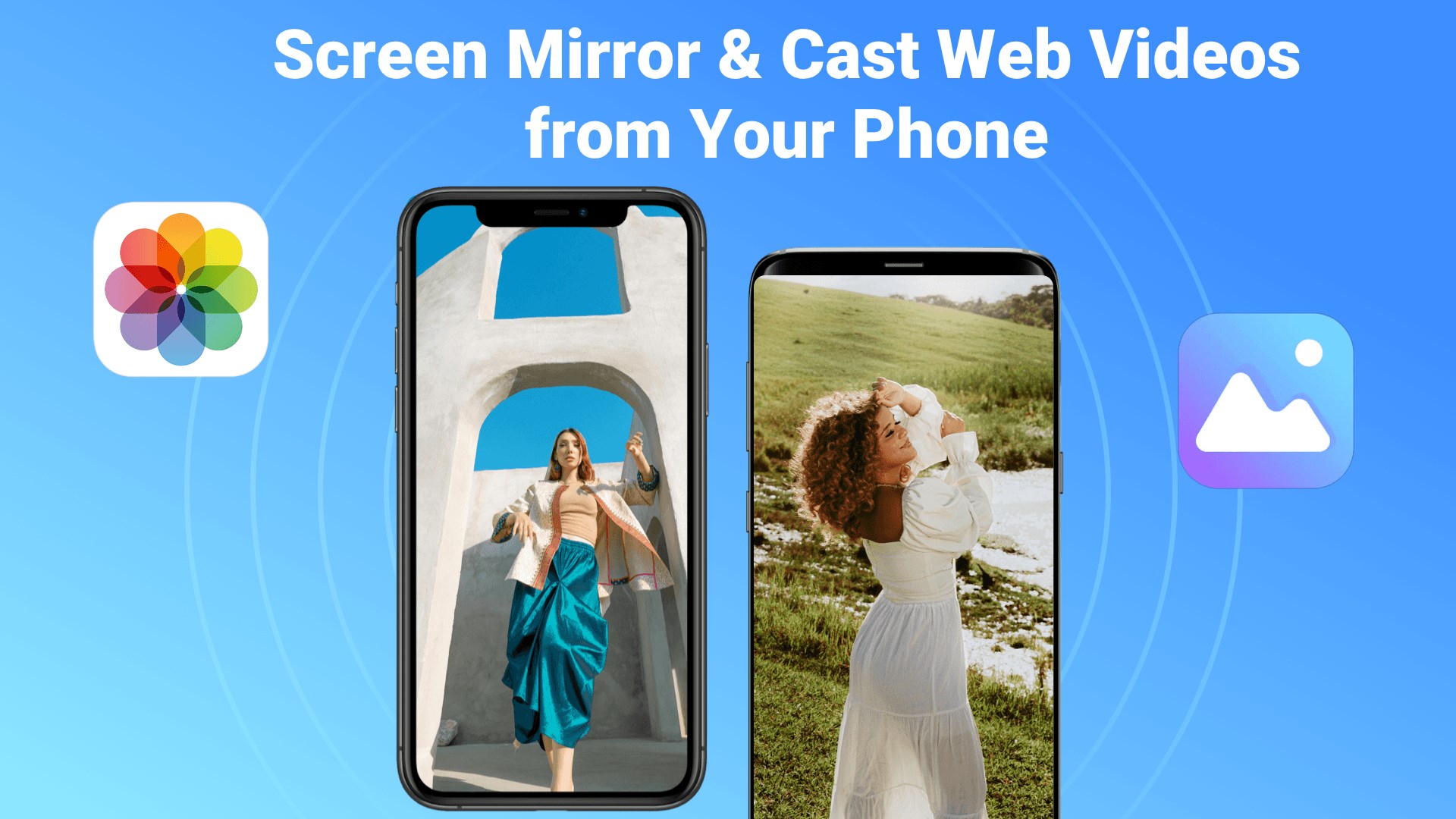
- Name PigeonCast - FREE Cast via AirPlay/Google Cast
- Category Utilities & tools
- Developer 四川法尔考智能科技有限公司
- Available on PC
- OS Windows 10 version 17763.0 or higher
- languages Arabic, Chinese (Simplified), Chinese (Traditional Chinese), English, French, German, Hindi, Indonesian, Italian, Japanese, Korean, Portuguese, Portuguese (Brazil), Russian, Spanish, Thai, Vietnamese
PigeonCast - Seamlessly Cast Your Media to Multiple Devices via AirPlay and Google Cast
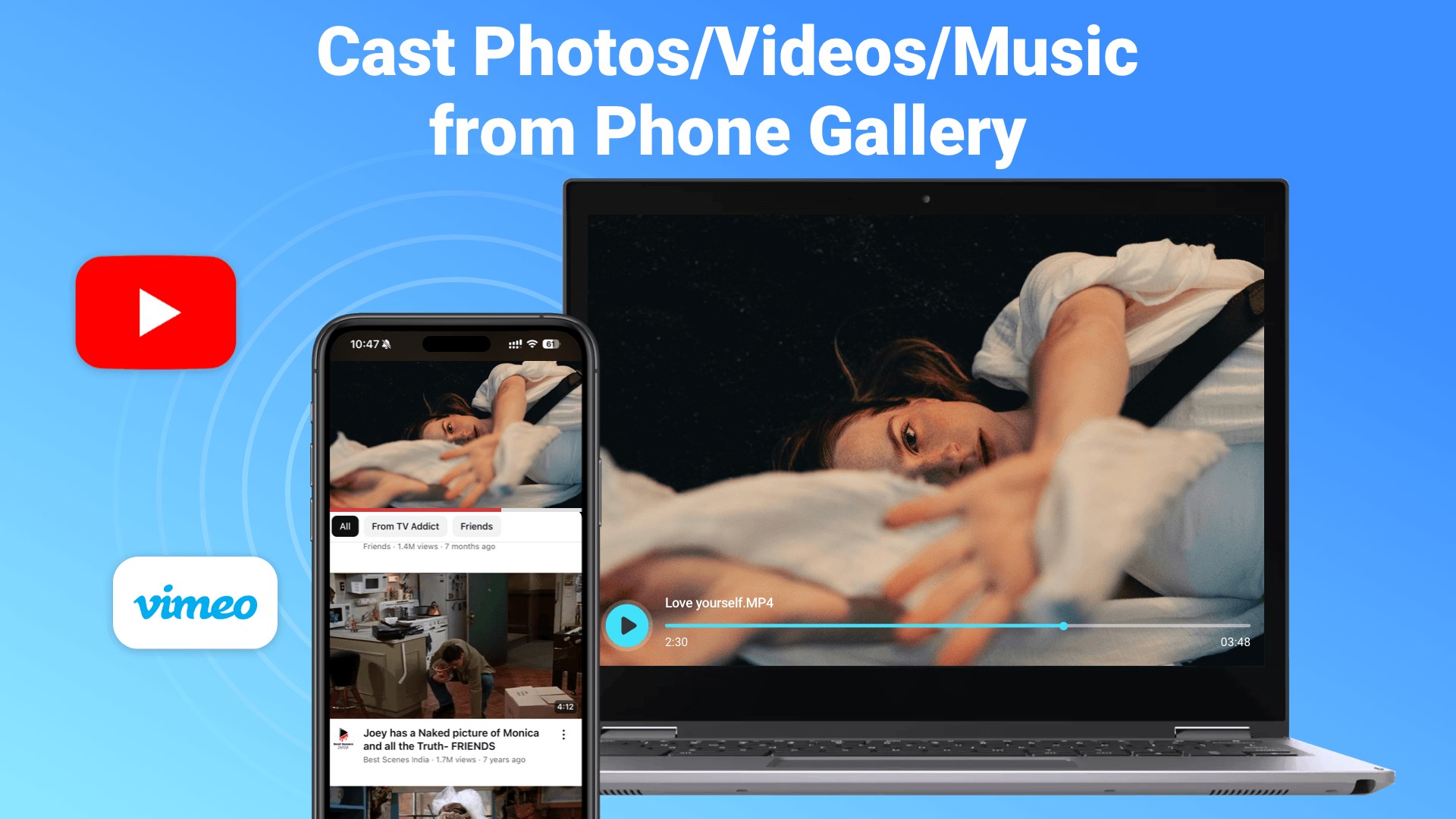
Imagine effortlessly sending your favorite videos, music, or presentations from your Windows PC to your smart TV or speakers—without the usual clutter or compatibility headaches. PigeonCast offers a streamlined solution designed to bridge your devices smoothly, making media sharing as natural as passing a note among friends.
Developed by Sichuan Falco Intelligent Technology Co., Ltd.
Crafted by the innovative team at Sichuan Falco, PigeonCast aims to simplify casting experiences on Windows, integrating both AirPlay and Google Cast protocols into a single, easy-to-use tool.
Key Features That Make PigeonCast Stand Out
- Dual Protocol Support: Compatibility with both AirPlay and Google Cast ensures broad device support, from Apple TV to Chromecast and smart speakers.
- Free and User-Friendly: No cost involved, with a straightforward interface designed for both tech novices and seasoned users.
- High-Quality Streaming: Maintains excellent video and audio quality during transmission, minimizing lag and stutter.
- Cross-Device Flexibility: Use PigeonCast across various Windows environments, making your media sharing options limitless.
A Friend in Your Tech Corner: An Engaging Opening
Picture this: You've finished binge-watching your favorite series on your laptop, and now you want to enjoy it on the big screen without fiddling with cables or complex setup procedures. This is where PigeonCast steps in—think of it as your trusty messenger, swiftly delivering your media from your Windows device onto your preferred cast-enabled device, all with a few clicks. It's like having a bilingual helper that speaks both AirPlay and Google Cast natively, making media sharing smoother than ever before. If you've been frustrated by compatibility issues or complicated setups, PigeonCast feels like a breath of fresh air—simple, effective, and reliable.
Intuitive Interface with Seamless Operation
Once launched, PigeonCast presents a clean, minimalistic interface that invites exploration. Navigating through your media files feels as natural as browsing your photo gallery—organized, clear, and responsive. Setting up a cast is a matter of selecting your target device from a drop-down menu and clicking ‘Cast'. The app boasts rapid connection times and minimal lag, which is crucial for maintaining the immersion during video playback or music streaming. Even those less tech-savvy will find the learning curve gentle—think of it as learning to ride a bicycle: once you get the balance, it becomes second nature.
Core Functionalities: Focus on Reliability and Ease
**Dual Protocol Support:** Unlike many utilities that focus narrowly on one casting technology, PigeonCast embraces both AirPlay and Google Cast. This means whether your device ecosystem is Apple-centric or Google-centric, you won't have to hunt for different apps. It's akin to having a universal remote control that can operate multiple devices seamlessly.
**High-Quality Streaming:** The app emphasizes delivering crisp visuals and clear audio, making it suitable not just for casual watching but also for professional presentations. The stability during streaming minimizes interruptions, ensuring your media experience remains smooth and enjoyable. Imagine having a conversation with a friend where every word is clear—PigeonCast ensures your media doesn't get lost in translation.
What Sets PigeonCast Apart from Its Peers?
While many casting tools exist, PigeonCast's standout feature is its combination of dual-protocol support in a single, free package. Most competitors either focus solely on AirPlay or Google Cast, often requiring separate apps or paid versions for full functionality. PigeonCast simplifies this landscape by merging compatibility and usability, which is particularly useful in environments with mixed device ecosystems. Moreover, its minimalist design prioritizes performance without unnecessary bloat, ensuring a swift and frustration-free experience.
Recommendation and Usage Suggestions
Given its robust functionality, intuitive interface, and comprehensive protocol support, I confidently recommend PigeonCast for anyone looking to streamline their media casting on Windows. It's especially suitable for households or offices where multiple device brands coexist or for users who prefer a hassle-free setup. Whether you're streaming a family video or presenting a slideshow at work, PigeonCast offers a reliable, straightforward solution. Just keep in mind that, like all software, optimal performance depends on a stable network connection; for the best experience, ensure your Wi-Fi is up to snuff.
In conclusion, PigeonCast is a commendable tool that respects the user's need for simplicity and quality. It might not have the bells and whistles of more extensive enterprise solutions, but for everyday media sharing, it hits the sweet spot perfectly. If you're seeking an unpretentious, effective casting companion, give it a try—you'll find it's like having a smart, helpful pigeon delivering your media exactly where you want it.
Pros
- Ease of Use
- Free to Use
- Wide Device Compatibility
- Stable Streaming Performance
- Lightweight App
Cons
- Limited Advanced Features
- Occasional Connectivity Drops
- UI Design Could Be More Intuitive
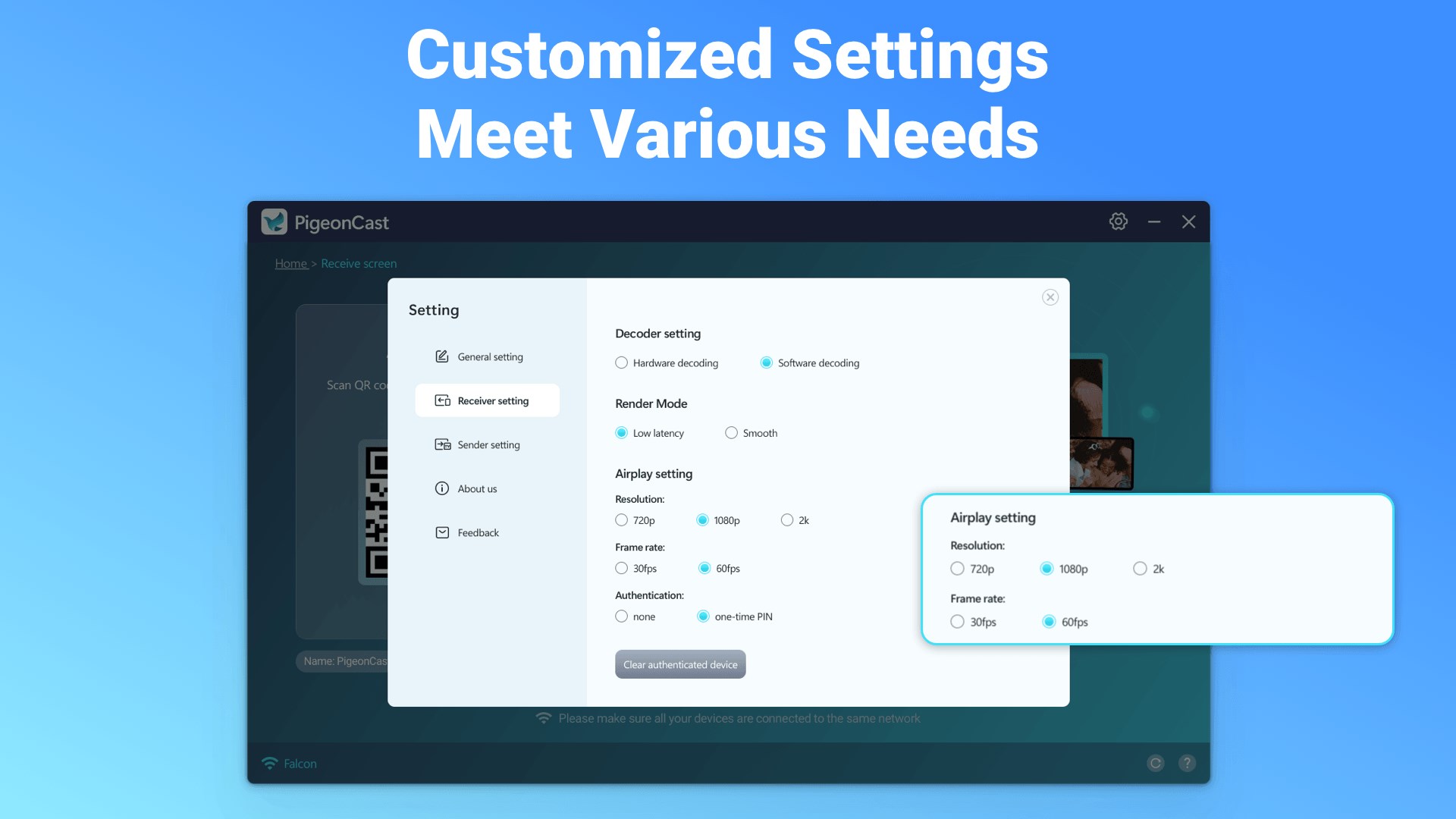
- Limited Settings Customization
- Compatibility with Older Devices











