- Name PDF Reader Pro - PDF Editor & Converter
- Category Business
- Developer PDF Technologies, Inc.
- Available on PC
- OS Windows 10 version 17763.0 or higher
- languages Chinese (Simplified), Chinese (Traditional), English (United States), French, German
Introduction: A Robust Companion for PDF Management
Imagine a tool that transforms your Windows PC into a reliable digital workspace for all things PDFs—a place where editing, converting, and collaborating seamlessly come together. PDF Reader Pro by PDF Technologies, Inc. promises just that; a professional yet user-friendly app designed to streamline your document workflows. Whether you're a student needing to annotate research materials or a professional handling complex reports, this app aims to be your go-to PDF assistant.
Core Features That Make PDF Reader Pro Stand Out
Comprehensive PDF Editing and Conversion
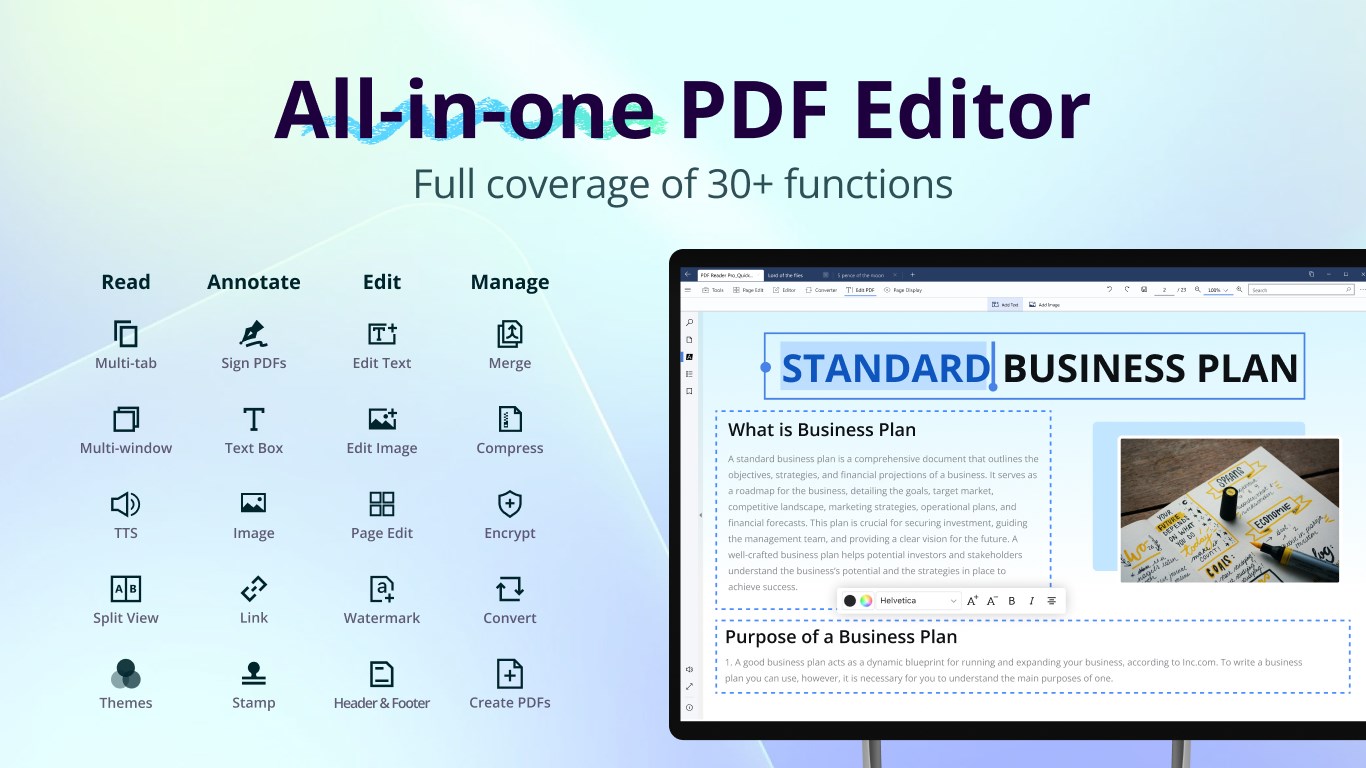
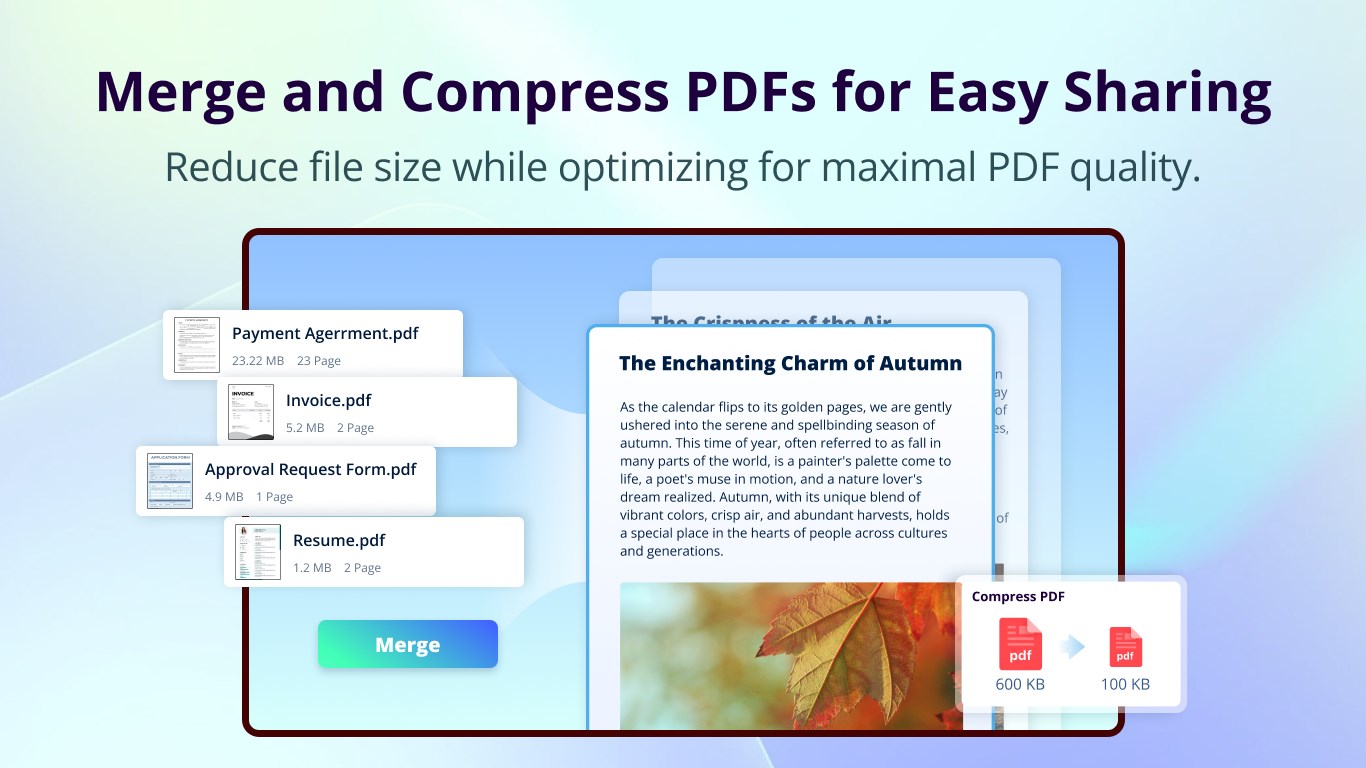
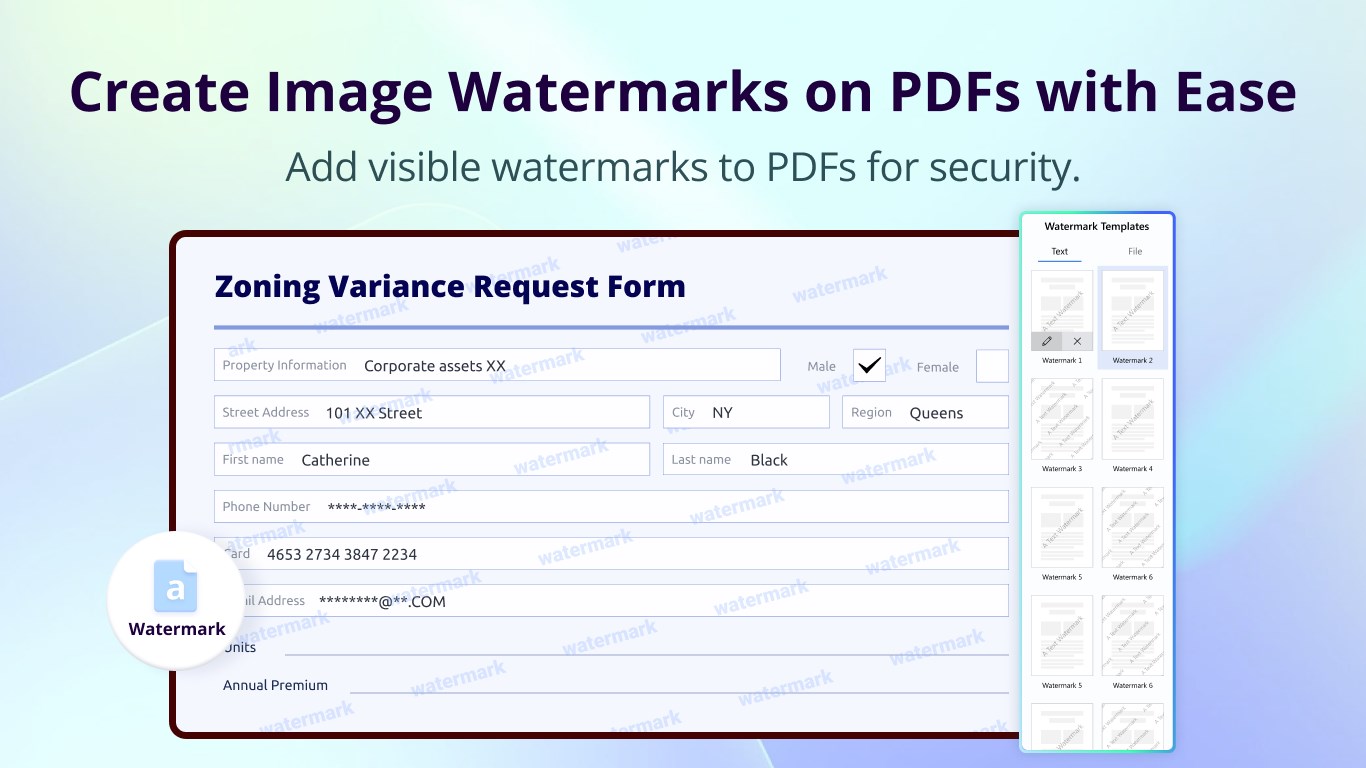
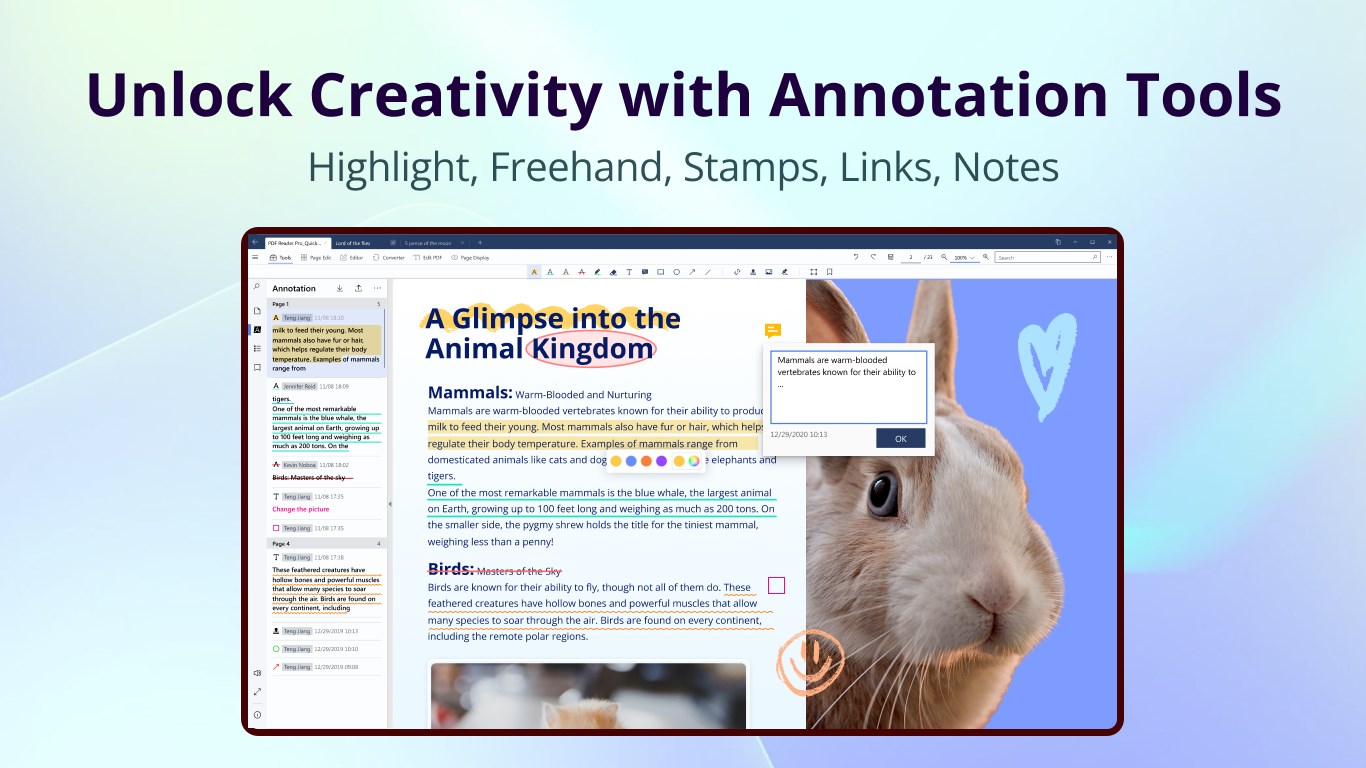
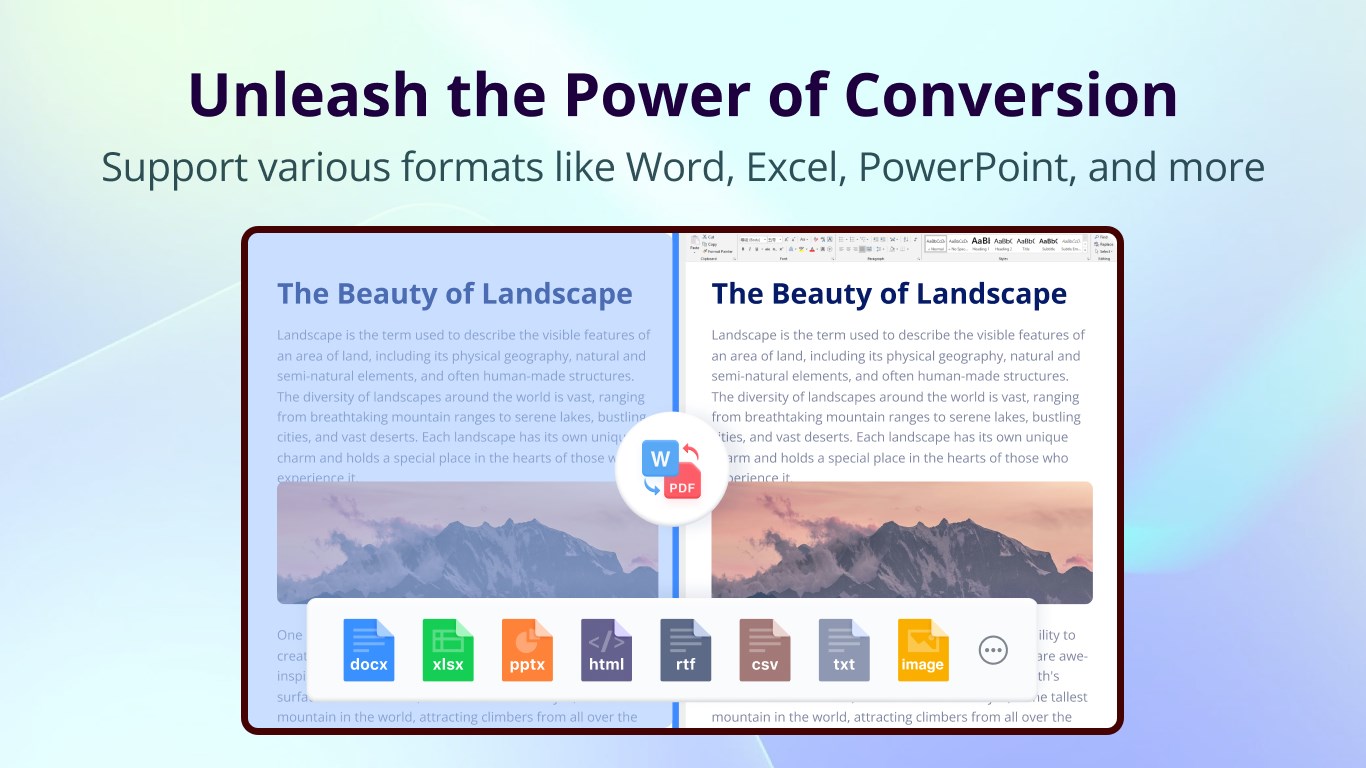
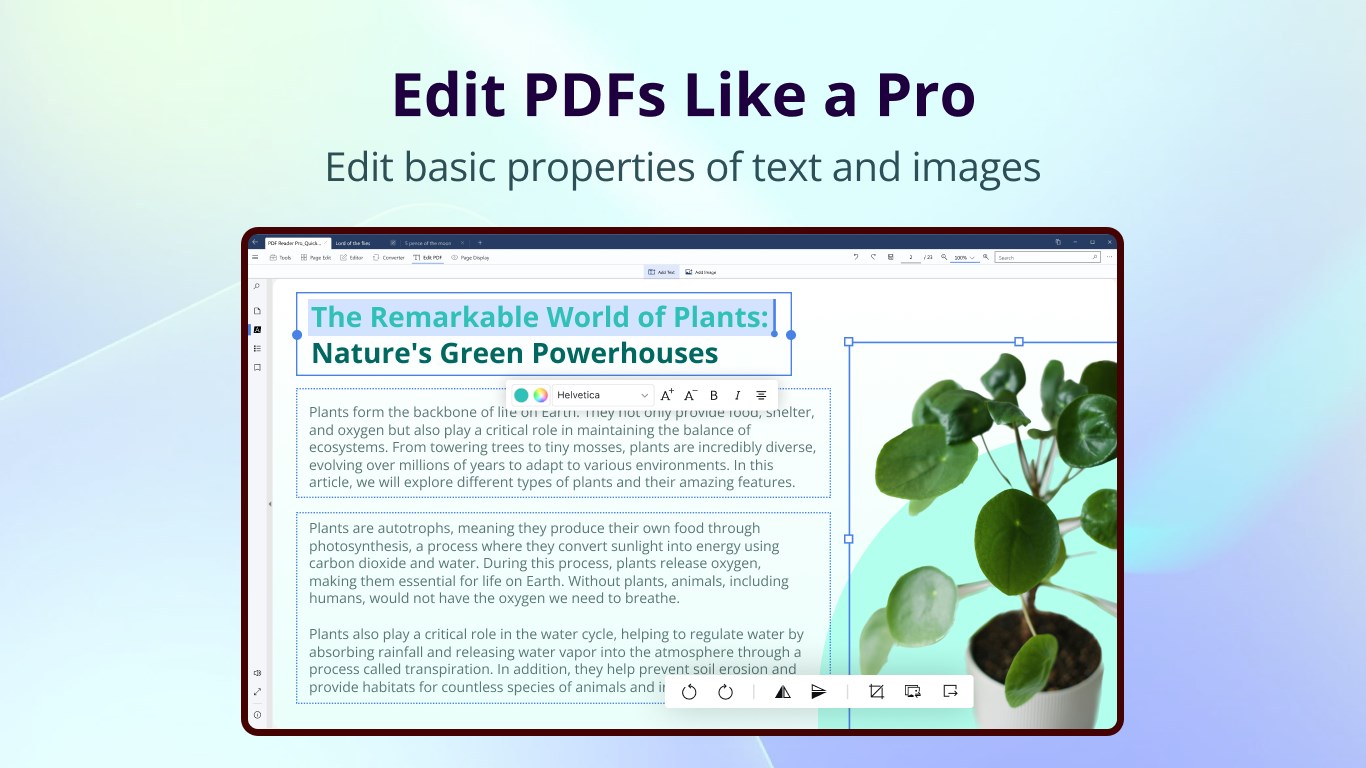
At its heart, PDF Reader Pro delivers powerful editing capabilities—from adding and deleting text and images to annotating with sticky notes and highlights. Its conversion tools are equally impressive, allowing you to effortlessly turn PDFs into Word, Excel, PowerPoint, or image formats, and vice versa. This flexibility ensures your workflows are smooth, with less need for multiple third-party tools.
Advanced Collaboration and Task Management
What truly elevates this app above many peers is its collaborative features. The app supports real-time annotation sharing, enabling teams to review and comment directly within the PDF. Coupled with task management tools, it allows users to assign tasks, track progress, and ensure everyone stays aligned. Think of it as a mini project hub nestled within your PDF reader, fostering teamwork even when remote.
User Interface and User Experience
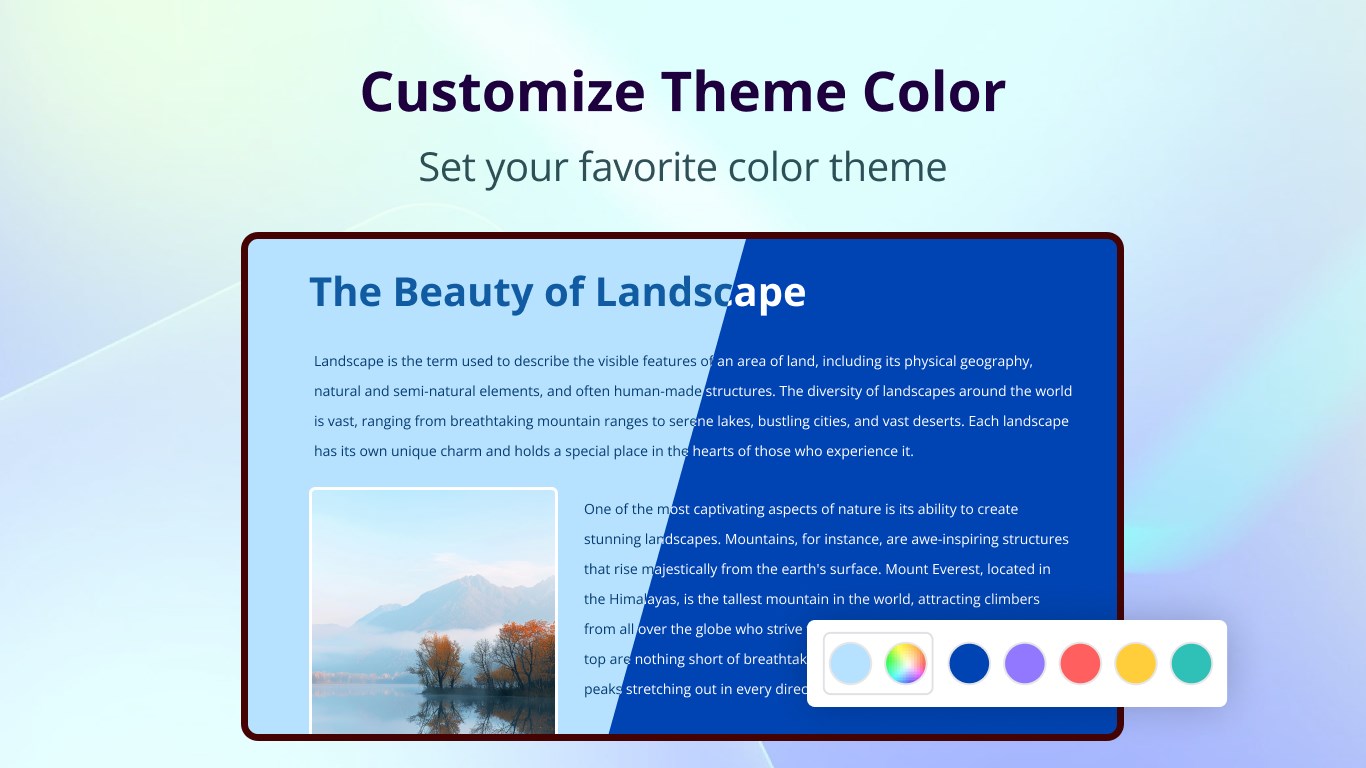
The design of PDF Reader Pro strikes a pleasant balance between simplicity and functionality. Its interface resembles a well-organized digital desk—intuitive icons, logical menu placements, and minimal clutter that invites effortless navigation. Smooth operation is facilitated by optimized performance—swiping through pages, editing, or converting documents feels natural and snappy. The learning curve is gentle enough for new users to start productive sessions within minutes, yet robust enough to cater to power users requiring advanced features.
Differentiation from Other Business PDF Applications
Unlike many PDF tools focused solely on viewing or basic editing, PDF Reader Pro emphasizes collaborative workflows and task coordination. Its unique ability to integrate team comments, real-time annotations, and task assignments directly within the document fosters a collaborative environment akin to a shared workspace. This smörgåsbord of features makes it especially appealing to small teams or professionals seeking to streamline document review cycles without juggling multiple apps.
Final Recommendation and Usage Insights
Overall, PDF Reader Pro by PDF Technologies, Inc. is a well-rounded application suitable for a broad user base—from individual professionals to small teams. Its standout features in collaboration and task management provide a noteworthy advantage over conventional PDF editors. I would recommend this app for users who value not just document editing but also integrated teamwork capabilities. Whether you're managing project documentation or collaborating on reports, this tool offers a practical, all-in-one solution.
Pros
- User-friendly interface
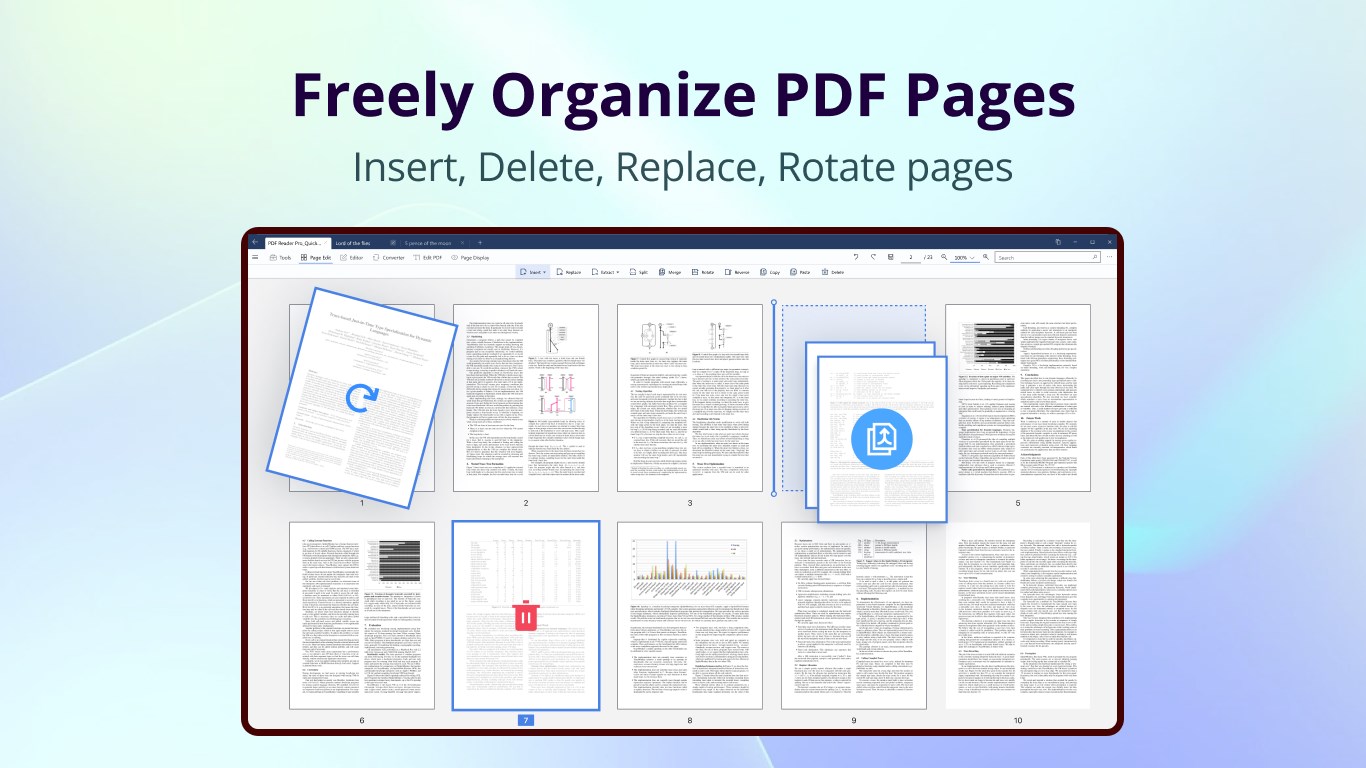
- Comprehensive PDF editing features
- Fast performance
- Conversion capabilities
- Cloud integration
Cons
- Occasional crashes during large file editing
- Limited free features
- Watermark on exported files in free version
- No OCR support in the current version
- Occasional synchronization delays with cloud services