

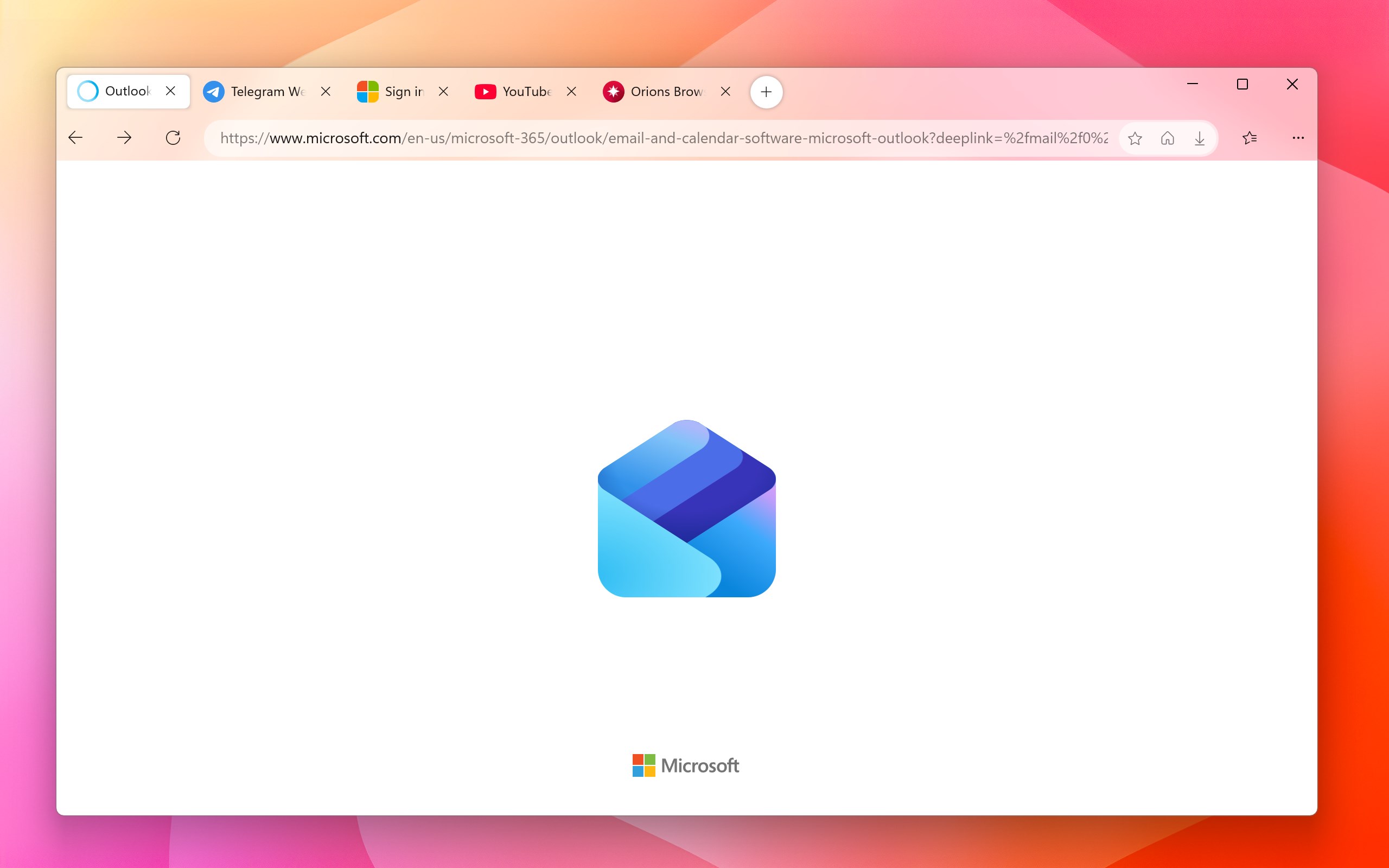
- Name Orions Browser
- Category Utilities & tools
- Developer Marcelo de Souza
- Available on PC
- OS Windows 10 version 17763.0 or higher
- languages English (United States)
Discovering Orions Browser for Windows: A Sleek Newcomer in the Browsing World
Imagine stepping into a browser that promises to streamline your web experience with elegance and efficiency—Orions Browser by Marcelo de Souza aims to do just that. As an enthusiast eager to find a fresh, reliable browser alternative, I delved into what makes Orions stand out and whether it can genuinely enhance our daily browsing routines.
About Orions Browser: The Essentials
Orions Browser is a lightweight, feature-rich web browsing application designed for Windows users seeking a customizable and performance-oriented experience. Developed by Marcelo de Souza, the browser emphasizes user privacy, speed, and intuitive design.
Developer & Publisher
Marcelo de Souza is both the developer and publisher behind Orions Browser, showcasing a dedicated focus on delivering a refined browsing tool for modern users.
Main Highlights
- Advanced Tab Management: Seamlessly organize multiple tabs with visual previews and grouping features.
- Built-in Privacy Tools: Integrated ad-blocker, tracker blocker, and privacy modes for safe browsing.
- Customizable Interface: Choose from themes, toolbar layouts, and extensions to personalize your browsing environment.
- Speed Optimization: Engineered for faster page loads and reduced resource consumption.
Target Audience
Orions is tailored for users who appreciate a clean, customizable interface and prioritize privacy and speed—ranging from everyday internet surfers to tech enthusiasts and professionals seeking an efficient browsing solution.
A Fresh Spin on Browsing: An Introduction to Orions
Picture this: you're sitting at your desk, overwhelmed by an avalanche of open tabs and scattered extensions. Enter Orions Browser—a sleek spacecraft through the internet galaxy, designed to cut through the noise with precision. Its streamlined layout and innovative features promise to turn your browsing into an effortless voyage rather than a cluttered chaos.
Core Functionality Spotlight: Efficiency & Privacy at Your Fingertips
1. Tab Organization: Taming the Digital Wilderness
One of Orions' standout features is its advanced tab management system. Unlike traditional browsers where tabs can become a tangled mess, Orions offers visual groupings, tab previews, and a drag-and-drop interface for easy organization. Imagine having your research, social media, and work emails neatly grouped in separate clusters—making switching between them feel like flipping through neatly stacked folders rather than digging through a cluttered desk.
2. Privacy & Security: Your Digital Shield
In a world increasingly concerned about online privacy, Orions steps up with integrated privacy tools that don't require additional extensions. Its built-in tracker blocker and ad-filter give you peace of mind while browsing, much like having a vigilant watchdog by your side. Plus, the privacy mode disables data collection features, ensuring your footprints stay lightweight and untraceable, making it ideal for sensitive or anonymous browsing.
3. Customization & Extensions: Make It Truly Yours
Orions Browser doesn't box you in with a one-size-fits-all approach. Its interface is highly customizable—think of it as redecorating your digital home. From choosing themes that mirror your mood to rearranging toolbars or adding extensions, users have the freedom to craft a browsing environment that's both functional and visually appealing. This personalization significantly enhances user engagement and comfort, especially for those who spend hours online each day.
Design & User Experience: Smooth Sailing or Choppy Waters?
From the moment I launched Orions, I appreciated its minimalistic yet intuitive interface. The design feels modern, akin to a well-designed dashboard—clean lines, clear icons, and logical layout. Navigating between tabs and accessing settings is swift, with fluid animations that make the experience feel responsive rather than sluggish. The learning curve is gentle; even newcomers can start customizing and exploring features within minutes, much like settling into a new but welcoming home.
Performance-wise, Orions handles intensive browsing sessions without breaking a sweat. It loads pages promptly and uses system resources sparingly, which is akin to driving a fuel-efficient car—giving you both speed and economy. In terms of stability, I experienced no crashes or glitches during extended testing, indicating solid underlying coding.
What Sets Orions Apart from Other Utilities & Tools Browsers?
While many browsers offer basic customization and privacy options, Orions shines with its emphasis on a cohesive user experience and advanced tab management. Its visual grouping system is reminiscent of a well-organized digital workspace, making multi-tasking less stressful. Additionally, the integrated privacy tools reduce reliance on third-party extensions, streamlining the browsing setup and reducing potential security risks—a significant edge over some competitors that rely heavily on external add-ons.
Another notable advantage is its lightweight architecture, making it suitable for devices with limited resources or those who want to maximize performance without sacrificing features. Unlike bulkier browsers that dominate system memory, Orions operates lean and mean, yet rich in functionality.
Final Thoughts: To Use or Not to Use?
Based on my hands-on experience, I'd recommend Orions Browser to users looking for a sleek, privacy-conscious, and highly customizable browsing tool. Its unique strengths—especially the intuitive tab management and robust privacy features—make it stand out in the crowded browser market. While it might still be maturing compared to giants like Chrome or Firefox, it holds promise as a lightweight alternative that can suit power users and casual surfers alike.
For those eager to experiment with a browser that combines elegance, efficiency, and privacy without overwhelming complexity, Orions is definitely worth trying out. Think of it as discovering a hidden gem in the vast universe of web browsers—a smart, reliable companion for your digital explorations.
Pros
- Fast browsing speed
- User-friendly interface
- Built-in privacy features
- Customizable themes and settings
- Efficient tab management
Cons
- Limited extension support
- Occasional stability issues
- Resource usage concerns
- Lack of syncing features across devices
- Limited language options at launch











