

- Name OP Auto Clicker - Auto Tap
- Category Utilities & tools
- Available on PC
- OS Windows 10 version 17763.0 or higher
- languages English (United States)
Introducing OP Auto Clicker - Auto Tap for Windows
OP Auto Clicker - Auto Tap is a straightforward yet powerful automation tool designed to simplify repetitive clicking tasks on Windows, making it a handy companion for gamers, testers, and anyone seeking efficiency in their workflows.
A Closer Look at the Developer and Core Features
Who's Behind It?
Developed by Auto Clicker, a team dedicated to creating user-friendly automation utilities, OP Auto Clicker strives to provide a reliable and intuitive experience that caters to both technical novices and seasoned power users.
Key Highlights of the App
- Flexible automation with customizable click intervals and patterns, enabling precise control over repetitive tasks.
- Support for multiple click points and sequences, allowing users to automate complex actions seamlessly.
- Simple user interface with straightforward controls, reducing learning curve and setup time.
- Lightweight footprint ensures the app runs smoothly without taxing system resources.
Engaging Performance and User Experience
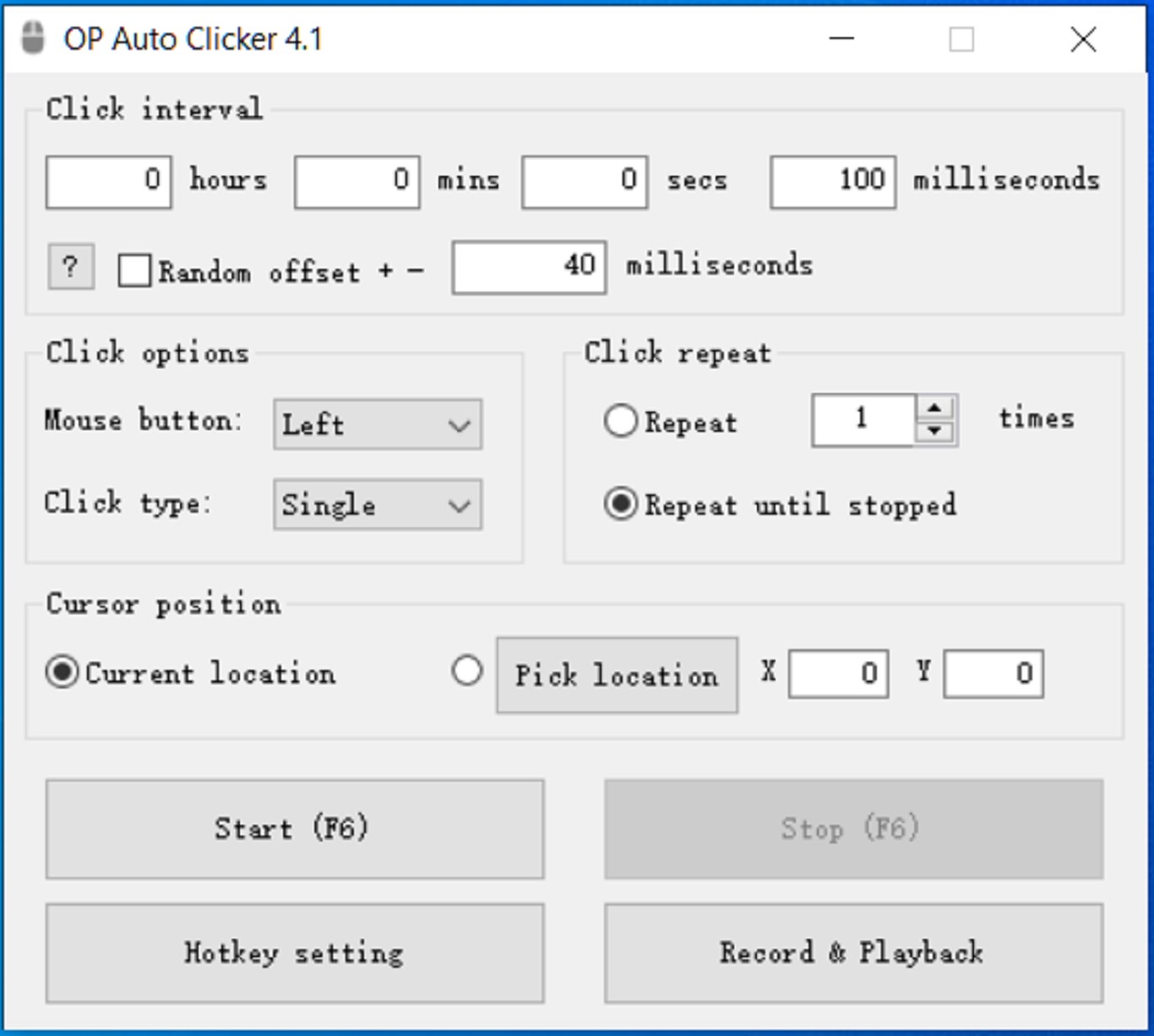
Imagine a lazy Sunday afternoon where your mouse just magically takes care of endless tedious clicks while you relax—OP Auto Clicker makes this scenario a reality. Its intuitive interface resembles a friendly dashboard, inviting users of all levels to dive in and customize their automation routines without fuss.
Interface Design and Usability
The app boasts a clean, minimalist design that places essential controls front and center. Its simplicity is the true charm—think of it as a well-organized toolbox where every tool is within arm's reach. Buttons for setting click intervals, selecting click points, and starting/stopping automation are logically laid out. Even if you're new to automation tools, you'll find yourself up and running within minutes.
Performance and Learning Curve
Once configured, OP Auto Clicker performs with remarkable stability and responsiveness. The app's responsiveness feels as smooth as a well-oiled machine, responding instantly to user commands. Its learning curve is gentle: setting up a sequence involves just a few clicks, making it accessible for casual users while offering enough depth for advanced customization. Overall, it's a tool that grows with your needs, whether you're a gamer automating in-game actions or a tester streamlining repetitive testing tasks.
What Sets It Apart from Similar Utilities?
While many auto clickers exist, OP Auto Clicker distinguishes itself primarily through its simplicity paired with customizable flexibility. Unlike some cluttered tools riddled with unnecessary features, this app focuses on what matters most: reliable automation with minimal fuss. Its ability to support multiple click points and to record sequences ensures you can automate intricate workflows effortlessly. Additionally, its lightweight design means it runs silently in the background without burdening your system—much like a discreet assistant quietly doing the work behind the scenes.
Final Thoughts and Recommendations
All in all, OP Auto Clicker - Auto Tap is a solid, user-friendly utility that fulfills its promise of simplifying repetitive clicking tasks on Windows. Whether you're a gamer seeking to automate actions in-game, a QA tester needing repetitive clicks for testing, or just someone who appreciates tools that save time, this app offers enough robustness and ease of use to justify giving it a try.
I would recommend it to anyone looking for a reliable, no-nonsense auto clicker—particularly if you value straightforward controls and customizable options over complex features. As a friendly piece of tech, it's like having a helpful virtual assistant at your fingertips, working tirelessly so you don't have to.
Pros
- Automates repetitive taps for enhanced efficiency
- User-friendly interface with easy setup
- Customizable tapping options
- Supports multiple scripts for complex actions
- Minimal resource consumption
Cons
- Limited support for advanced gestures
- Occasional unresponsiveness during high-frequency operations
- Lacks built-in activity scheduler
- No cloud backup for scripts and settings
- Potential detection by anti-cheat systems in games











