


- Name OMEN Gaming Hub
- Category Utilities & tools
- Available on PC
- OS Windows 10 version 19041.0 or higher
- Keyboard Integrated Keyboard
- Mouse Integrated Mouse
- languages Arabic, Chinese (Simplified), Chinese (Traditional Chinese), Chinese (Traditional), Croatian, Czech, Danish, Dutch, English, English (Canada), English (United Kingdom), English (United States), Finnish, French, German, Greek, Italian, Japanese, Korean, Latvian, Lithuanian, Norwegian, Polish, Portuguese (Portugal), Russian, Slovak, Slovenian, Spanish, Swedish
Introducing OMEN Gaming Hub for Windows: Your Personal Gaming Command Center
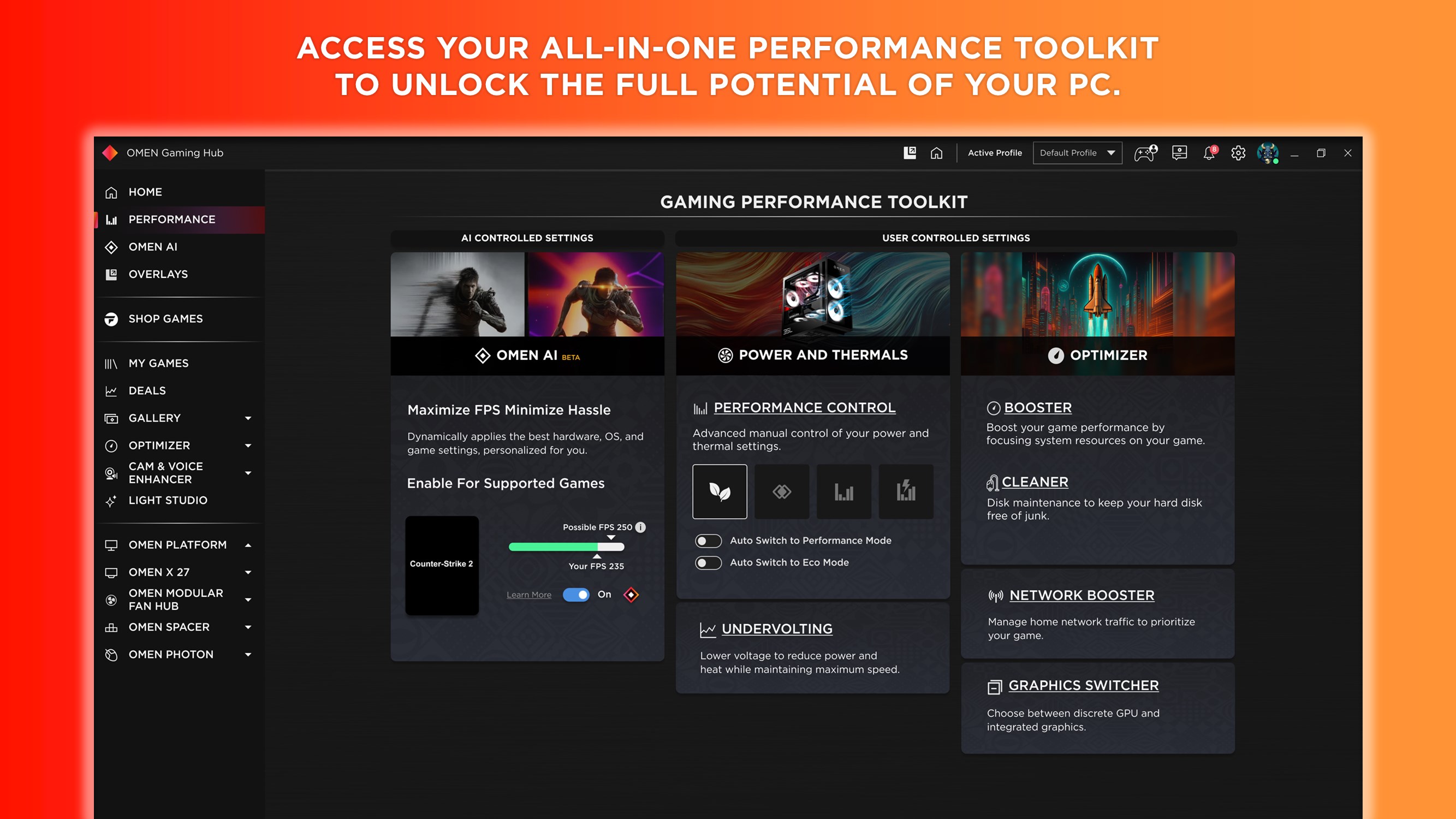
Imagine having a sleek, intuitive cockpit at your fingertips, seamlessly tuning your gaming rig for peak performance—this is what OMEN Gaming Hub offers. Designed specifically for gamers and tech enthusiasts alike, it centralizes control over system optimization, game management, and device customization, elevating your gaming experience from good to exceptional.
Developed by HP Inc.: The Powerhouse Behind the Tool
Created by HP Inc., a global leader in computing and printing solutions, OMEN Gaming Hub is part of HP's broader initiative to enhance gaming hardware and software. The development team focuses on crafting user-friendly yet powerful applications that provide gamers with the tools they need for competitive edge and immersive play.
Key Features That Make a Difference
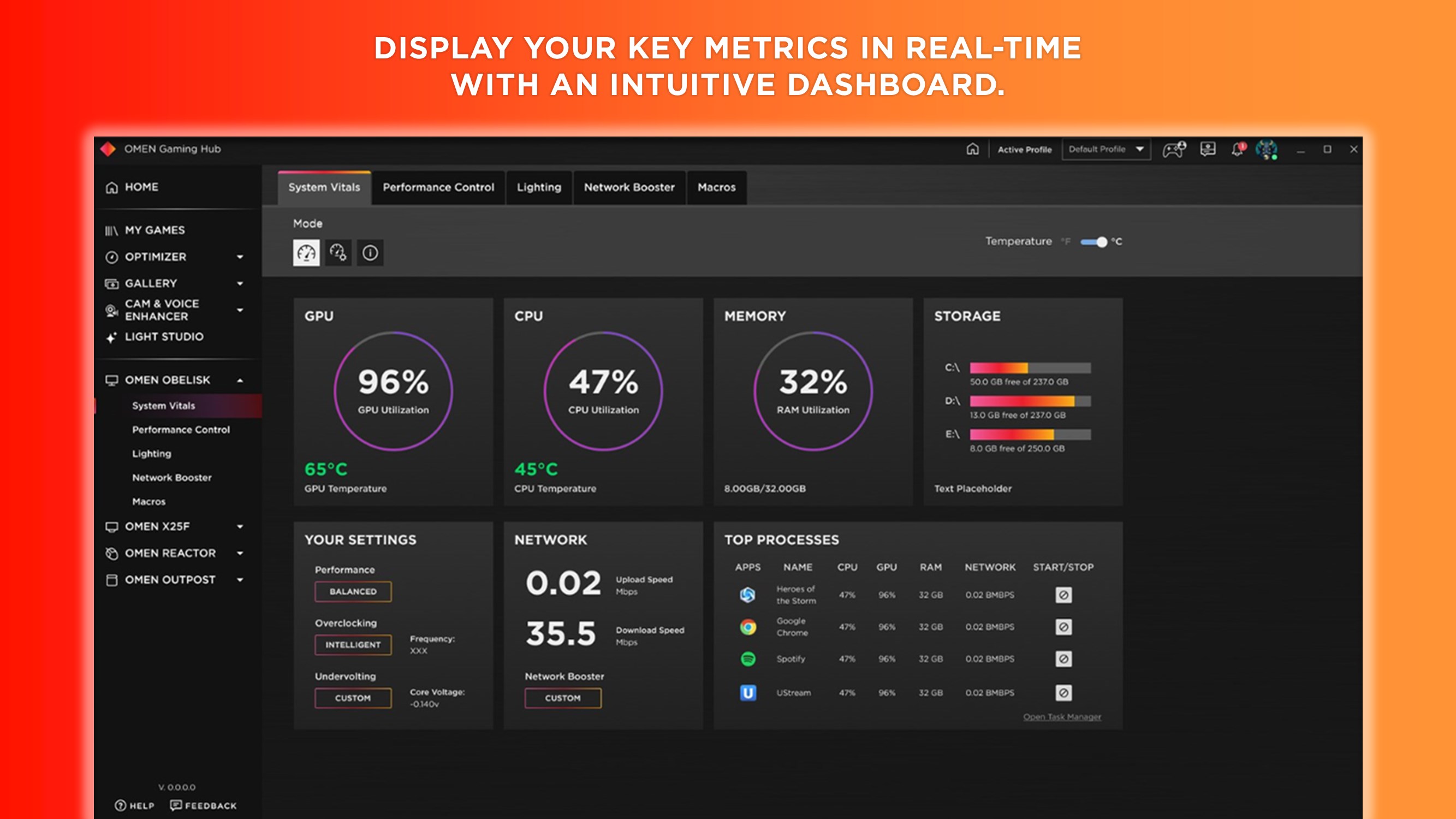
- Unified Management Dashboard: All your gaming settings, device controls, and performance metrics centralized in one clean, easy-to-navigate interface.
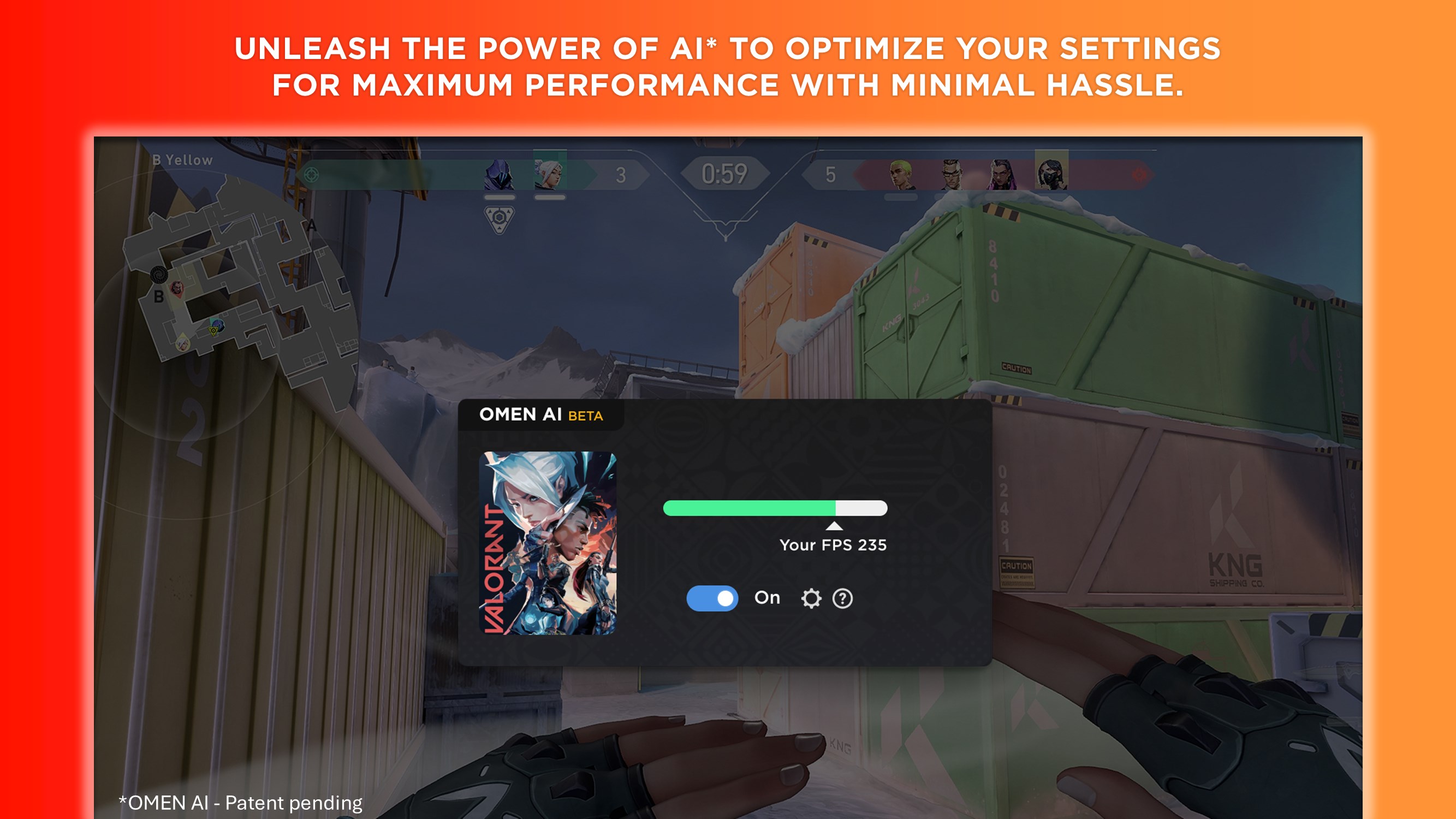
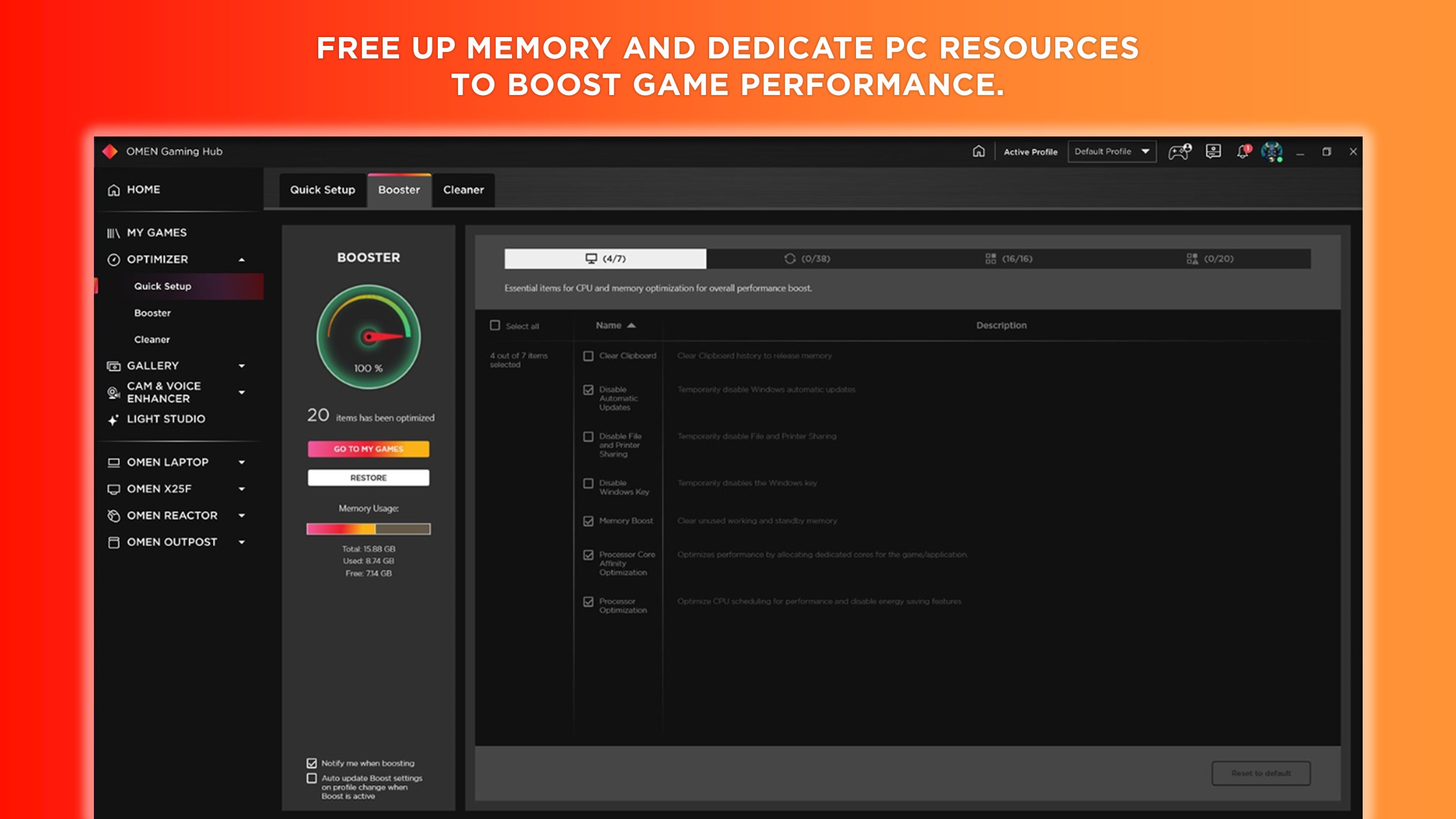
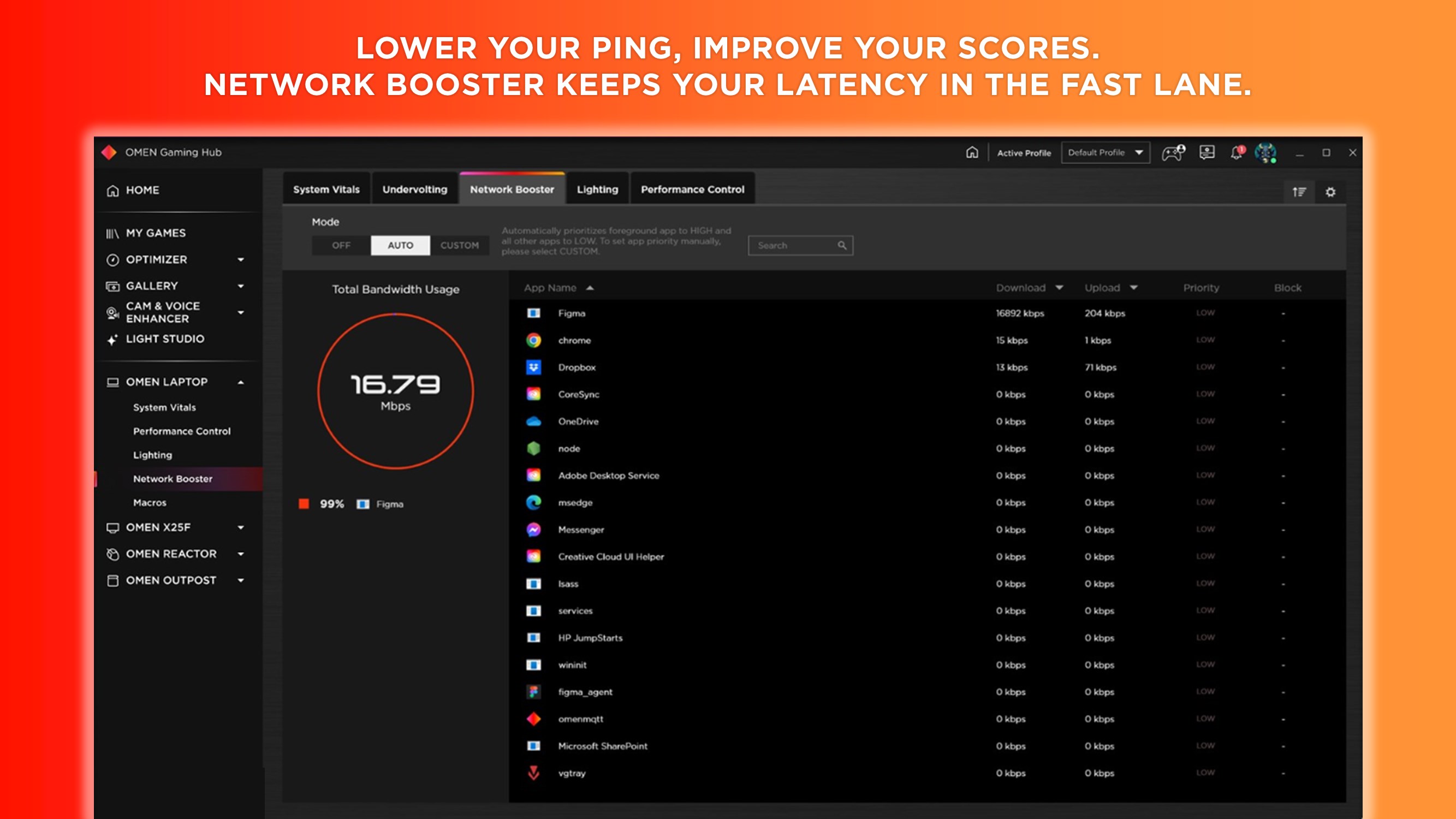
- Performance Optimization: One-click tuning that adjusts CPU, GPU, thermal settings, and network prioritization to ensure smooth, lag-free gameplay.
- Game Mode & Custom Profiles: Create personalized performance profiles for different games, automating system tweaks to match gameplay intensity and preferences.
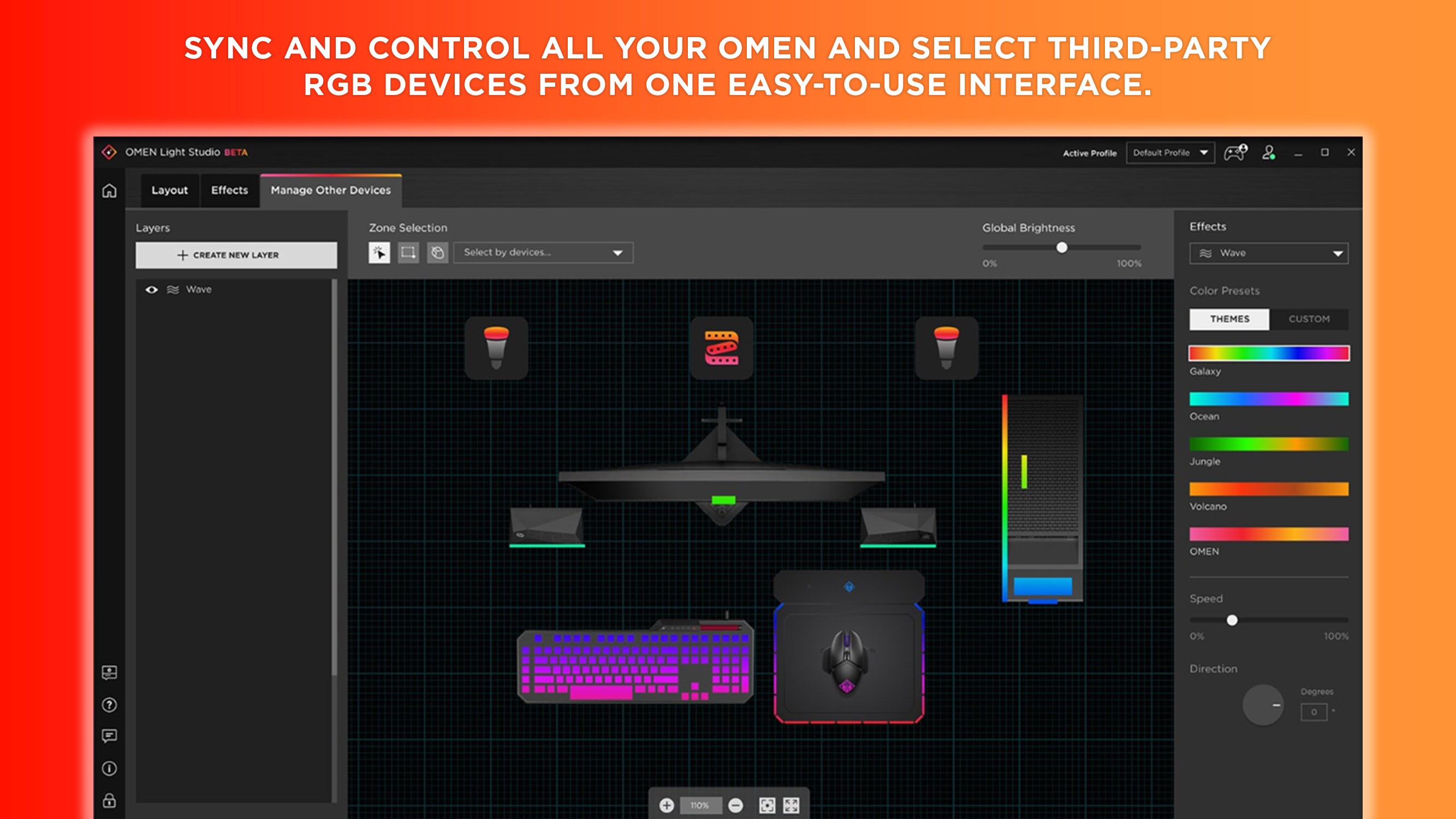
- Device & Lighting Customization: Fine-tune RGB lighting and peripheral settings, making your setup uniquely yours with just a few clicks.
A Playful yet Efficient Interface: Where Form Meets Function
From the moment you launch OMEN Gaming Hub, it feels like entering a high-tech cockpit: sleek, modern, and intuitively designed. The layout intuitively guides users through various sections without feeling cluttered, thanks to thoughtful categorization. Navigating between system monitoring, optimization, and personalization is a breeze—like flipping through the settings of a well-organized dashboard in your favorite racing game.
Performance-wise, the app operates seamlessly—transitions are smooth, and the real-time updates feel almost instantaneous. Even for those new to such tools, the learning curve remains gentle: simple tutorials and clear labels make it accessible for beginners while packing enough depth for seasoned gamers.
What Makes OMEN Gaming Hub Stand Out?
While many utilities exist for system management, OMEN Gaming Hub distinguishes itself with its targeted approach to gaming performance and device personalization. Its integration with OMEN hardware, combined with the ability to create tailored profiles for individual games, creates a personalized gaming environment that's both efficient and immersive. Additionally, the app's lighting customization syncs perfectly with in-game events, adding a layer of visual feedback that few competitors offer.
Compared to generic utility apps, OMEN Gaming Hub's focus on gaming-specific features and seamless hardware integration make it a compelling choice. It's like having a dedicated game coach rather than a generic toolkit—precise, responsive, and easy to configure.
Final Thoughts: Is It Worth Your Time?
Overall, OMEN Gaming Hub is a thoughtfully designed, robust application for gamers who seek more control and personalization of their gaming setup. Its standout features—particularly the one-click performance tuning and customizable profiles—offer tangible benefits in gameplay fluidity and hardware aesthetics. While the interface is user-friendly, enthusiasts will appreciate the depth of customization available.
I'd recommend this app to anyone using OMEN or HP gaming PCs who desires an integrated platform to streamline their gaming experience. For casual players, it's a convenient toolkit; for competitive gamers, it's a strategic advantage. Give it a try—you might find that it transforms how you play, making your gaming sessions not just more fun, but also more efficient and visually stunning.
Pros
- Intuitive Gaming Interface
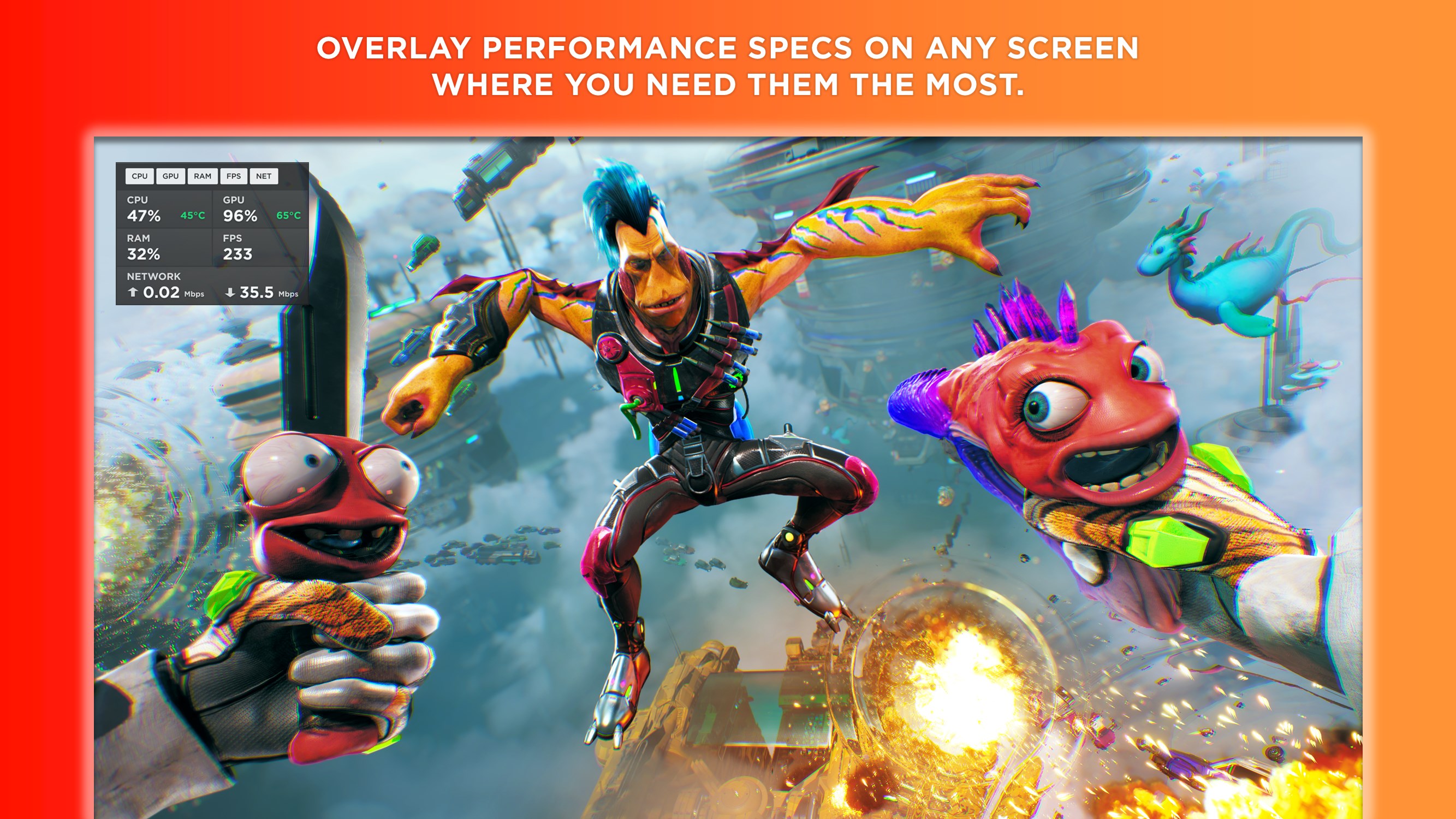
- Real-Time System Monitoring
- Customizable Game Profiles
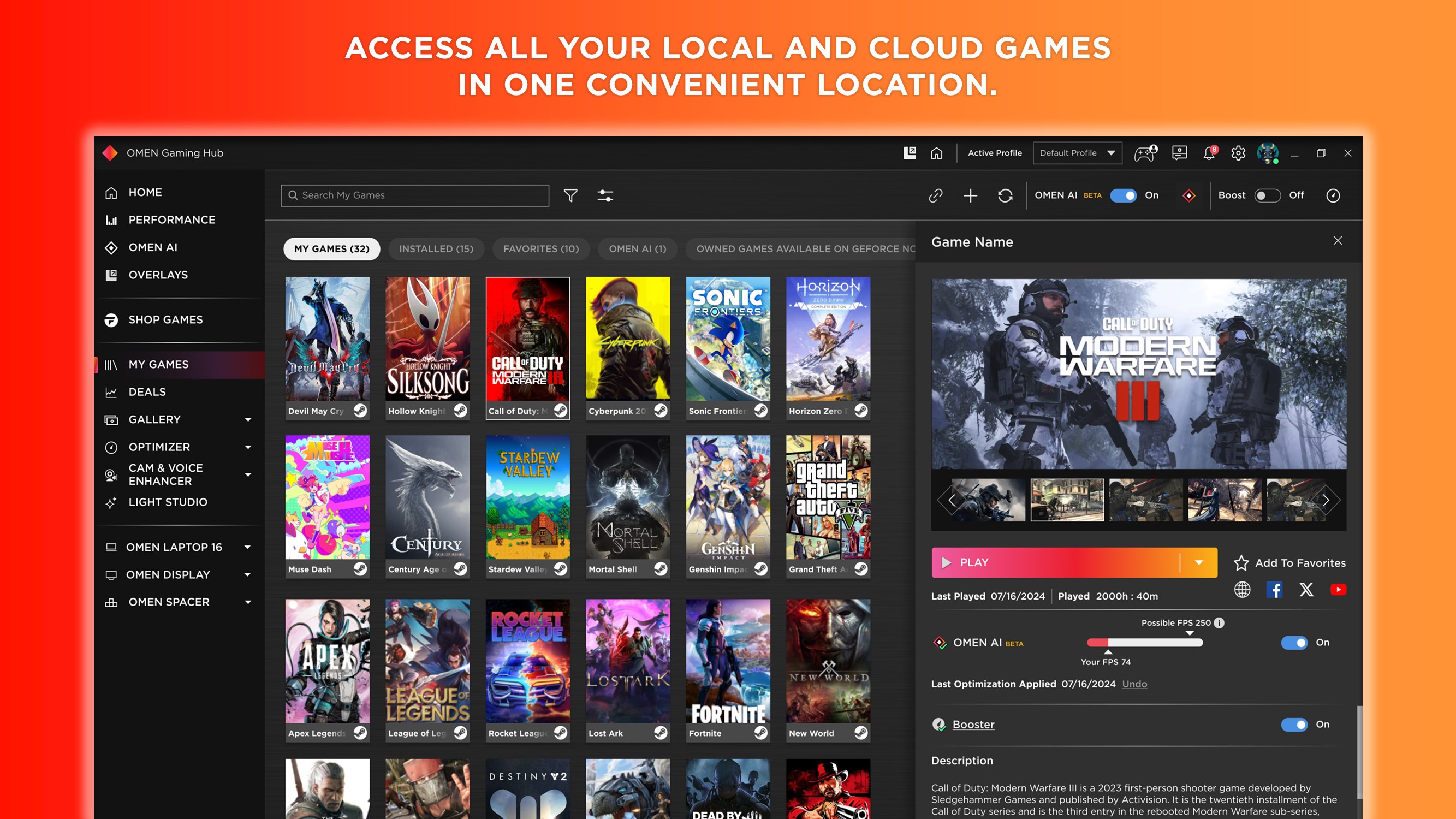
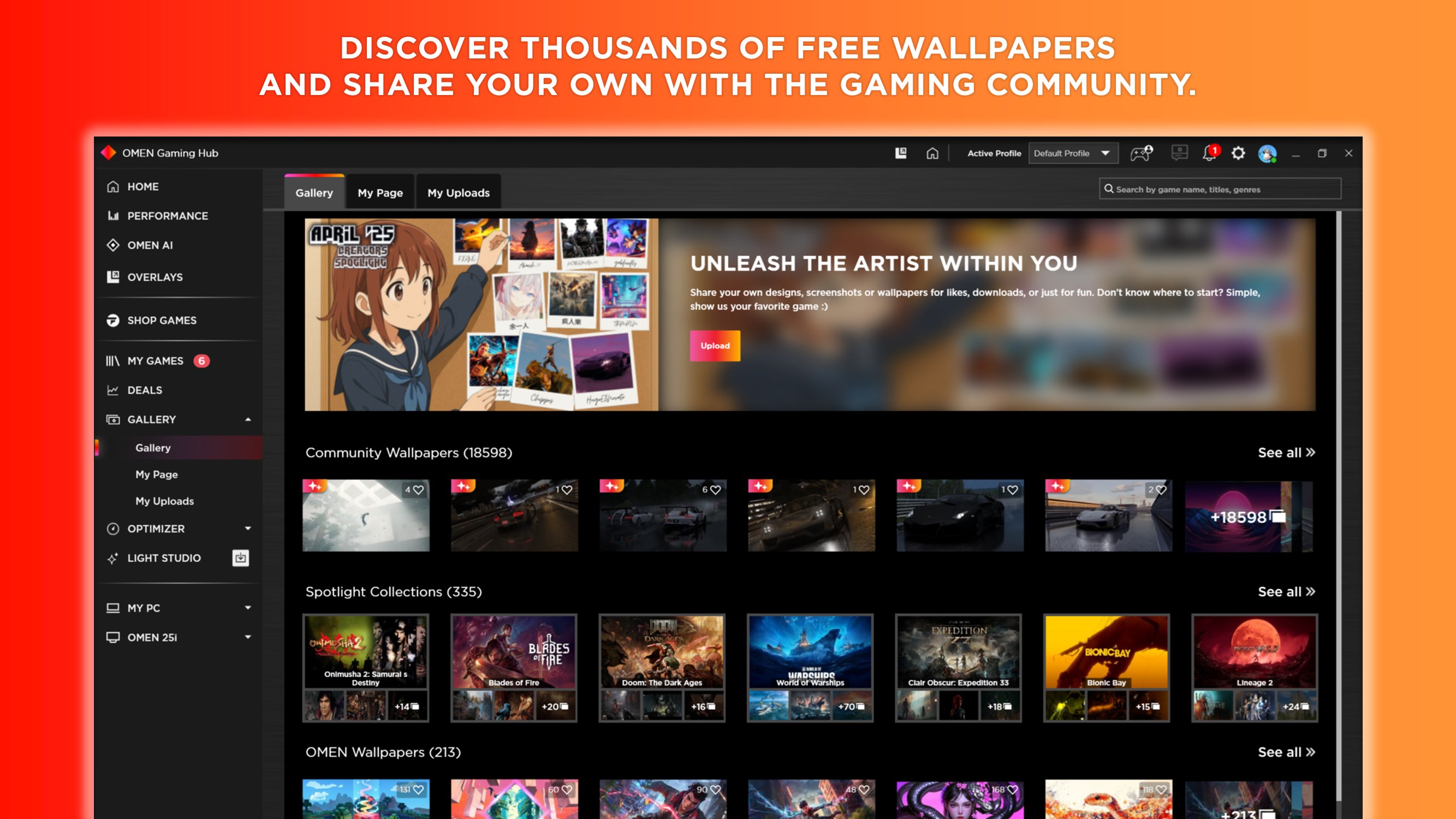
- Integrated Game Launcher
- Performance Optimization Features
Cons
- Limited Compatibility with Non-OMEN Devices
- occasionally Bugs or Glitches
- Requires Constant Internet Connection
- Limited Customization Options
- Battery Usage May Be High During Use











