
- Name NVIDIA Control Panel
- Category Utilities & tools
- Available on PC
- OS Windows 10 version 14393.0 or higher
- Keyboard Integrated Keyboard
- Mouse Integrated Mouse
- DirectX Version 9
- Memory 1 GB
- languages English (United States)
Unlocking Your GPU's Full Potential: An In-Depth Look at NVIDIA Control Panel for Windows
If you're a gaming enthusiast, content creator, or simply someone who demands the best from their graphics hardware, the NVIDIA Control Panel is like having a seasoned guide to navigate the complexities of your GPU's capabilities. Designed to give users granular control over graphics settings, this app transforms your PC into a finely tuned machine, optimizing performance and visuals with a few clicks. Let's explore what makes this tool an essential companion for NVIDIA users.
Simplified Powerhouse: What This App Brings to the Table
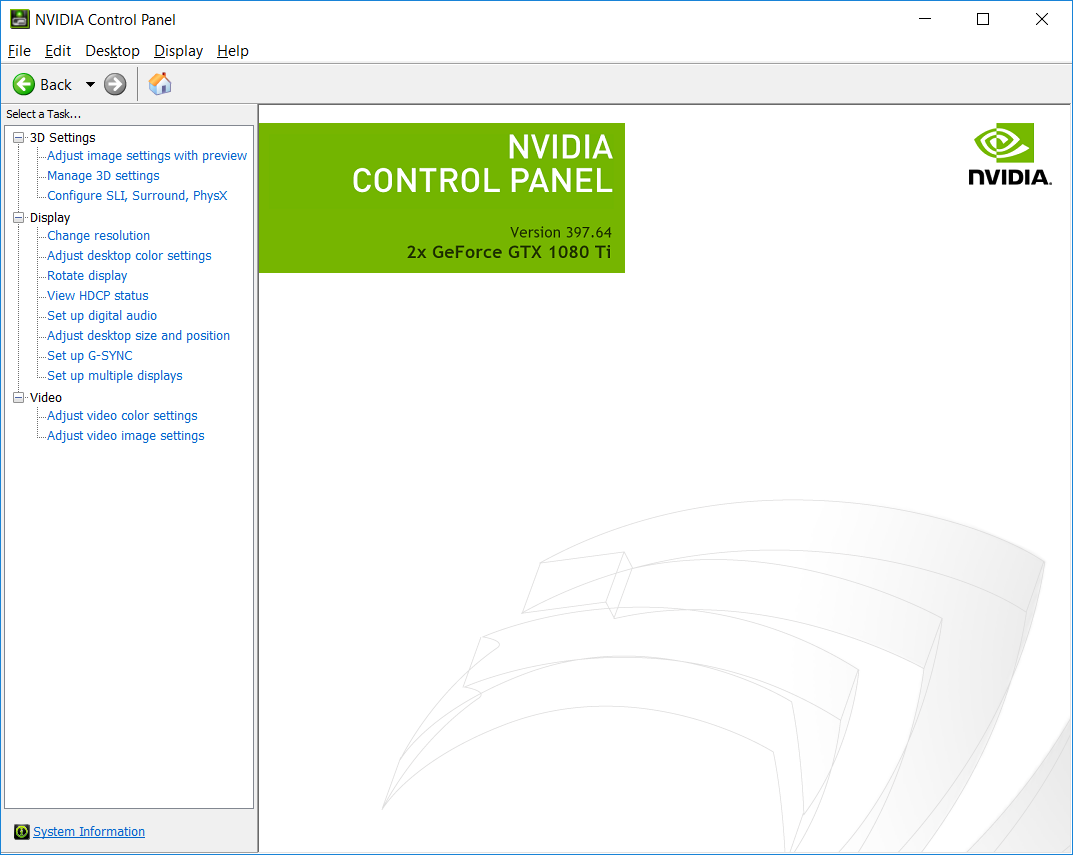
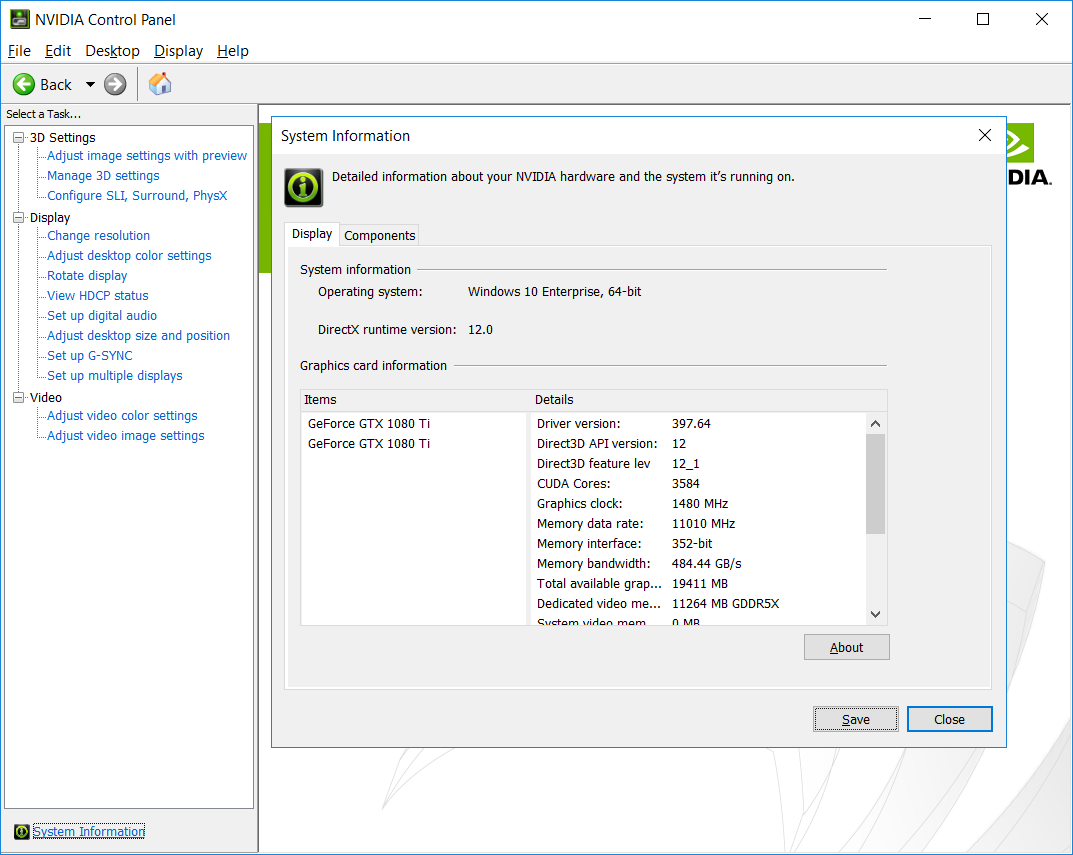
Developed by NVIDIA Corporation, the NVIDIA Control Panel is a dedicated software platform that provides an accessible interface for managing and customizing your NVIDIA graphics settings. Its primary goals are optimizing gaming experiences, enhancing visual fidelity, and providing advanced control for power users.
- Customizable 3D Settings: Fine-tune how your GPU handles different applications, balancing performance and quality based on your needs.
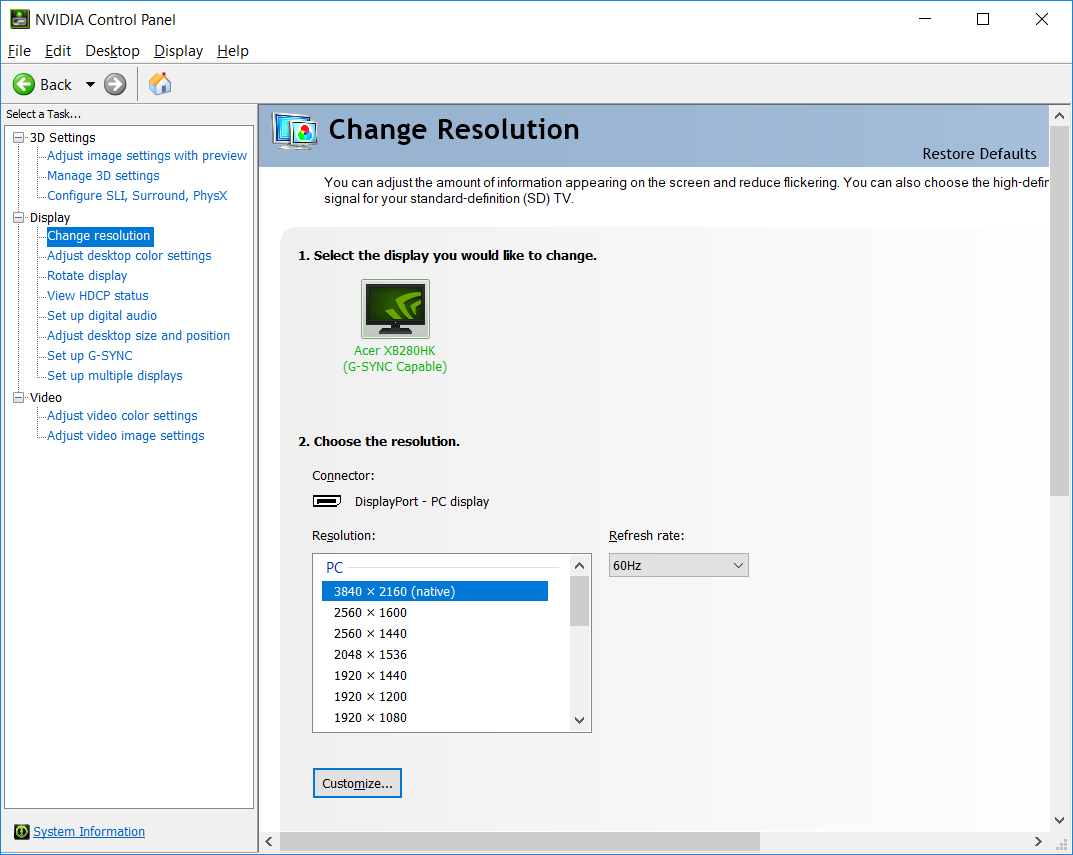
- Display and Resolution Management: Effortlessly adjust resolutions, refresh rates, and multiple display configurations with intuitive controls.
- Video and Shader Controls: Enhance video playback quality and tweak performance settings for rendering and shading.
- Power Management and Fan Control: Optimize power consumption and noise levels, especially useful for laptops and quiet setups.
Targeted at gamers, content creators, and tech enthusiasts, this app is tailored for users who want to get the most out of their NVIDIA hardware without fussing through complicated settings. Whether you're adjusting for the latest AAA game or setting up multiple monitors for your workspace, this control panel is your digital dashboard.
A Competitive Edge: Navigating the Interface and Core Features
Vibrant and Intuitive Design
Stepping into the NVIDIA Control Panel is akin to entering a sleek cockpit—clean, logical, and visually engaging. The layout segments features into well-organized categories, making it easy even for newcomers to locate essential controls. The interface employs vibrant icons and informative tooltips, blending style with functionality. Unlike some utilities that look like relics of the past, this app feels modern and user-friendly, inviting users to explore its depths without intimidation.
Seamless Performance and User Experience
Operation flows smoothly—changing settings or applying profiles happens with minimal delay, giving a sense of responsiveness that feels almost instantaneous. The learning curve is gentle; newcomers can get comfortable within minutes, yet seasoned users will appreciate the depth of customization available. The app's responsiveness and clarity reduce frustration, ensuring your focus stays on what matters most—optimizing your graphics experience.
Two Game-Changing Highlights
Among its array of features, two stand out for their uniqueness and utility:
- Adaptive AI-Based Settings (via NVIDIA DLSS and similar tools): While not solely within this control panel, the app integrates controls for enabling DLSS, allowing dynamic rendering adjustments that significantly boost frame rates without sacrificing image quality. This feature is particularly valuable for gamers seeking silky smooth gameplay on demanding titles.
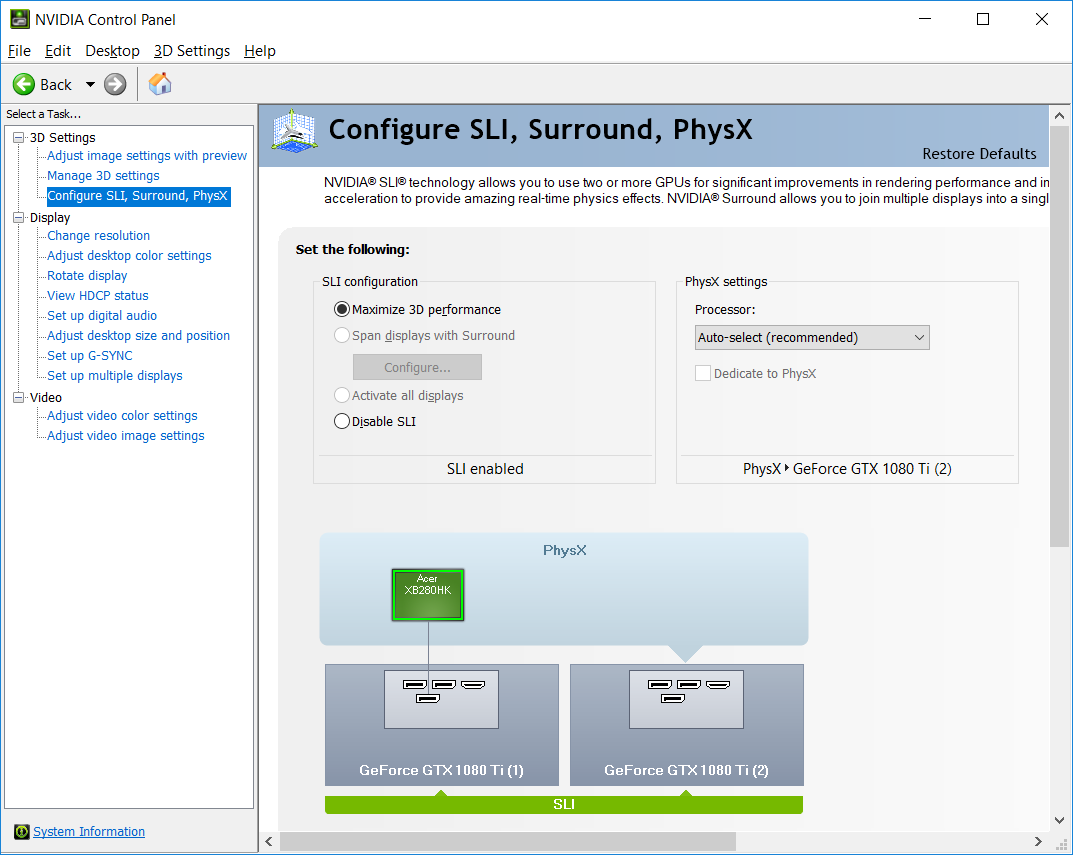
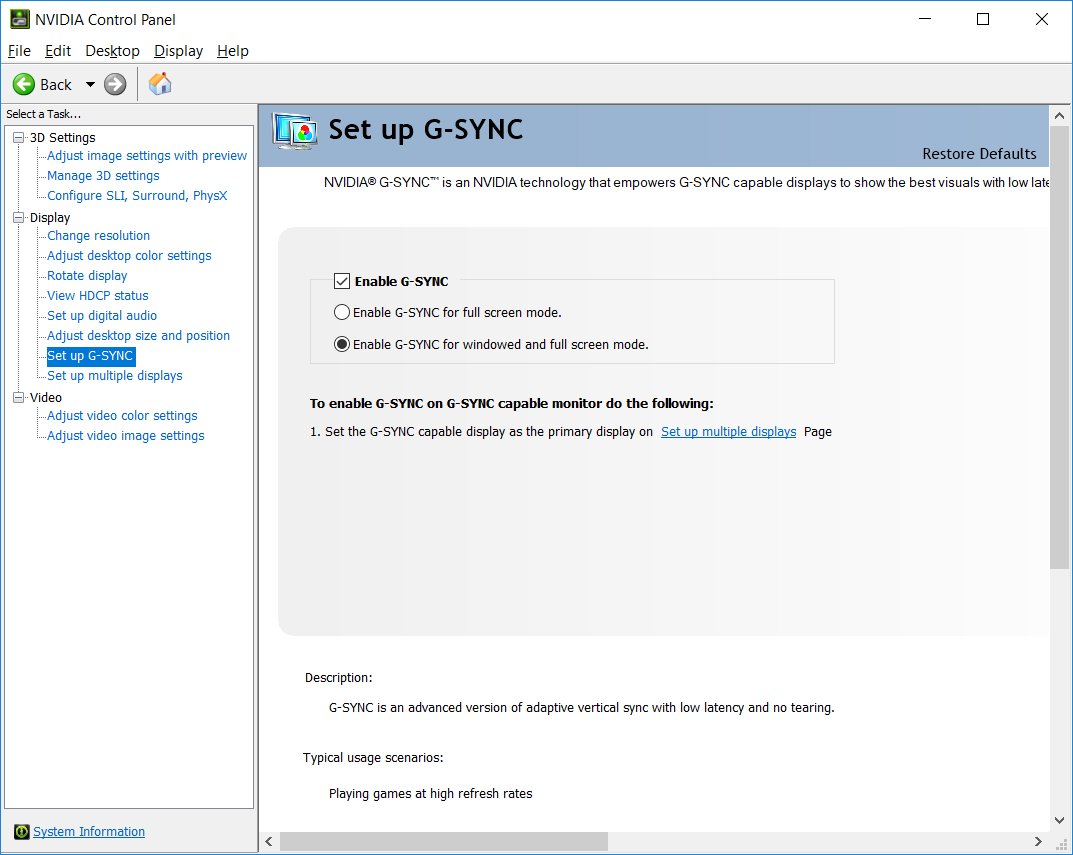
- Advanced Multi-Display Management: Unlike typical display settings, this app offers flexible configuration options for multi-monitor setups—adjusting per-display resolutions, enabling G-SYNC, and even managing bezel corrections—all from a unified interface.
This level of detailed control sets the NVIDIA Control Panel apart from more generic utilities, providing a tailored experience for demanding users.
Should You Give It a Try? Recommendations and Final Thoughts
If you own an NVIDIA graphics card and crave granular control over your graphics settings, this app is a must-have. Its straightforward design, combined with powerful features—especially the ability to optimize game performance dynamically and manage complex multi-display configurations—makes it a standout tool in the utilities world.
For everyday users satisfied with default settings, the app might be more than they need; however, for enthusiasts and professionals, it's an invaluable asset. I'd recommend trying it out, especially if you're keen on squeezing every ounce of performance and visual fidelity from your GPU. Just remember, while it offers a plethora of options, the best results come from understanding what each setting does—so take your time experimenting!
In conclusion, NVIDIA Control Panel for Windows earns a strong recommendation for those seeking advanced, yet accessible GPU management. It's like having a skilled mechanic tuning your car—powerful, precise, and helping you unlock optimal performance for your gaming, work, or creative endeavors.
Pros
- Intuitive User Interface
- Real-time Performance Monitoring
- Customizable Display Settings
- Optimized Gaming Profiles
- Regular Updates
Cons
- Occasional Stability Issues
- Limited Support for Older GPU Models
- Complex Advanced Settings for Novices
- Delayed Hotfix Releases
- Inconsistent Display Profile Saving











