
- Name My Files Explorer
- Category Utilities & tools
- Developer Marcelo de Souza
- Available on Xbox console, PC, Mobile, Surface Hub, HoloLens
- OS Windows 10 version 17763.0 or higher
- languages Portuguese (Brazil)
A Fresh Take on File Management: My Files Explorer for Windows
Imagine a world where organizing and navigating your files feels as effortless as flipping through a well-organized scrapbook; that's exactly what My Files Explorer aims to deliver—a seamless and visually appealing file management experience tailored for Windows users.
About the App: What Is My Files Explorer?
My Files Explorer is a modern file management application designed to enhance your Windows experience with an intuitive, customizable interface. Developed and published by Marcelo de Souza, this app strives to bring a fresh perspective to everyday file navigation by combining simplicity with powerful features.
Its main highlights include a user-friendly layout that simplifies file browsing, advanced search functionalities for quick access, and customizable views to suit various workflows. Whether you're a casual user or a productivity enthusiast, this app aims to serve a broad spectrum of Windows users who crave a more organized digital environment.
Engaging and Intuitive User Interface
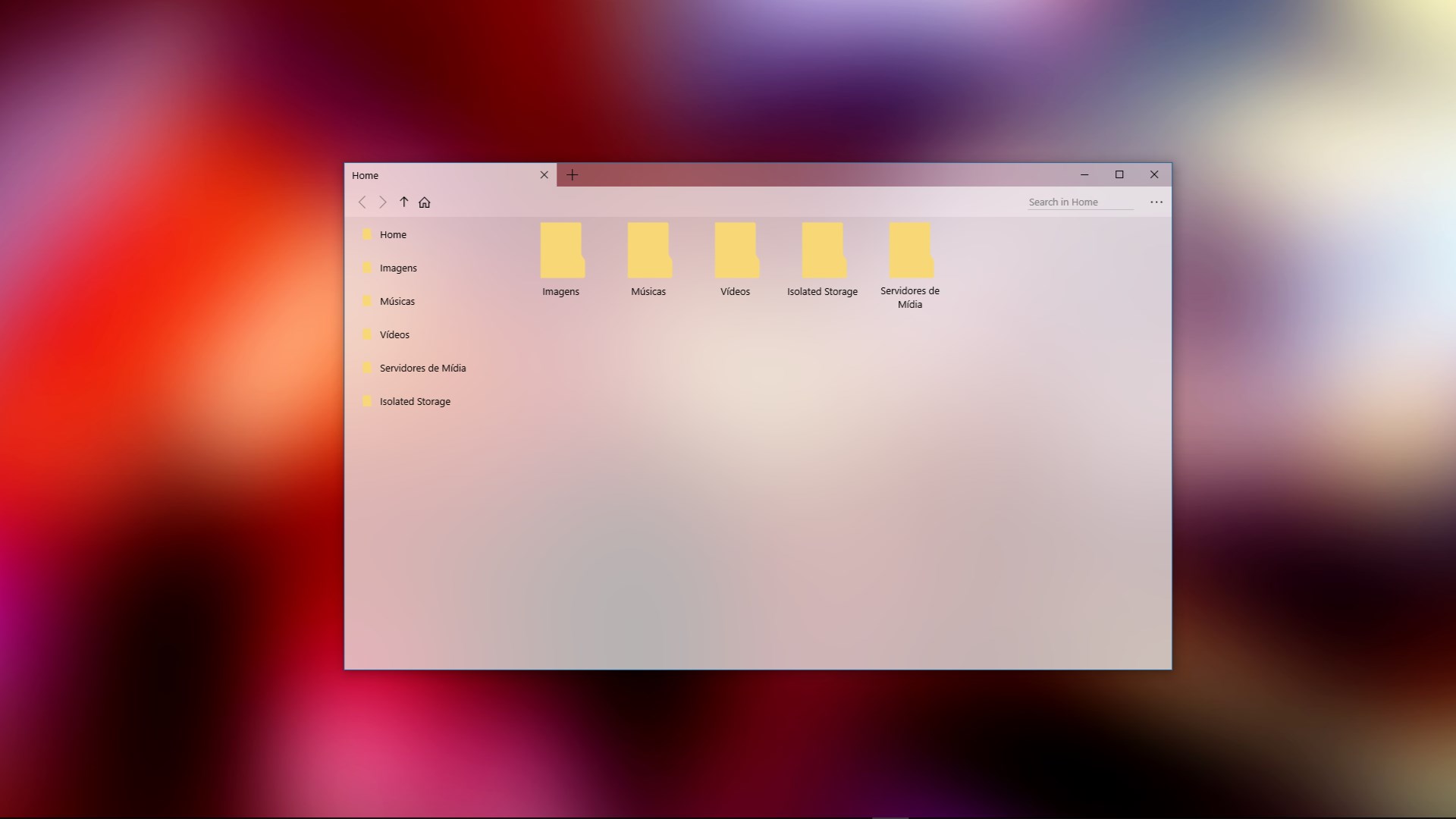
From the moment you open My Files Explorer, you'll notice its sleek and modern design—think of it as stepping into a well-lit, neatly organized library. The interface balances clean visuals with functional clarity, making navigation feel natural even for those less tech-savvy. Features like customizable themes and folder views let users tailor the environment to their preferences, transforming the app into a personalized control center.
Ease of use is emphasized through thoughtfully designed icons and menus that reduce clutter. The learning curve is gentle, allowing new users to get up to speed quickly without a steep mountain of tutorials. Smooth transitions and responsive controls create a sense of fluidity, making browsing files feel more like exploring a familiar space rather than wrestling with an unwieldy tool.
Core Functionalities That Shine
Smart Search and Filtering
The standout feature of My Files Explorer is its powerful search capability. Unlike traditional file explorers that rely on slow, basic search functions, this app offers real-time filtering options, enabling you to locate files by type, date modified, size, or even content snippets. Imagine finding that crucial report buried deep within a labyrinth of folders in seconds—that's the elegance this feature provides. It's like having a digital detective always ready on your side, making data retrieval swift and effortless.
Customizable Views and Layouts
This app elevates user experience through flexible layout options—grid, list, or even split-view. You can customize the interface to display details that matter most to you, such as file previews or metadata. This adaptability turns routine file management into an efficient, almost enjoyable task. Picture setting up your workspace exactly as you like it, with tools arranged perfectly for your workflow, streamlining your daily tasks significantly.
Enhanced File Operations
Beyond browsing, My Files Explorer offers robust file operations: bulk renaming, quick copy/move functions, and even advanced options like file compression and extraction. These features, combined with intuitive drag-and-drop support, make handling multiple files feel as natural as shuffling cards in your hand. It's particularly valuable for users managing large datasets, photo libraries, or project folders who need reliable, efficient tools.
Comparative Edge: What Makes It Stand Out?
In comparison to standard Windows File Explorer or other third-party utilities, My Files Explorer's real edge lies in its blend of visual customization and powerful search capabilities. Many tools offer similar features, but the app's thoughtful design minimizes clutter and maximizes ease of access—imagine it as upgrading from a basic map to a GPS with real-time traffic updates. Its focus on user customization and swift navigation appeals especially to those tired of generic, one-size-fits-all solutions.
Furthermore, Marcelo de Souza's focus on simplicity without sacrificing functionality means that both casual users and power users can find value, which isn't always the case with more complex file managers. The app feels like a well-tailored suit—comfortable, functional, and aesthetically pleasing.
Final Thoughts: Is It Worth Trying?
I'd confidently recommend My Files Explorer for Windows to anyone looking to breathe new life into their file management routine. It's especially suited for users who dislike the clunky or overly complicated interfaces of some traditional tools. While it may not replace seasoned IT professionals' comprehensive software, it offers a delightful balance of power and simplicity for everyday needs. Think of it as having a helpful, organized friend guiding you through your digital space—trustworthy, friendly, and efficient.
In conclusion, if you're seeking a lightweight, customizable, and visually appealing file explorer with standout search features, this app deserves a spot on your desktop. It's like upgrading from an old, bulky toolkit to a sleek, multifunctional Swiss Army knife—ready to make your file management tasks smoother and more pleasant.
Pros
- Intuitive user interface
- Fast file search capabilities
- Seamless integration with OneDrive
- Supports multiple file formats
- Customizable view options
Cons
- Occasional syncing delays with cloud storage
- Limited advanced file management features
- Inconsistent performance on older devices
- Occasional app crashes during heavy use
- Limited customization options for interface themes











