

- Name Monitorian
- Category Utilities & tools
- Developer emoacht
- Available on PC
- OS Windows 10 version 17763.0 or higher
- languages English (United States)
Monitorian for Windows: Your Perfect Companion for Multi-Monitor Brightness Control
Imagine managing all your monitor's brightness levels with just a single, intuitive app—no more juggling multiple controls or navigating cumbersome menus. Monitorian turns this vision into reality, offering a streamlined experience tailored for multi-monitor setups on Windows.
Sleek Design and User-Friendly Interface
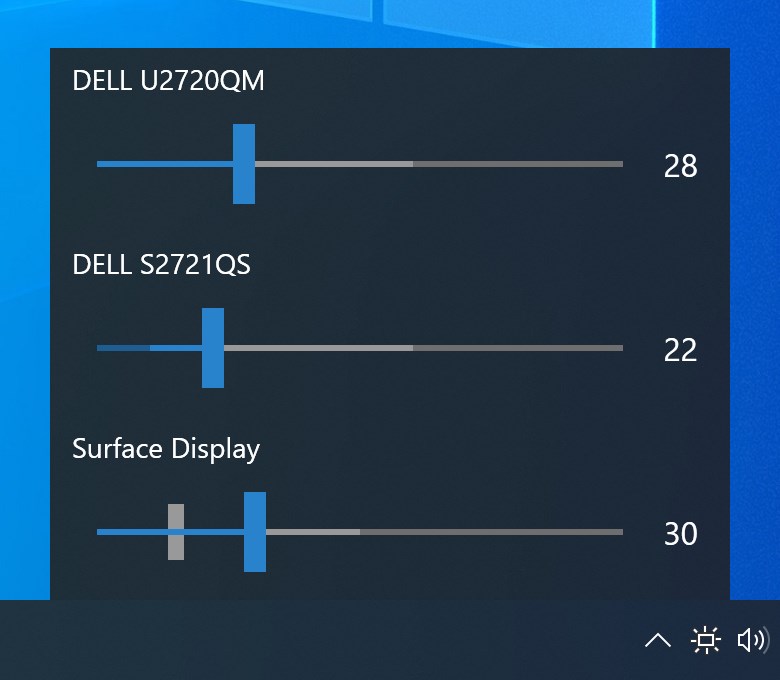
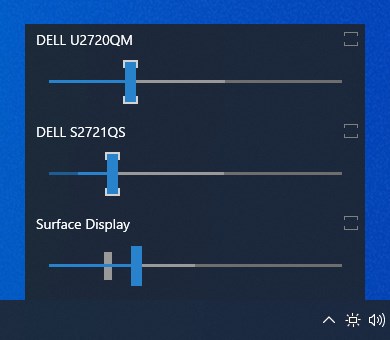
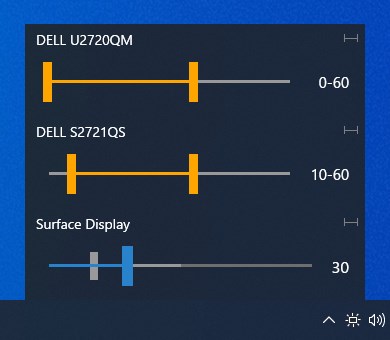
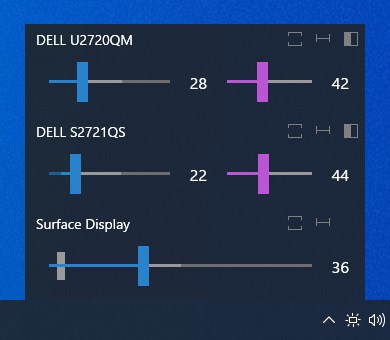
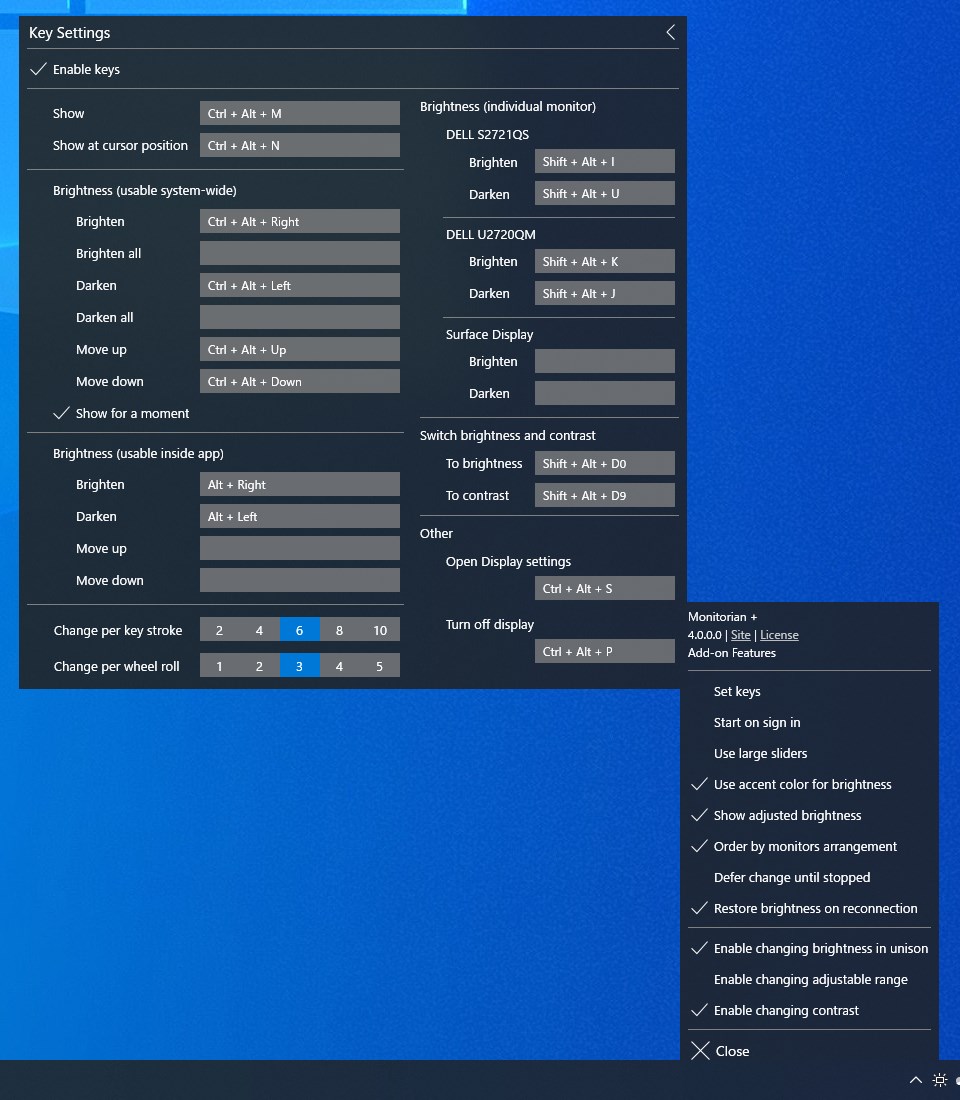
Upon launching Monitorian, you're greeted with a clean, minimalist interface that resembles a well-organized control panel rather than a cluttered dashboard. The app's layout ensures that users—whether tech-savvy or casual—can easily grasp its functions. Brightness sliders are neatly arranged, complete with clear labels and real-time feedback, creating an inviting environment that encourages exploration without overwhelming. The interface adapts gracefully to different screen sizes, maintaining usability whether on a laptop or a multi-screen workstation.
Core Features: Precision Control and Multi-Monitor Synchronization
Fine-Tuned Brightness Management Across Multiple Screens
The standout feature of Monitorian is its ability to individually control the brightness of each connected monitor. Imagine your three monitors as different instruments in an orchestra—each with its own mood and tone. With this app, you can independently adjust their brightness levels, optimizing your visual comfort and reducing eye strain during lengthy work or entertainment sessions. The sliders respond instantly to user input, providing precise control—no lag, no fuss.
Automatic Brightness Detection and Adjustment
Monitorian excels in recognizing connected displays effortlessly. It seamlessly detects monitor changes, such as plugging in a new screen or adjusting a display's resolution, updating its interface accordingly. This dynamic adaptability ensures you maintain optimal brightness without needing manual reconfiguration. The app also respects your previous settings, allowing you to set preferred brightness levels for different scenarios—be it working, gaming, or relaxing.
Performance and Experience: Smooth, Intuitive, and Accessible
The app operates with surprising agility, running quietly in the background without consuming significant system resources. Its operation feels as smooth as sliding a dimmer switch—movement is fluid, and adjustments register instantly. Learning curve? Nearly zero. Users familiar with basic sliders will find it intuitive, while newcomers will appreciate the straightforward controls that don't require complex setup procedures. The app's responsiveness and clarity make it feel like a natural extension of your desktop environment.
What Makes Monitorian Stand Out?
While many utilities offer basic brightness controls, Monitorian's key differentiator lies in its multi-monitor synchronization and the ability to control each display independently with ease. Unlike generic monitor control apps that might only support single screens or require manual configurations, this app simplifies multi-screen management, transforming what used to be a tedious task into a straightforward, enjoyable experience. Its open-source nature and minimalistic design also ensure it remains lightweight and versatile, appealing to both casual users and enthusiasts seeking a reliable tool.
Final Verdict: Recommended for Those Who Value Simplicity and Precision
If you're someone who multitasks across several monitors and desires a clean, efficient way to manage brightness levels without clutter or fuss, Monitorian deserves a strong recommendation. It's particularly useful in office setups, design work, or gaming rigs where visual comfort is paramount. While it may lack advanced features like automatic brightness based on ambient light, its core strengths make it a valuable addition to your toolkit. For users seeking a straightforward, reliable brightness control tool that handles multi-monitor environments gracefully, Monitorian is definitely worth trying out.
Pros
- Intuitive multi-monitor brightness control
- Simple and user-friendly interface
- Supports various monitor brands and models
- Lightweight and unobtrusive app design
- Offers quick access via system tray icon
Cons
- Limited customization options in advanced settings
- Occasional detection issues with certain monitor configurations
- No support for scheduled brightness adjustments
- Minimal notifications or alerts about app updates or issues
- Limited multilingual support











