
- Name Microsoft Wireless Display Adapter
- Category Utilities & tools
- Developer Microsoft
- Available on PC, Xbox console, Surface Hub, HoloLens
- OS Windows 10 version 17134.0 or higher
- Keyboard Not specified
- Mouse Not specified
- languages Chinese (Simplified), Chinese (Traditional), Czech, Danish, Dutch, English (India), English (United Kingdom), English (United States), Finnish, French, French (Canada), German, Italian, Japanese, Korean , Norwegian (Bokmål), Polish , Portuguese (Brazil), Portuguese (Portugal), Russian, Spanish (Latin America), Spanish (Mexico), Spanish (Spain), Swedish, Thai
A Seamless Gateway to Wireless Display Mirroring
The Microsoft Wireless Display Adapter for Windows transforms your devices into a wireless hub, allowing you to effortlessly project your screen onto larger displays. Designed by Microsoft, this application acts as a bridge between your Windows device and compatible displays, making presentations, gaming, or streaming media more intuitive than ever.
Key Features That Make a Difference
Wireless Screen Mirroring Made Simple
The core strength of this app lies in its ability to enable quick and reliable screen casting. Once set up, users can mirror their Windows desktops or specific applications onto a TV or projector without cumbersome cables. The process is akin to waving a magic wand, turning your device into a wireless projector in seconds. This feature is especially handy during meetings or family movie nights where simplicity and speed are paramount.
Easy Setup with Minimal Fuss
Getting started is straightforward. The app guides users seamlessly through device pairing, requiring only a few clicks. The intuitive interface reduces the typical headache associated with device compatibility, making it accessible even for the less tech-savvy. The setup wizard ensures that connecting your Windows PC to a display is as effortless as connecting two puzzle pieces, fostering confidence for first-time users.
Stable and Smooth Performance
Unlike some wireless display solutions plagued by lag or dropouts, this app delivers steady, fluid mirroring. The connection remains robust across various distances, supporting high-definition streaming with minimal latency. Whether you're giving a professional presentation or streaming a high-res video, the experience remains smooth—like a perfectly choreographed dance across your devices.
Evaluating the User Experience
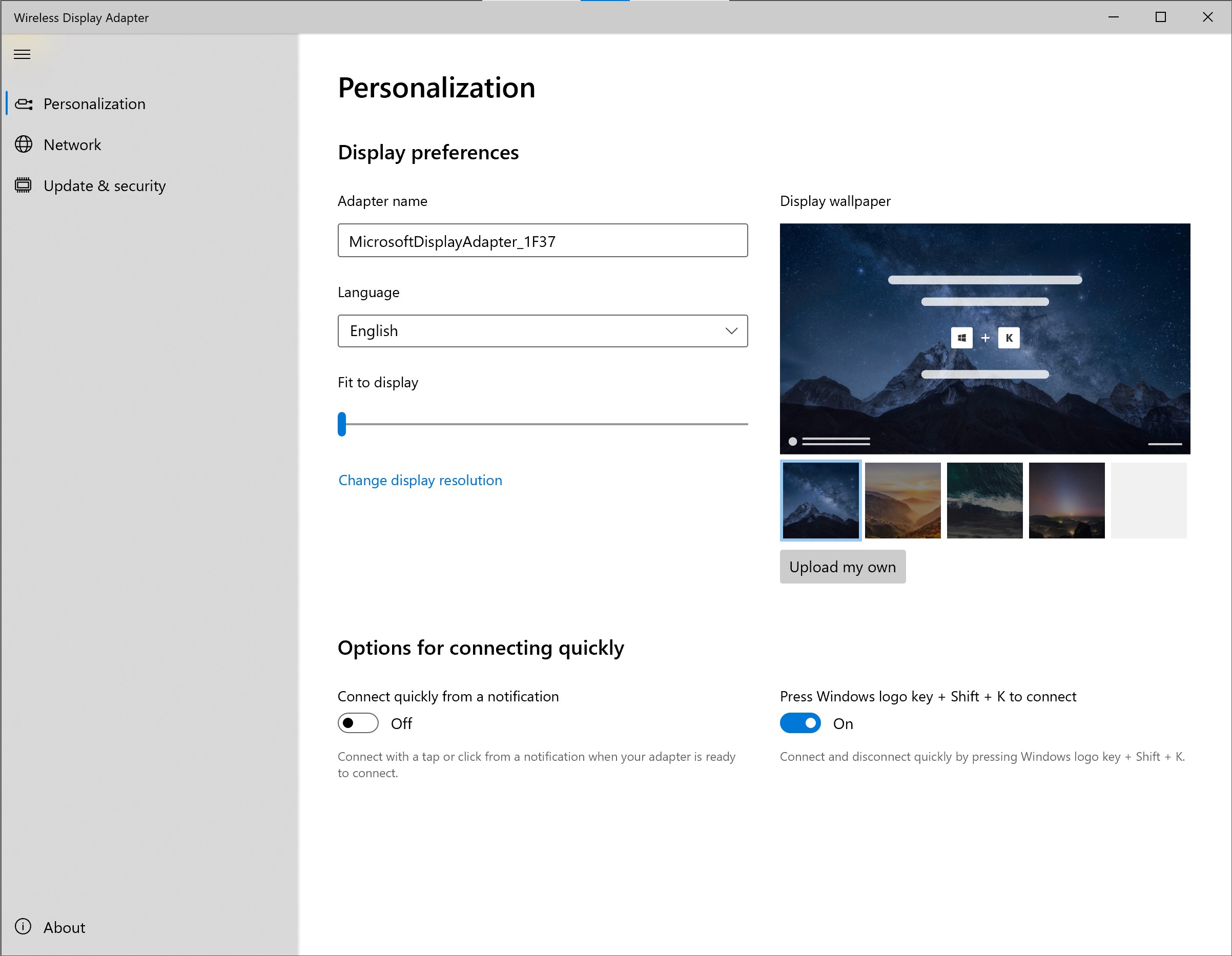
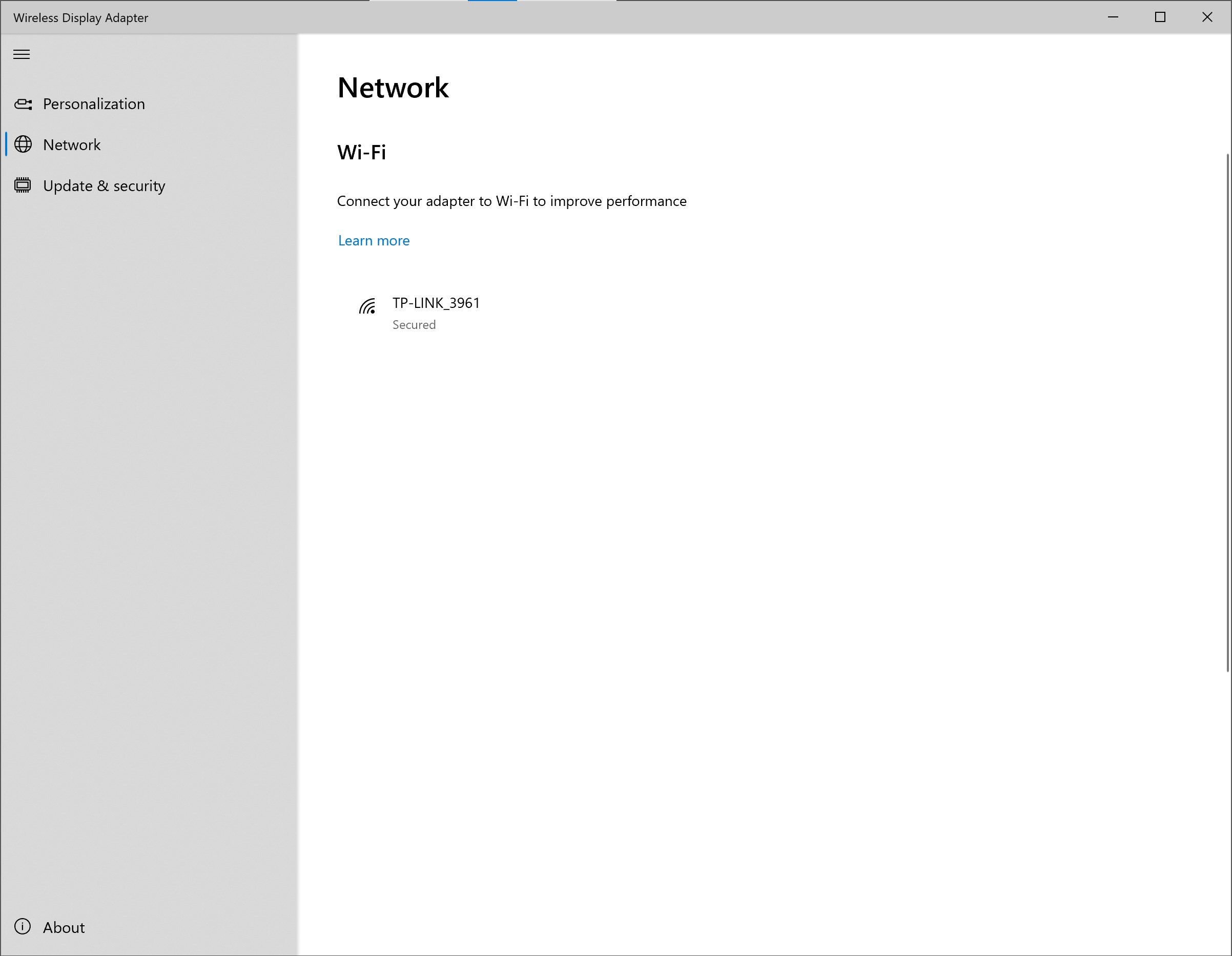
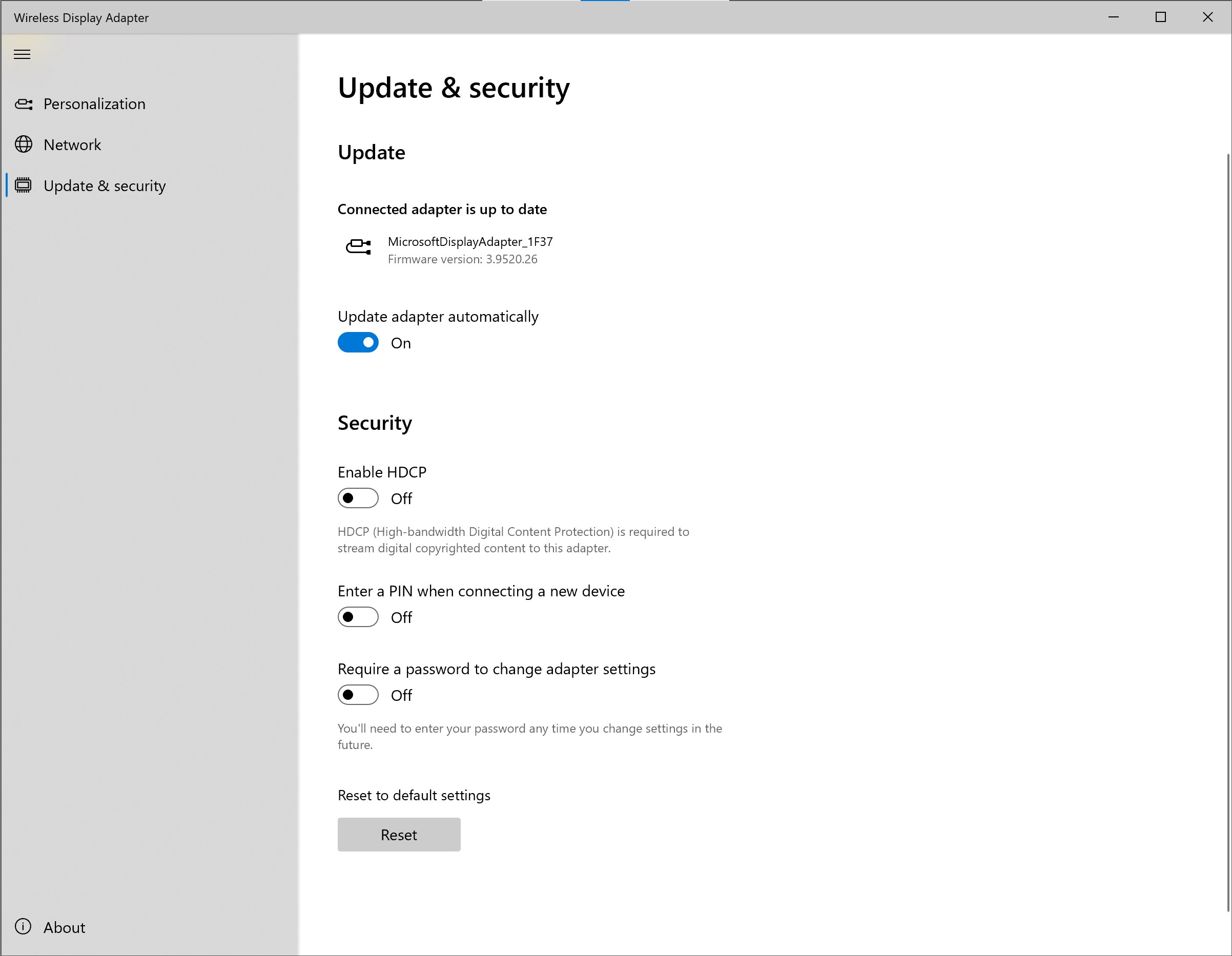
The interface is clean, modern, and unobtrusive, reminiscent of a digital control panel designed by engineers who care. Navigating the app feels natural; menus are logically organized, and core functions are just a tap away. The learning curve is gentle—users initially unfamiliar with wireless displays will find it easy to master within minutes. The responsiveness of the app ensures that commands are executed quickly, making the overall experience feel seamless and polished.
What Sets This App Apart from Competitors
While there are several screen mirroring utilities on the market, Microsoft's offering distinguishes itself through its tight integration with Windows and the Windows-native experience. Its most unique feature—the automatic detection and pairing of compatible displays—sets it apart from third-party apps that often require manual IP address entries or complex configurations. Furthermore, its ability to leverage existing hardware without needing additional software or drivers simplifies the user journey. The app's stability and performance optimization, thanks to Microsoft's engineering expertise, ensure fewer hiccups and a more reliable connection than some third-party alternatives.
Final Thoughts and Recommendations
All in all, the Microsoft Wireless Display Adapter for Windows is a solid choice for anyone seeking a straightforward wireless display solution. Its ease of use, stable performance, and deep integration with the Windows ecosystem make it a compelling utility—whether you're delivering business presentations, enjoying media with family, or gaming wirelessly. I would recommend it highly to users who value simplicity and reliability in their wireless streaming setup. For those already embedded in the Microsoft environment, this app offers a naturally cohesive experience that's worth trying out.
Pros
- Easy wireless streaming
- Seamless integration with Windows devices
- Supports up to 1080p resolution
- Low latency performance
- Compact and portable design
Cons
- Limited compatibility with non-Windows devices
- Requires a stable Wi-Fi connection
- Some users report occasional connectivity drops
- Limited streaming resolution beyond 1080p
- Setup can be confusing for first-time users











