

- Name Microsoft Sticky Notes
- Category Utilities & tools
- Available on PC
- OS Windows 10 version 18362.0 or higher
- Keyboard Integrated Keyboard
- languages Afrikaans, Albanian, Amharic, Arabic, Azerbaijani, Bangla (Bangladesh), Basque, Belarusian, Bosnian (Latin), Bulgarian, Catalan, Chinese (Simplified), Chinese (Traditional Chinese), Chinese (Traditional), Croatian, Czech, Danish, Dutch, English (United Kingdom), English (United States), Estonian, Filipino, Finnish, French, French (Canada), Galician, Galician , German, Greek, Hausa (Latin), Hebrew, Hindi, Hungarian, Icelandic, Indonesian, Italian, Japanese, Kannada, Kazakh, Khmer, Kiswahili, Korean, Korean , Lao, Latvian, Lithuanian, lo, Macedonian, Malay, Malayalam, Norwegian (Bokmål), Persian, Persian/Farsi, Polish, Polish , Portuguese (Brazil), Portuguese (Portugal), Romanian, Russian, Serbian, Serbian (Latin, Serbia), Slovak, Slovenian, Slovenian (Slovenia), Spanish, Spanish (Mexico), Spanish (Spain), Swedish, Tamil, Telugu, Thai, Turkish, Ukrainian, Uzbek, Vietnamese
Microsoft Sticky Notes for Windows: Your Digital Post-It Companion
Microsoft Sticky Notes for Windows is a lightweight yet powerful note-taking app that transforms your desktop into a virtual bulletin board, making quick reminders and ideas easily accessible without cluttering your workspace.
Basic Information: What Makes This App Stand Out
Download LinkDeveloper: Microsoft Corporation
Main Features Highlights:
- Seamless integration with Windows and Microsoft 365 services for quick note syncing across devices.
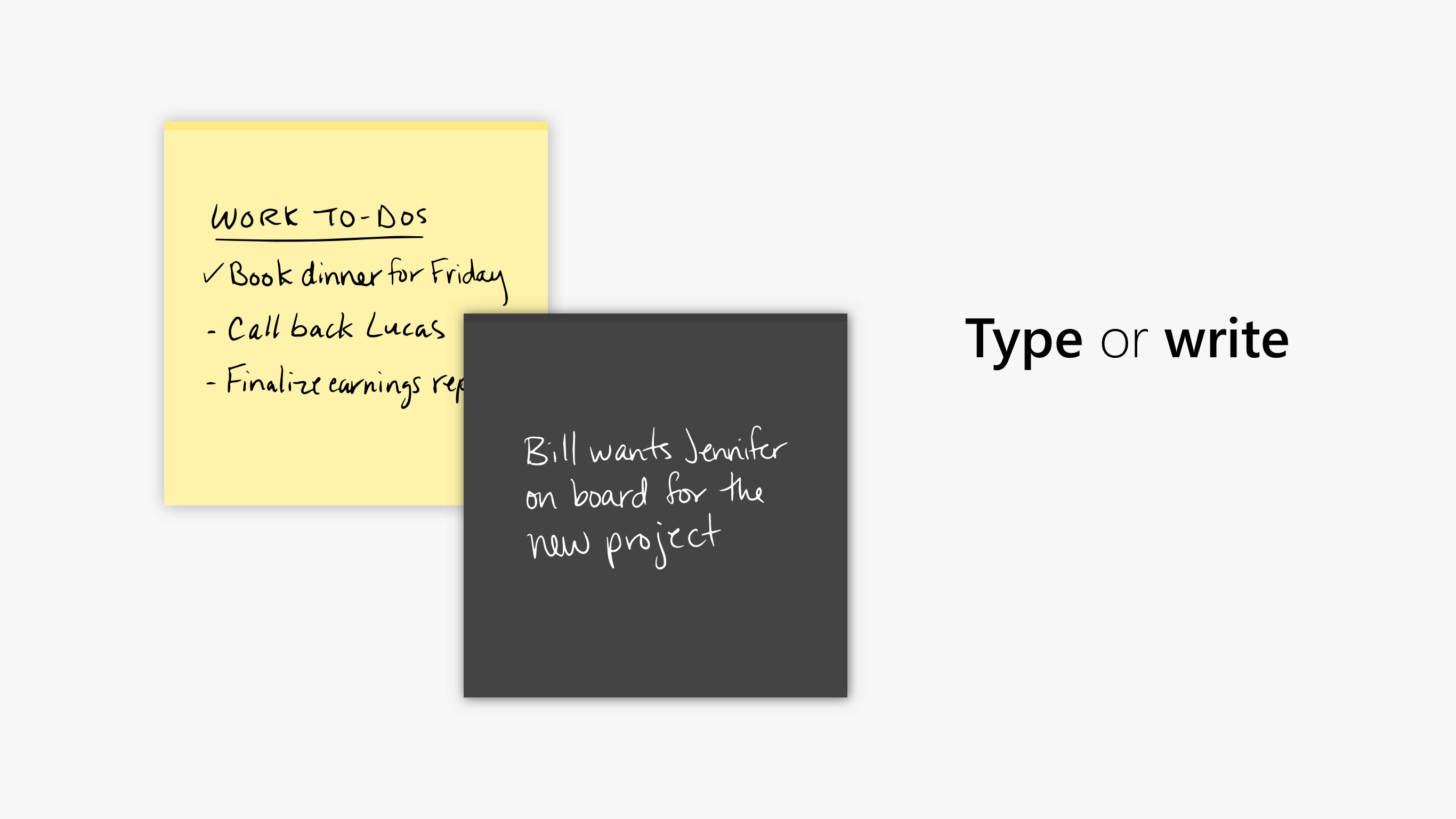
- Support for handwritten notes and sketching, catering to creative users.
- Organization features like grouping notes and setting reminders for better productivity.
Target Audience: Busy professionals, students, and anyone seeking an efficient, minimalistic note-taking tool integrated into their Windows environment.
Infused with Simplicity: An Engaging Introduction
Ever wished for a magic wand to jot down fleeting ideas or reminders without the fuss of opening a bulky app? Think of Microsoft Sticky Notes as your digital yellow pad—always within arm's reach, yet invisible until you need it. It's like having a trusty pocket notebook that stays on your desktop, ready to capture your thoughts in a flash. Whether you're noting down a quick grocery list during a Zoom call or marking important deadlines, this app makes the process feel effortless, almost like a second brain that's always there when you need it.
Core Functionality: Making Notes Work Smarter
Intuitive Note Creation and Management
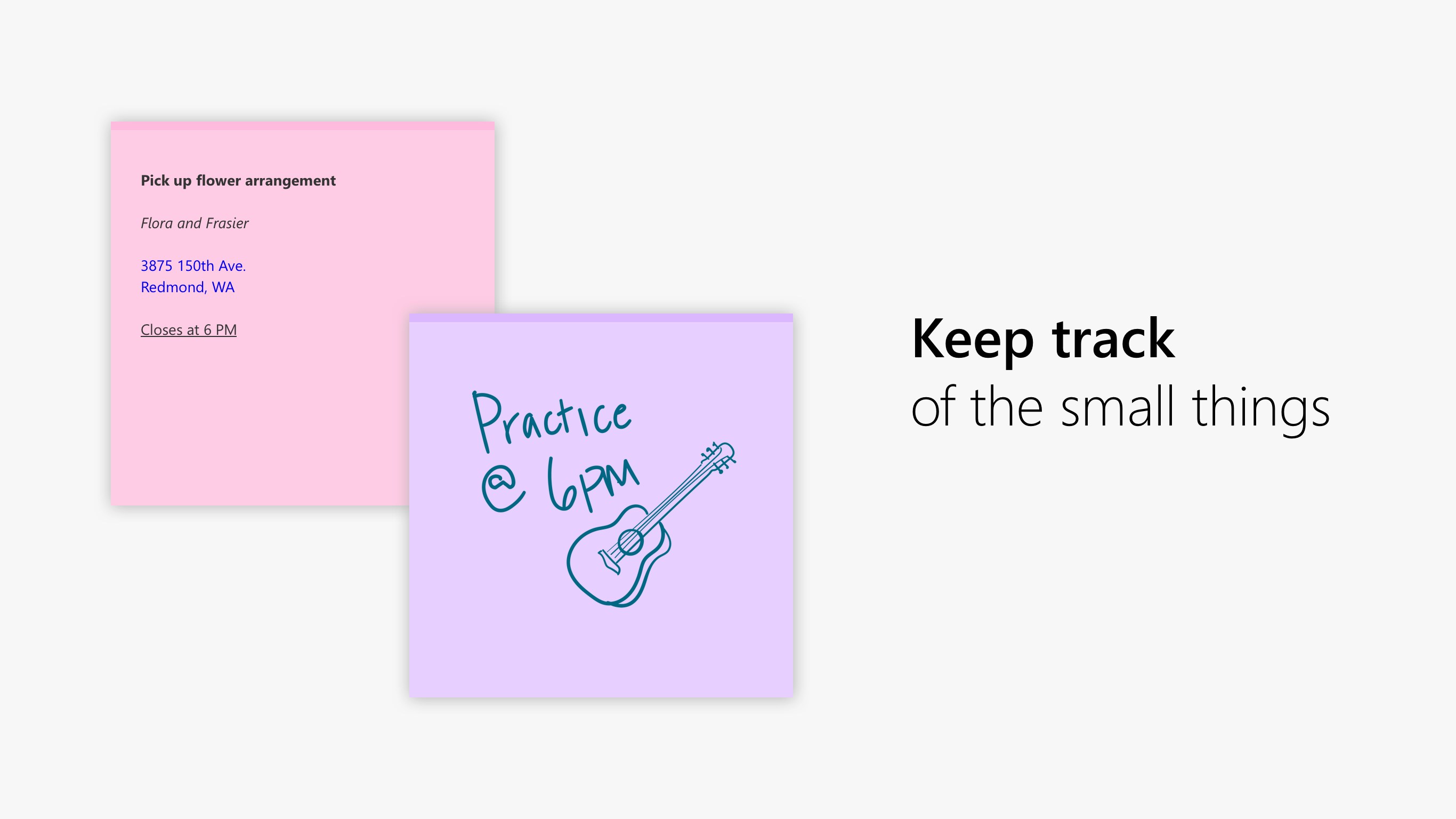
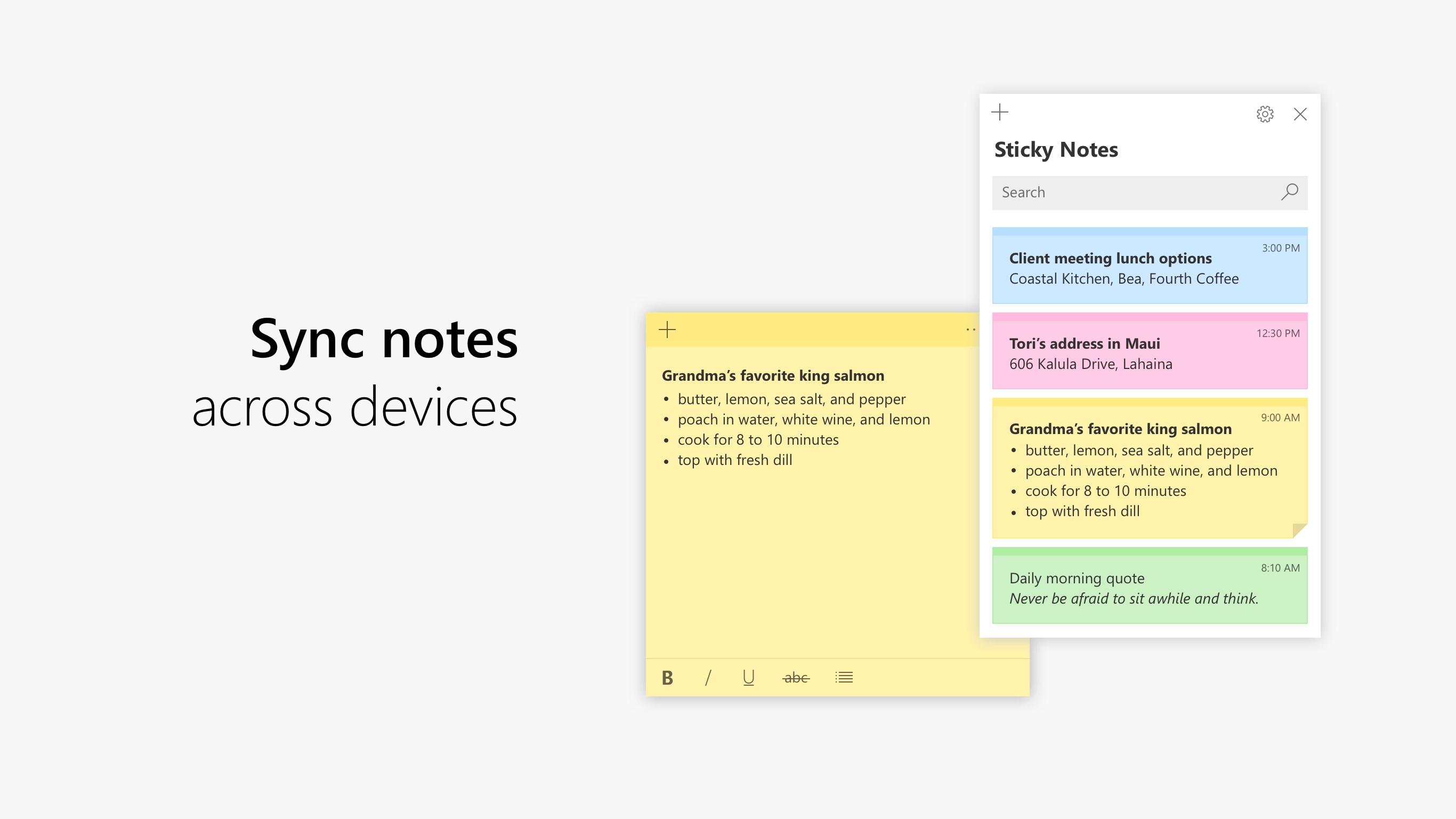
The standout feature of Microsoft Sticky Notes is its simplicity paired with deep integration. Creating a note is as easy as clicking a button or typing a shortcut, and the notes appear as colorful sticky slips on your desktop—vivid little reminders that add a splash of color to your digital workspace. Plus, with support for recognizing hand-drawn sketches and handwritten notes via stylus or touch, it caters beautifully to creative minds and those who prefer a personal touch. The app also allows grouping notes into categories, which makes managing multiple ideas as seamless as sorting memos in a physical notebook.
Syncing and Integration for Continuous Workflow
The magic truly unfolds when you connect Sticky Notes to your Microsoft 365 account. Your notes sync across all your Windows devices, transforming your PC, tablet, and even your phone into interconnected hubs of thought. Imagine leaving a reminder on your work laptop in the morning and seeing it pop up on your tablet during lunch—this seamless cloud sync ensures you stay productive, anytime and anywhere. Integration with Cortana allows voice notes and reminders, turning voice commands into actionable notes—think of it as having a personal assistant whispering your plans into a digital notebook.
Design, User Experience, and Unique Advantages
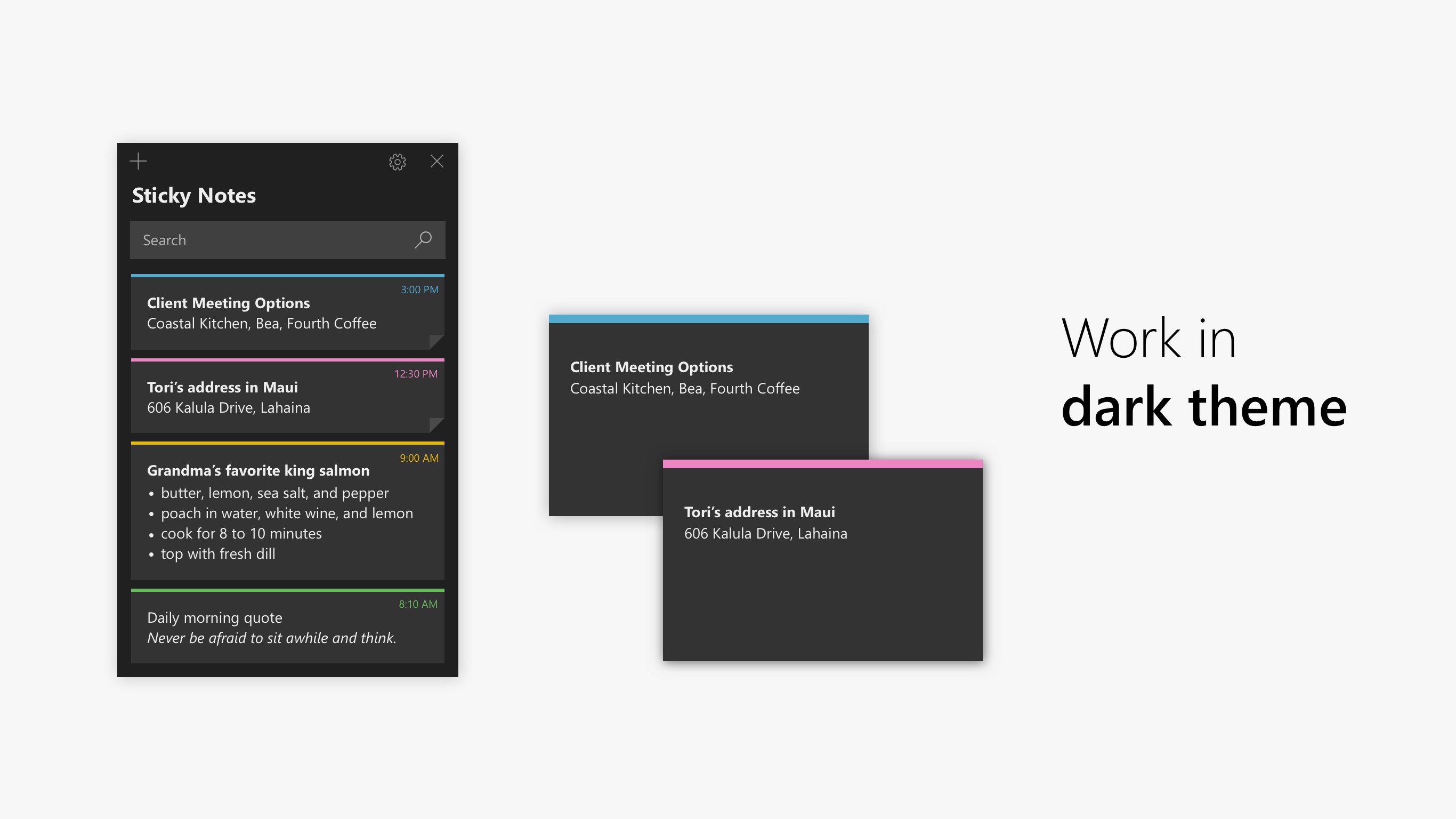
The interface of Microsoft Sticky Notes is clean and uncluttered, resembling a digital post-it pad that invites quick jotting. The design adopts the familiar pastel colors that evoke a real sticky note, which makes the user experience feel natural and inviting. Navigating through notes is intuitive; a simple click opens the note, and dragging allows easy repositioning—it's as effortless as sticking a sticky note on your fridge.
Performance-wise, the app operates smoothly with virtually no lag, even when handling multiple notes, reflecting a well-optimized experience tailored for everyday use. The learning curve is gentle, requiring no prior technical knowledge—just click, type, and organize.
What sets Sticky Notes apart from other utility apps is its deep Windows ecosystem integration and cross-device synchronization, setting it apart from standalone note apps that lack seamless cloud support. It's particularly advantageous for users already embedded in the Microsoft environment, making productivity more fluid.
Final Thoughts: Is It Worth Your Time?
Microsoft Sticky Notes for Windows is a reliable, straightforward, and smart note-taking tool suitable for a broad audience. Its most compelling features—the effortless syncing across devices and support for handwritten notes—make it particularly valuable for users who need quick, on-the-fly reminders without switching between apps. While it might not replace more comprehensive note apps like OneNote or Evernote for detailed projects, it excels in its niche: quick access, easy organization, and seamless integration.
Overall, I'd recommend giving it a try if you're looking for a minimalistic yet powerful note tool that complements your Windows workflow. It's like having a virtual Post-It note on your desktop—discreet, accessible, and always ready to capture your next big idea.
Pros
- Intuitive and user-friendly interface
- Seamless integration with Windows ecosystem
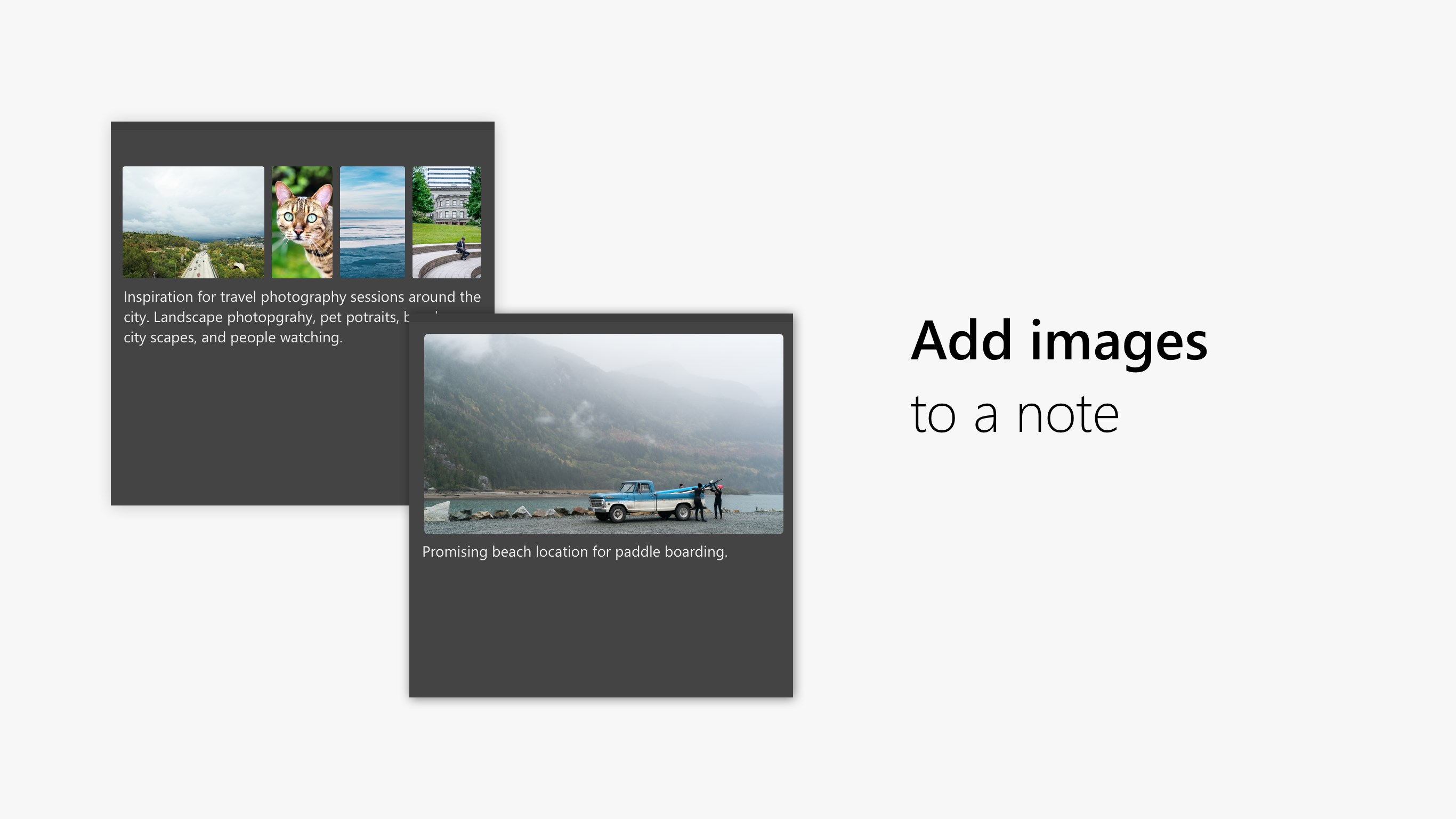
- Supports rich text formatting and image embedding
- Persistent notes even after reboot
- Quick access via taskbar pin and keyboard shortcuts
Cons
- Limited organization features
- No cloud backup option for notes
- Basic customization options
- Occasional sync delays
- Lack of collaboration features











