

- Name LogMeIn123
- Category Utilities & tools
- Available on PC
- OS Windows 10 version 14393.0 or higher
- Keyboard Integrated Keyboard
- Mouse Not specified
- languages English (United States)
LogMeIn123 for Windows: Seamless Remote Device Management Made Simple
LogMeIn123 for Windows, developed by GoTo Inc., offers a straightforward solution for remote support and device access, designed to empower both IT professionals and everyday users to troubleshoot and control computers with ease.
About the App
This application stands out as a user-friendly remote troubleshooting tool that simplifies the process of connecting to computers across networks, making technical support more efficient and accessible. Developed by the reputable team at GoTo Inc., known for their remote collaboration and support solutions, LogMeIn123 emphasizes ease of use and reliability.
Its key features include one-click remote access, secure connection protocols, and compatibility with various Windows versions. The app's intuitive interface caters to users who may not be tech-savvy but need quick, reliable access to distant computers—a perfect fit for remote tech support, personal use, or small business management.
Engaging Performance and User Experience
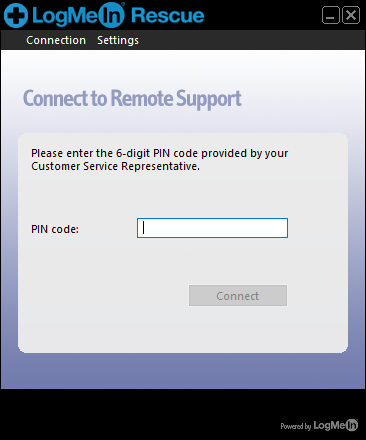
Imagine needing to troubleshoot a friend's laptop from your cozy home office or guiding an family member through a stubborn software update—LogMeIn123 makes this feel as simple as sending a link. Its setup process is minimal, transforming what could be a complicated tech task into a straightforward experience. The app's clean, uncluttered interface resembles a friendly dashboard rather than a labyrinth of options, reducing the learning curve significantly.
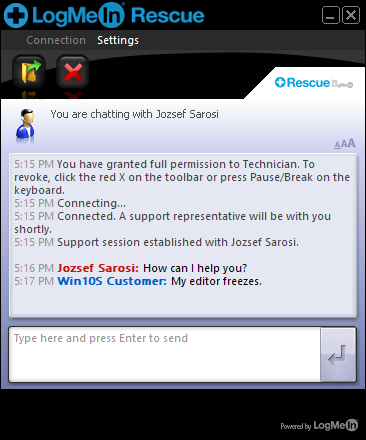
Operation feels smooth and responsive. Clicking a single link establishes a secure connection, almost like opening a door into a distant computer's world. The app's lightweight design ensures quick start-up times, and navigation between sessions is seamless, giving users an impression of efficiency and control without lag or distraction.
Core Features Breakdown: Simplicity, Security, and Convenience
First up, the one-click remote access is LogMeIn123's standout feature—think of it as a teleportation device that instantly connects you from your device to another computer, bypassing complex configurations. This feature is especially useful in urgent situations, such as when a device needs immediate attention without fussing over IP addresses or network settings.
Next, the app ensures secure and encrypted connections, creating a virtual safe room for your data as you access remote systems. It provides peace of mind for both the helper and the host, especially important in sensitive tasks like troubleshooting workstations containing confidential information.
Thirdly, its broad compatibility with Windows devices ensures that you aren't limited by operating system versions or hardware constraints. This versatility is further complemented by minimal setup requirements—install, generate a session link, and you're ready to go. Unlike some complex remote management tools that demand a steep learning curve, LogMeIn123 keeps things simple and effective, precisely catering to users seeking quick and reliable support capabilities.
What Sets It Apart from Competitors?
While many remote desktop tools boast extensive features, LogMeIn123's core strength lies in its effortless deployment and focus on one-click access combined with solid security. Unlike more feature-heavy applications, which often overwhelm users with options, this app prioritizes streamlined, immediate connections—think of it as the “fast lane” for remote support. Its no-fuss approach makes it particularly attractive for small businesses or tech support teams who value speed and dependability over endless customization options.
Additionally, its tight integration with other GoTo Inc. solutions means users can scale their remote support infrastructure if needed, creating a cohesive ecosystem without losing the simplicity that makes LogMeIn123 appealing in daily operations.
Final Recommendation & Usage Tips
Overall, I recommend LogMeIn123 for users who need a reliable, easy-to-use remote access tool without a steep learning curve. It's particularly well-suited for quick troubleshooting, emergency access, or supporting non-technical users. If your priority is straightforward, secure connections delivered with minimal fuss, this app is worth trying out.
For best results, ensure your devices are connected to stable networks, and generate session links close to the support need. While it might not replace full-featured remote desktop suites for complex, long-term tasks, its simplicity and speed make it an excellent choice for quick fixes and on-demand technical support. Think of it as your friendly digital “door opener”—always ready to connect, whenever you need it.
Pros
- User-friendly interface
- Reliable connection stability
- Strong security features
- Multiple device support
- Responsive customer support
Cons
- Limited free features
- Occasional latency issues
- App crashes reported in certain versions
- Limited customization options
- Initial setup may be confusing for beginners











