

- Name Keyboard Locker
- Category Utilities & tools
- Developer P2 Labs
- Available on PC
- OS Windows 10 version 14393.0 or higher
- Memory 300 MB
- Keyboard Not specified
- Mouse Not specified
- languages English (United States)
Streamlined Windows Keyboard Management at Your Fingertips
Keyboard Locker for Windows is a practical utility designed to help users temporarily disable or lock their keyboard, providing a simple yet effective way to prevent unintended keystrokes—ideal for moments when you need to protect your device from accidental inputs or share your screen without interference.
About the Developer and Core Features
Developer & Publisher: P2 Labs
Produced by P2 Labs, a team dedicated to crafting straightforward utility tools, Keyboard Locker for Windows embodies their focus on user-centric solutions that enhance everyday productivity.
Key Highlights
- Simple Keyboard Locking: Instantly disable your keyboard with a click, ensuring your screen remains unaffected by accidental key presses.
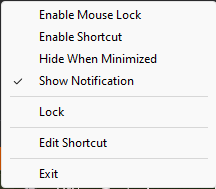
- Quick Toggle & Easy Access: Activated via a minimal interface or system tray icon, offering a hassle-free experience for frequent users.
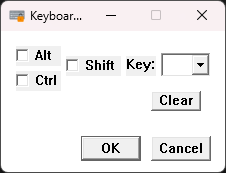
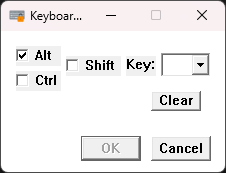
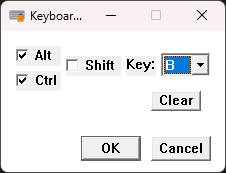
- Customization Options: Set hotkeys for locking and unlocking, tailoring the tool to your workflow.
- Lightweight and Non-Intrusive: Consumes minimal system resources, running seamlessly in the background without affecting other applications.
The application's straightforward design targets users seeking a reliable, no-nonsense solution to keyboard management, especially useful in multi-tasking or presentation scenarios.
A Closer Look at the User Experience and Design
Design & Interface: Clean, Minimal, Friendly
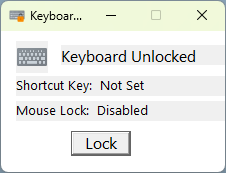
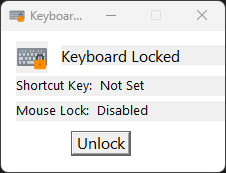
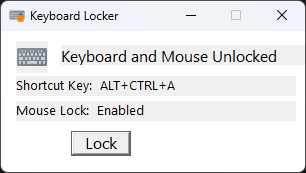
Imagine opening a tidy toolbox—Keyboard Locker greets you with a sleek, uncluttered interface that makes managing your keyboard straightforward. The main window features a large toggle button and optional hotkey settings. Its color scheme is neutral, avoiding distraction, much like a well-organized workspace that invites you to focus on the task.
Operational Smoothness & Learning Curve
Switching between locked and unlocked states feels as effortless as flipping a light switch. The app responds instantly to user commands, with no noticeable lag or complexity. Even first-time users can master basic functions within seconds—it's designed to be intuitive, much like a familiar remote control. The minimal learning curve means you spend less time fiddling and more time being productive.
Overall User Experience
The experience is smooth and frustration-free. Its background operation ensures that you can lock or unlock the keyboard without disrupting your current workflow, akin to having a friendly assistant who helps keep your workspace under control without getting in your way.
What Sets This App Apart From Similar Utilities?
While many keyboard management tools exist, Keyboard Locker for Windows distinguishes itself through its focus on simplicity combined with swift responsiveness. Unlike bulkier utilities that bundle multiple features, this app remains laser-focused on its core purpose: quick and reliable keyboard locking. Its hotkey customization feature allows users to establish their own shortcuts, turning the app into a personal security prompt that integrates seamlessly into daily routines.
Furthermore, its lightweight footprint means it doesn't burden your system—no unnecessary bells and whistles, only the essentials. This minimalism makes it particularly appealing for users who prefer a "set it and forget it" kind of utility, very much like a dependable lock on a door rather than a complex security system.
Final Thoughts & Recommendations
If you're looking for a straightforward, efficient way to control your keyboard input—be it for privacy, presentation, or safeguarding purposes—Keyboard Locker for Windows is worth considering. Its ease of use, quick toggling, and customizable hotkeys make it stand out among similar tools. For users who value simplicity and reliability, this app offers a solid, no-fuss solution.
Personally, I'd recommend giving it a try if you often find yourself needing temporary keyboard control. Its unobtrusive nature ensures it won't interfere with your normal activities, making it a handy companion in your Windows toolkit.
Pros
- Simple and quick activation
- Prevents accidental keystrokes
- Lightweight and unobtrusive
- No need for complex configuration
- Compatibility with various Windows versions
Cons
- Limited customization options
- Potential false activation
- Lack of feature for unlocking via other methods
- Limited to keyboard locking
- No detailed user guide











