


- Name Input Switcher
- Category Utilities & tools
- Available on PC
- OS Windows 11 version 22000.0 or higher
- languages English (United States)
A Fresh Take on Multi-Tasking: Introduction to Input Switcher for Windows
Imagine a tool that seamlessly streamlines your workflow, allowing you to switch between input devices effortlessly—this is precisely what Input Switcher for Windows offers. Crafted with efficiency in mind, this small yet powerful app aims to elevate your multitasking experience on Windows PCs.
About the Developer and Core Highlights
Who's Behind It?
Input Switcher is developed by Michał Łeptuch, a creator dedicated to enhancing Windows utility tools with straightforward yet impactful software solutions.
Key Features That Shine
- Quick Device Switching: Instantly toggle between multiple input devices like keyboards and mice, reducing the constant plugging and unplugging.
- Custom Profiles: Save preferred input device configurations for different scenarios or applications, making switching context-aware effortless.
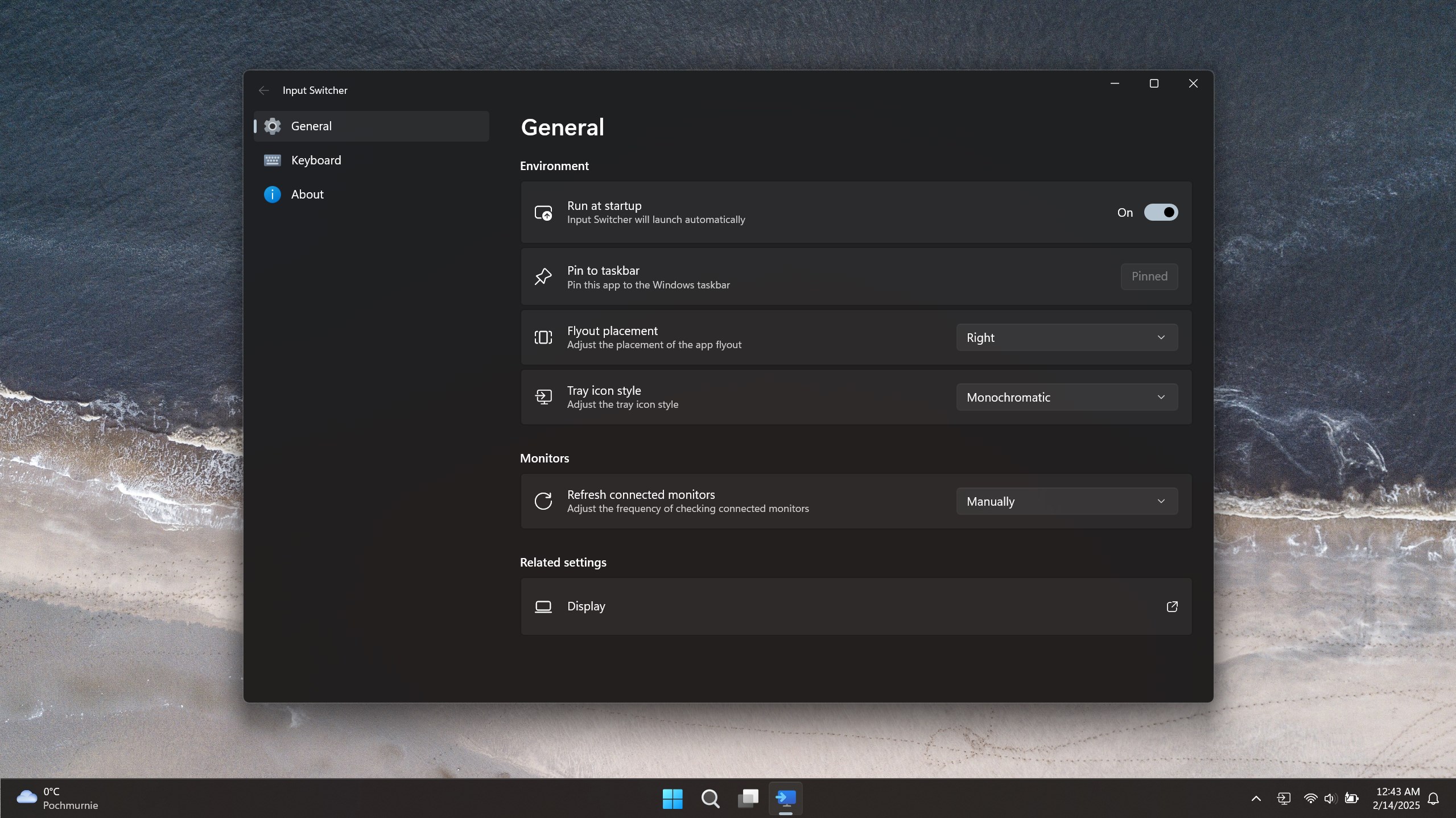
- Simple Tray Integration: Access controls directly from the system tray, ensuring minimal disruption while working or gaming.
- Lightweight and Fast: The app's minimal design ensures it runs smoothly without hogging system resources.
Target Audience
This application is ideal for multi-device setups, gamers, software testers, or anyone who frequently manages multiple input devices and values efficiency in their workflow.
Engaging the User: How Does It Feel to Use?
Imagine you're in a busy office or a gaming marathon—your hands are already navigating keyboard and mouse with precision, but switching devices can be cumbersome. Input Switcher for Windows feels like a helpful assistant sitting quietly in the background, ready to flip your input device on command. Its minimalist design is like a sleek dashboard—simple, intuitive, and clutter-free. The transition between devices is instantaneous, giving you that satisfying click of efficiency, without any lag or fuss. Whether you're switching from a wired keyboard to a wireless one or adjusting input sources for different applications, this app makes it feel effortless—a true game-changer for power users.
Deep Dive into Core Functions
Seamless Device Management
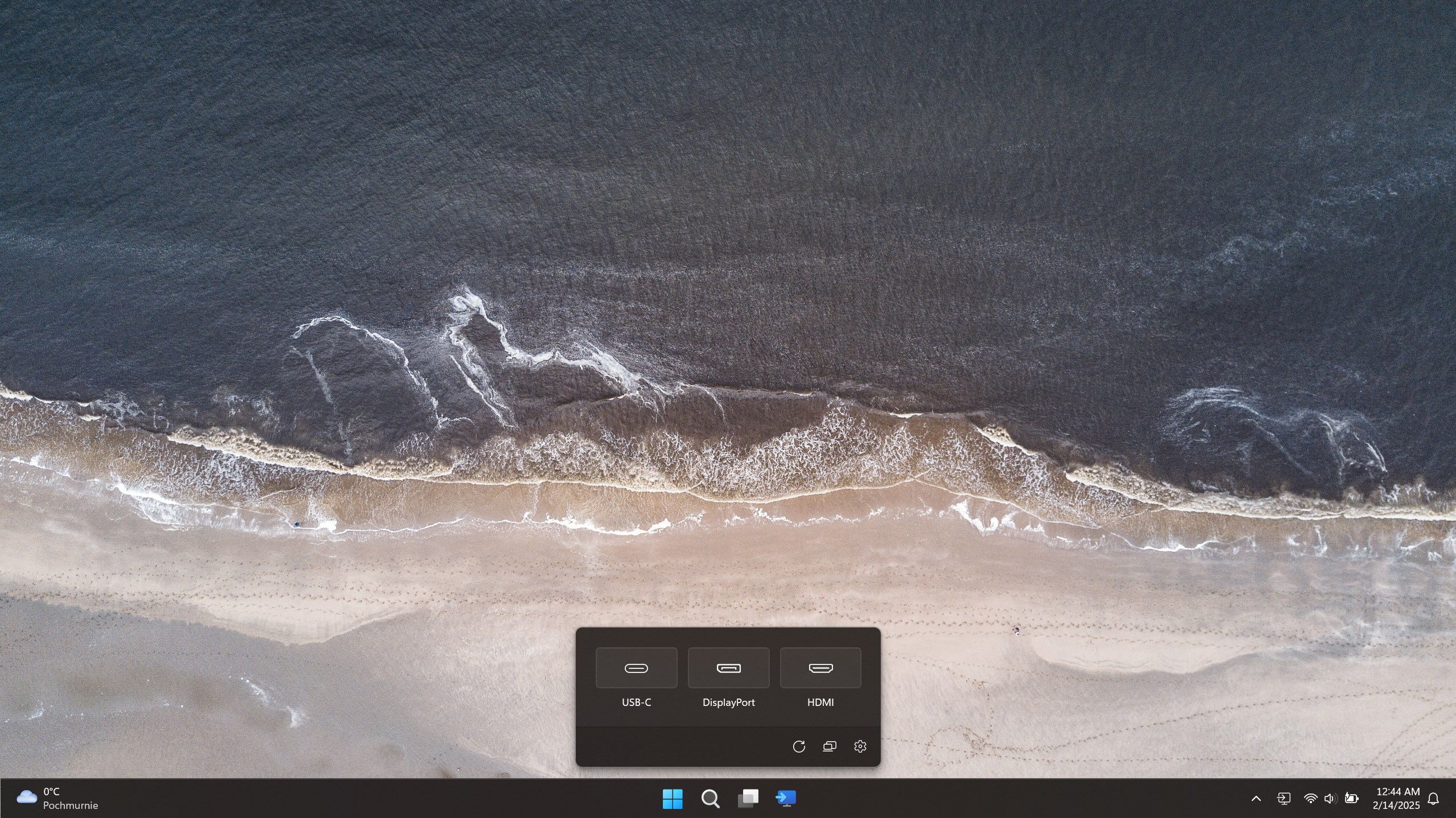
The heart of Input Switcher lies in its ability to allow users to switch between connected input devices instantly. Its interface displays all recognized devices, letting you select your active device with a single click. This is particularly handy for users who juggle multiple peripherals—no more navigating through complex device settings or rebooting to switch devices; everything is a few mouse clicks away. The app also detects new devices automatically, ensuring you don't need to manually update the device list constantly.
Customized Profiles for Different Tasks
One standout feature is the ability to create profiles tailored for specific tasks or workflows. For instance, you might have one profile for gaming with a particular mouse setup, and another for creative work with a different keyboard. Switching profiles instantly adapts your input environment to match your current activity. This level of customization significantly reduces downtime and enhances productivity, especially in workflows involving multiple devices or shared workspaces.
User Interface and Experience
The app's interface is clean and straightforward, resembling a minimalist gadget dashboard rather than a cluttered control panel. Navigating options feels like flipping through the pages of a well-organized notebook—everything is logically laid out. The operation is remarkably smooth; switching devices or profiles happens instantly with no noticeable lag. Users unfamiliar with such utilities will find the learning curve minimal; the setup process is straightforward, and the interface is intuitive, like chatting with a helpful assistant. The app's lightweight nature means it runs quietly in the background, orchestrating device changes seamlessly without burdening system resources.
What Makes It Stand Out From the Crowd?
While many utilities claim to manage input devices, Input Switcher's unique advantage lies in its simplicity combined with powerful customization options. Unlike broader device management tools, this app focuses explicitly on quick switching and profile management, which are crucial for multi-device setups. Its automatic device detection and profile-saving functionalities make it a sophisticated yet accessible tool, akin to having a personal assistant that remembers your preferences. It's not just about device management; it's about transforming how you interact with multiple peripherals, making multi-device workflows feel almost like a single cohesive system.
Final Verdict and Recommendations
Considering its features, ease of use, and targeted functionality, I recommend Input Switcher for Windows to users who frequently work with multiple input devices or engage in activities demanding quick, reliable device switching. Its simplicity doesn't compromise effectiveness, and it offers a significant boost in operational efficiency—much like having a well-orchestrated backstage crew for your workspace.
While it's a specialized tool, its streamlined design and profile management features make it versatile enough to appeal to both casual power users and professionals. If device switching has ever interrupted your flow, this app is worth a try—think of it as the silent conductor enhancing your multitasking symphony.
Pros
- Easy switching between multiple inputs
- Intuitive user interface
- Supports a wide range of input sources
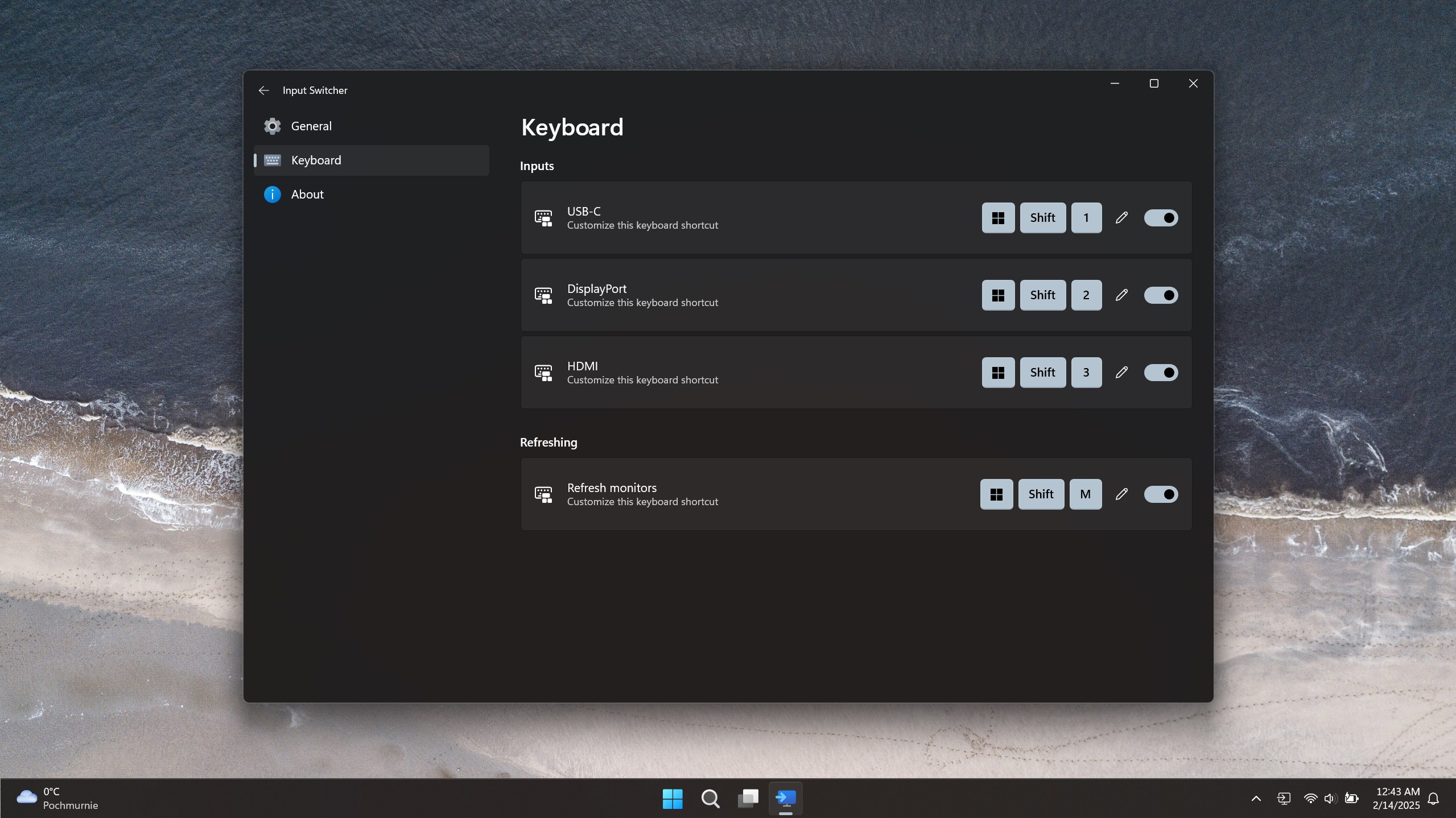
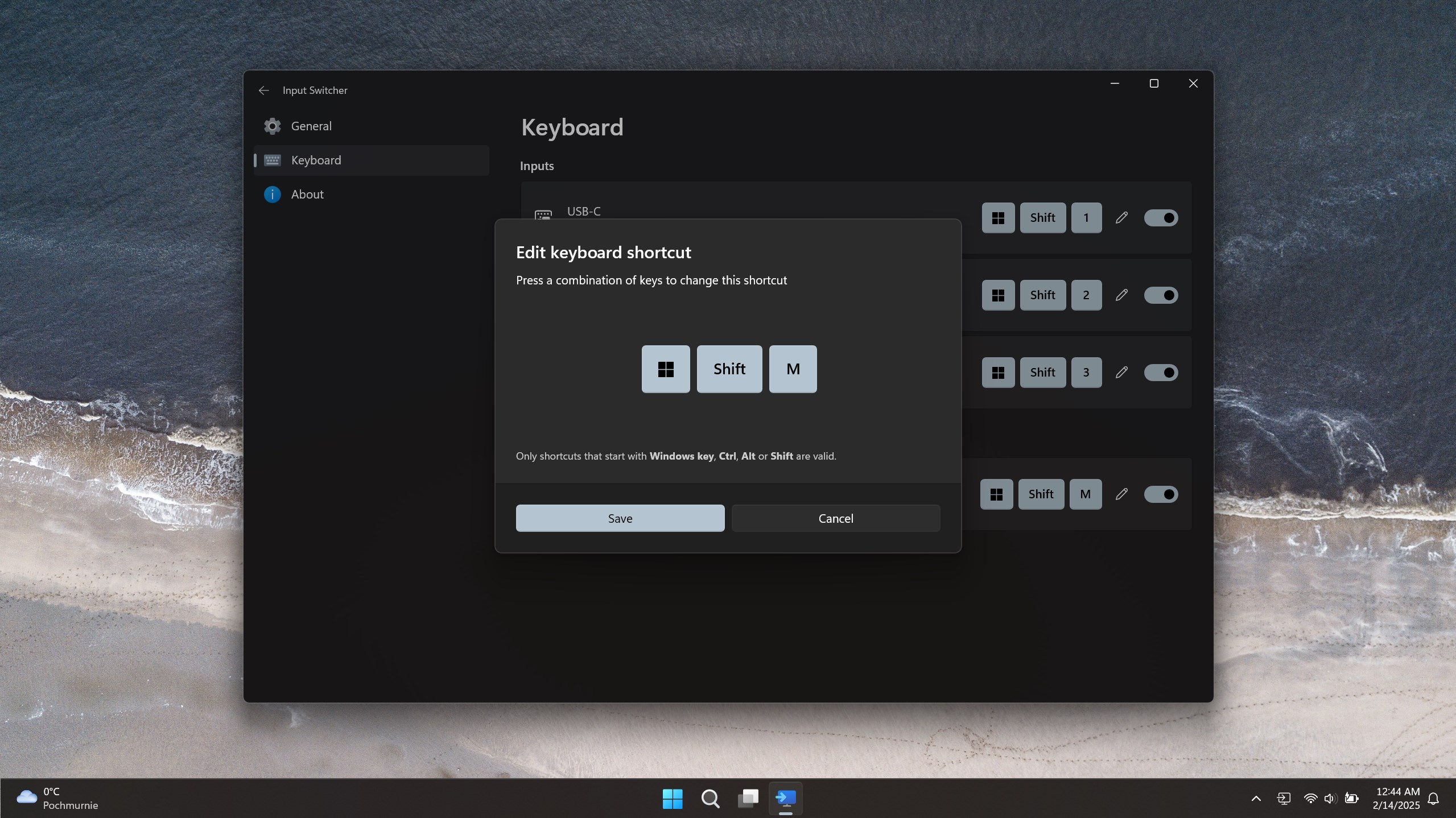
- Customizable hotkeys for quick access
- Seamless integration with Windows
Cons
- Limited compatibility with non-Windows devices
- Occasional lag during input switching
- Requires manual configuration for certain hardware
- Limited support for multiple monitor setups
- Interface could be enhanced with additional customization options











