

- Name InfoPrint Driver Utility
- Category Utilities & tools
- Available on PC
- OS Windows 8.1 or higher
- languages English (United States)
Introducing the InfoPrint Driver Utility: Simplifying Printer Management for Windows
In the realm of printer management, the InfoPrint Driver Utility for Windows emerges as a straightforward yet powerful tool that aims to streamline the way users handle their Ricoh printers. Whether you're managing a home office setup or supporting a small business environment, this utility promises to make printer configuration and maintenance more intuitive and less time-consuming.
Developed by Ricoh Company, Ltd.
Created by Ricoh, a renowned leader in imaging and printing solutions, this utility reflects the company's commitment to delivering reliable and user-friendly tools for their hardware ecosystem.
Key Features that Brighten the User Experience
- Seamless driver installation and updates—reducing setup time considerably.
- Easy access to printer status and troubleshooting options—keeping things transparent and manageable.
- Automated configuration settings—allowing quick adjustments for different printing needs.
- Support for multiple Ricoh printer models—making the utility versatile across various devices.
Target Audience: Who Will Benefit
This utility is designed primarily for IT administrators, support staff, and tech-savvy users who manage Ricoh printers in office environments or at home. It is particularly useful for those seeking an all-in-one management tool that minimizes technical hurdles and enhances operational efficiency.
Engaging Technical Review: Making Printer Management Effortless
Imagine this utility as a trusty sidekick in your printer-related adventures—quietly working in the background, ready to jump in and resolve issues before they disrupt your workflow. It sits discreetly on your Windows device, transforming what used to be a tedious task into a smooth, almost effortless process. Let's delve into what makes this tool tick and how it can become your go-to printer management companion.
Core Functionality 1: Streamlined Driver Installation and Updates
The hallmark of the InfoPrint Driver Utility is its ability to simplify the often cumbersome process of driver management. Installing new drivers or updating existing ones can typically involve navigating multiple web pages and manual downloads, which is akin to hunting for a needle in a haystack. This utility consolidates that process into a single click, providing an intuitive interface that guides you through each step effortlessly. The difference is like upgrading from a manual gearbox to an automatic transmission—everything feels smoother, faster, and less stressful.
Core Functionality 2: Real-time Printer Monitoring and Troubleshooting
Think of this feature as having a doctor on call for your printer—monitoring its health, alerting you to issues in real-time, and suggesting fixes. The interface vividly displays printer statuses—whether offline, low on ink, or experiencing paper jams. The troubleshooting module is straightforward: a few taps and you'll often resolve common problems without needing to dig through complex manuals. This hands-on approach transforms printer care from a dreaded chore into a manageable task, especially for users who prefer clarity over technical jargon.
Core Functionality 3: Custom Configuration and Multi-Device Support
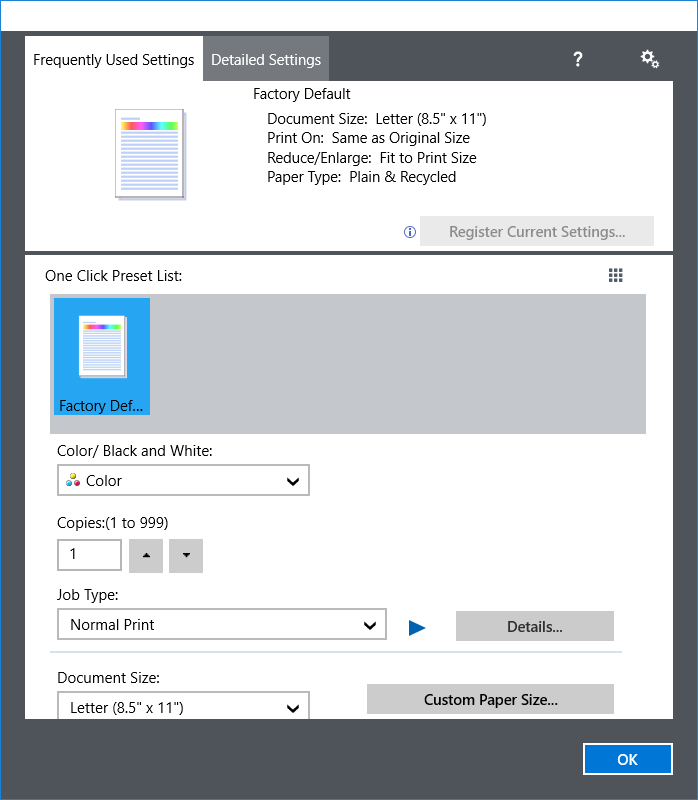
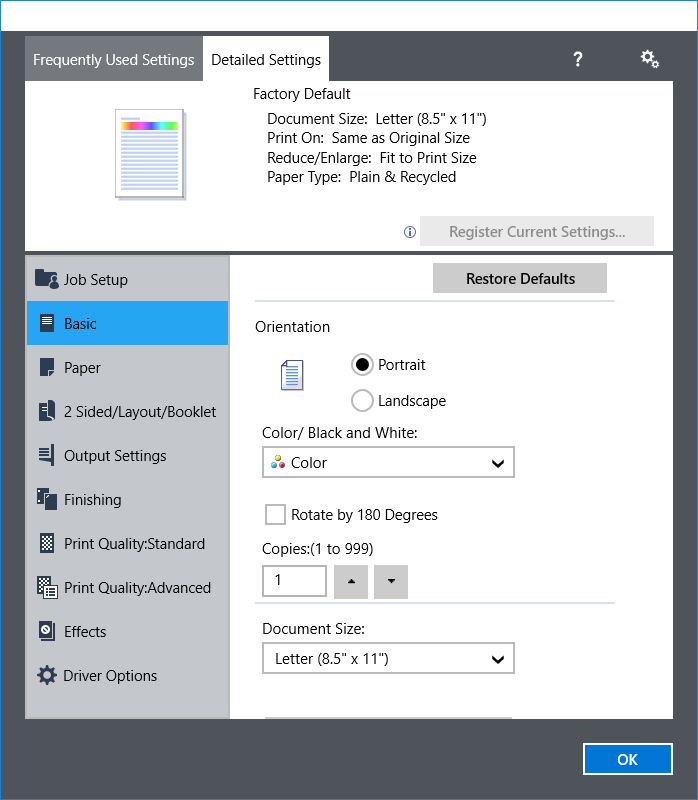
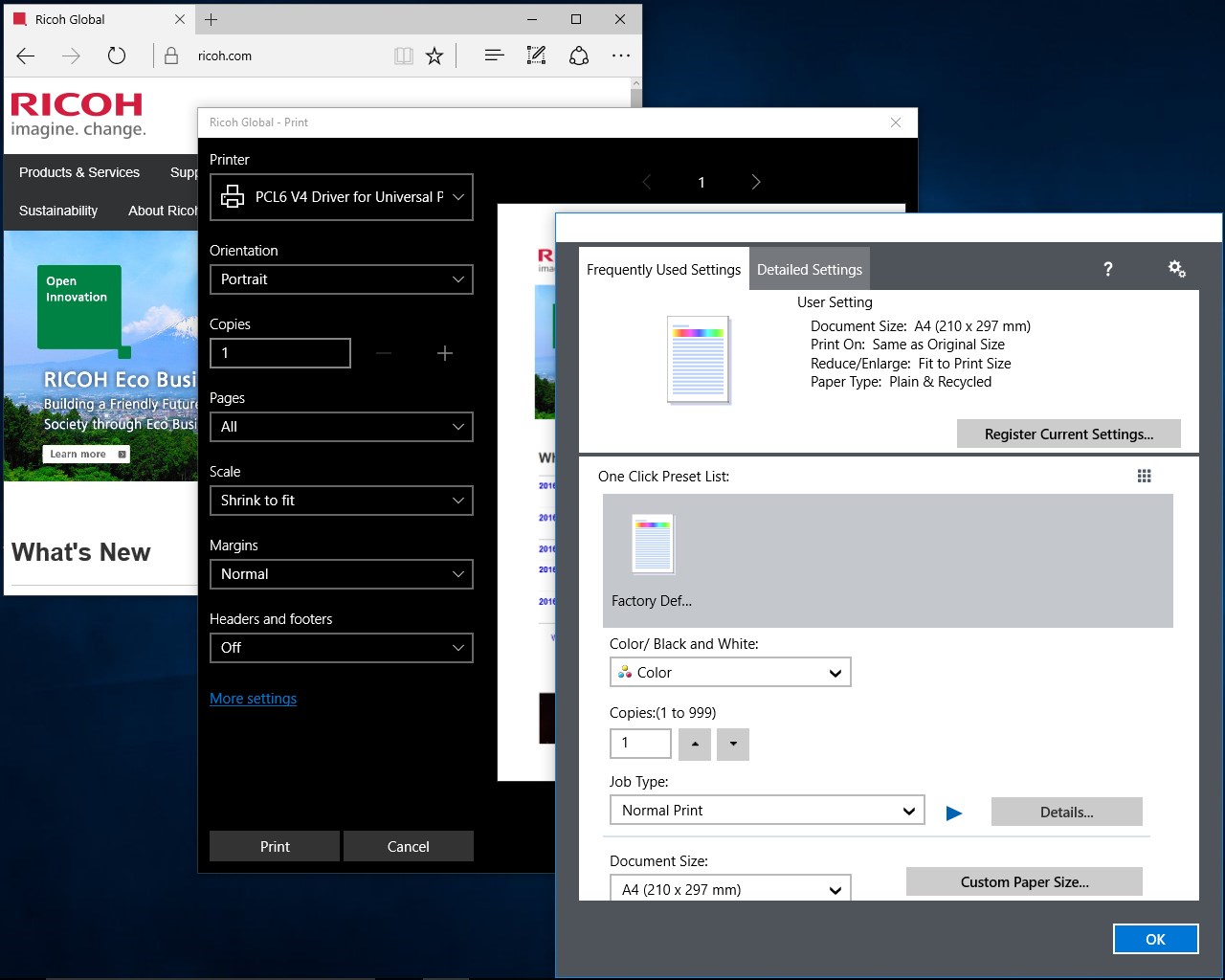
Customize your printers with ease—set default print qualities, select paper sizes, or create profiles for different users. The utility supports multiple Ricoh models, giving it a distinctive edge over more generic tools. This multi-device support is like having a universal remote for your printer network—one app to rule them all, simplifying management and reducing the clutter of multiple utilities. Its ability to synchronize settings across several devices can save significant time and prevent configuration inconsistencies in busy office environments.
Interface, Ease of Use, and User Learning Curve
Visually, the utility sports a clean, organized interface—think of it as the dashboard of a well-maintained car, where every gauge and control is within easy reach. Navigation feels intuitive; even users with modest technical backgrounds can find their way quickly. The learning curve is gentle; the utility guides you through each feature with prompts and icons that clearly indicate their functions. Operation flows smoothly, with minimal lag or glitches, making routine printer maintenance feel almost like a habit rather than a chore.
Unique Selling Points and Competitive Edge
What sets the InfoPrint Driver Utility apart from other printer utilities is its focus on comprehensive yet simplified management—particularly its robust support for various Ricoh models combined with automated configuration features. Unlike generic tools that often require multiple applications or complex setups, this utility offers a consolidated platform that adapts seamlessly to different devices. Its real-time monitoring and troubleshooting capabilities are also notably user-friendly, reducing the need for technical support calls and user frustration.
Final Recommendation and Usage Tips
Given its straightforward interface, powerful core functionalities, and the backing of Ricoh's brand reliability, I recommend the InfoPrint Driver Utility to users seeking an efficient, all-in-one solution for Ricoh printer management. It's especially valuable in environments where printer uptime and quick maintenance are critical. For optimal experience, keep the utility updated and explore its configuration profiles to tailor the setup to your specific printing needs. If you are managing multiple Ricoh devices, this utility can transform your maintenance routine from a headache into a breeze. Overall, it's a practical choice for those who want dependable, easy-to-use printer management tools without the clutter and complexity of less specialized applications.
Pros
- User-friendly interface
- Reliable print management
- Streamlined driver updates
- Enhanced print job monitoring
- Official support from Microsoft
Cons
- Limited printer compatibility
- Occasional software stability issues
- Lack of advanced customization options
- Limited offline functionality
- Minor lag in driver updates











