


- Name iBackup Extractor
- Category Utilities & tools
- Developer Wide Angle Software Ltd
- Available on PC
- OS Windows 10 version 17763.0 or higher
- languages Dutch, English, English (United States), French, German, Italian, Japanese, Spanish
iBackup Extractor for Windows: Your Go-To Tool for Effortless Data Recovery
If you've ever found yourself in a digital pinch—losing precious contacts, photos, or messages—then iBackup Extractor is like that reliable friend ready to lend a helping hand. Designed to extract data from iOS backups with precision and simplicity, this application promises to turn a tech crisis into a manageable task, all within a sleek Windows environment.
About the Developer: Wide Angle Software Ltd
Developed by Wide Angle Software Ltd, a reputable name in the realm of data management tools, this team specializes in creating user-friendly utilities that bridge the gap between complex data recovery processes and everyday users. Their experience in the field translates into applications that prioritize reliability and ease of use.
Core Features That Stand Out
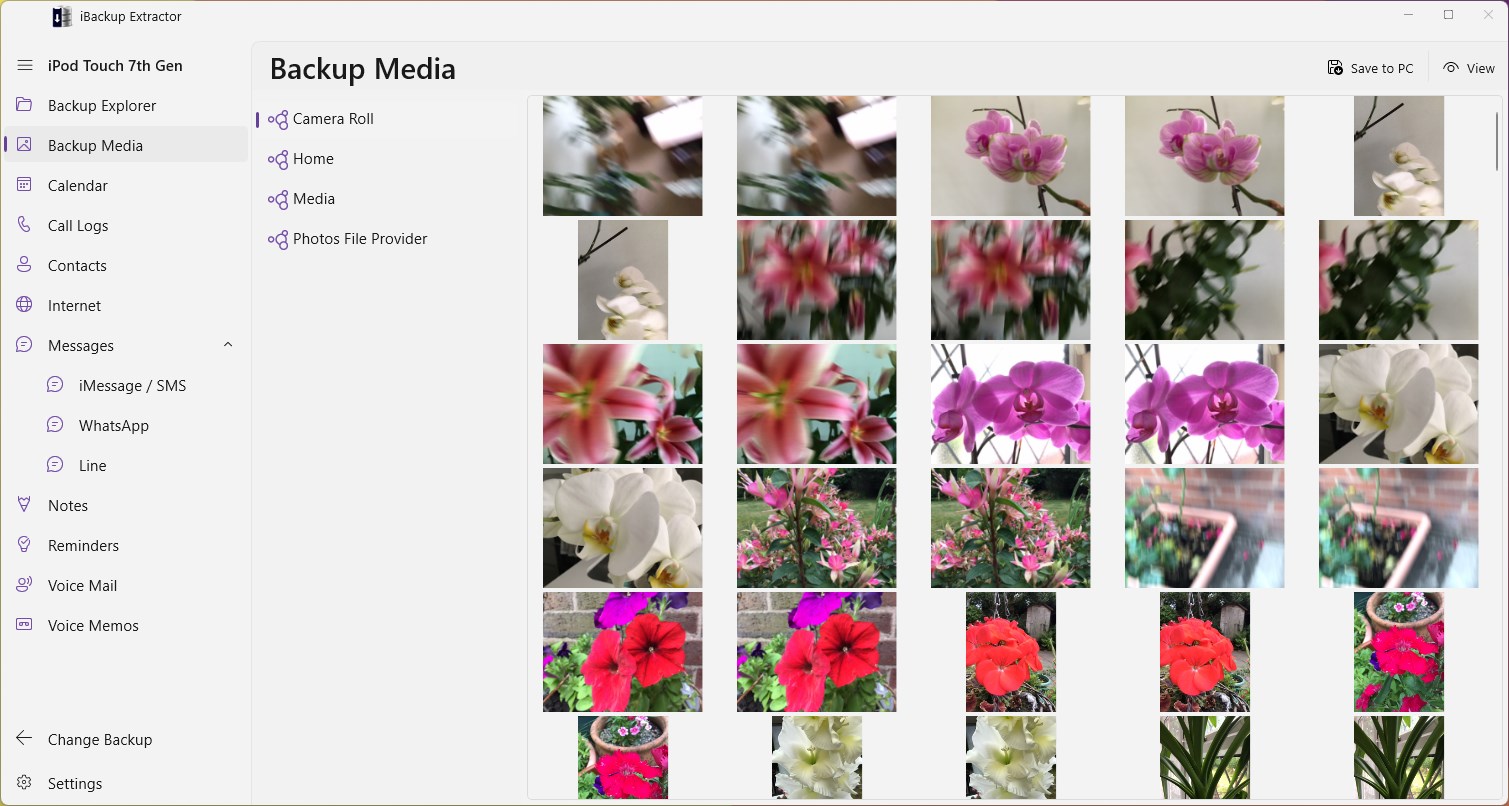
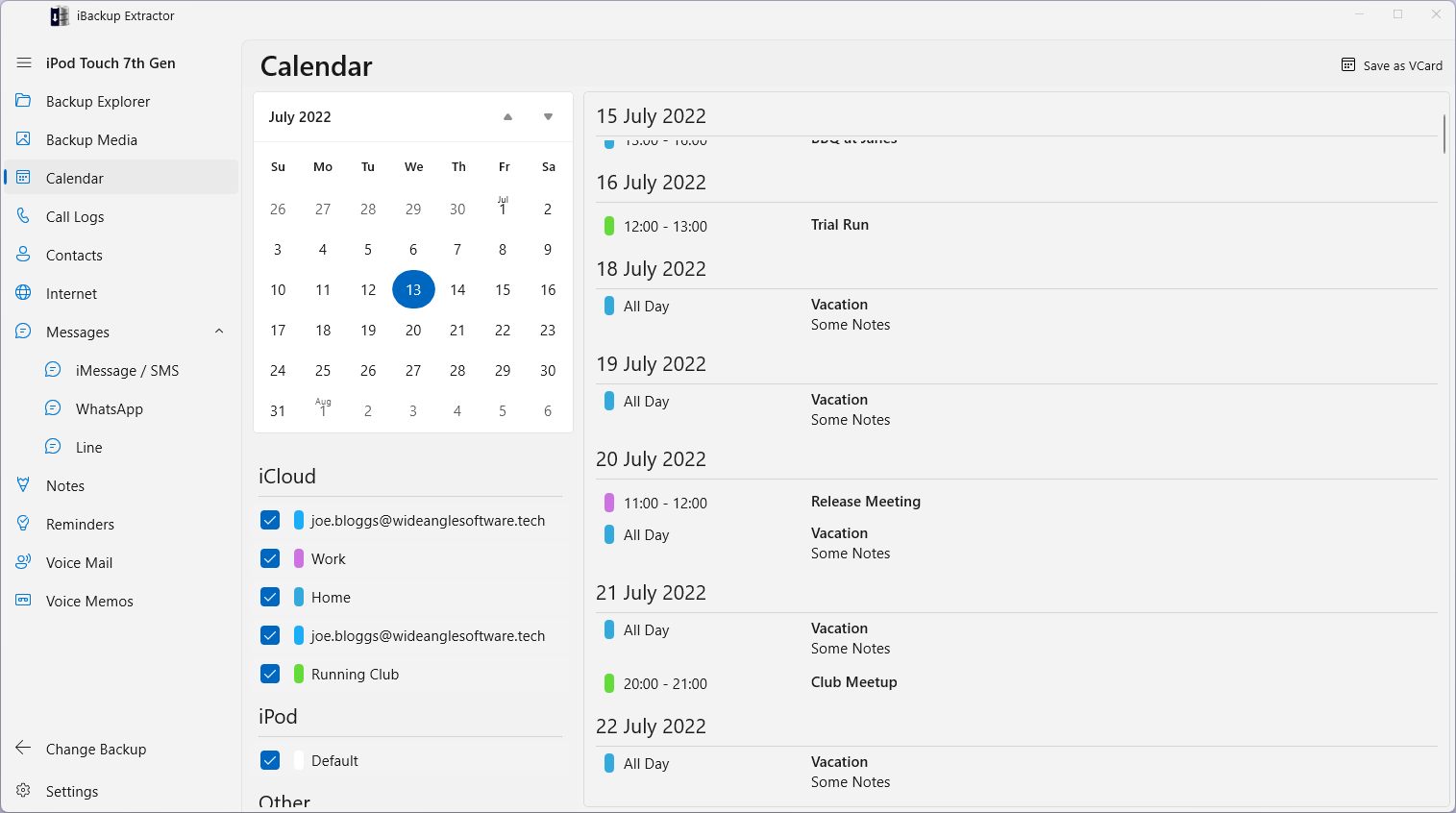
- Selective Data Extraction: Unlike some tools that dump everything at once, iBackup Extractor allows users to pinpoint and extract specific data types—be it contacts, messages, photos, or calendar entries—saving time and storage space.
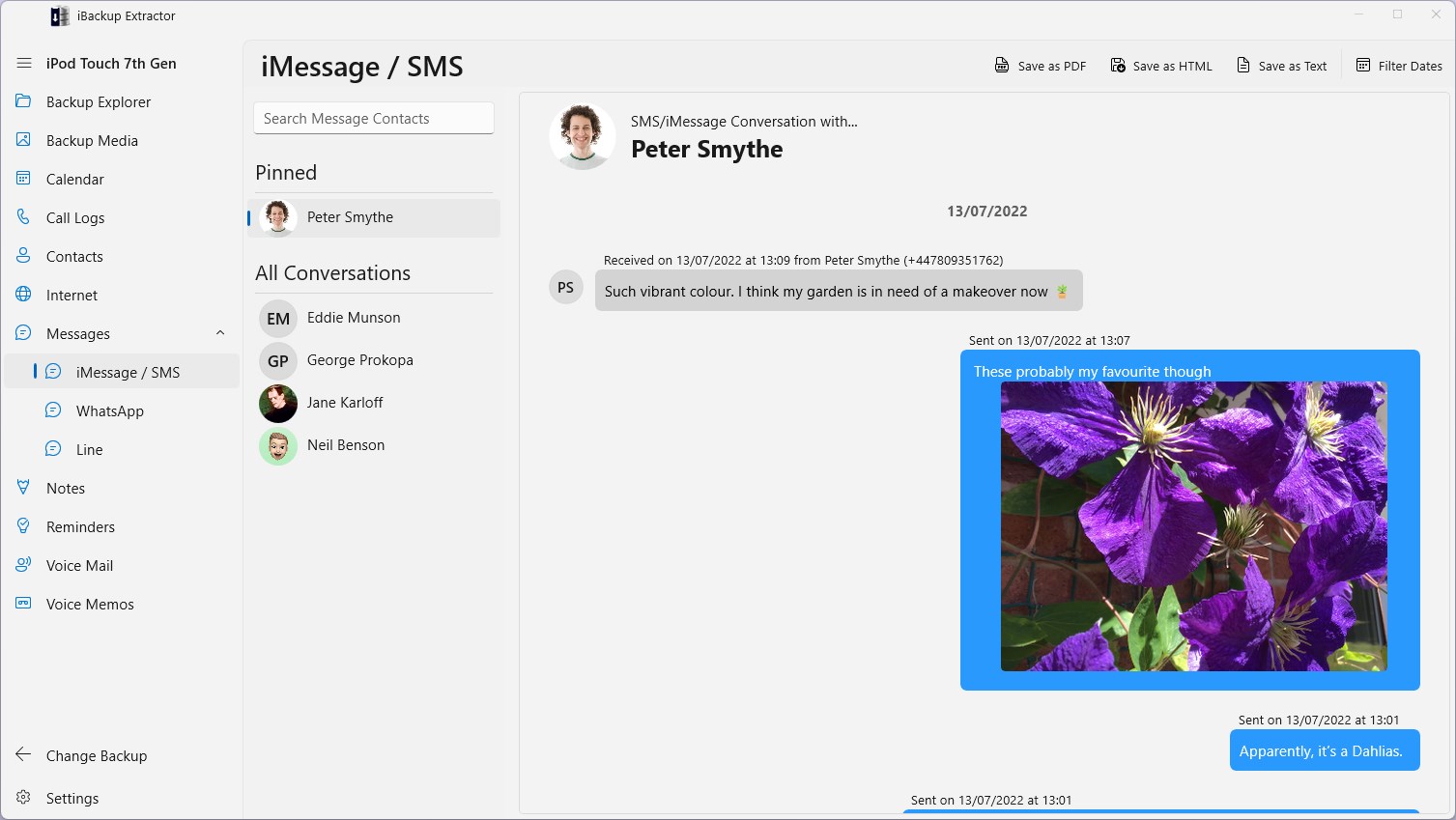
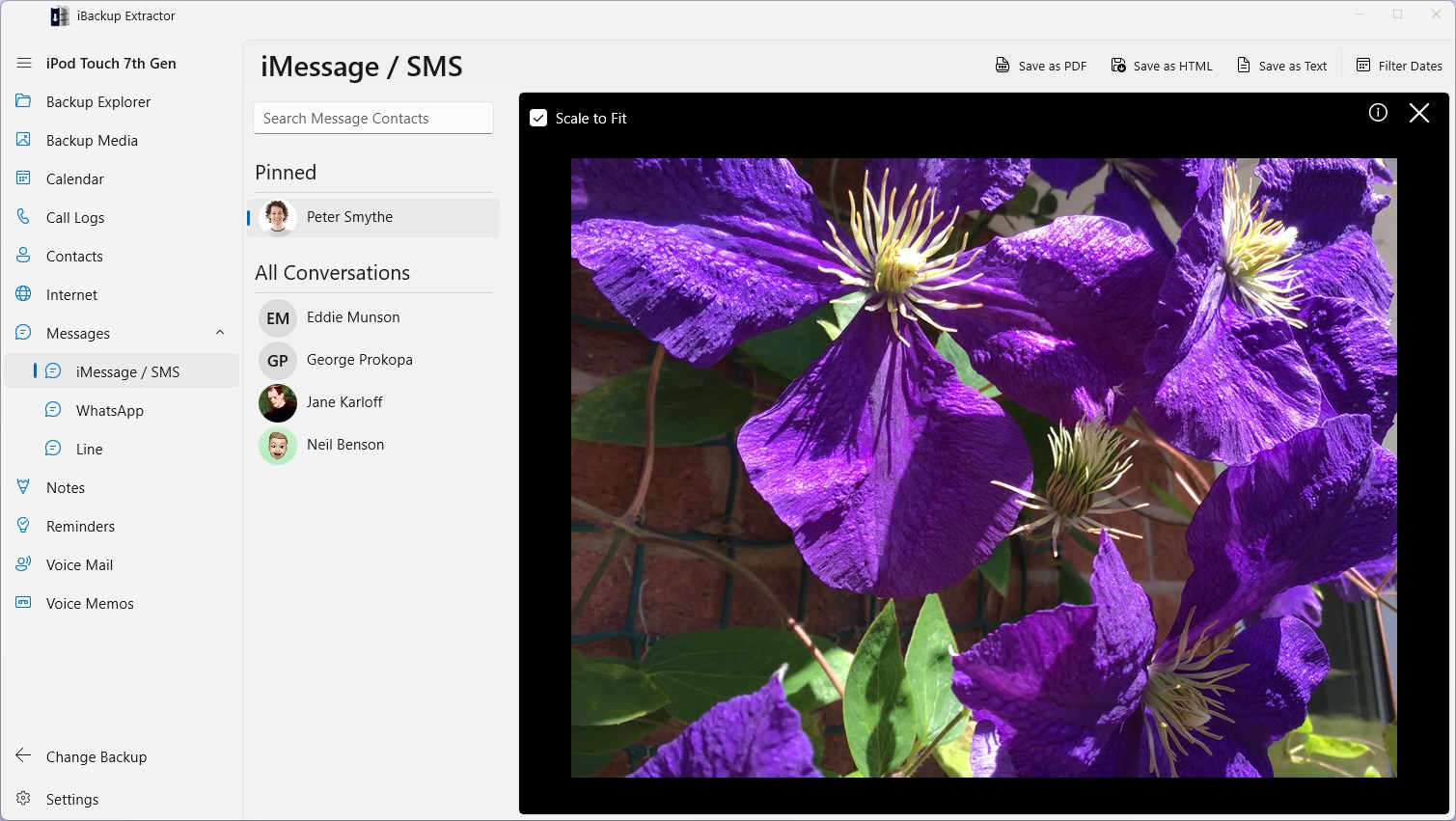
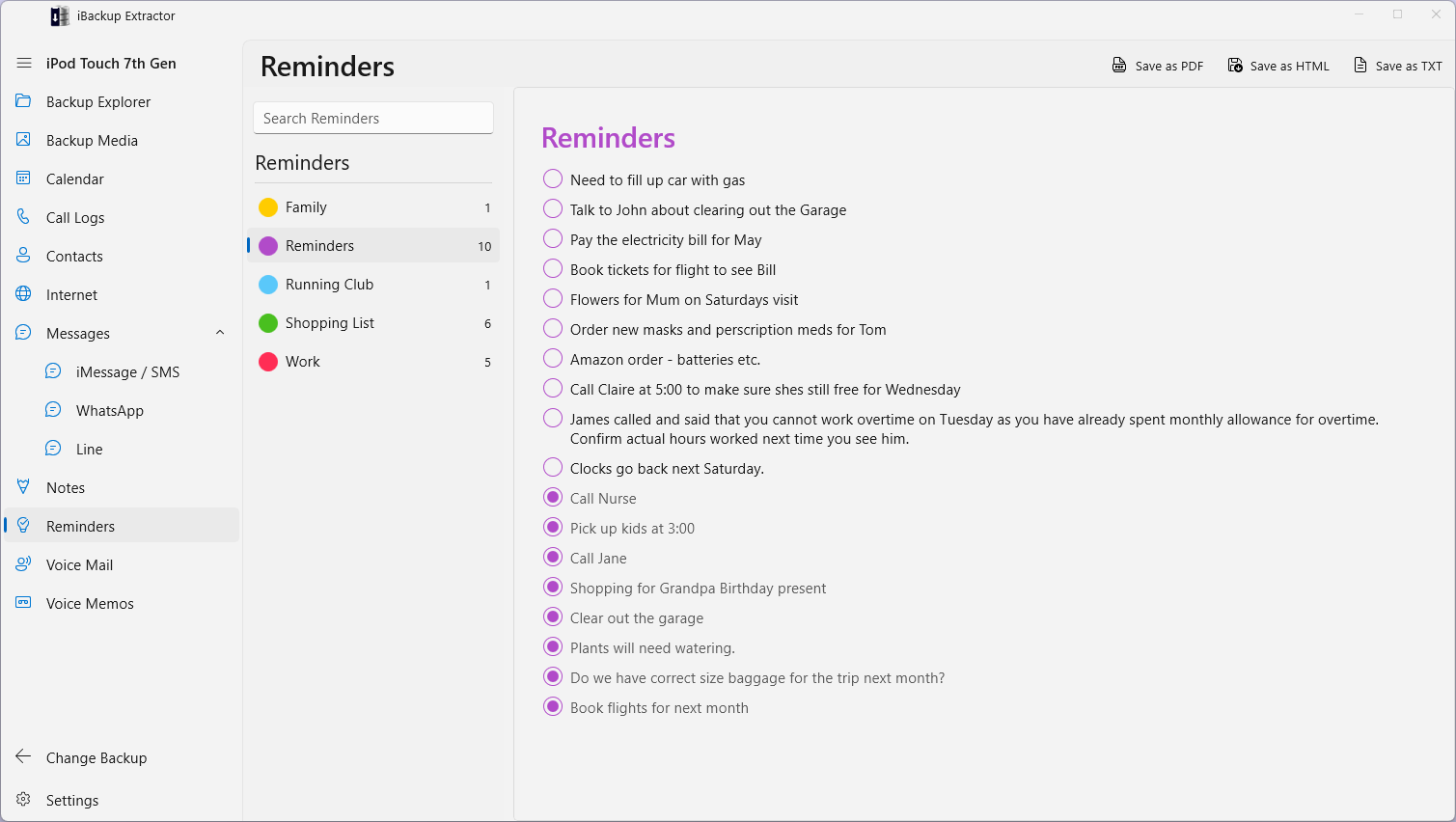
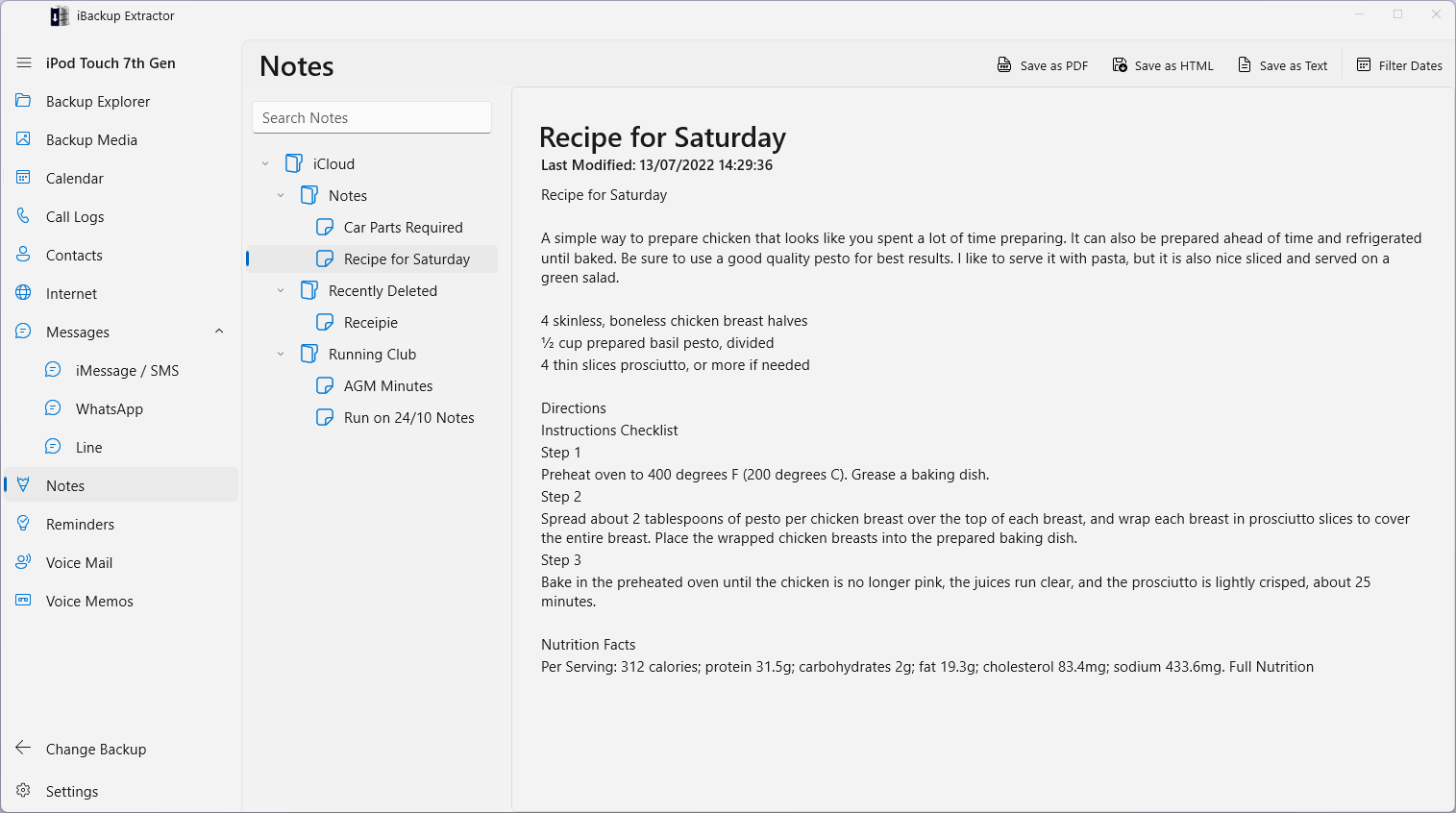
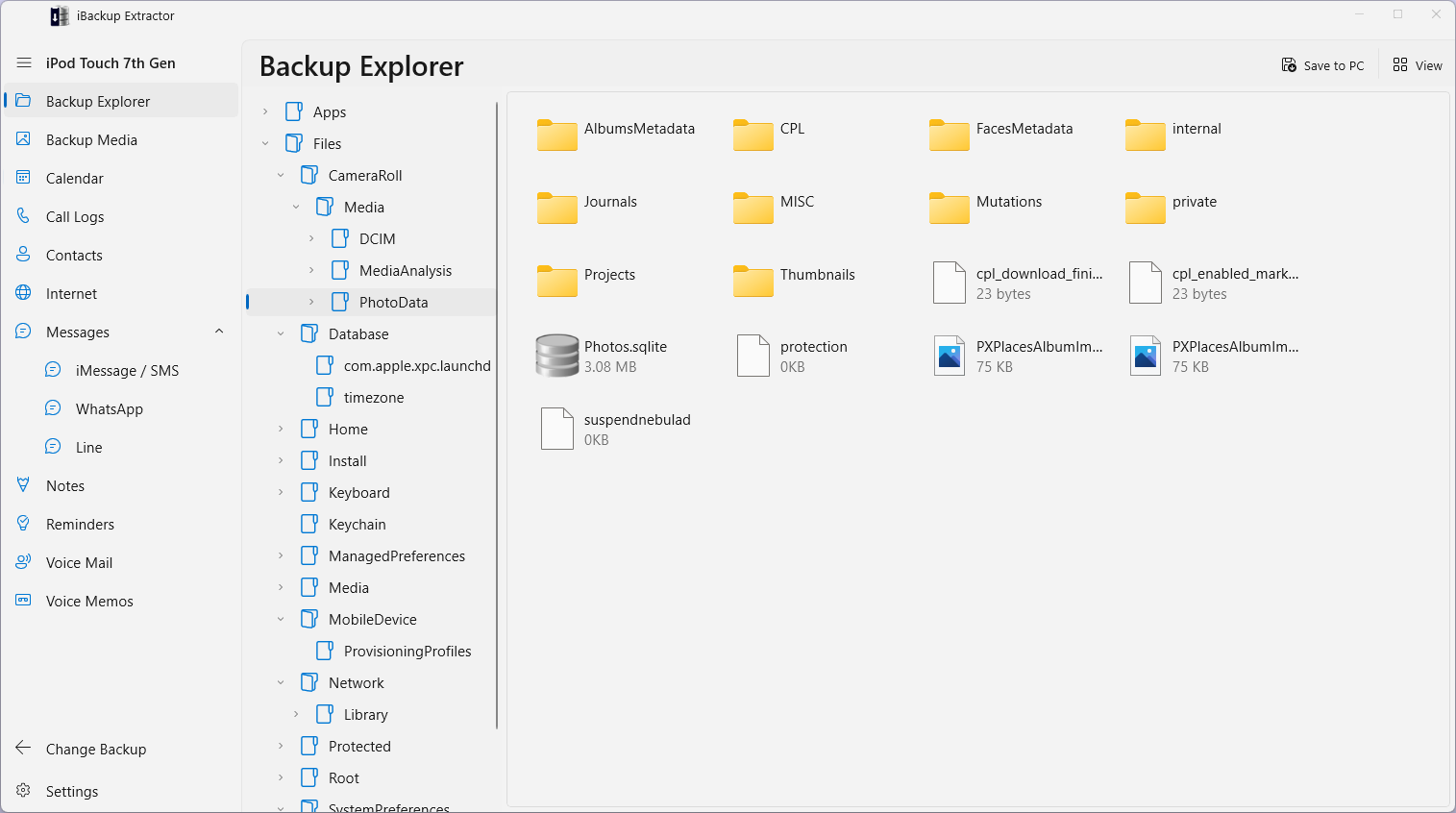
- Preview Before Extracting: The app provides a comprehensive preview of the backup contents, letting users verify exactly what they're retrieving before initiating the extraction process.
- Cross-Platform Compatibility: While centered on Windows, the tool supports backups from multiple iOS devices and iOS versions, ensuring broad usability regardless of your device model or OS version.
- Simple, Intuitive Interface: The clean design and guided workflow make the process accessible even to those with minimal technical background.
Engaging the User: A Friendly Dive into Its Capabilities
Imagine opening a toolbox and finding exactly what you need—whether it's a trusty screwdriver or a neat plier, all organized neatly at your fingertips. That's what iBackup Extractor feels like in your digital workspace. Its straightforward approach makes recovering lost data less of a chore and more of an achievable task, even if you're not a tech wizard.
The Power of Selective Data Extraction
One of the application's standout features is its ability to let users cherry-pick specific pieces of data from backups. Think of your iOS backup as a treasure chest packed with various items—contacts, messages, photos, calls. The app acts like a savvy archaeologist, unearthing only the artifacts you need. This prevents unnecessary clutter, and saves storage and time, especially valuable if you're restoring a vital contact group or recent photos. Such granularity makes iBackup Extractor particularly attractive for users who want control over their data recovery process.
Preview, Confirm, Extract: Making Data Retrieval Safe and Precise
Before hitting the extract button, users get a detailed preview of backup contents—like window shopping before a purchase. This feature minimizes guesswork and helps confirm that the right data is being retrieved. The smooth navigation and clear display mean that even newcomers can confidently operate the software without facing a steep learning curve. The process is quick, intuitively guided, and designed to give you peace of mind that you're extracting exactly what you want—nothing more, nothing less.
User Experience: Seamlessness and Clarity
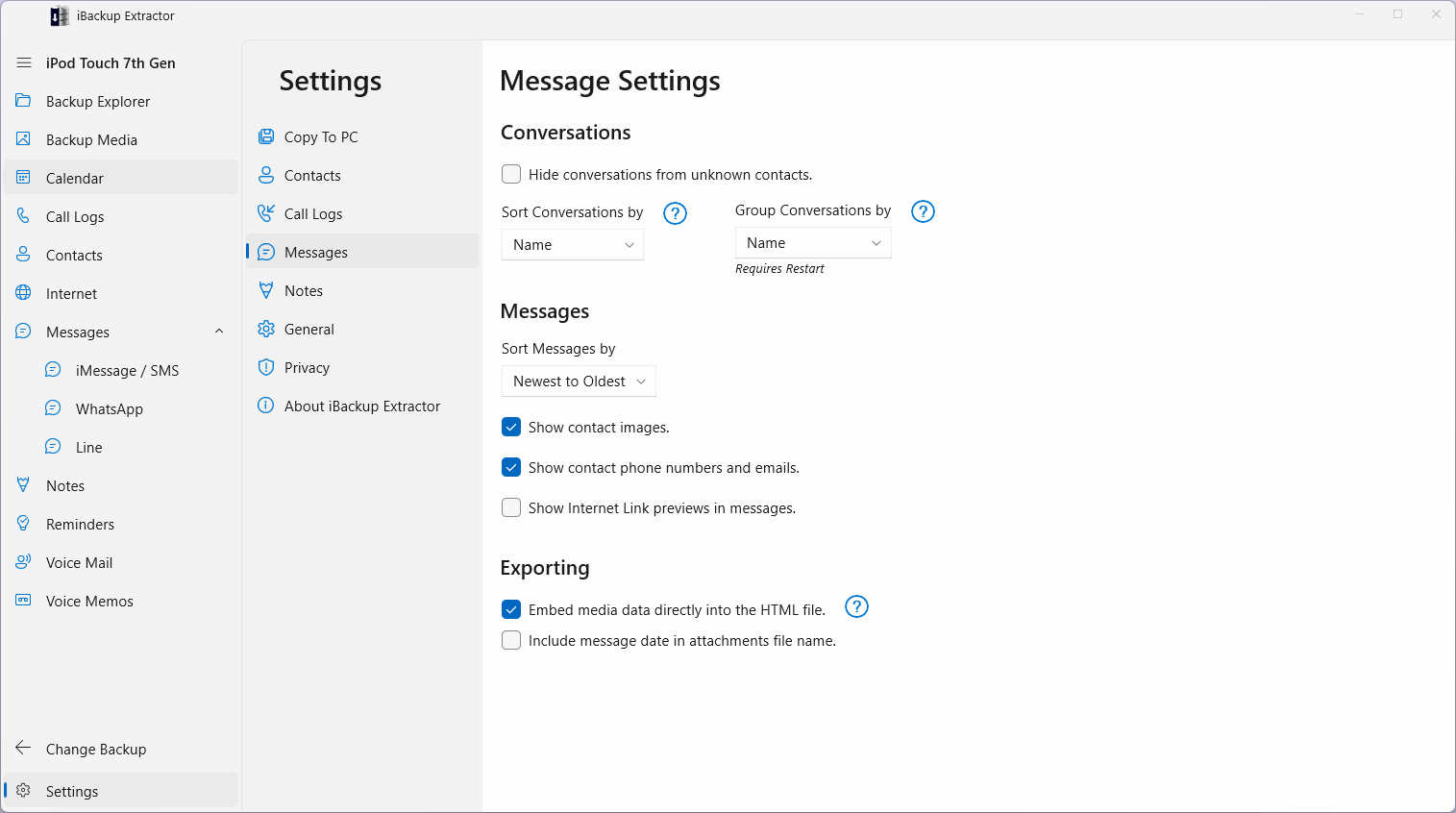
The interface of iBackup Extractor strikes a balance between minimalism and function. It embraces a modern aesthetic with well-organized menus, clear icons, and step-by-step guidance. The operation feels responsive—clicks and selections are smooth, and the display updates promptly to reflect your choices. For first-time users, the learning curve is gentle, akin to riding a familiar bicycle rather than mastering complex machinery. Regular users will appreciate how the workflow minimizes unnecessary steps, making routine data retrieval effortless and even enjoyable.
What Sets It Apart From Its Peers?
While the market offers numerous backup extractors and iOS data tools, iBackup Extractor distinguishes itself primarily through its precision and user-centric design. Its robust filtering options allow thorough, targeted recovery, unlike generic tools that tend to export bulk data or require complex configurations. Moreover, its preview feature acts like a test drive—letting users see what they're getting before committing. This transparency and focus on usability set it apart, providing a level of confidence that many similar utilities lack. It's like having a tailor-made toolkit designed for everyday users rather than relying on oversized, intimidating software.
Final Thoughts and Recommendations
In essence, iBackup Extractor for Windows offers a solid mix of power, simplicity, and precision. It's especially recommended for those who want to recover specific data slices from iOS backups without fuss or complexity. Whether you're a casual user needing quick access to a lost photo or a professional managing multiple devices, this tool's features adapt well to various needs.
While it may not boast flashy marketing slogans, its practical strengths position it as a reliable companion in data recovery routines—delivering what it promises with clarity and ease. For users seeking a trustworthy, straightforward utility that emphasizes control and safety, iBackup Extractor is a commendable choice.
Pros
- User-Friendly Interface
- Supports Multiple Backup Formats
- Efficient Data Recovery
- Preview Functionality
- Regular Updates and Support
Cons
- Limited Free Usage
- Performance Compatibility Issues
- Learning Curve for Advanced Features
- Lack of Extensive Documentation
- Occasional Backup Compatibility Limitations











