
- Name Home Remote
- Category Utilities & tools
- Developer The Home Remote LLC
- Available on PC, Mobile, Xbox console, Surface Hub, HoloLens
- OS Windows 10 version 16299.0 or higher
- languages English, English (United States), French, German, Italian, Spanish, Spanish (Spain)
An Overview of Home Remote for Windows
Home Remote for Windows is a versatile application designed to transform your PC into a centralized home automation hub, seamlessly integrating multiple smart devices for easy control and monitoring. Developed by The Home Remote LLC, this app aims to provide a flexible, user-friendly platform for tech enthusiasts and smart home owners alike, allowing for personalized automation setups that cater to diverse needs.
About the Developer and Key Features
Created by The Home Remote LLC, the developer behind this innovative tool specializes in crafting intuitive and customizable smart home interfaces. The app's main highlights include:
- Broad Device Compatibility: Supports a wide range of smart home devices, from lighting to security systems, enabling comprehensive control from a single interface.
- Customizable Dashboards: Users can tailor the control panels to match their home setup and aesthetic preferences, making everyday interactions more intuitive.
- Scripting and Automation: Advanced users can create custom routines and triggers, automating complex sequences with ease.
- Remote Access Capability: Control your smart home remotely through Windows devices, providing peace of mind and convenience wherever you are.
The target audience includes tech-savvy homeowners, smart home enthusiasts, and anyone seeking a unified platform to manage multiple connected devices with minimal fuss.
Introducing the App: A Friendly Guide to Smart Home Control
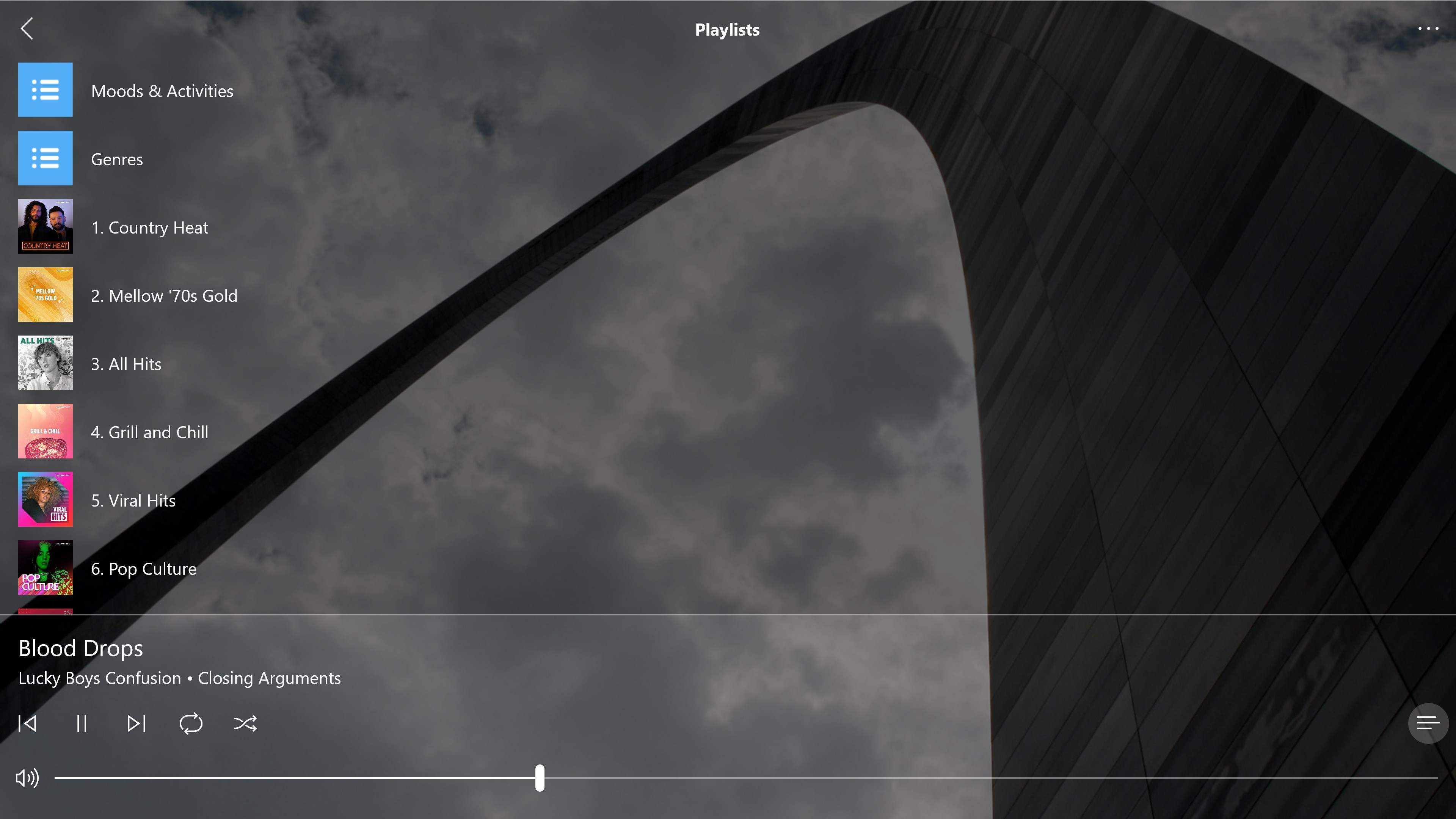
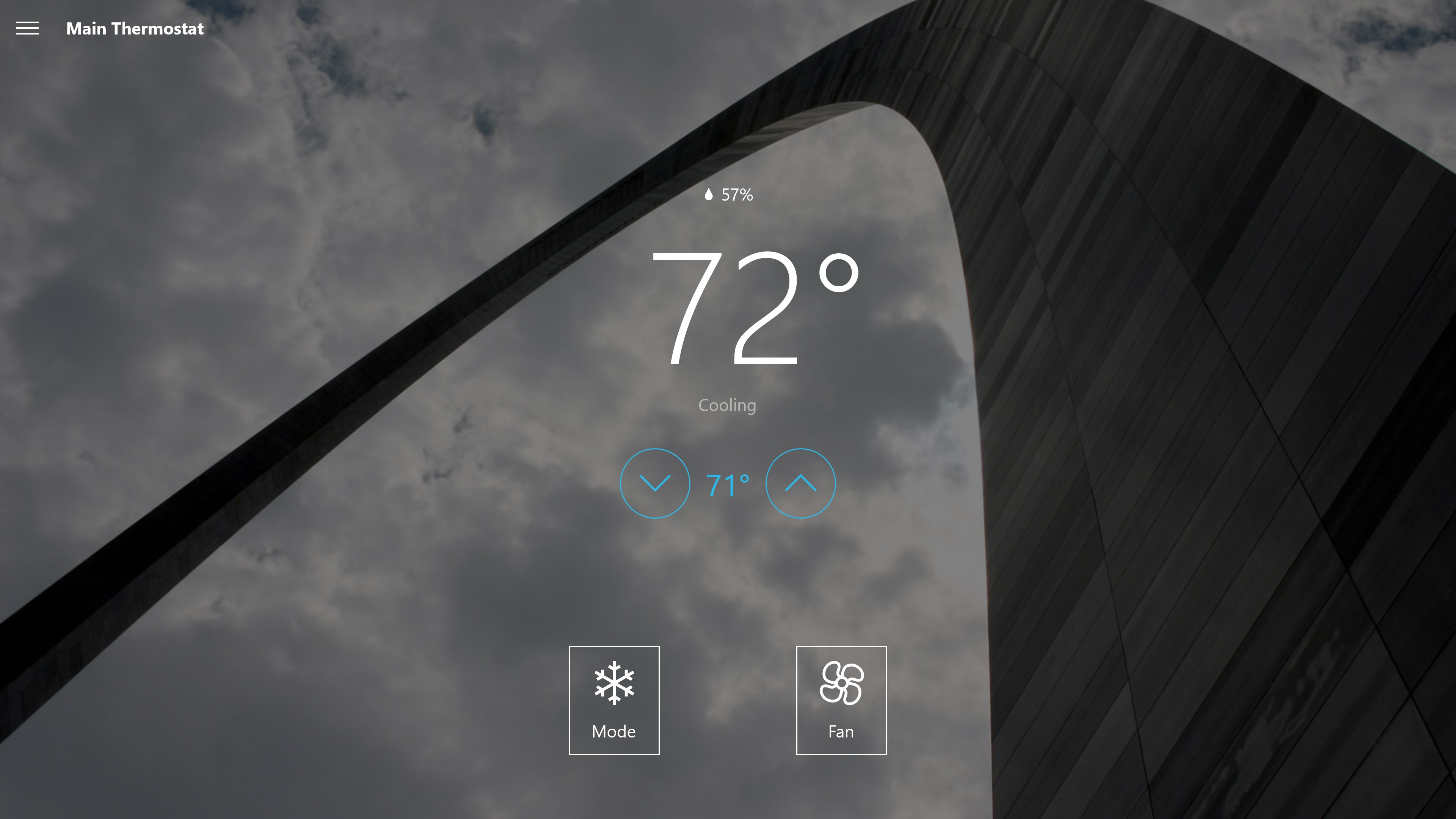
Imagine walking into your house after a long day, and with a simple tap on your Windows device, all your lights adjust, your favorite music kicks in, and the thermostat settles to a cozy temperature. Home Remote for Windows makes that vision a reality—it's like having a personal concierge for your smart home, right at your fingertips. The app's design focuses on providing a seamless, straightforward experience, turning complex automation tasks into an enjoyable user journey.
Core Functionalities Explored
Versatile Device Integration and Management
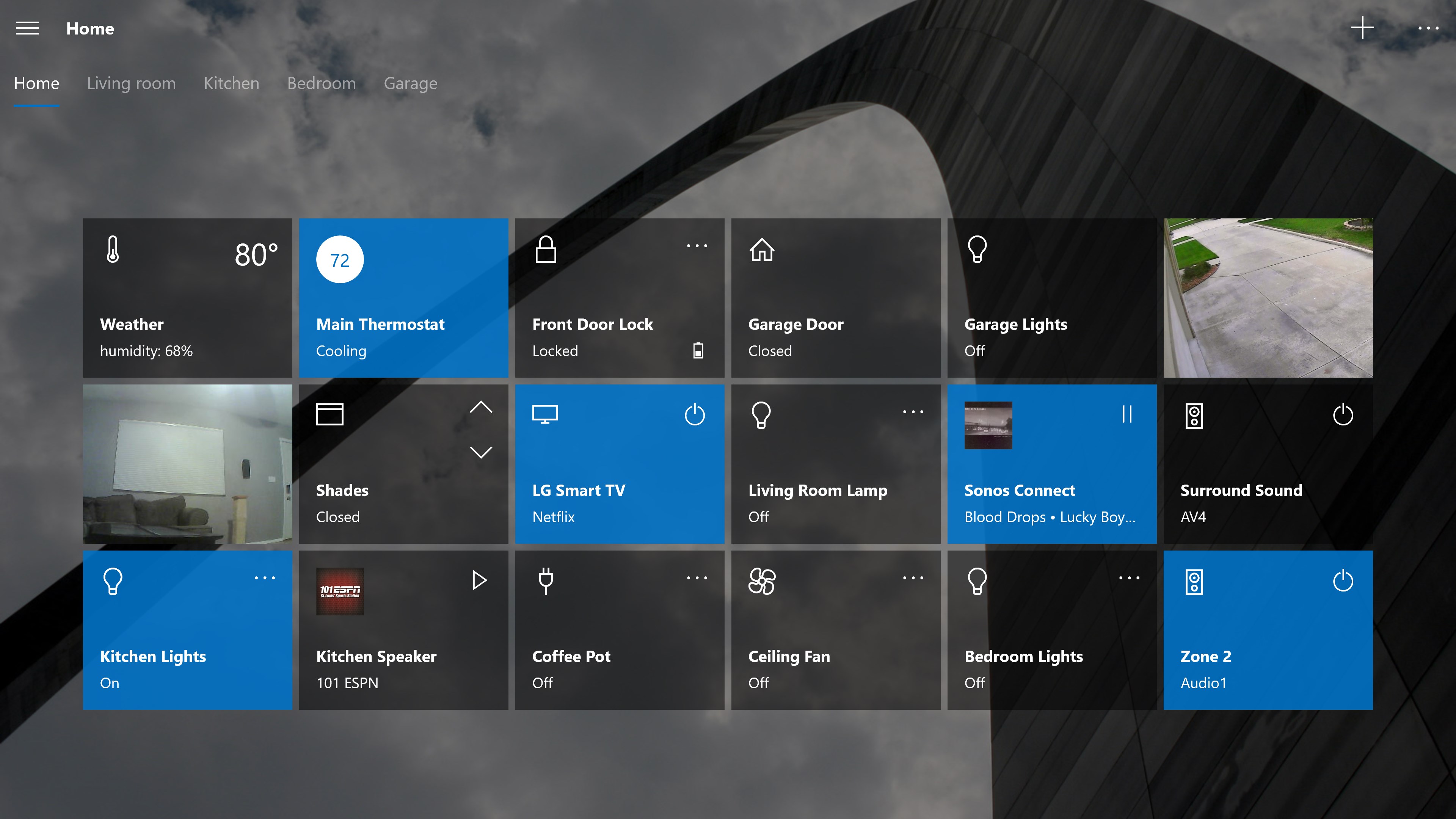
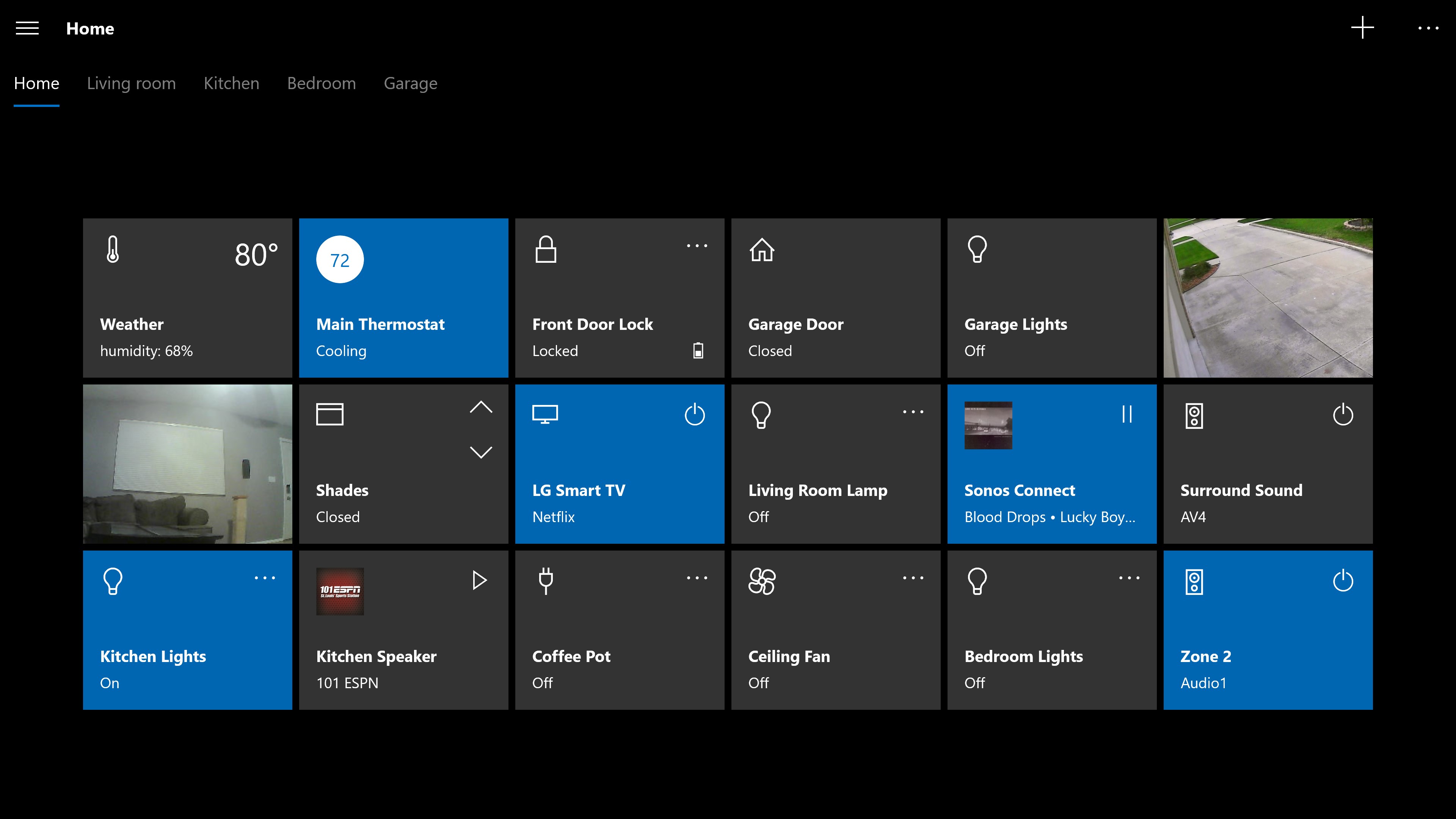
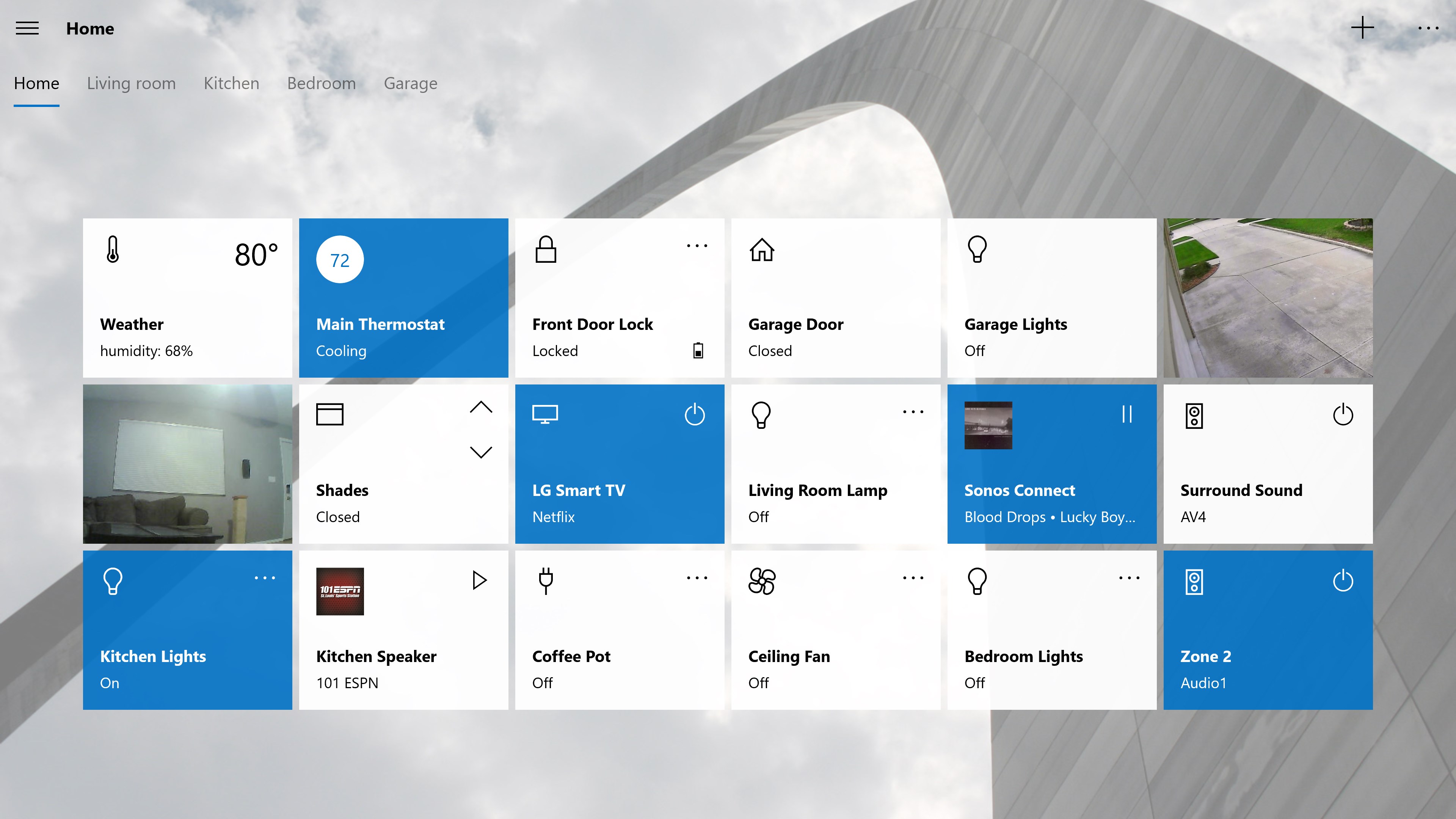
The standout feature of Home Remote is its ability to unify control over a broad spectrum of smart devices, regardless of brands or protocols. Whether you're managing Philips Hue lights, Nest thermostats, or security cameras, the app acts as a universal remote. Its robust integration engine ensures compatibility with many mainstream smart home products, saving you the hassle of juggling multiple apps. Setting up these connections is straightforward, boiling down technical complexity into an accessible process. Once integrated, you can create customized control tiles that reflect your unique household setup—imagine a visual dashboard that looks as tailored as a fashion boutique window, but for your smart devices.
Intuitive Custom Dashboards and Personalization
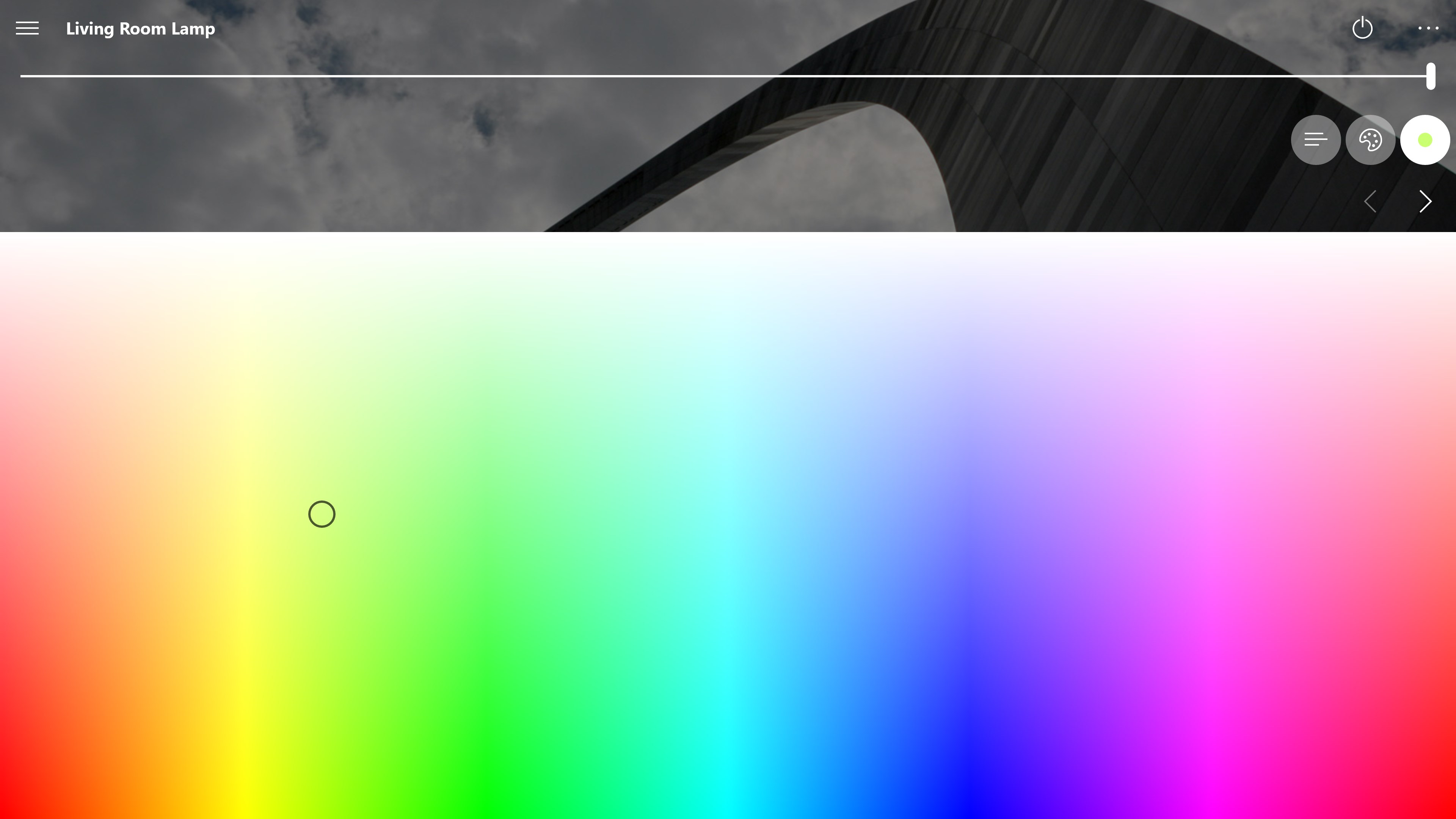
The app's interface emphasizes personalization—think of it as designing your own control panel for your digital home. You can drag-and-drop controls, organize devices into logical groups, and even choose themes to match your decor or mood. This visual customization makes routine tasks feel more natural; instead of navigating through endless menus, a glance at your dashboard provides instant access. The learning curve is gentle enough for beginners, yet rich with options for seasoned users looking to craft sophisticated scenes and routines.
Automation and Remote Control
What truly sets Home Remote apart is its capacity for automation and remote management. Creating routines is akin to programming a symphony—define triggers like time of day or sensor activation, and the app orchestrates your devices accordingly. For example, you can set a morning routine that gradually opens blinds, plays sunrise music, and adjusts the thermostat—all configured with user-friendly scripting tools. Additionally, with remote access, you can oversee your home when away, receiving alerts and making adjustments from any Windows device. This level of control provides comfort and security, transforming your smart home from a passive collection of devices into an active assistant.
User Experience and Differentiating Factors
The app boasts a sleek, modern interface that feels polished yet approachable—like a well-organized workspace where everything has its place. Navigation is smooth, with fluid transitions that make controlling your devices feel as natural as flipping a light switch. The app's learning curve is manageable because it emphasizes visual configuration over complex coding, making it accessible to a broad audience.
Compared to other utility and tool apps, Home Remote's tailored dashboards and extensive device support stand out. While many apps focus on specific ecosystems or require cumbersome setup procedures, this platform offers a more personalized and unified experience. Its strength lies in flexibility—a critical advantage for households with diverse smart gadgets, ensuring you're not forced into a one-size-fits-all solution.
Final Thoughts and Recommendations
If you're searching for an intelligent way to streamline your smart home control, Home Remote for Windows offers a compelling package. Its emphasis on customization and broad device compatibility makes it especially suitable for tech enthusiasts who value tailored setups. While it might involve a bit of initial configuration, the payoff is a highly personalized, centralized control hub that enhances convenience and security.
For casual users, the app's intuitive interface ensures a smooth onboarding experience, and for power users, its scripting capabilities unlock deeper automation potential. Overall, I would rate this app as a solid “recommend with confidence,” especially if you're looking for a flexible, expandable platform that keeps pace with your smart home evolution.
In sum, if you want to ditch multiple apps cluttering your screen and bring your devices under a single command center, Home Remote for Windows is worth exploring—the smart way to oversee your digital household with ease and style.
Pros
- Seamless device remote control
- User-friendly interface
- Supports multiple platforms
- Customizable settings
- Secure connection
Cons
- Occasional lag or latency issues
- Limited support for some peripheral devices
- Requires a stable internet connection
- Initial setup can be complex for beginners
- Limited free trial duration











