
- Name HEIC Converter - Any Image Convert
- Category Utilities & tools
- Available on PC, Mobile, Surface Hub, HoloLens
- OS Windows 10 version 18362.0 or higher
- languages English (United States)
Effortless HEIC to Image Conversion with a Sleek Touch
For those juggling multiple images and seeking a straightforward way to convert HEIC files to more widely compatible formats, HEIC Converter - Any Image Convert for Windows by Moonlight Tidal Technology positions itself as a handy tool that streamlines the process without sacrificing ease of use or quality.
Meet the Developer and Core Highlights
Developed by Moonlight Tidal Technology, this application harnesses the power of modern Windows environments to deliver quick and versatile image conversions. Its standout features include batch processing capabilities, a user-friendly interface, and high-fidelity conversions that preserve image quality. Designed for photographers, casual users, or anyone dealing with Apple's HEIC images, the software aims to make conversions effortless and efficient.
A Bright Spark in Image Utility Tools
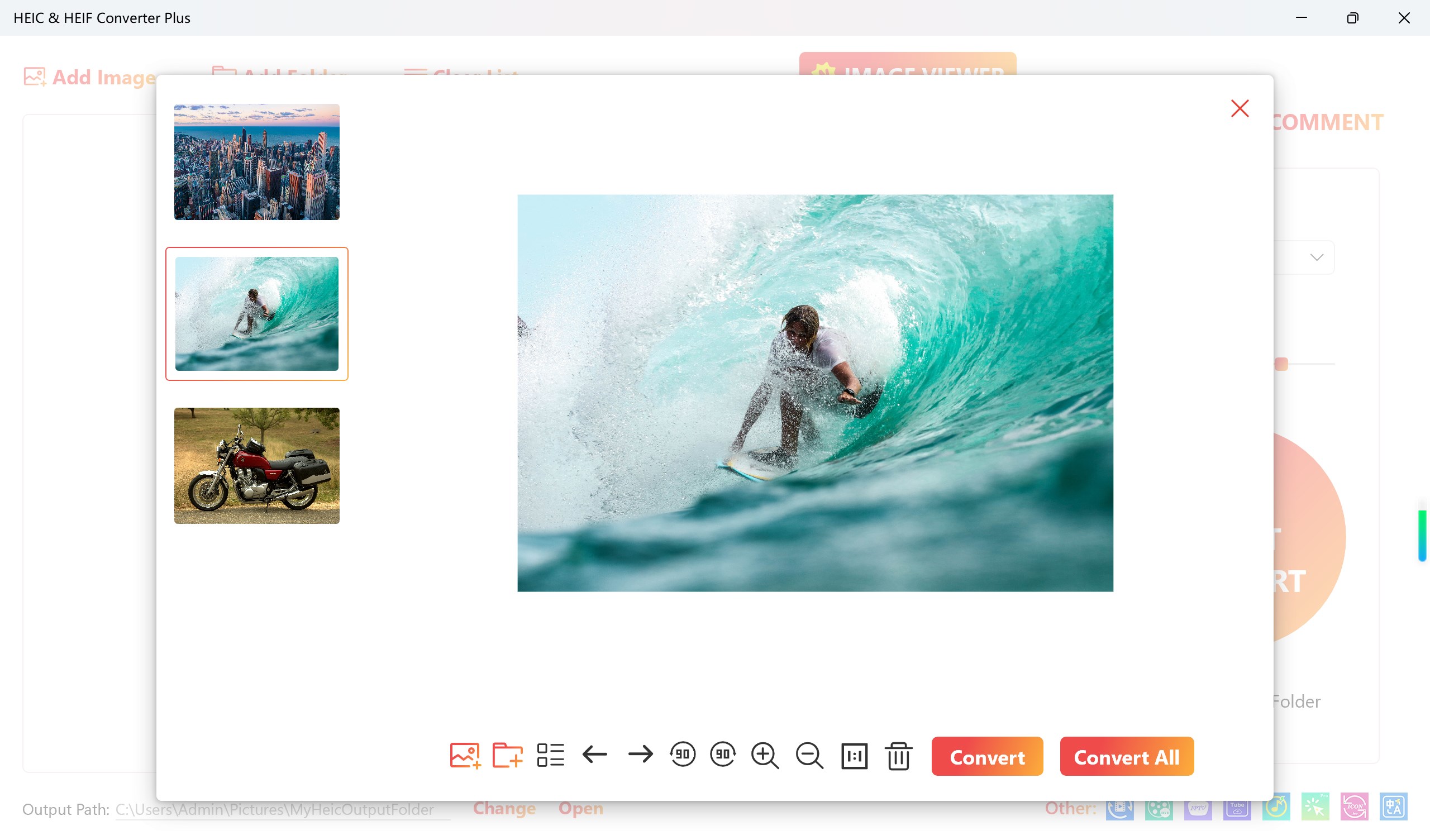
Imagine simplifying a mountain of HEIC photos taken from your iPhone — HEIC Converter is like a reliable assistant, transforming your images into universally accepted formats like JPEG or PNG in just a few clicks. Its streamlined workflow feels more like having a friendly chat with a tech-savvy friend than wrestling with complicated software. The app's clean, minimalistic interface makes navigation intuitive, even for beginners, reducing the usual learning curve associated with multimedia tools.
Core Functionality Deep Dive
Seamless Batch Conversion
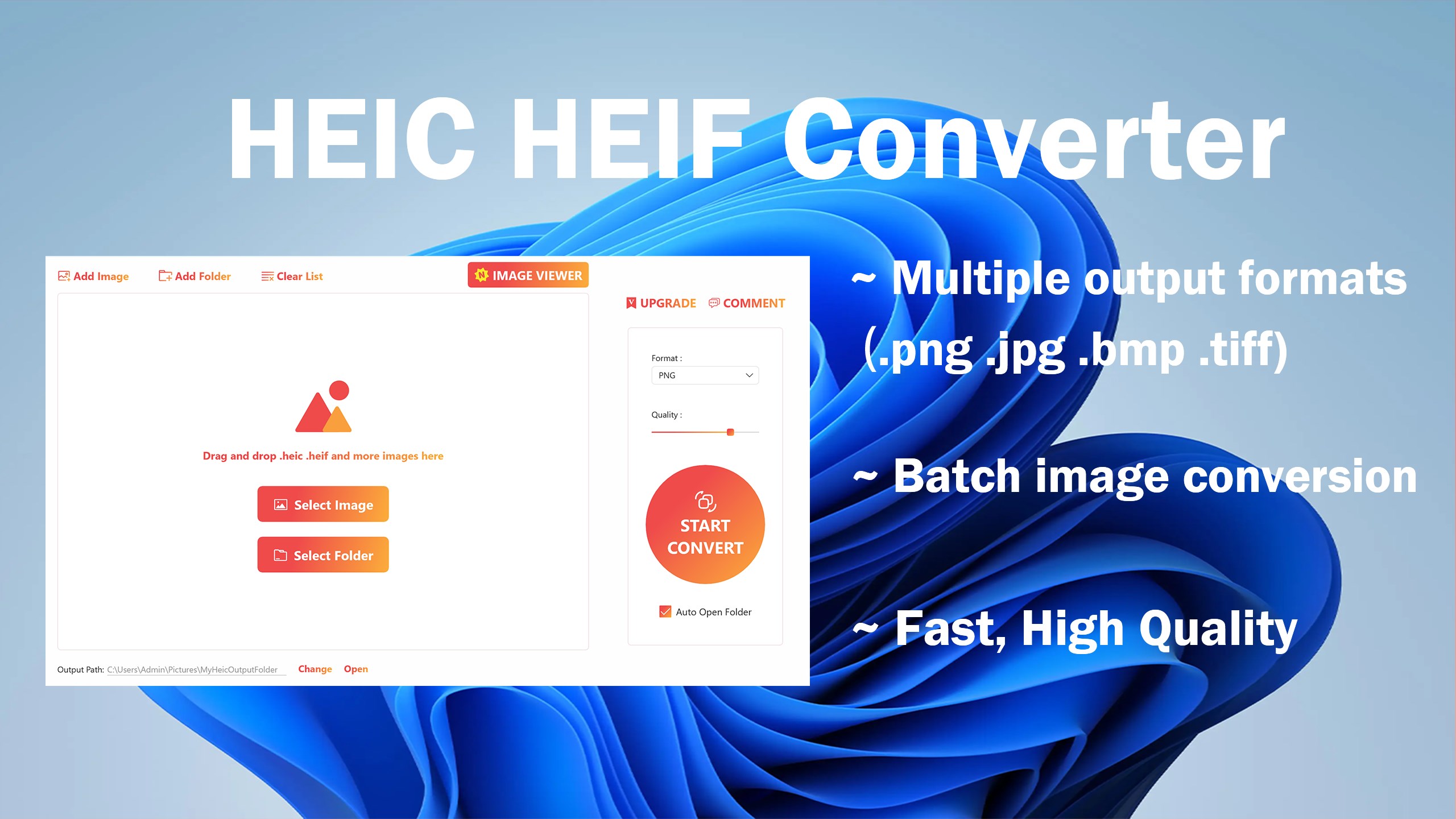
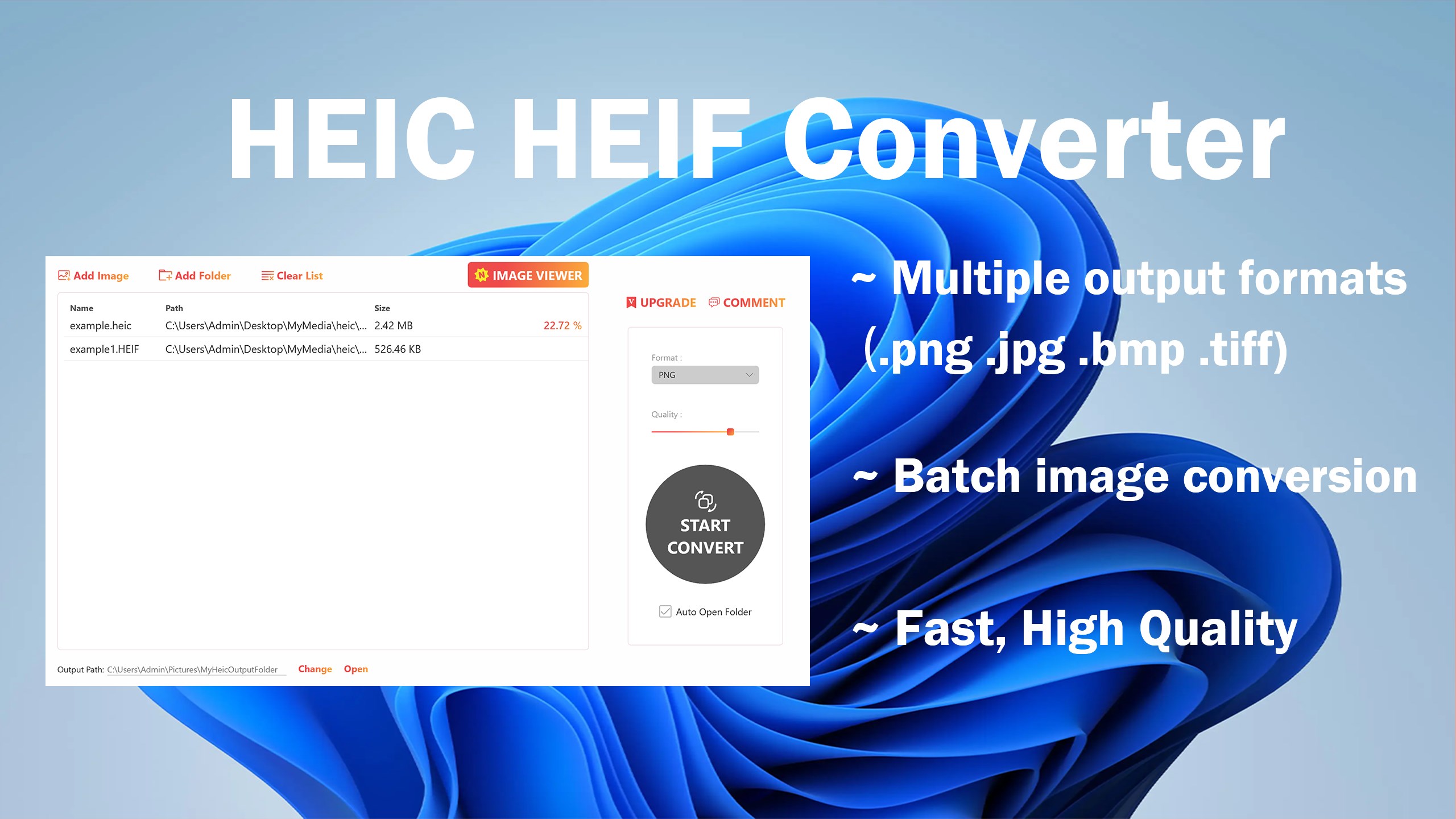
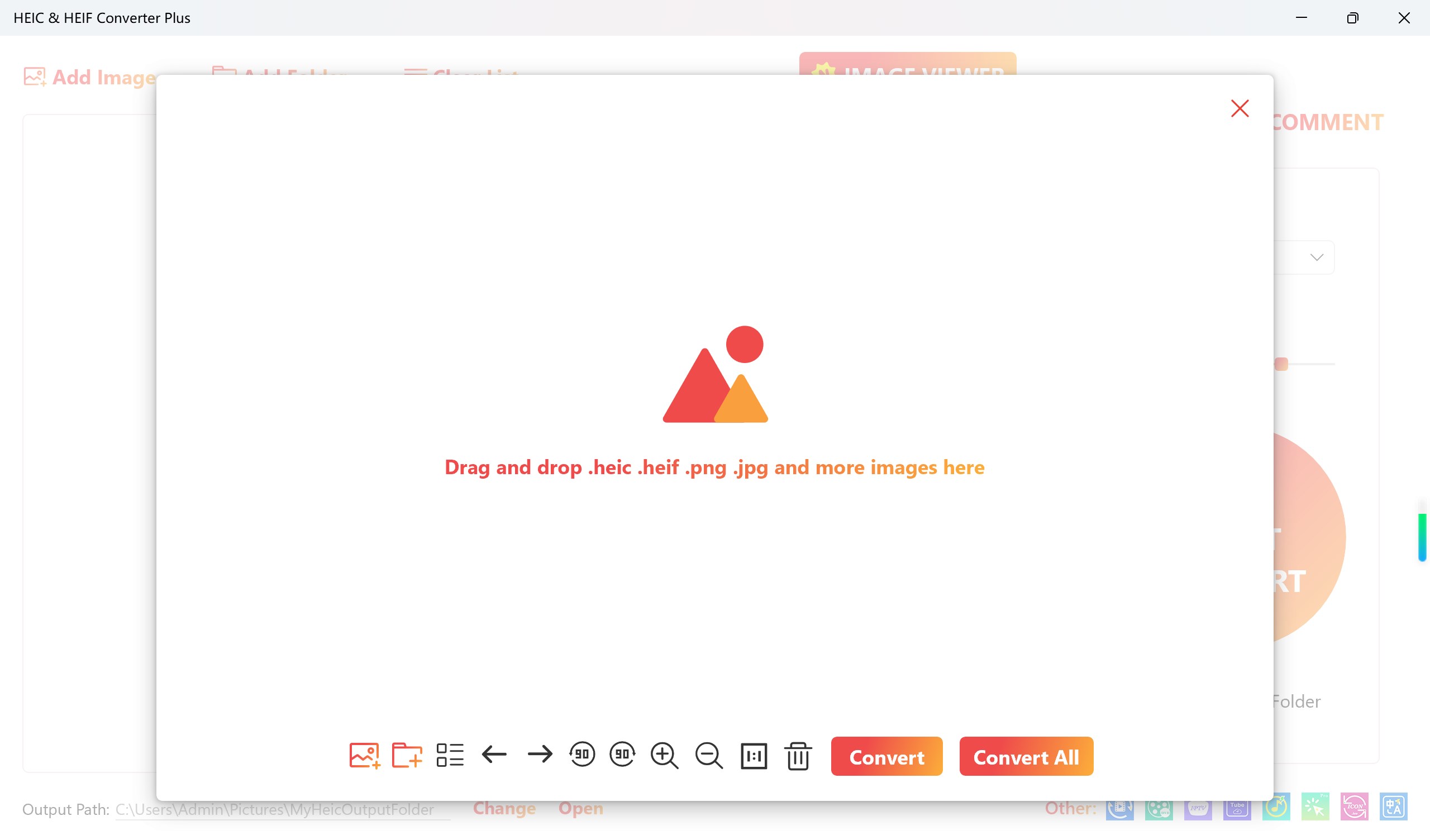
The most compelling feature is its batch processing capability. Whether you have a handful of images or hundreds, HEIC Converter handles bulk conversions smoothly, saving you time and effort. Drag-and-drop your files into the interface, select your desired output format, and watch the magic happen—this tool treats each image with care, ensuring no quality loss. Such efficiency is a breath of fresh air, especially for photographers or content creators dealing with high volumes of images.
High-Quality Output with Customizable Settings
Don't settle for bland conversions—this app offers options to tweak your output settings to maintain or enhance image quality. From adjusting resolution to choosing color spaces, users have control over their final images. Think of it as a digital darkroom that offers precision without complexity; your images emerge just as you envisioned, whether for print, web, or archival purposes.
Beyond Basic Conversion: Unique Advantages
While many utilities simply convert images, HEIC Converter's edge lies in its combination of user-friendliness and granular control. Its efficient batching, coupled with supporting multiple image formats beyond HEIC (such as JPEG, PNG, BMP), makes it highly versatile. Moreover, the software's stable performance and quick processing times set it apart from more cumbersome or bloated tools. It's akin to having a savvy DIY mechanic — reliable, fast, and capable of handling different job sizes without fuss.
Experience and Recommendations
From a user experience standpoint, HEIC Converter impresses with its clean interface and straightforward operations. It requires minimal learning, making it ideal for casual users or professionals looking for a quick solution. The app's stability during large batch processes and its preservation of image quality highlight its thoughtful design.
Without doubt, I recommend HEIC Converter for those regularly dealing with HEIC images, especially if batch processing and output flexibility are priorities. It's not a tool for advanced editing but serves as an efficient utility to get your images in the right format swiftly. For individuals seeking a practical, no-nonsense converter that doesn't bog you down with unnecessary features, this app is a reliable companion.
In conclusion, HEIC Converter strikes a commendable balance between simplicity and functionality, making it a standout choice among image utilities. Its core strengths in batch processing and quality preservation make it worthy of a place in your toolset—especially if you're tired of struggling with incompatible image formats or complex software. Consider giving it a spin; your image workflow might just become a little smoother and a lot more efficient.
Pros
- Fast Conversion Speed
- User-Friendly Interface
- Supports Batch Processing
- High-Quality Output
- Multiple Format Support
Cons
- Limited Customization Options
- Requires Internet Access for Some Features
- No Built-in Editing Tools
- Occasional Compatibility Issues with New HEIC Files
- Lack of Free Version











