- Name HeatMapster
- Category Business
- Developer DefinedBytes
- Available on PC, Mobile, Surface Hub, HoloLens
- OS Windows 10 version 17763.0 or higher
- languages English (United States)
Discovering Visual Insights with HeatMapster for Windows
Imagine transforming raw data into a vibrant, intuitive heatmap that reveals patterns and hotspots at a glance. HeatMapster for Windows, developed by DefinedBytes, offers a streamlined way to visualize data through customizable heatmaps, making it a handy tool for analysts, educators, and project managers alike. This application stands out as an accessible yet powerful solution to bring data stories to life on your Windows device.
Core Features That Shine
Intuitive Heatmap Creation and Customization
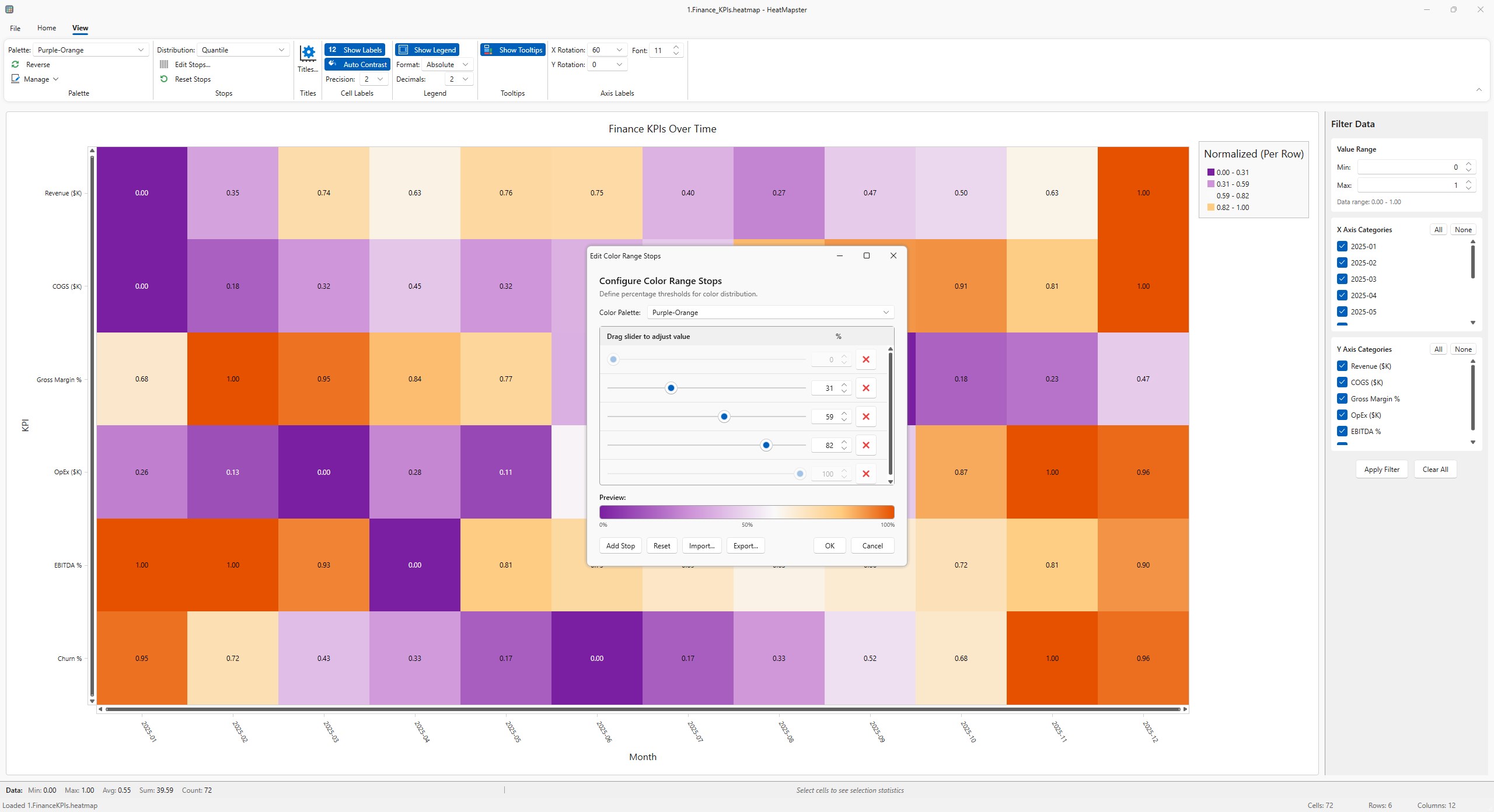
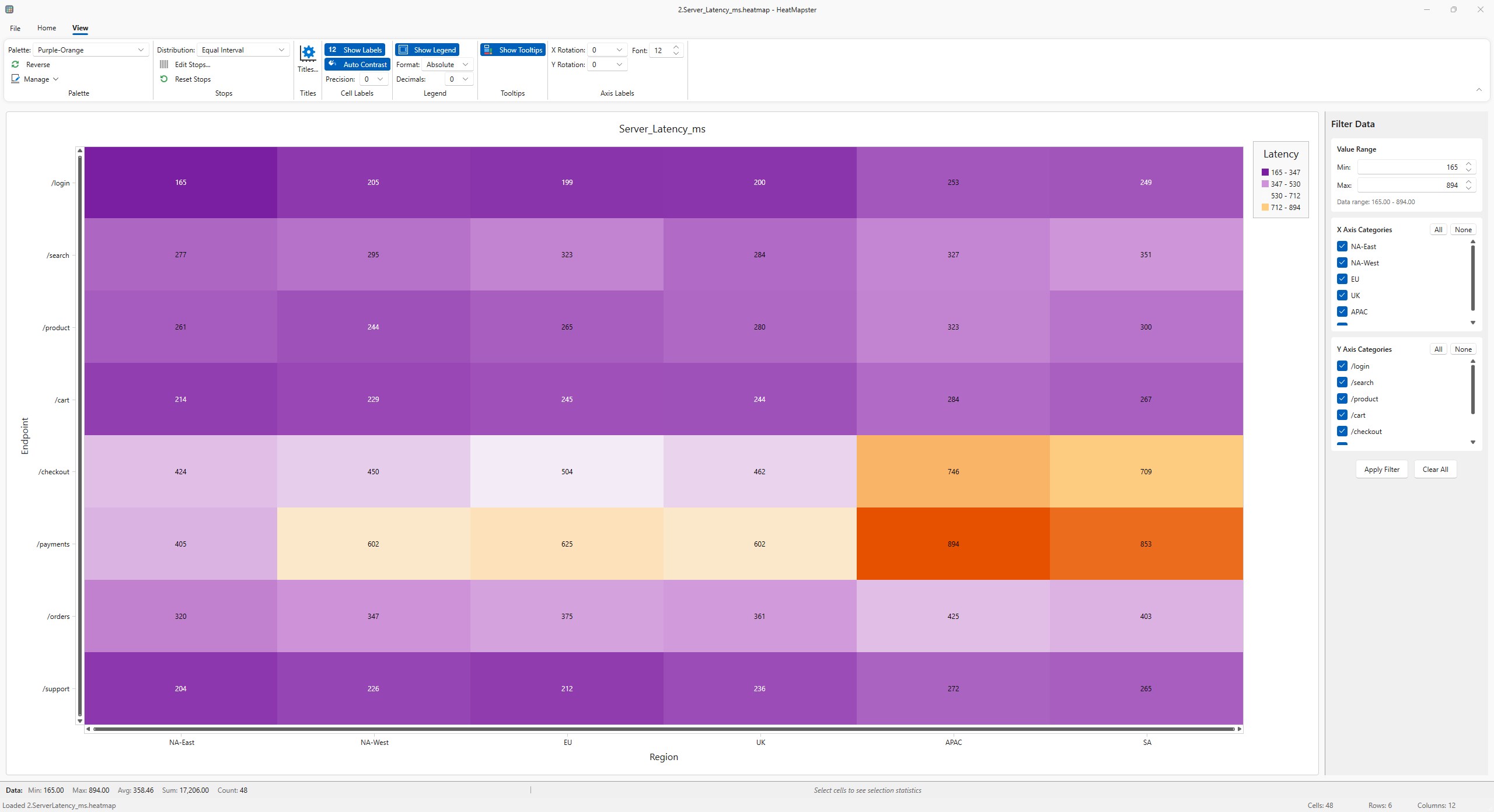
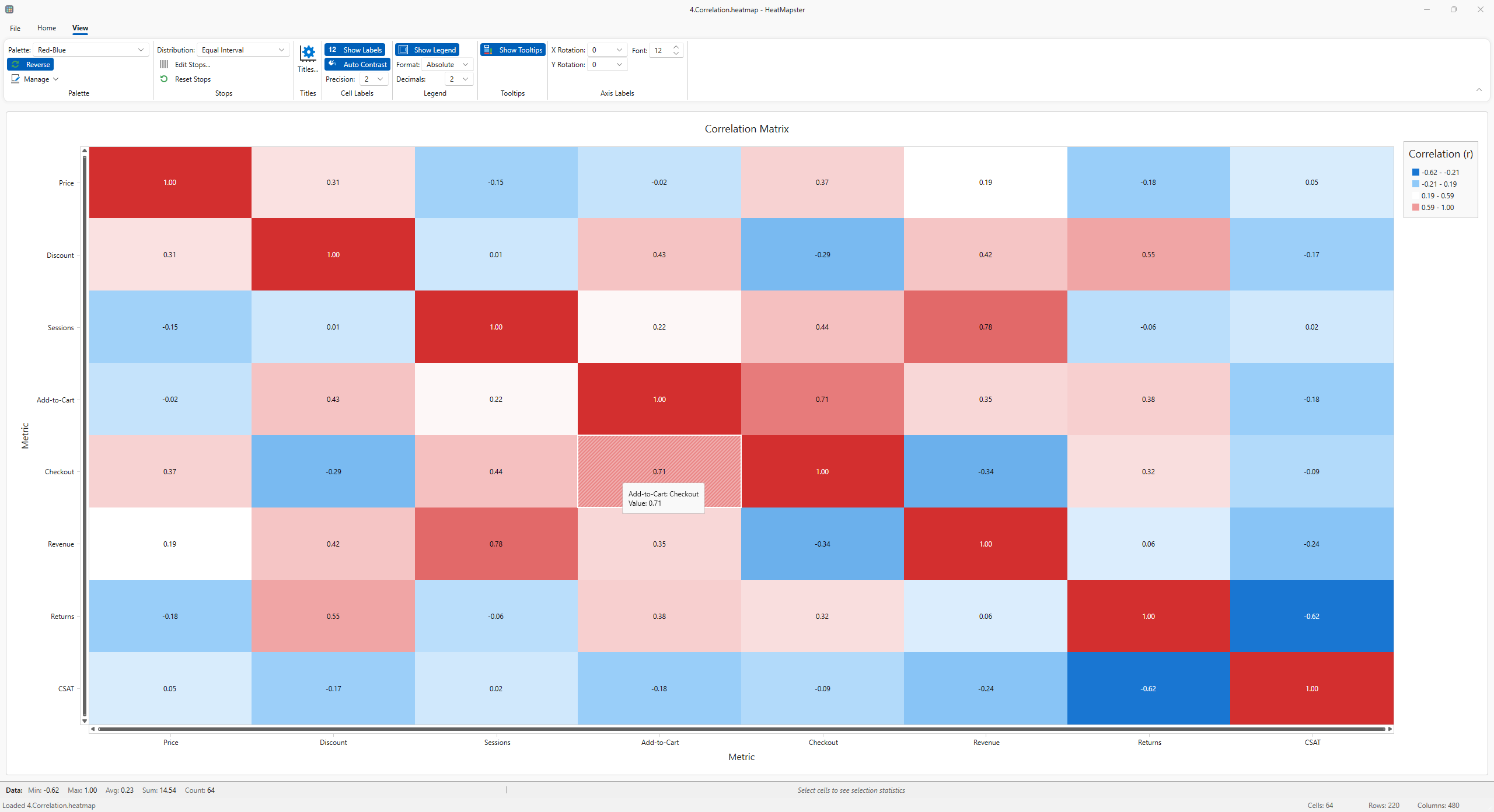
At its heart, HeatMapster enables users to generate detailed heatmaps from various data sources effortlessly. Whether you're analyzing website user interactions, geographic data, or resource distribution, the app provides flexible settings to customize color schemes, opacity, and data thresholds. This ensures that your visualizations are not just informative but also visually appealing and tailored to your specific needs.
Seamless Data Handling and Export Options
The application supports multiple data formats, allowing for easy import and export, facilitating collaboration and report sharing. Users can export heatmaps as images or overlay them on existing maps or images, making presentation straightforward. Such versatility ensures that HeatMapster integrates smoothly into your workflow without requiring complex data wrangling.
Focus on Collaborative Visual Analytics
While many tools focus solely on visualization, HeatMapster offers features geared toward collaborative work, such as annotations and sharing capabilities. This makes it ideal for team projects where visual insights need to be communicated effectively, enhancing decision-making processes and fostering transparency among stakeholders.
User Experience: Friendly, Fluid, and Functional
From the moment you launch HeatMapster, it's like stepping into a well-organized workshop—clean layout, intuitive controls, and straightforward navigation mean you spend more time analyzing data and less time deciphering the interface. The app runs smoothly on most Windows machines, with responsive performance even when handling sizable datasets. Its learning curve is gentle; the familiar Windows-style interface reduces the initial barrier for new users, allowing quick mastery of core features without unnecessary complexity.
What Sets HeatMapster Apart from Its Peers?
Compared to other data visualization tools, HeatMapster's standout feature is its user-centric approach to collaborative and customizable heatmapping. Its capacity for overlaying heatmaps onto images or geographic maps is akin to placing a semi-transparent, colorful cloak over your data landscape—making patterns instantly apparent. Additionally, its focus on collaborative annotations enhances teamwork, turning static visualizations into dynamic discussions. This is a significant edge over more rigid business intelligence apps that lack interactive sharing options or tailored visualization controls.
My Recommendations and Usage Tips
If you're looking for an accessible tool to add visual flair to your data, HeatMapster is a solid choice—especially if collaboration and customization are priorities. It's suitable for small to medium-sized projects, data exploration, and presentations. For best results, consider preparing your datasets for import beforehand and experiment with different color schemes to truly capture the story your data wants to tell. While it may not replace more comprehensive analytics suites for advanced statistical analysis, it's an excellent companion for making data more approachable and engaging.
Pros
- Intuitive heatmap visualization
- Customizable heatmap options
- Real-time data updates
- Easy integration with various data sources
- User-friendly interface
Cons
- Limited export options
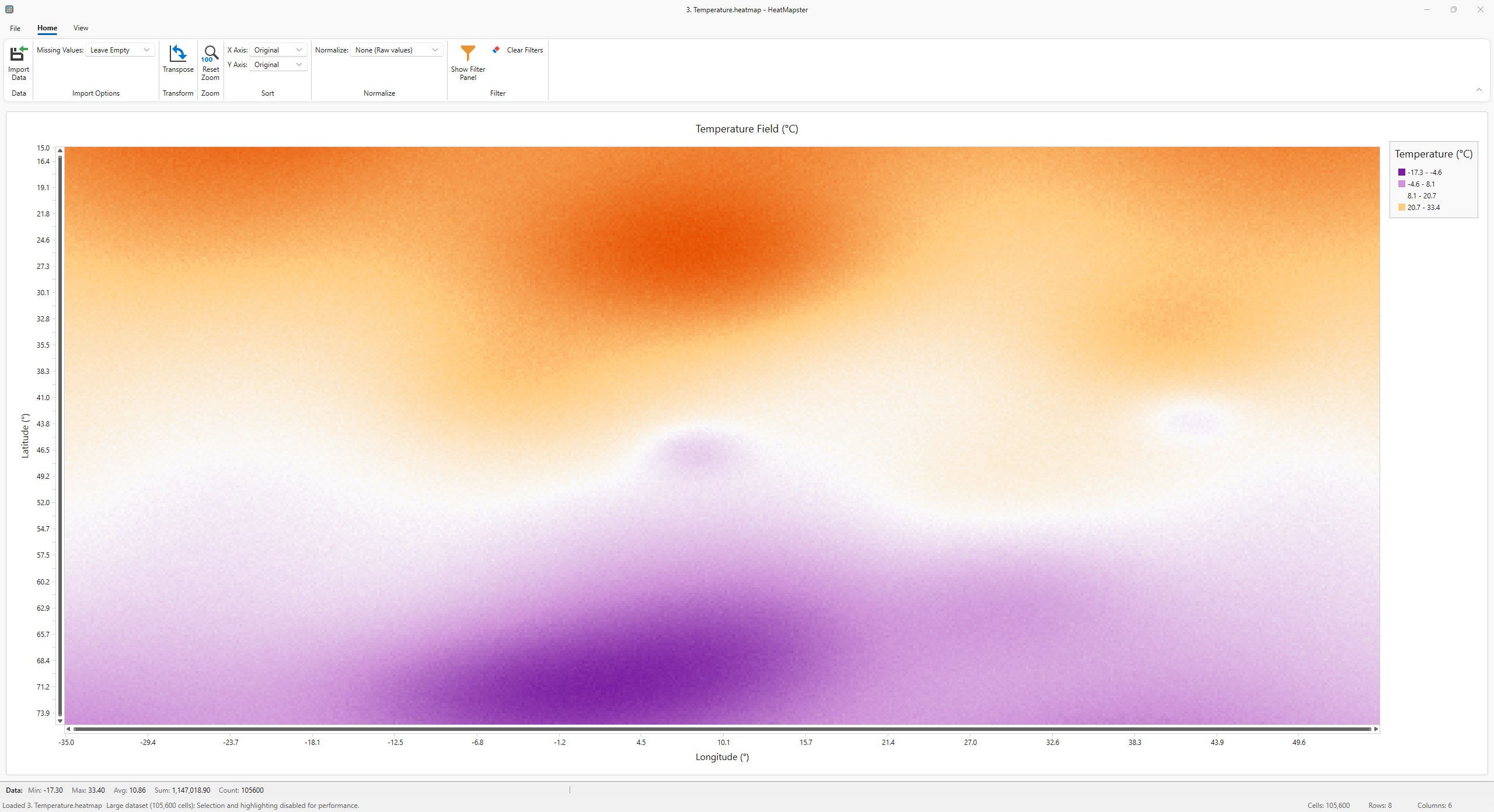
- Performance issues with large datasets
- Basic analytics features only
- No mobile app version
- Occasional UI responsiveness lag