- Name Hearing Control App
- Category Business
- Available on PC, Mobile, Surface Hub, HoloLens
- OS Windows 10 version 17763.0 or higher
- Keyboard Integrated Keyboard
- Mouse Integrated Mouse
- languages English (United States)
Hearing Control App for Windows: A Clear Sound Companion
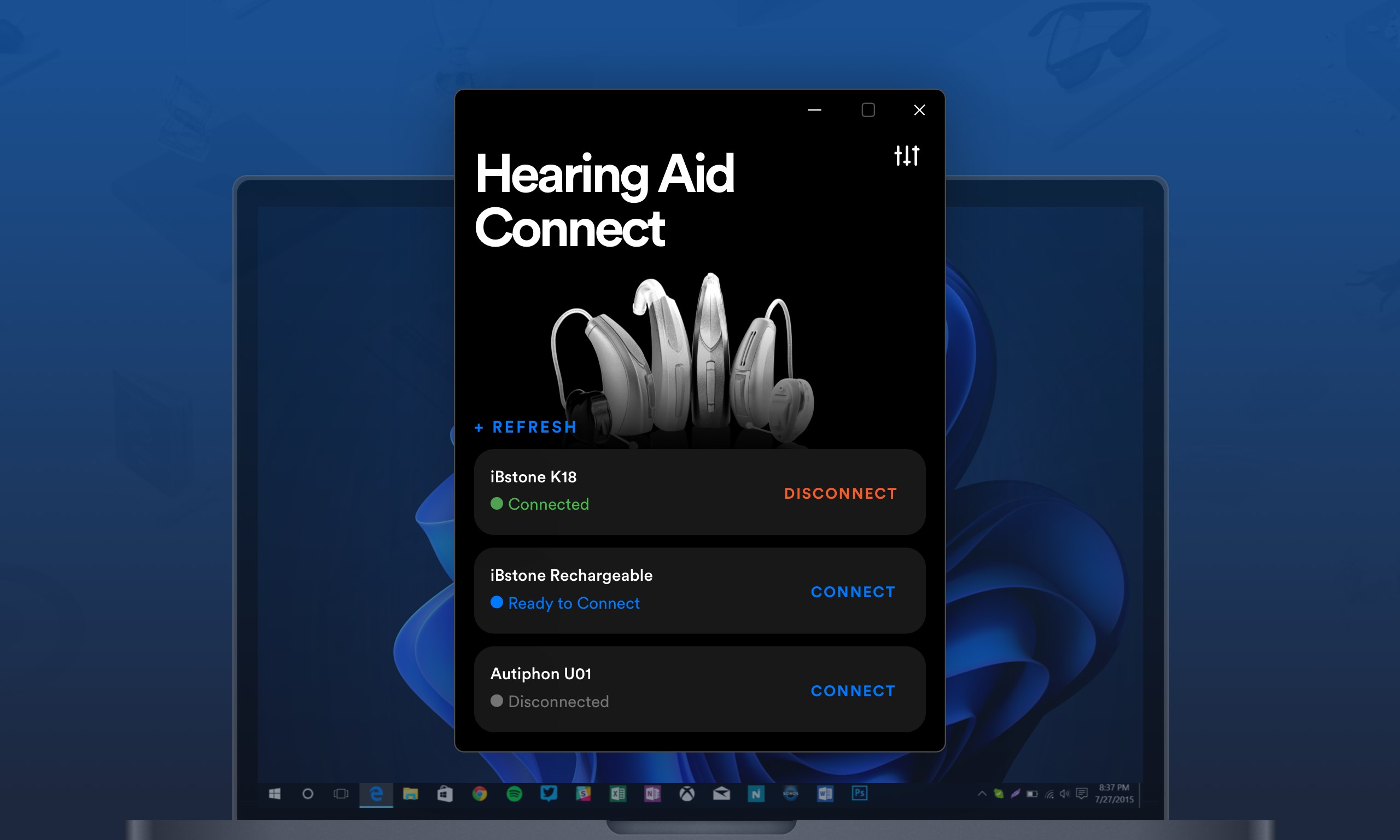
Hearing Control App for Windows, developed by Audio Solutions, aims to enhance your auditory experience by offering customizable hearing assistance directly through your PC. With a focus on ease of use and tailored sound management, this app stands out as a practical tool for those seeking better control over their hearing environment.
Key Features That Make a Difference
At its core, Hearing Control App brings together sophisticated audio processing within an intuitive interface. Its main highlights include real-time sound adjustment, personalized hearing profiles, and seamless integration with Windows. These features are designed to improve clarity, reduce background noise, and adapt to diverse listening scenarios, making it a versatile helper for daily or specialized use.
Engaging Sound Management with Precision Control
The app's standout feature is its real-time sound adjustment capability. Imagine being at a bustling café, where background chatter threatens to drown out your favorite podcast. Hearing Control allows you to fine-tune your audio environment instantly—boosting speech clarity while suppressing extraneous noise. This dynamic control makes everyday situations more manageable and less stressful, especially for users with partial hearing difficulties.
Personalized Profiles for Different Listening Needs
Another intelligent component is its ability to create or customize hearing profiles. Whether you're watching movies, attending virtual meetings, or resting at home, you can switch between presets tailored to each activity. This level of personalization ensures that your sound experience is always optimized without constant manual adjustments—like having a personal audiologist in your pocket.
Intuitive Interface and User Experience
The app boasts a clean, straightforward interface that resembles a well-organized control panel—no clutter, just streamlined options. Navigating through settings is smooth, powered by responsive controls that respond immediately to inputs. The learning curve is gentle; users can start tweaking their sound profiles within minutes, making this a user-friendly choice even for those less tech-savvy.
Unique Differentiation in a Crowded Market
Compared to typical hearing enhancement apps or general audio managers, Hearing Control App distinguishes itself with its focus on collaborative work features. For example, it integrates with Windows' existing audio system to allow shared profile management—perfect for teams working remotely where multiple users need tailored sound profiles. Its task management element facilitates setting up different listening environments for various applications, ensuring the app adapts not just to your ears but also to your workflow. Unlike other apps that only offer static equalizer settings, Hearing Control provides dynamic, context-aware adjustments that proactively improve your auditory environment.
Final Recommendation: A Practical Tool Worth Trying
If you're someone who values crisp, clear sound—whether for work, entertainment, or personal comfort—Hearing Control App for Windows is worth exploring. Its strength lies in its real-time customization features and personalized profiles, which work subtly yet effectively behind the scenes. While it isn't a complete hearing aid replacement, it provides meaningful enhancements that make everyday audio experiences noticeably better. For anyone looking for an accessible, adaptable, and user-friendly sound control solution, this app earns a solid recommendation. Give it a try if you seek a smarter way to manage your auditory environment—your ears—and your ears' comfort—will thank you.
Pros
- Intuitive User Interface
- Accurate Hearing Adjustment
- Seamless Connectivity
- Real-time Sound Monitoring
- Comprehensive Support Features
Cons
- Limited Device Compatibility
- Occasional Bluetooth Disconnects
- Basic Customization Options
- Language Support Constraints
- App Refresh Rate