- Name Hearing Aid Remote Plus
- Category Business
- Available on PC, Mobile, Surface Hub, HoloLens
- OS Windows 10 version 17763.0 or higher
- Keyboard Integrated Keyboard
- Mouse Integrated Mouse
- languages English (United States)
Hearing Aid Remote Plus for Windows: A Seamless Hearing Assistance Companion
Hearing Aid Remote Plus for Windows, developed by Audio Solutions, offers a user-friendly platform designed to enhance hearing aid management and optimize audio experiences seamlessly through your computer. Whether you're adjusting settings or troubleshooting, this app aims to be a reliable bridge between users and their hearing devices.
Essential Information in a Nutshell
Positioned as a dedicated tool for hearing aid users, Hearing Aid Remote Plus simplifies the way users interact with their hearing devices. The app is crafted by Audio Solutions, a team passionate about improving auditory experiences through innovative software. Its standout features include customizable sound profiles, quick device adjustments, and a streamlined user interface for effortless control. Targeted primarily at individuals relying on hearing aids who desire a convenient desktop management solution, its design caters to both tech-savvy users and those less familiar with digital interfaces.
An Engaging Dive into the App's Core Features
Streamlined Device Management with Intuitive Controls
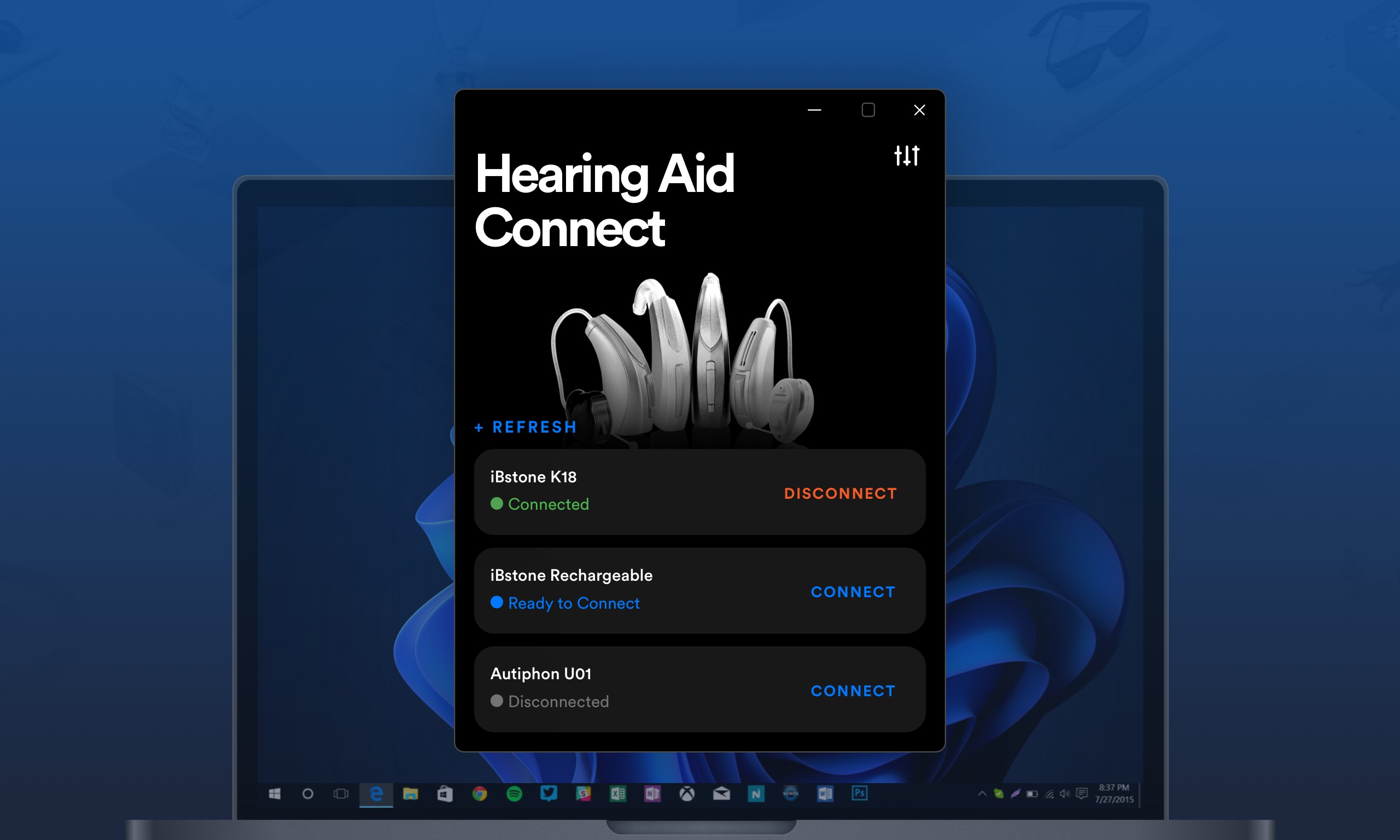
Imagine having a remote at your fingertips—Hearing Aid Remote Plus turns your Windows PC into that remote. The app allows users to connect their compatible hearing aids and fine-tune settings like volume, noise reduction, and program switching with just a few clicks. Its interface is akin to a sleek dashboard, where each adjustment feels natural and immediate. The process is smooth, with minimal lag, making it feel more like a conversation than a task. Even newcomers will find the learning curve gentle, thanks to clearly labeled options and helpful prompts.
Customizable Sound Profiles for Every Environment
One of the app's most compelling features is the ability to create and switch between tailored sound profiles. Think of it as having multiple "listening modes" in your pocket—whether you're in a bustling cafe, a quiet library, or on a windy street, you can quickly adapt your hearing aid's settings to match the environment. This flexibility is particularly valuable for users who want personalized auditory experiences without fiddling with their hearing aids physically. The app's profile management feels almost like an artist tuning a musical instrument, ensuring each setting hits just the right note.
Enhanced User Experience Amid Simplicity
The interface design of Hearing Aid Remote Plus is both modern and approachable, with clean lines and a logical layout that guides users effortlessly. Navigating between functions is intuitive, and the app performs smoothly without noticeable delays. Its learning curve is gentle; even those unfamiliar with digital controls can quickly get up to speed. This user-centric approach ensures that the technology enhances rather than complicates the user's daily routine.
Unique Features That Set It Apart
Compared to other hearing aid management apps, Hearing Aid Remote Plus stands out with its robust environment-adaptation capabilities and task-focused design. Its standout feature—creating custom sound profiles—is akin to having a personal sound engineer, tailoring auditory experiences for different scenarios. Additionally, the app's emphasis on seamless device management, combined with its straightforward interface, makes routine adjustments feel effortless. Unlike more complex professional tools, this app prioritizes ease of use for everyday users, which is a significant advantage.
Final Thoughts: Is It Worth Trying?
If you're a hearing aid user looking for a straightforward, reliable way to manage your device settings from your Windows PC, Hearing Aid Remote Plus comes highly recommended. Its combination of intuitive controls, environment-specific profiles, and smooth operation makes it a practical addition to daily life. While it may not replace specialized audiology software, it excels as a user-centric tool designed for convenience. I'd suggest giving it a try if you want more control over your hearing experience without complex technical hurdles.
Pros
- Easy connectivity with Hearing Aid devices
- Intuitive remote controls for volume and program switching
- Customizable sound profiles
- Real-time feedback and troubleshooting tips
- Battery usage optimization
Cons
- Limited device compatibility
- Occasional connectivity disruptions
- Learning curve for new users
- Limited customization options for advanced users
- Occasional app stability issues on certain devices