

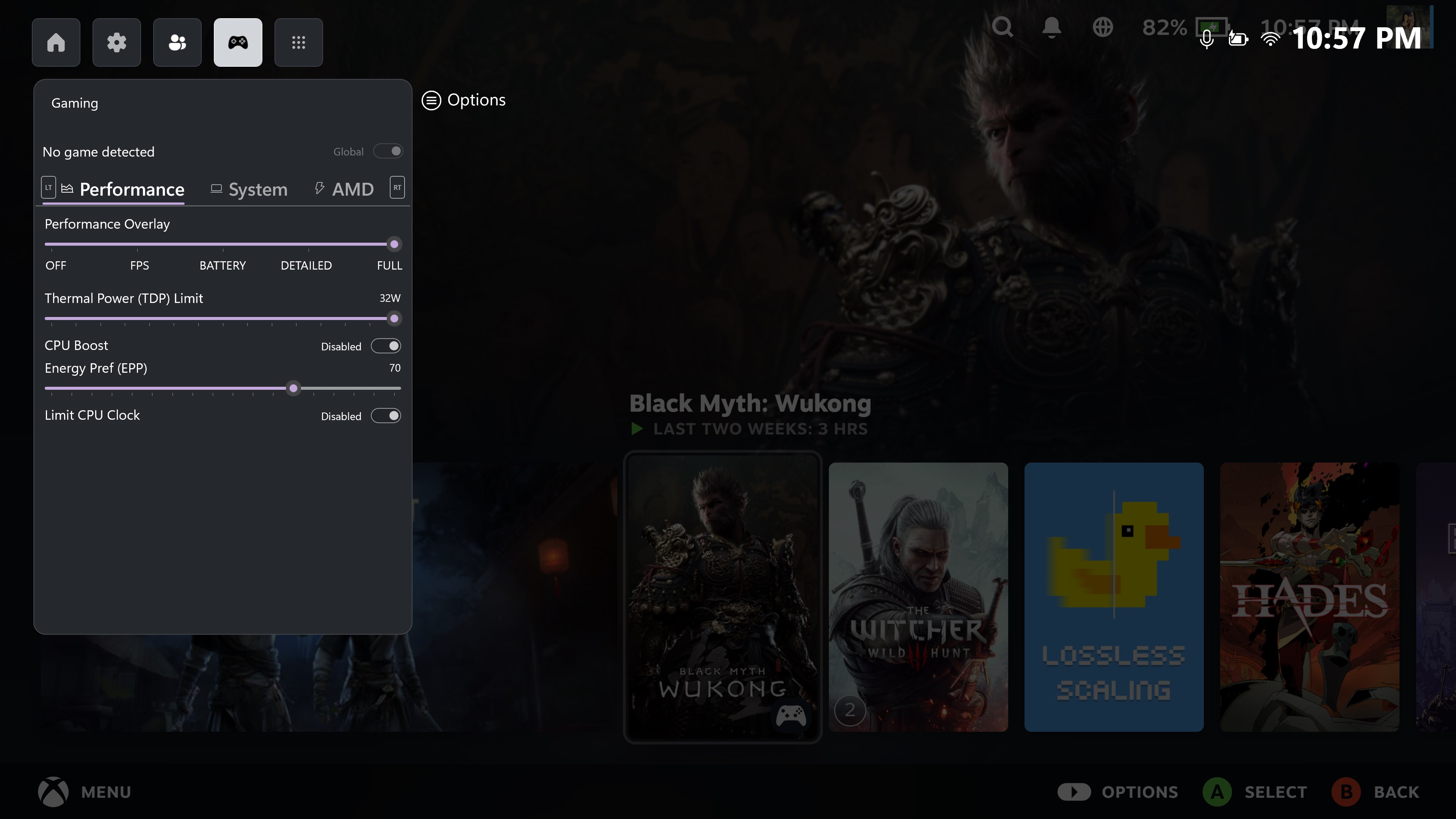
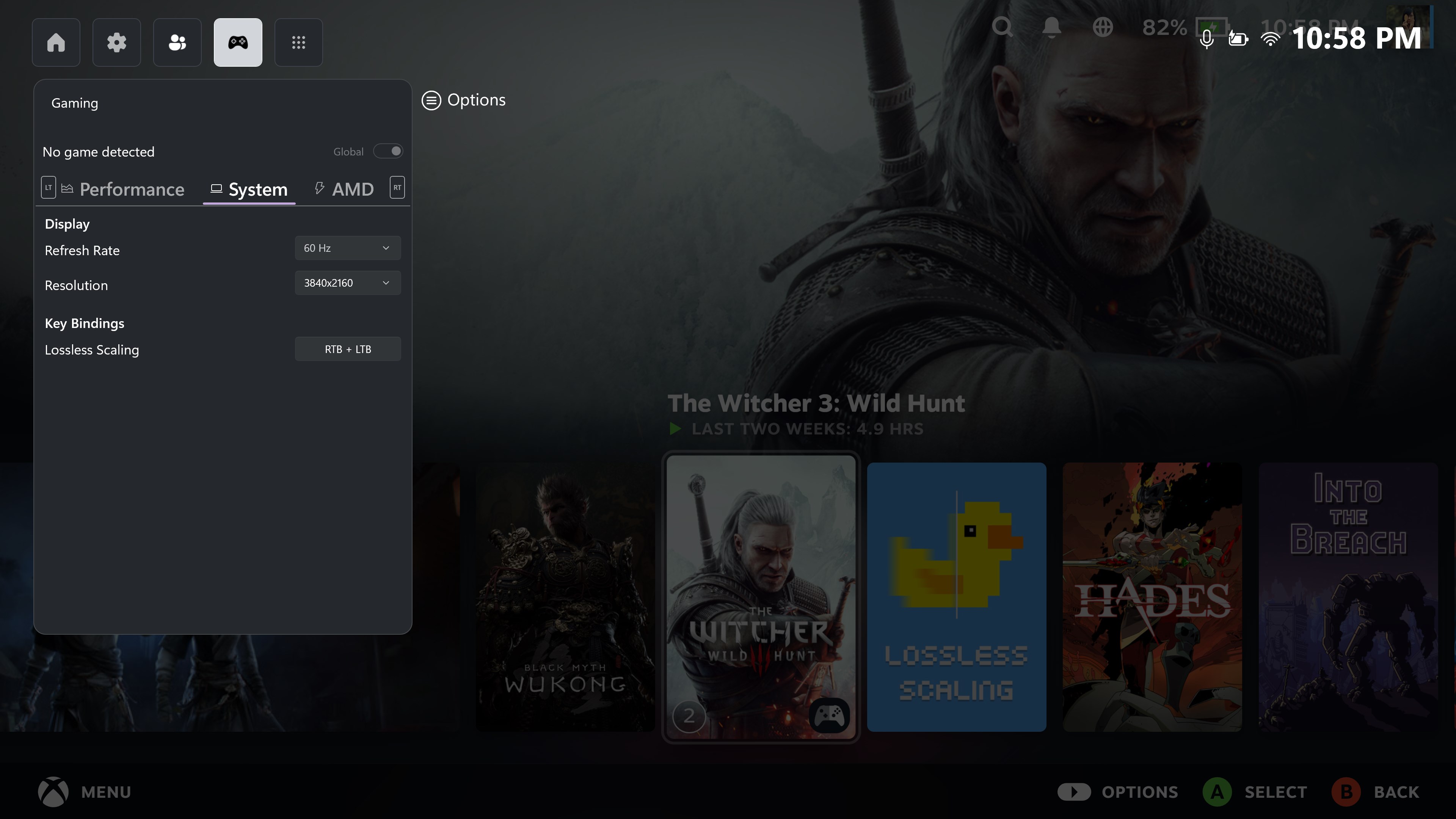
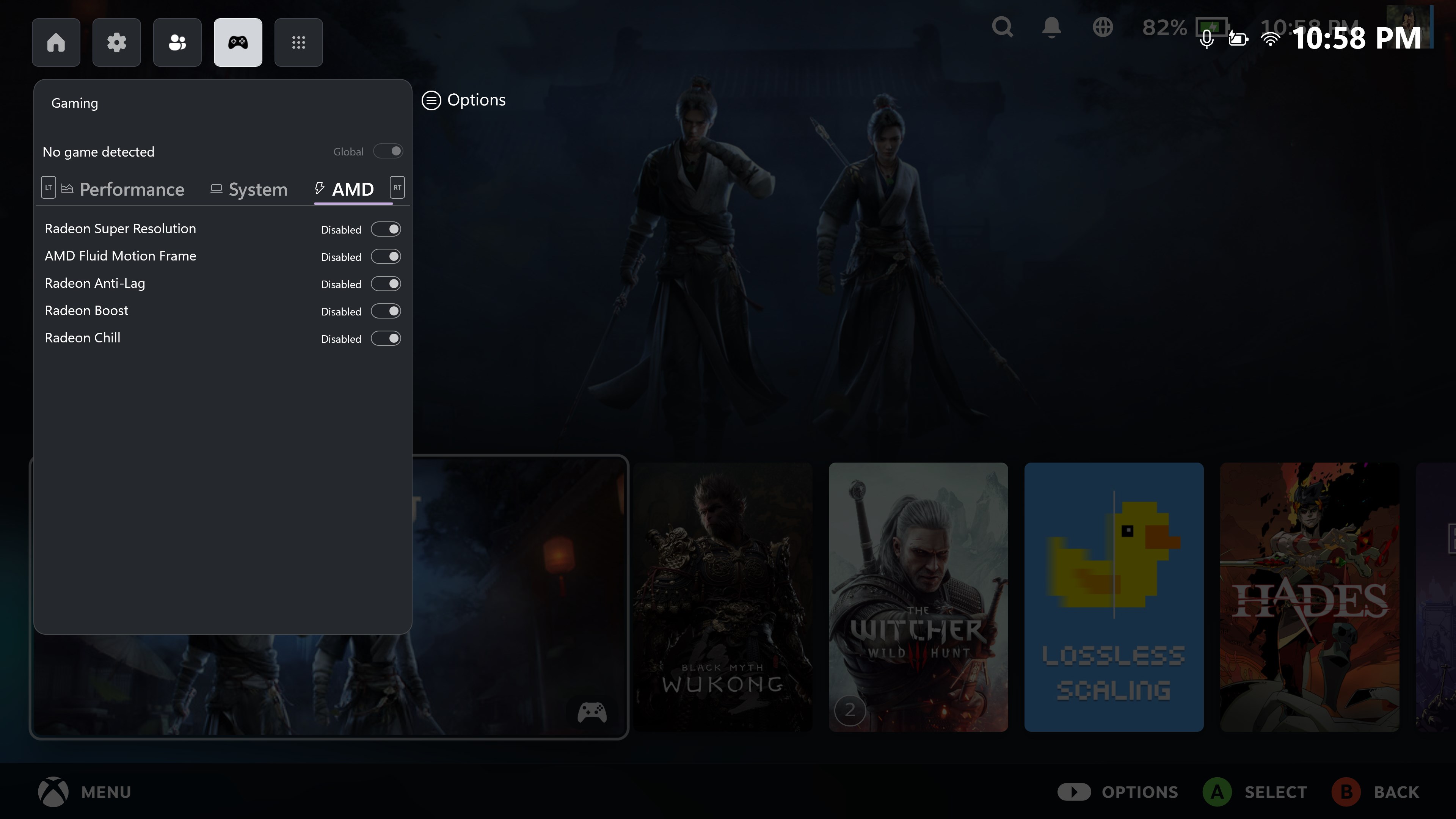
- Name Gaming Bar
- Category Utilities & tools
- Developer Play and Build
- Available on PC, HoloLens
- OS Windows 11 version 26100.0 or higher
- languages English (United States)
Game On: An In-Depth Look at Gaming Bar for Windows
If you're a gaming enthusiast looking for a seamless way to organize, access, and enhance your gaming experience on Windows, Gaming Bar for Windows by Play and Build might just become your new best friend. Designed to streamline your gaming interface and provide quick access to essential tools, this app aims to elevate how gamers interact with their games and related utilities.
A Brief Overview: What Is Gaming Bar for Windows?
Gaming Bar for Windows is a versatile utility application developed and published by Play and Build, targeting primarily Windows gamers who want a centralized hub for managing games and gaming-related functions. Its core strengths lie in providing an organized, customizable interface that consolidates game launchers, social tools, and system tweaks into one convenient location. The app is ideal for casual gamers, streamers, and productivity-conscious users who seek efficiency without sacrificing a user-friendly experience.
Key features include customizable game overlays, quick access to system performance metrics, and integrated social sharing options. These functionalities make it easier to switch between games, optimize system performance dynamically, and share gaming moments effortlessly—all within a sleek, intuitive layout.
Engaging With Gaming Bar: Features That Make a Difference
Seamless Game Management
Imagine having your favorite game collection neatly organized in a single dashboard—no more hunting through folders or cluttered desktops. Gaming Bar for Windows allows users to add their titles manually or detect installed games automatically. Once incorporated, launching games becomes as simple as a few clicks, and you can even customize icons or labels to fit your style. Plus, it accommodates multitasking scenarios, such as overlaying performance stats during gameplay, which is especially useful for streamers or competitive gamers aiming to keep an eye on CPU or GPU usage without breaking immersion.
Performance Optimization at Your Fingertips
One of the standout features is the real-time system monitoring module. It acts like your digital co-pilot, displaying CPU, GPU, RAM, and network activity in a clean, unobtrusive overlay. The app allows users to tweak system settings—such as closing background processes or adjusting system priorities—directly from the interface. This makes it easy to optimize your gaming performance on the fly, ensuring smooth gameplay even on machines with limited resources. Unlike more complex tuning tools, Gaming Bar for Windows offers a straightforward approach that's accessible to both tech-savvy users and beginners.
Social and Sharing Integrations
Streaming and sharing your gaming experiences is seamlessly integrated into the app. With a few taps, you can take screenshots, record clips, or even share your achievements via social media platforms—all from within the gaming interface. This feature transforms your gaming session from solo fun into a social event, fostering community engagement. It's akin to having a mini social media studio tucked inside your gaming dashboard, encouraging spontaneous sharing without the hassle of launching separate apps.
User Experience and Differentiation: Why Choose This App?
The interface design of Gaming Bar for Windows is akin to a well-organized control center—simple, modern, and easy to navigate. Setup is straightforward: after installation, you're guided through adding your games and configuring your preferred overlays. The overall fluidity of operations is commendable; transitions are smooth, and responsiveness remains high even when juggling multiple functions. The learning curve is gentle, making it accessible to new users while still offering depth for experienced gamers who want more control.
What truly distinguishes Gaming Bar for Windows from similar utilities is its focus on customization and user-centric features. Unlike generic gaming overlays that primarily serve as mere launchers, this app emphasizes a personalized experience—allowing users to tailor their gaming environment with minimal effort. Its integrated performance tuning and social sharing functionalities make it not just a launcher but a comprehensive gaming companion.
Final Verdict and Recommendations
Overall, Gaming Bar for Windows earns a solid recommendation for gamers seeking an organized, customizable platform to improve their gaming workflow. Its most compelling features—namely, intuitive game management and real-time performance tuning—stand out as key advantages. While it may not replace more advanced tuning software for hardcore overclockers, it hits the sweet spot for casual to semi-professional users who value efficiency and simplicity.
For newcomers, I suggest giving it a try to see how it can streamline your gaming routine without overwhelming you. Enthusiasts will appreciate its flexibility in personalization and the convenience of having social tools embedded in the interface. As a friendly recommendation—if you're tired of clutter and want a neat, all-in-one gaming companion, Gaming Bar for Windows deserves a spot in your digital arsenal. Just remember, like a good gaming setup, it's all about finding the right balance for your needs.
Pros
- Enhanced Gaming Experience
- Intuitive User Interface
- Seamless Integration with Xbox
- Customizable Widgets
- Optimized Performance
Cons
- Limited Game Compatibility
- Occasional Overlay Delays
- Customization Settings Complexity
- Notification Interruptions
- Limited Voice Chat Features











