

- Name Force Full Screen
- Category Utilities & tools
- Developer Workstation Master
- Available on PC
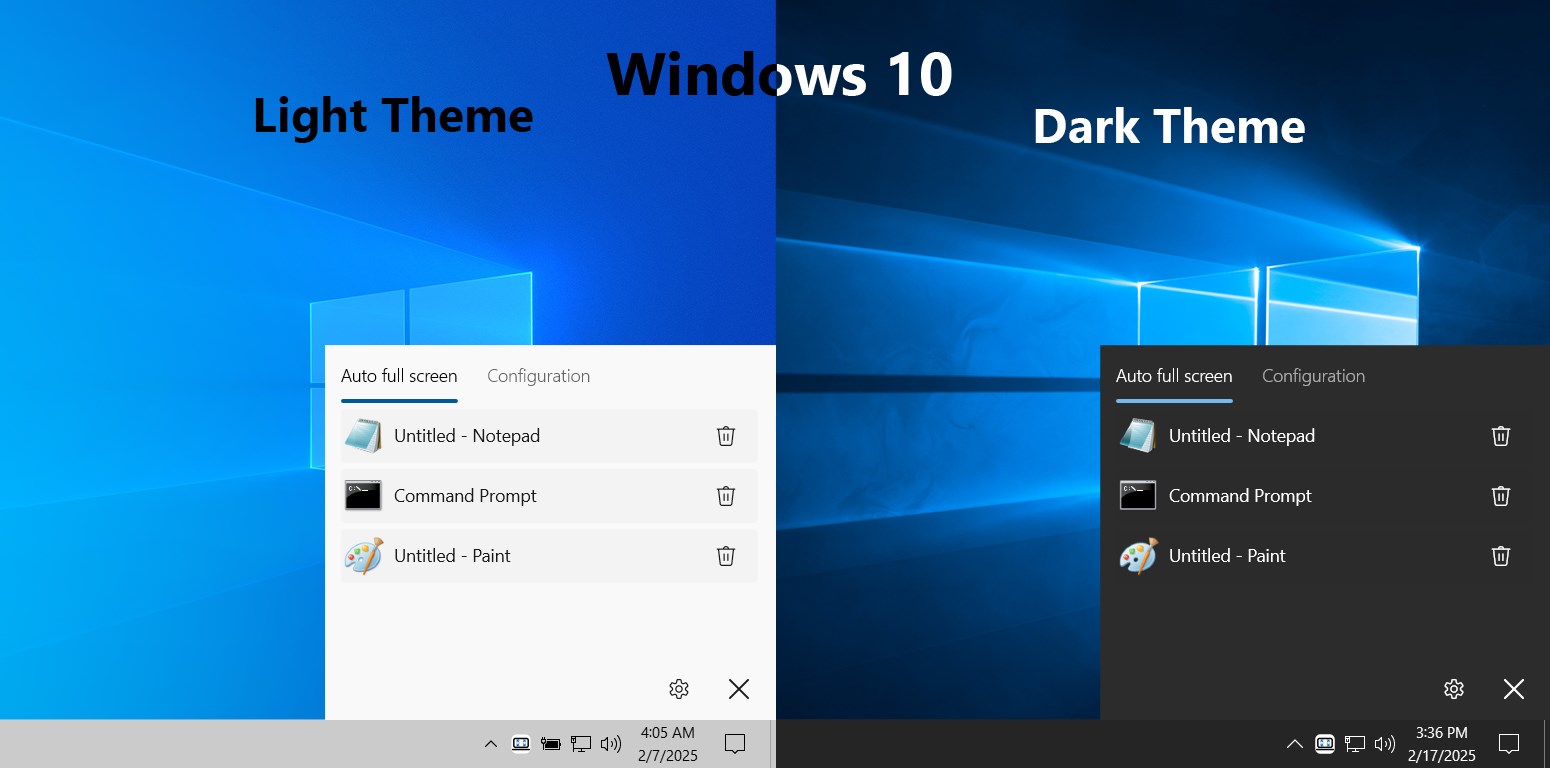
- OS Windows 10 version 17763.0 or higher
- Keyboard Integrated Keyboard
- Memory 300 MB
- languages English
Streamlining Your Windows Experience with Force Full Screen
In today's fast-paced digital world, efficiency and focus are paramount. Force Full Screen for Windows emerges as a sleek utility designed to bring a distraction-free environment to your desktop, allowing users to maximize their workspace effortlessly. Whether you're a programmer, designer, or simply someone who values tidy screens, this app aims to make your workflow smoother and more immersive.
About the Developer and Core Features
Developed and published by Workstation Master, Force Full Screen is a lightweight yet powerful application tailored to enhance your Windows interface. The core highlights include:
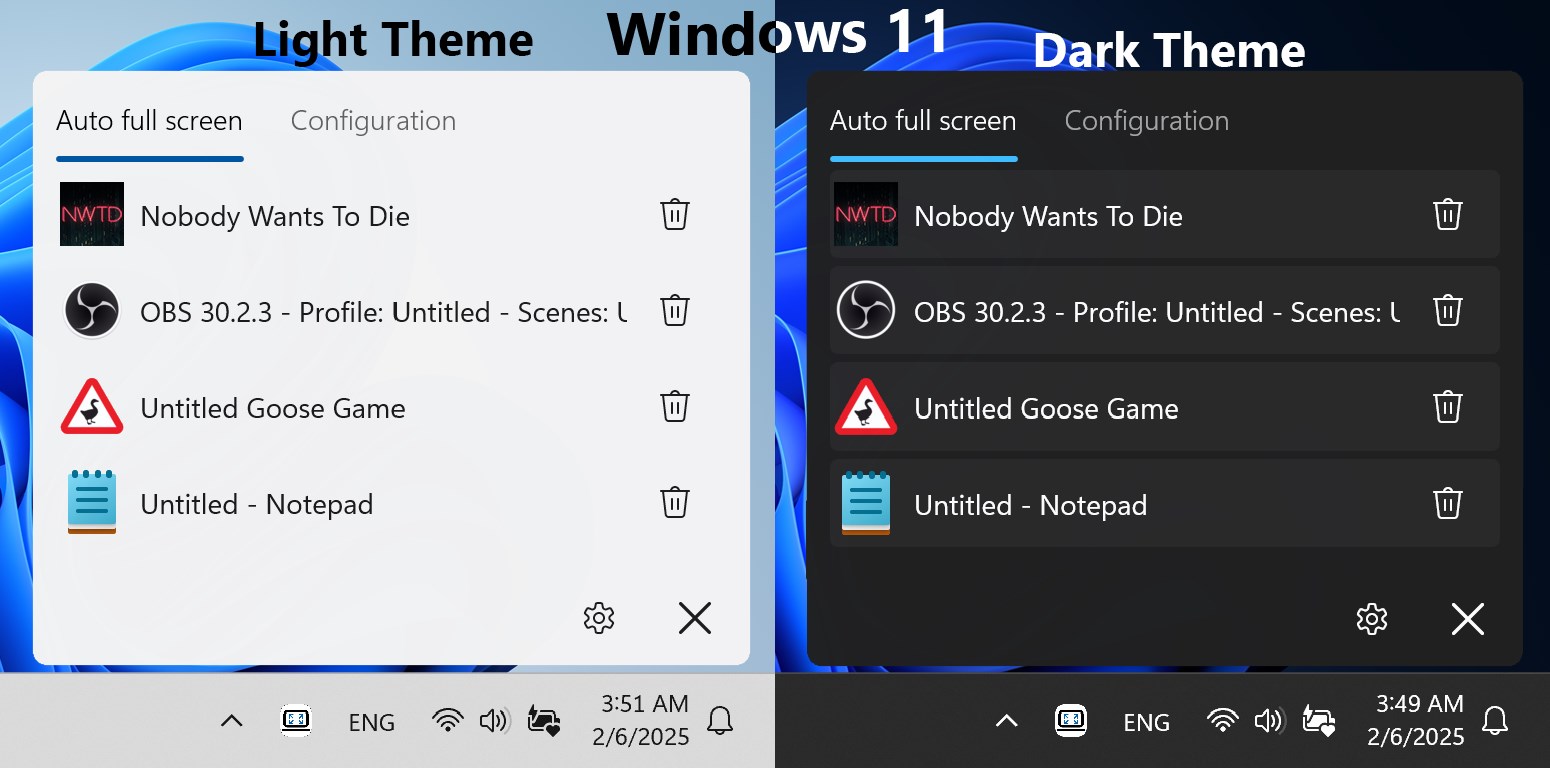
- True Full-Screen Enforcement: Seamlessly switches any app into a full-screen mode, overriding windowed constraints and eliminating taskbar or window borders.
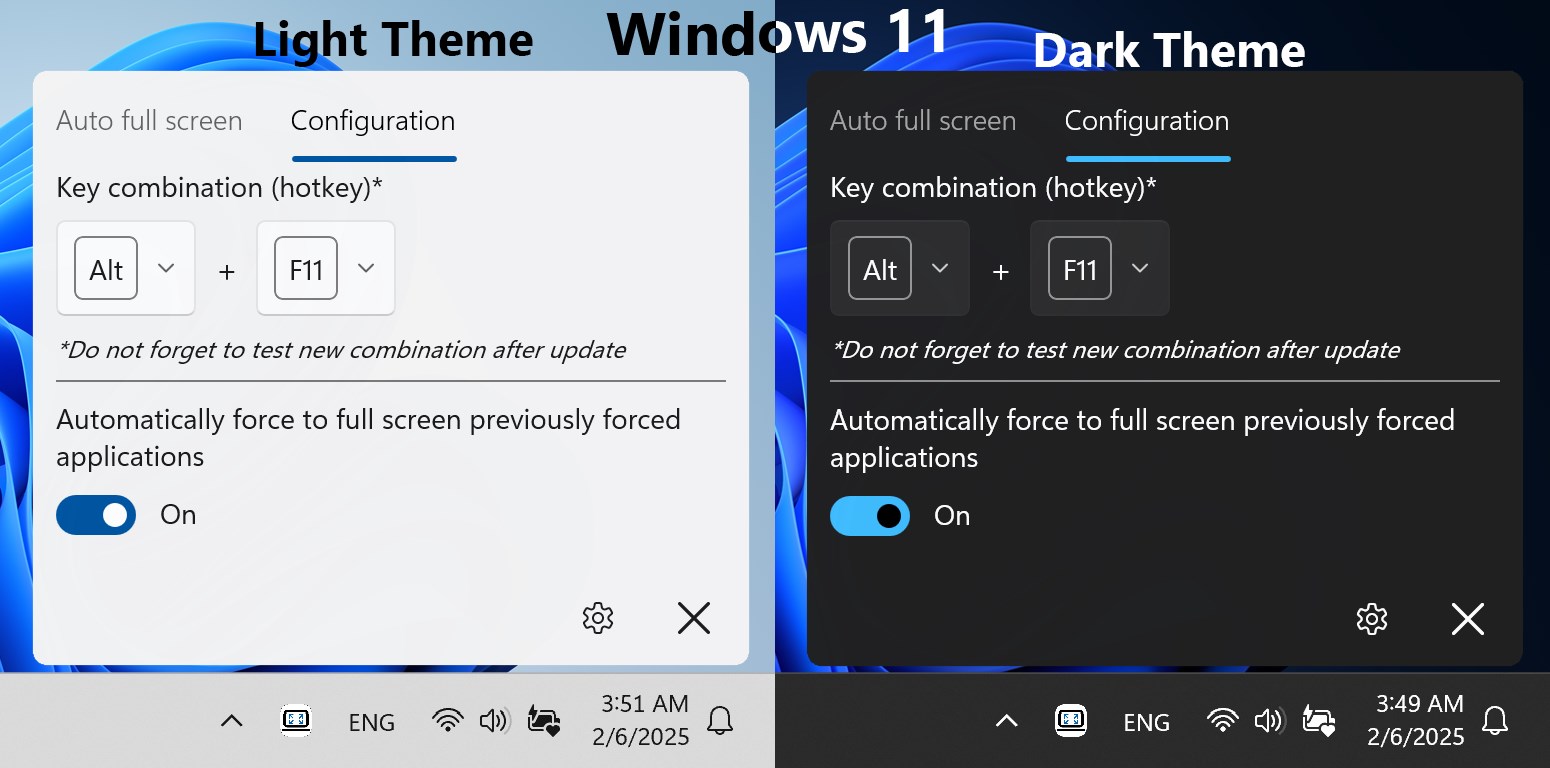
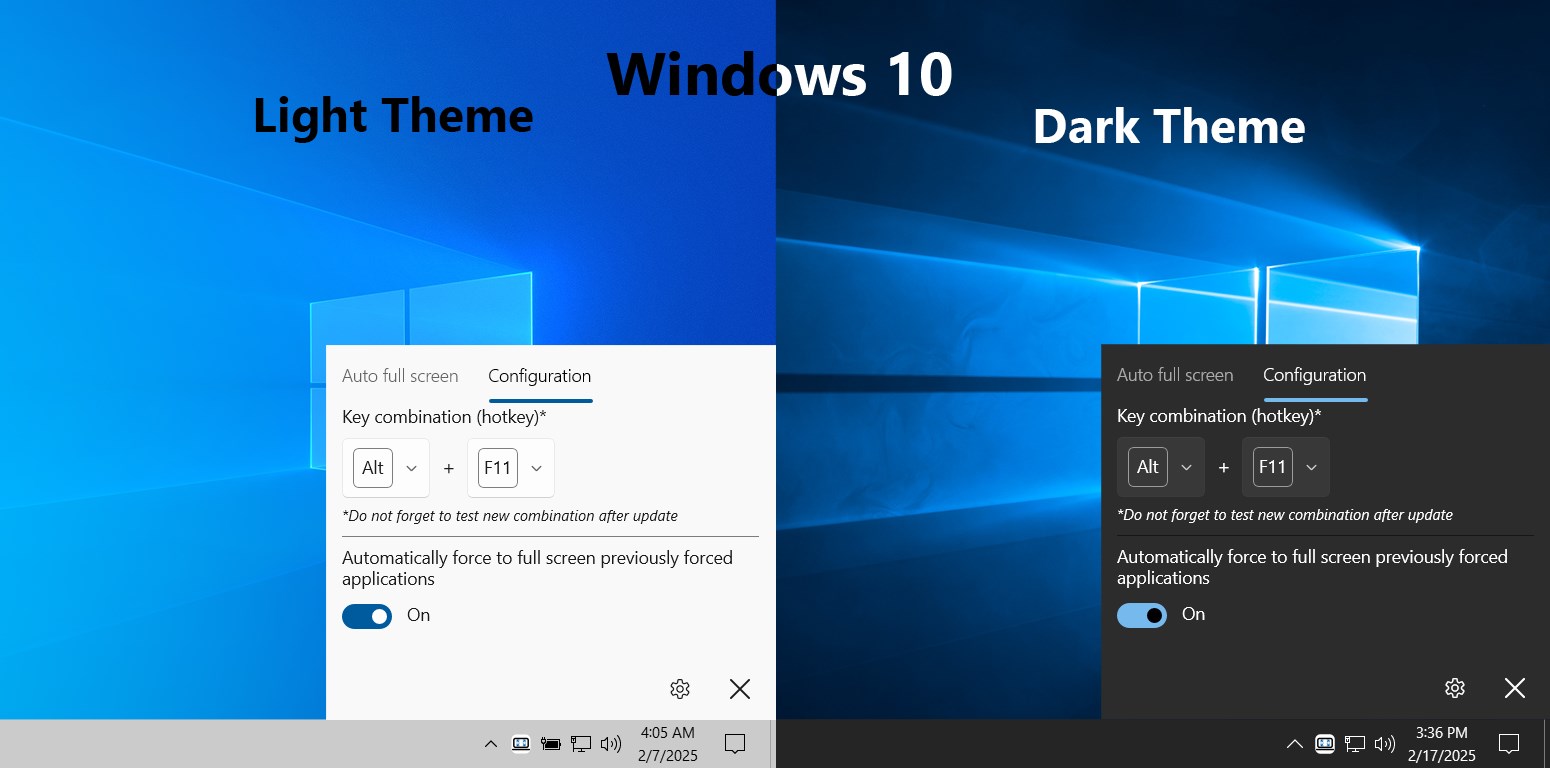
- Quick Hotkey Activation: Allows users to toggle full-screen mode instantly with customizable keyboard shortcuts for rapid workflow adjustments.
- Contextual Compatibility: Supports a variety of applications including browsers, media tools, and productivity suites, making it versatile across different use cases.
- Minimal System Footprint: Designed to run unobtrusively without impacting system performance or cluttering the interface.
Targeted at professional users, students, programmers, and creatives, the app suits anyone seeking a cleaner, immersive workspace without the hassle of manual window adjustments.
Enhanced User Experience Meets Simplicity
Once you launch Force Full Screen, it feels like awakening a new layer of focus—imagine transforming your cluttered desktop into a sleek cinema screen, where distractions fade away and your digital environment becomes a dedicated zone for productivity. The setup process is straightforward; just a few clicks, and you're ready to go. The interface is clean and intuitive, akin to a well-designed cockpit—nothing tedious, just direct controls that get you into full-screen mode in seconds.
Powerful Core Functions in Action
Let's peel back the layers of its main features:
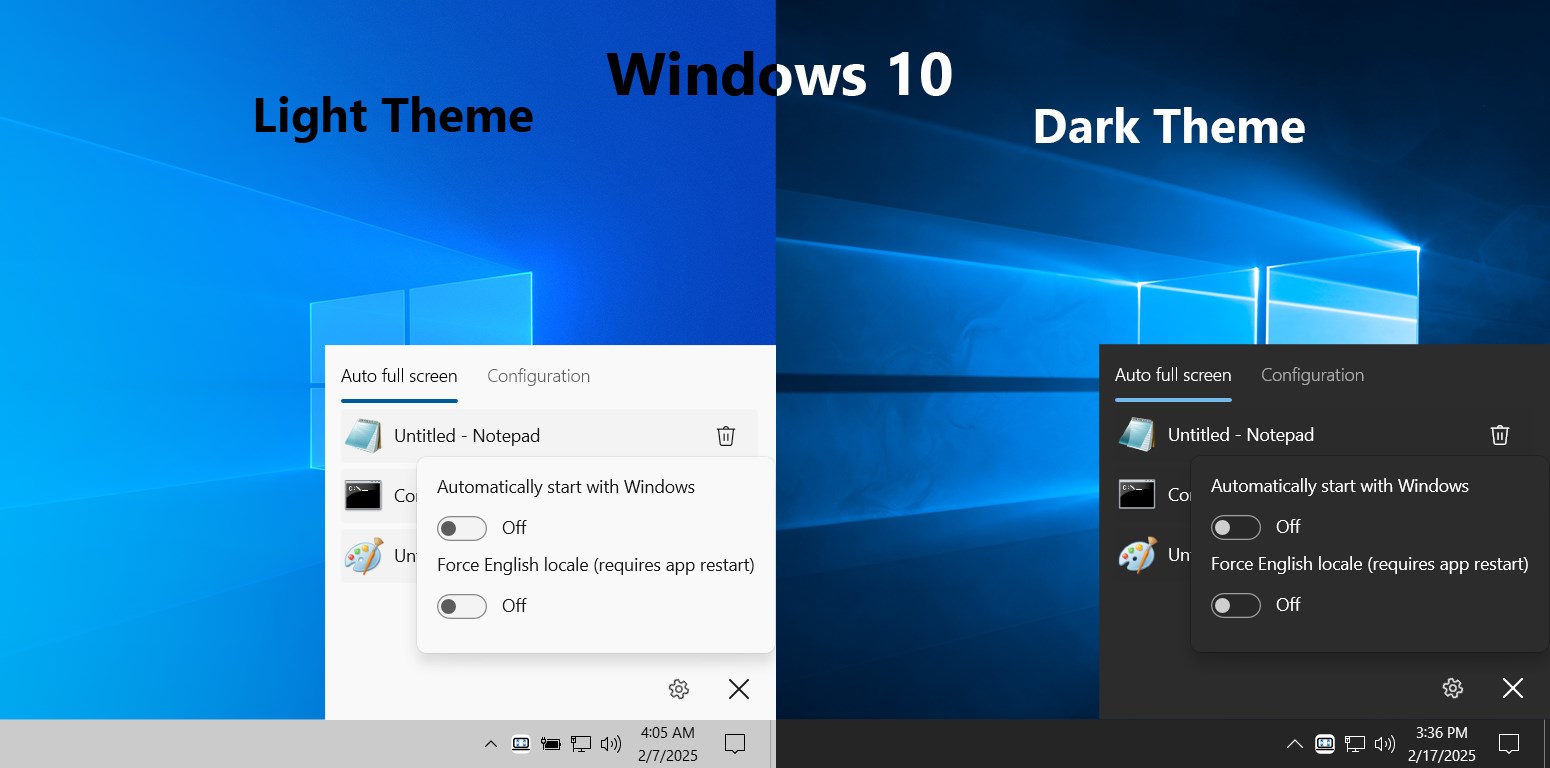
- Instant Full-Screen Mode: With a simple hotkey, you can convert any window—be it a browser tab, a document, or a media player—into an immersive full-screen experience. Unlike manually resizing or toggling, this app automates the process, instantly removing unnecessary borders and taskbars. This feature is particularly beneficial during presentations, screen recording, or focused work sessions, where even a second's distraction can break concentration.
- Customizable Hotkeys for Flexibility: The ability to assign individual shortcuts to different applications enhances workflow fluidity. Imagine being able to switch your video editor into full-screen mode with a dedicated key combo, turning your workspace into a professional studio at the tap of a finger.
- Context-Aware Compatibility: The app intelligently recognizes various application types, ensuring smooth integration whether you're working with web browsers, media apps, or office tools. This adaptability makes it a versatile companion rather than a one-trick pony.
Design, Usability, and Unique Differentiators
The UI design strikes a balance between minimalism and functionality—think of it as a sleek dashboard that offers all necessary controls without clutter. Navigating through settings feels natural, with a gentle learning curve comparable to learning a new tool in your favorite photo editor. The responsiveness is impressive; toggling full-screen modes happens instantaneously, enhancing the user experience without lag or hesitation.
What sets Force Full Screen apart from other utilities like auto-maximize tools or window managers is its dedicated focus on simplicity and speed. It's like having a remote control for your application windows—intuitive, fast, and unobtrusive. Unlike heavier software that attempt to overhaul window management, this app zeroes in on one core function: delivering a clean, full-screen experience at your command, without unnecessary bloat or complexity.
Final Thoughts and Recommendations
Given its straightforward design, rapid execution, and focus on core functionality, I recommend Force Full Screen to professionals and casual users alike who crave a more organized digital workspace. It's especially valuable during tasks that demand full immersion or when temporarily needing to hide desktop clutter without diving into complicated settings.
While it may not include elaborate customization features or advanced management options, its lightweight nature and ease of use make it a standout choice for quick, reliable full-screen toggling. For anyone seeking a practical, no-fuss tool to enhance their Windows environment, this app is a solid addition to your productivity toolkit.
Pros
- Improves focus during presentations
- Easy to toggle for quick immersion
- Enhances multimedia viewing experience
- Useful for large screen displays
- Simple and lightweight interface
Cons
- Limited customization options
- Occasional bugs when exiting full screen
- Lack of shortcut customization
- Compatibility issues with specific monitor setups
- No user guide or help section in the app











