

- Name FileBot
- Category Utilities & tools
- Developer Point Planck Limited
- Available on PC
- OS Windows 10 version 17134.0 or higher
- Keyboard Not specified
- Mouse Not specified
- languages English (United States)
Streamlining Your Media Files: A Deep Dive into FileBot for Windows
Managing large collections of TV shows and movies can often feel like trying to organize a chaotic library—files scattered, misnamed, and difficult to track. Enter FileBot for Windows, a powerful utility designed to bring order to this chaos with clever automation and intuitive features. Whether you're a film buff, a media server enthusiast, or someone simply tired of messy folders, this app promises to be a reliable ally in your digital organization journey.
Who's Behind the Magic? The Developer & Core Features
Developed and published by Point Planck Limited, FileBot is crafted by a team passionate about simplifying media management. The developers focus on creating tools that are both robust and user-friendly, ensuring even non-tech-savvy users can benefit from its capabilities.
The primary features that make FileBot stand out include:
- Automated Naming & Renaming: Simply point it to your media folders, and FileBot intelligently renames files based on central online databases, preserving consistency across your collection.
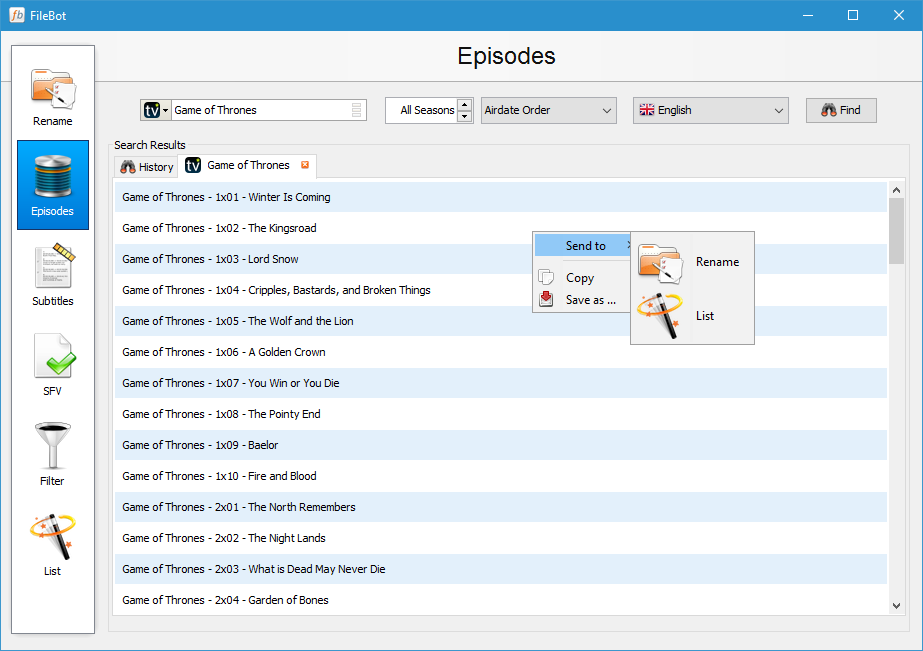
- Episode & Movie Fetching from Online Databases: It seamlessly fetches show metadata, including episode titles, season numbers, and cover art, enriching your library with useful information.
- Bulk Processing & Scripting: For power users, the app offers advanced scripting options, allowing complex batch operations to save time and effort.
- Cross-Platform Compatibility: Beyond Windows, it supports macOS and Linux, making it adaptable for diverse media setups.
This tool is tailored for media enthusiasts, library curators, and anyone tired of manually renaming hundreds of files. Its intuitive approach reduces clutter and makes media browsing a joy rather than a chore.
The Interface and User Experience: Friendly, Yet Efficient
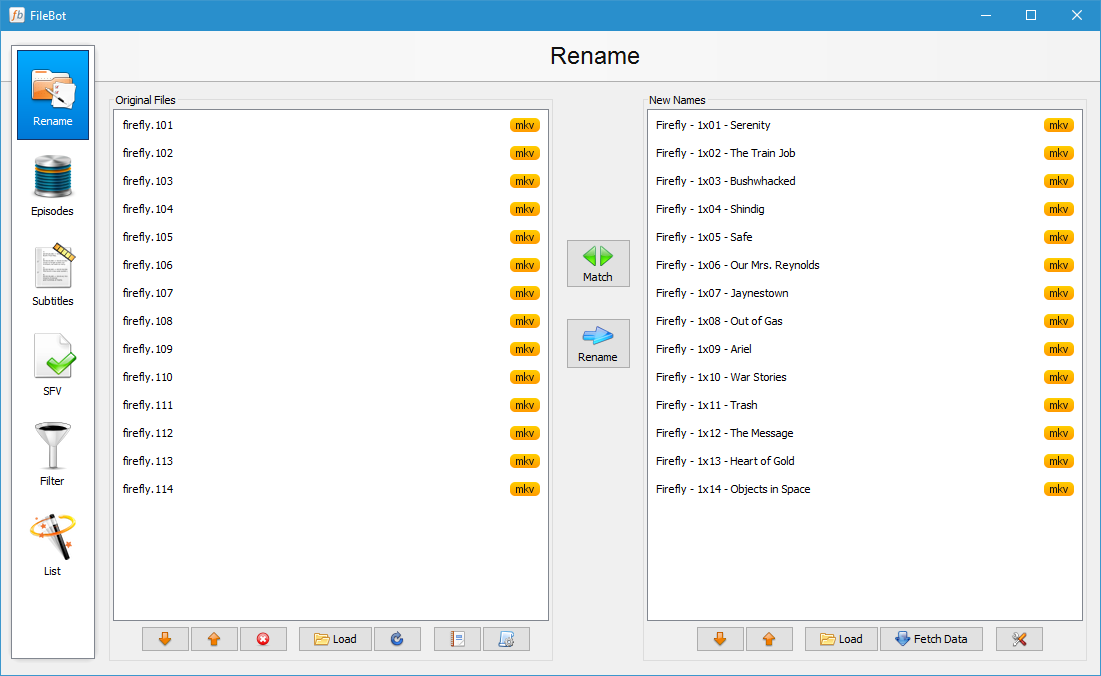
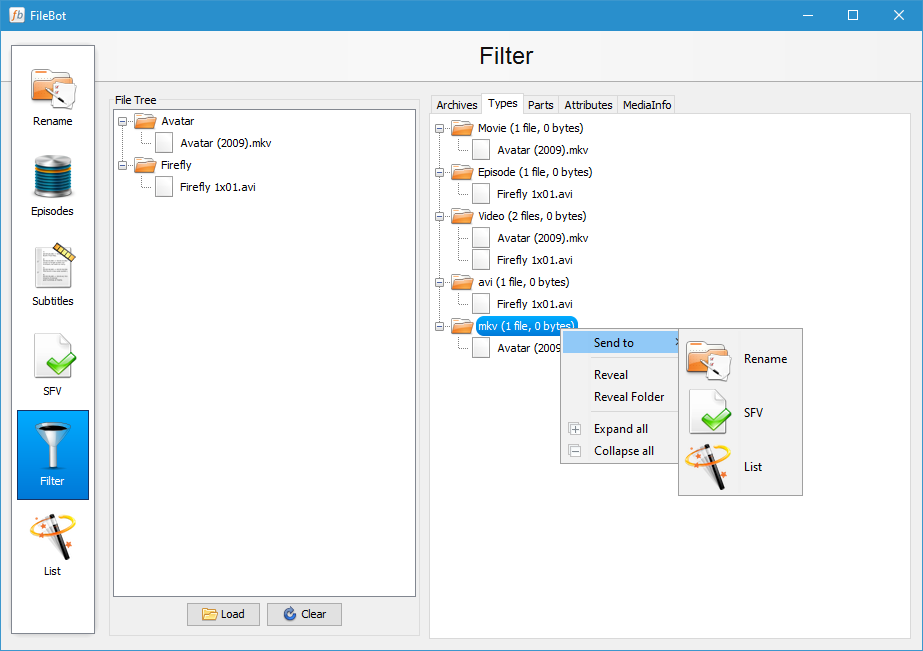
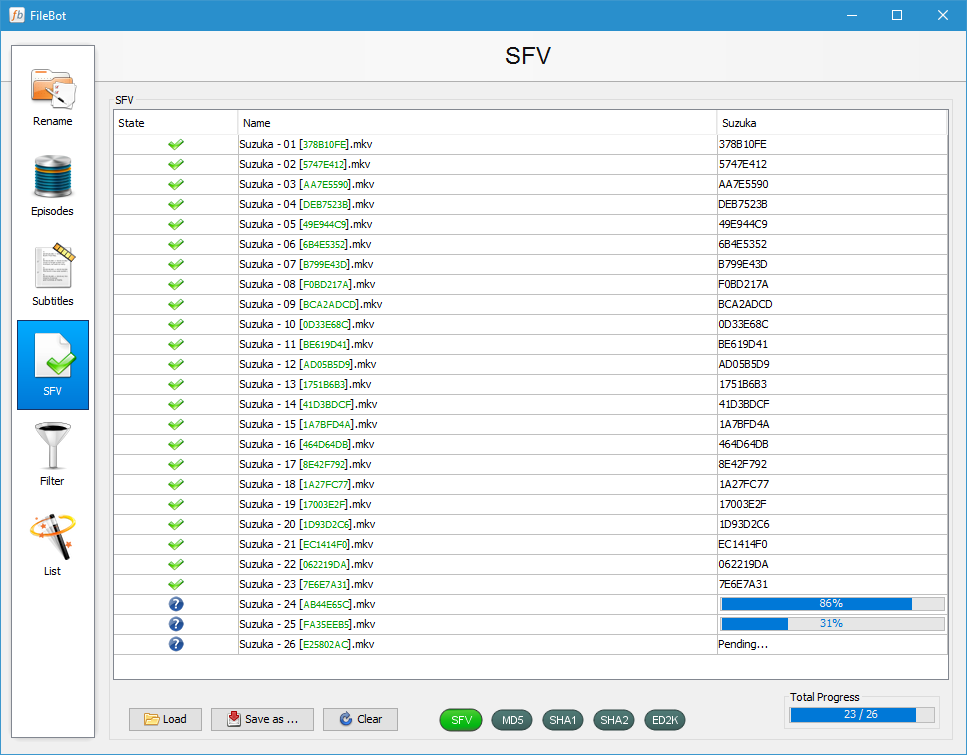
Imagine opening an app that looks like a modern, minimalist workspace—clean lines, straightforward navigation, and a clear focus on your media files. FileBot's interface is thoughtfully designed to balance accessibility with power. The initial setup is smooth, guiding you through adding your media folders with a few clicks, much like planting markers in a well-organized garden.
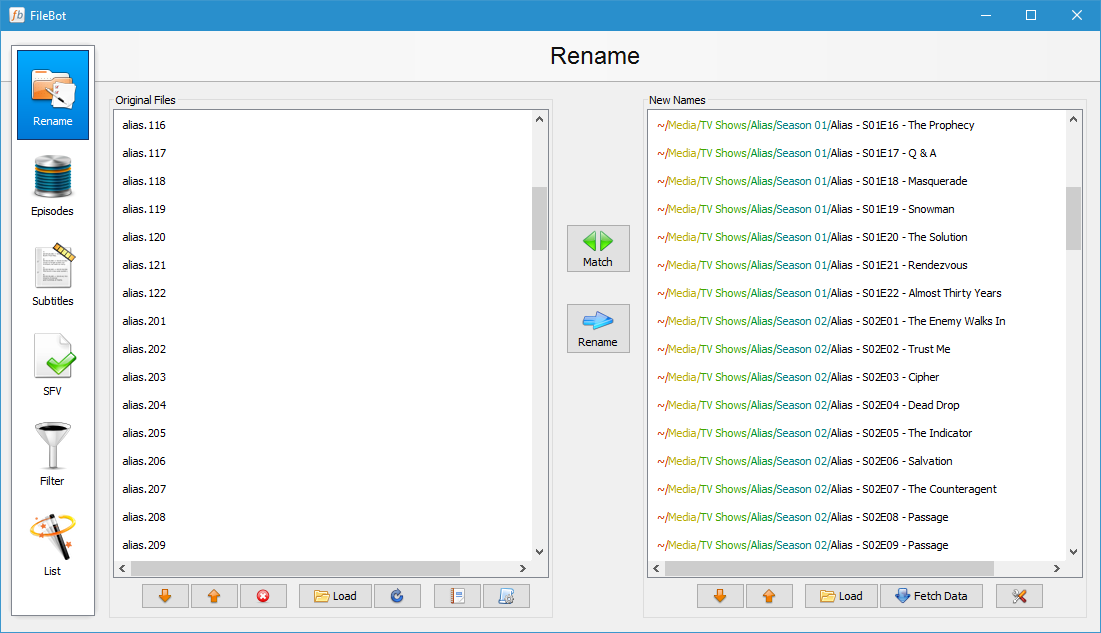
Operation-wise, the app runs smoothly; processing large batches of files feels snappy, and the real-time preview of renaming results helps prevent mistakes. The learning curve is gentle; even newcomers can quickly grasp how to use the core features after a brief exploration. For seasoned users, the scripting capabilities and detailed logs provide the depth needed for intricate automation tasks.
Compared to other media management tools, FileBot's interface doesn't overwhelm users with options. Instead, it offers just the right amount of control, making the process feel seamless rather than burdensome.
Unique Strengths: Standing Out in the Utility Crowd
What sets FileBot apart from other file management tools are its most innovative features—the ability to accurately fetch metadata and rename files automatically based on latest online databases like TheTVDB, TheMovieDB, and OpenSubtitles. It's like having a personal librarian who instantly recognizes and catalogs your entire media library.
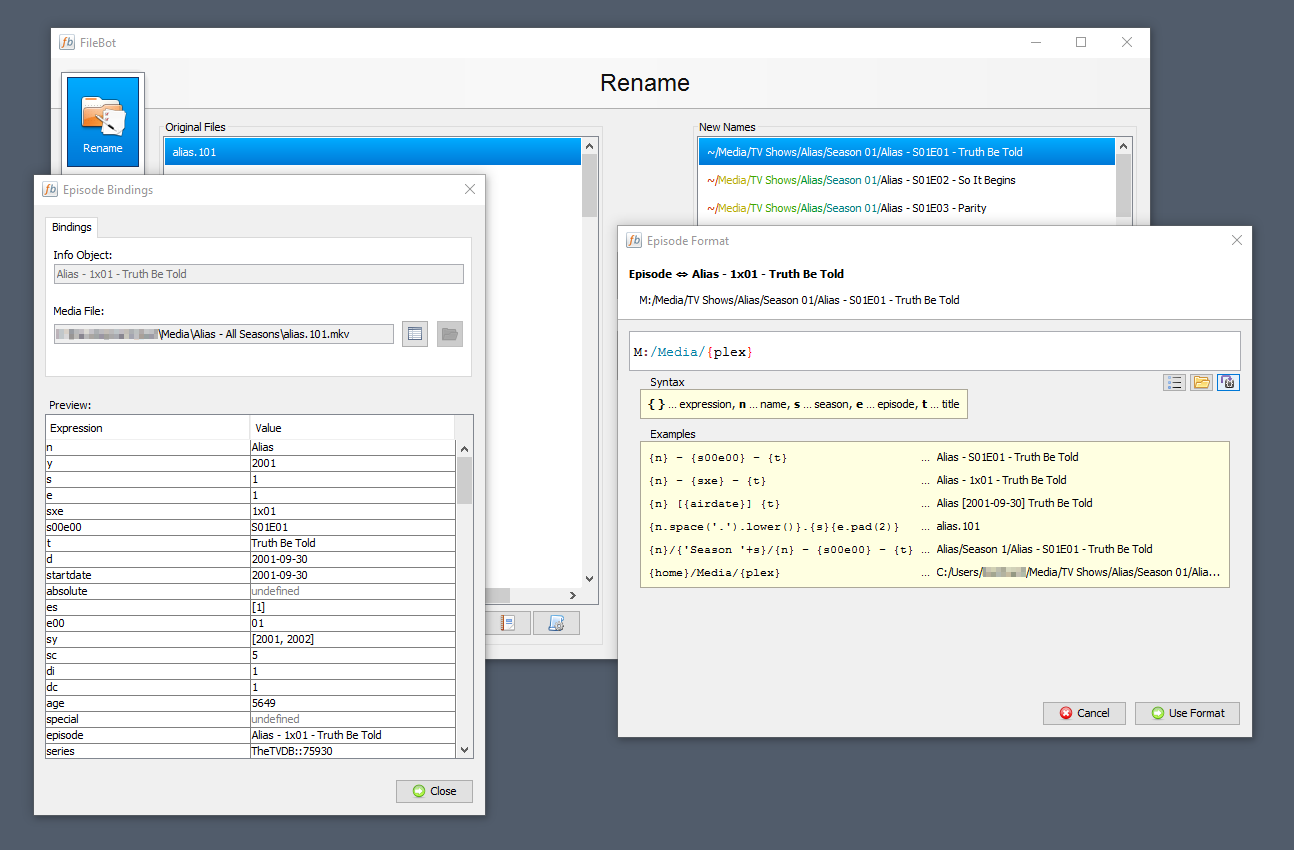
Additionally, its scripting flexibility is a rare find—allowing users to create custom workflows or automate repetitive tasks. For example, you could set FileBot to download cover art, rename files, and organize directories—all in a single, automated batch process. While many utilities offer similar functions, few combine this level of intelligence, speed, and customizability in one package.
Compared to more generic file renaming tools, its media-specific integrations and metadata fetching capabilities give it a distinct edge—turning a mundane task into a streamlined, almost artistic process.
Final Verdict: A Practical Companion for Media Enthusiasts
I would recommend FileBot for Windows to anyone who manages large media collections and values accuracy and efficiency. It's particularly ideal if you've ever felt overwhelmed by inconsistent file names or wish to enhance your media library's aesthetic and informational quality without spending hours on manual edits. The app's balance of simplicity and depth makes it accessible for new users but still valuable for power users seeking automation.
In brief, FileBot is a solid media organization tool that transforms chaos into order with minimal fuss—think of it as the trusted librarian of your digital archive. Just remember, its power lies in automation and metadata fetching, so giving it some initial setup time will pay off in a seamlessly organized library later on.
Pros
- User-friendly interface
- Powerful automation capabilities
- Supports multiple media sources and formats
- Batch processing feature
- Open-source and customizable
Cons
- Steep learning curve for advanced features
- Limited official support and documentation
- Occasional breakdowns in metadata fetching
- Performance drops with very large files or collections
- Lacks a dedicated mobile version











