
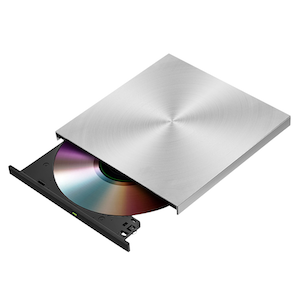
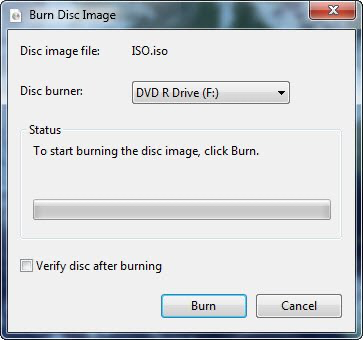
- Name DVD CD Blu-Ray Burner Plus
- Category Utilities & tools
- Available on PC, Mobile, Surface Hub, HoloLens
- OS Windows 10 version 14393.0 or higher
- languages English (United States)
Introducing the DVD/CD/Blu-ray Burner Plus for Windows
If you're someone who still loves burning discs—be it for music collections, precious family videos, or important backups—then the DVD CD Blu-Ray Burner Plus by Sunshine Office could be a valuable addition to your toolkit. Designed to streamline your disc-burning tasks through a straightforward interface, this app aims to make the process smooth and manageable on your Windows system.
Core Features That Shine
Multi-Format Burning Capabilities
The standout feature of this application is its ability to handle a wide range of disc formats—DVD, CD, and Blu-ray—within a single platform. No need to juggle multiple tools; whether you're creating a classic audio compilation or burning high-definition videos, this app accommodates your needs seamlessly. Its compatibility with various formats ensures that users can preserve their digital media in the most suitable media type.
User-Friendly Interface & Efficient Workflow
The interface is crafted to resemble a familiar workspace—think of a tidy, organized desk where every tool is within arm's reach. The design employs clear icons, logical layout, and straightforward navigation, making it accessible even for less tech-savvy users. Burn processes are streamlined with simple step-by-step guidance, and operation feels remarkably smooth, with minimal lag or glitches, akin to a well-oiled machine that just gets the job done without fuss.
Advanced Copy & Backup Features
Beyond basic burning, the app includes intelligent disc copying and backup functionalities. You can clone discs or back up entire discs with ease, which is particularly useful for preserving irreplaceable data or creating multiple copies quickly. What makes it stand out here is its ability to verify the integrity of burned discs, giving users peace of mind that their data or media is reliably stored.
What Makes This App Stand Out?
Compared to other utilities in the same space, Sunshine Office's Burner Plus offers notable advantages. Its integrated support for multiple media formats reduces the need for other specialized programs. Moreover, its focus on user experience—through an intuitive interface and reliable performance—sets it apart from more cumbersome, technical-oriented burning tools. The app's ability to perform high-speed burns without sacrificing quality is particularly appealing for users who need efficient solutions without technical complexity.
Final Thoughts and Recommendations
This app is a solid choice for Windows users who still find value in disc burning or need reliable software for media backups. Its ease of use, broad format support, and robust copying features make it suitable for both casual users and more advanced enthusiasts. If your workflow involves frequent disc creation or replication, the DVD CD Blu-ray Burner Plus comes highly recommended as a dependable and straightforward tool.
Pros
- User-friendly interface
- Supports multiple formats
- High burning speed
- Batch processing capability
- Reliable data integrity
Cons
- Limited editing features
- Occasional compatibility issues
- No built-in media player
- Basic interface design
- Limited customization options











