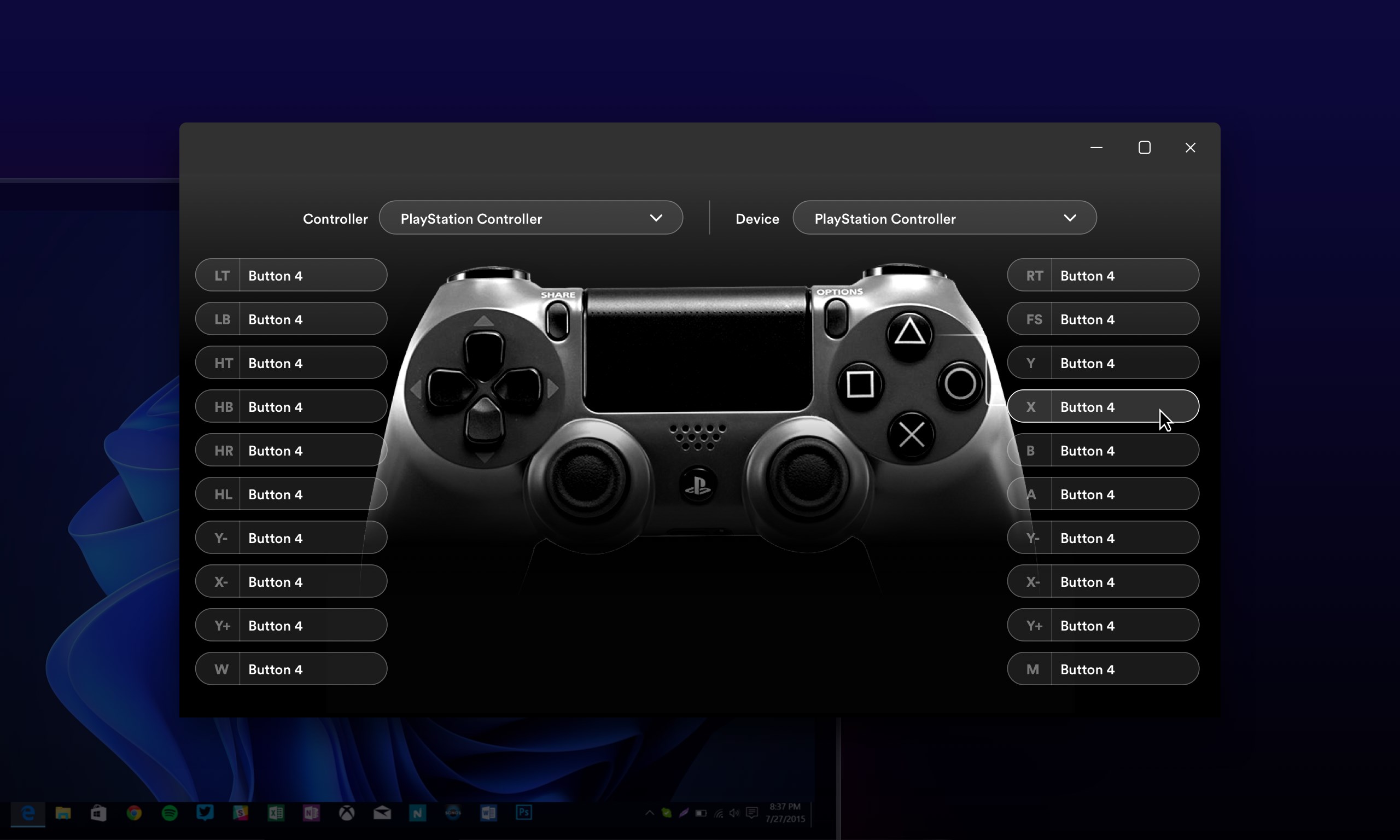
- Name DualShock Controller Mapper
- Category Business
- Available on PC, Mobile, Surface Hub, HoloLens
- OS Windows 10 version 17763.0 or higher
- Keyboard Integrated Keyboard
- Mouse Integrated Mouse
- languages English (United States)
Empowering Your Gaming Experience: An In-Depth Review of DualShock Controller Mapper for Windows
For gamers seeking to customize their PlayStation DualShock controllers seamlessly on Windows, the DualShock Controller Mapper presents itself as a tailored solution that promises both flexibility and efficiency. Developed by AAN Software, this application aims to elevate controller compatibility and user control in a world increasingly dominated by personalized gaming setups.
Basic Information and Core Highlights
Positioning the App
DualShock Controller Mapper for Windows is a dedicated tool designed to allow users to remap and customize their DualShock controllers for optimal gaming performance on PC.
Developer/Team
The app is developed and maintained by AAN Software, a team committed to creating user-friendly and functional utilities for gamers and tech enthusiasts.
Main Features & Highlights
- Intuitive Controller Mapping: Enables detailed remapping of buttons, axes, and triggers, allowing a personalized control scheme tailored to each game or user preference.
- Profiles and Custom Configurations: Supports saving multiple profiles for different games or users, making switching between control setups quick and effortless.
- Compatibility with Windows & Easy Setup: Designed specifically for Windows, ensuring compatibility with various system configurations and minimal setup hurdles.
- Real-time Feedback & Adjustment: Offers on-the-fly adjustments with immediate effect, streamlining the tuning process for optimal performance.
Performance and User Experience
A Vibrant Welcome to Controller Customization
Picture this: you've just unboxed your gaming console's sibling—your trusty DualShock controller—ready to take on your favorite titles. But what if it doesn't behave exactly as you want it to? DualShock Controller Mapper acts like a friendly mechanic sitting next to you, fine-tuning every button and axis till the control scheme feels just right. Its interface is clean and approachable, reminiscent of a well-organized toolbox; everything is where you expect it to be, removing the frustration often associated with configuration tasks.
Ease of Use & Fluid Operation
The app's operation is remarkably smooth. Mapping controls feels like assembling a LEGO set—simple, satisfying, and rewarding. The real-time feedback feature allows users to see changes immediately, which enhances the learning curve—it's almost like having a conversation with your controller. Navigation is intuitive; even a first-time user can quickly set up a custom profile without digging through a maze of options.
Design Aesthetics & User Experience
Visually, the app adopts a minimalistic yet functional design, much like an efficient cockpit dashboard. It avoids unnecessary clutter, focusing on clarity; this clarity streamlines the learning curve and fosters a sense of confidence. Overall, the user experience is both enjoyable and efficient, owing to logical menu flows and responsive controls that keep the experience fluid and frustration-free.
Unique Differentiators for Power Users
Beyond Basic Customization: Collaborative & Task-Focused Features
While many controller mappers focus solely on remapping, DualShock Controller Mapper distinguishes itself with features akin to collaborative work environments and task management. For instance, users can create and share profiles—think of this as a shared workspace where teammates can upload or download optimized control schemes for specific multiplayer games. This collaborative angle is unusually robust for a controller utility, particularly when matched against similar apps that merely offer simple remaps.
Furthermore, its ability to handle multiple profiles and quickly switch between them increases productivity, especially for gamers who juggle between different genres requiring distinct control schemes. It's like having an assistant that remembers your preferences for shooter, racing, or platformer games, switching modes just as seamlessly as flipping a light switch.
Final Verdict & Recommendations
In summary, DualShock Controller Mapper for Windows stands out as a well-crafted, user-friendly application that offers precise control customization with a thoughtful touch of collaborative profile management. Its intuitive interface and real-time adjustment capabilities make it suitable for both casual gamers and power users. If you're someone who values tailored control setups and appreciates sharing configurations with friends, this app is definitely worth trying.
While it might not replace more complex professional remapping tools, for everyday gaming needs on Windows, it strikes an impressive balance between simplicity and comprehensive functionality. I recommend trying it out if you want to elevate your game control customization—it's a reliable companion in your gaming toolkit.
Pros
- User-friendly interface
- Extensive controller customization
- Broad device compatibility
- Real-time configuration switching
- Active community support
Cons
- Limited official documentation
- Occasional profile sync issues
- Compatibility issues with some third-party games
- Customization options could be more detailed
- Some latency in control mapping application