
- Name Droid Transfer
- Category Utilities & tools
- Developer Wide Angle Software Ltd
- Available on PC
- OS Windows 10 version 17763.0 or higher
- Keyboard Not specified
- Mouse Not specified
- languages Croatian, Dutch, English, English (United States), French, German, Hindi, Italian, Japanese, Portuguese, Spanish
Introduction: Seamlessly Transfer Your Data with Droid Transfer
Imagine holding the power to effortlessly move your contacts, messages, photos, and more from your Android device to your Windows PC—Droid Transfer offers just that. This application serves as a bridge connecting Android smartphones with Windows computers, simplifying backup and data management without the usual hassle of wires or complicated software setups. Whether you're a tech-savvy enthusiast or a casual user wanting an easier way to handle device data, Droid Transfer stands out as a reliable helper in your digital toolkit.
Developer and Core Features
Created by Wide Angle Software Ltd, Droid Transfer is a thoughtfully designed application aimed at streamlining data transfer between Android devices and Windows PCs. Its main features include:
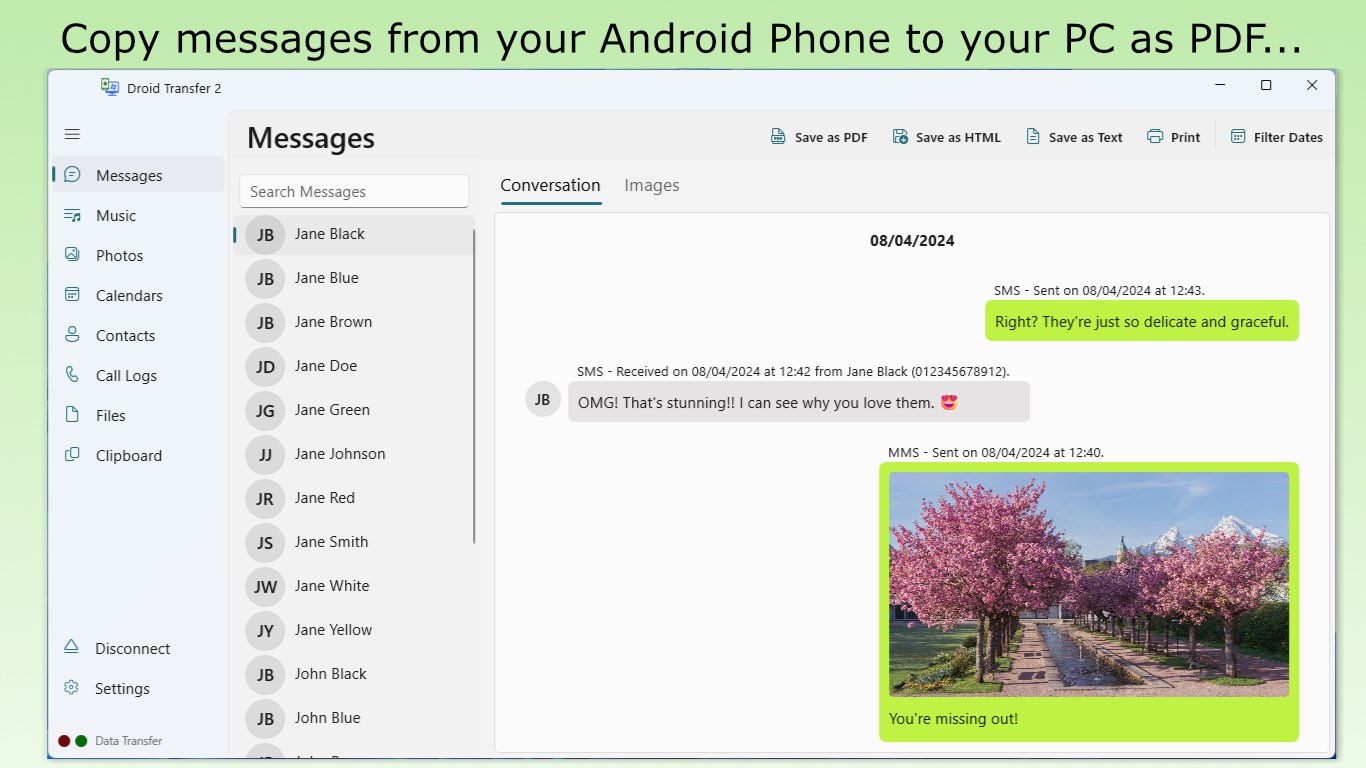
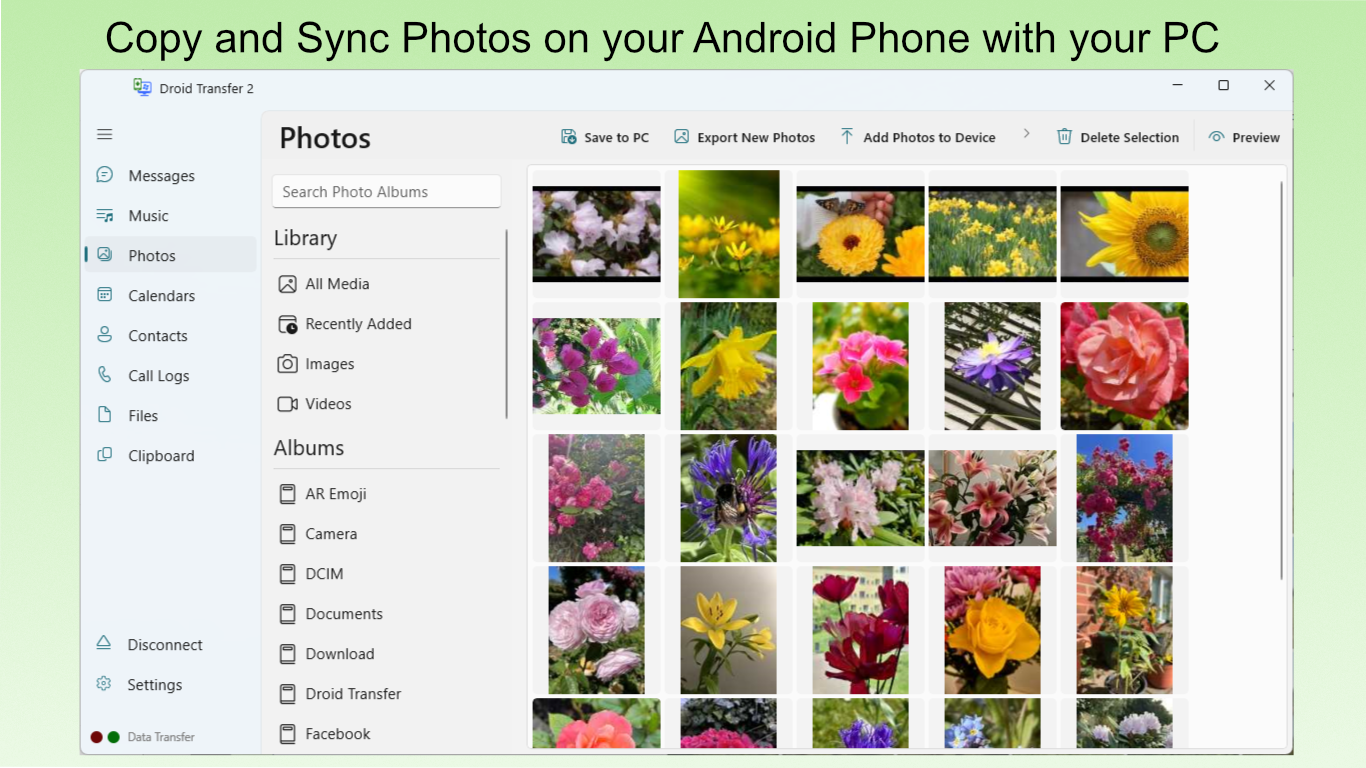
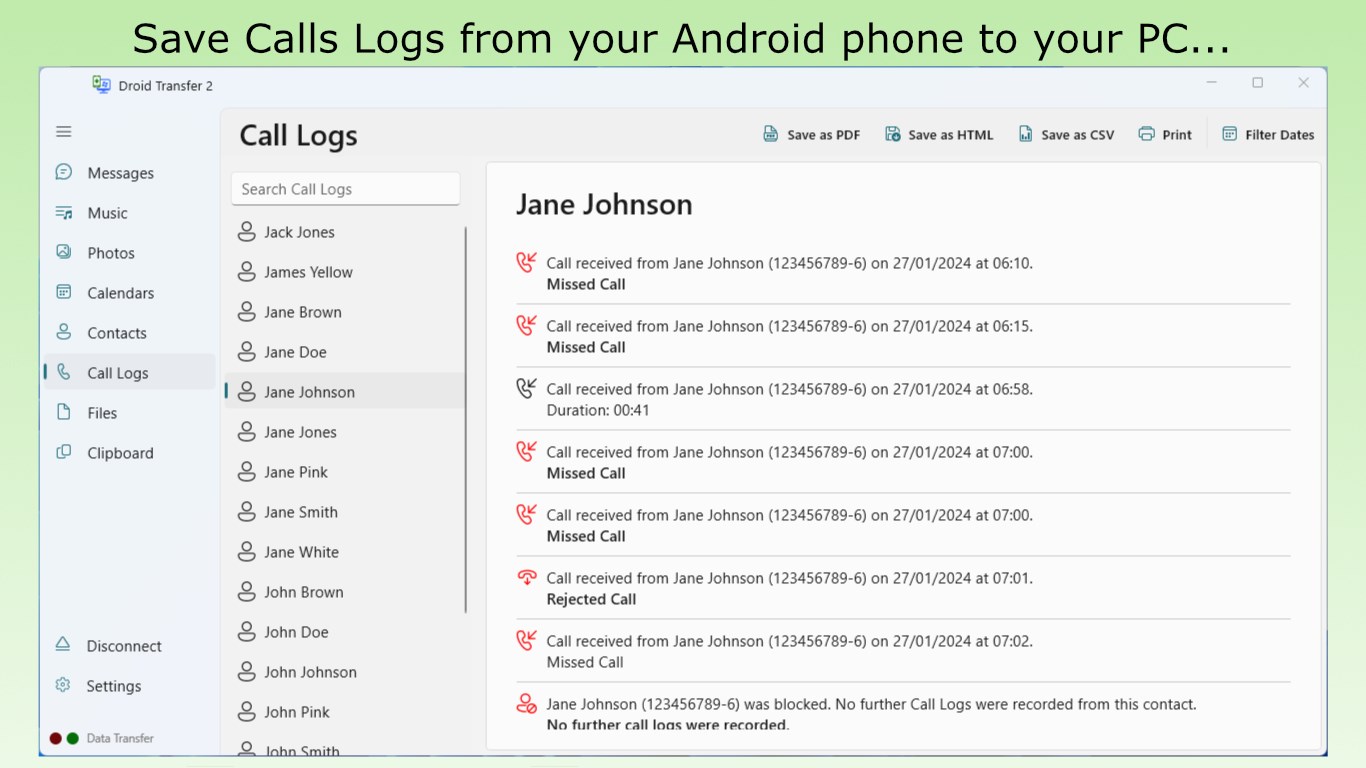
- Comprehensive Data Syncing: Transfer contacts, messages, call logs, photos, music, and videos seamlessly, ensuring your data is consolidated and safe.
- User-Friendly Interface: An intuitive and clean UI allows users of all levels to navigate effortlessly, reducing the learning curve common with more complex tools.
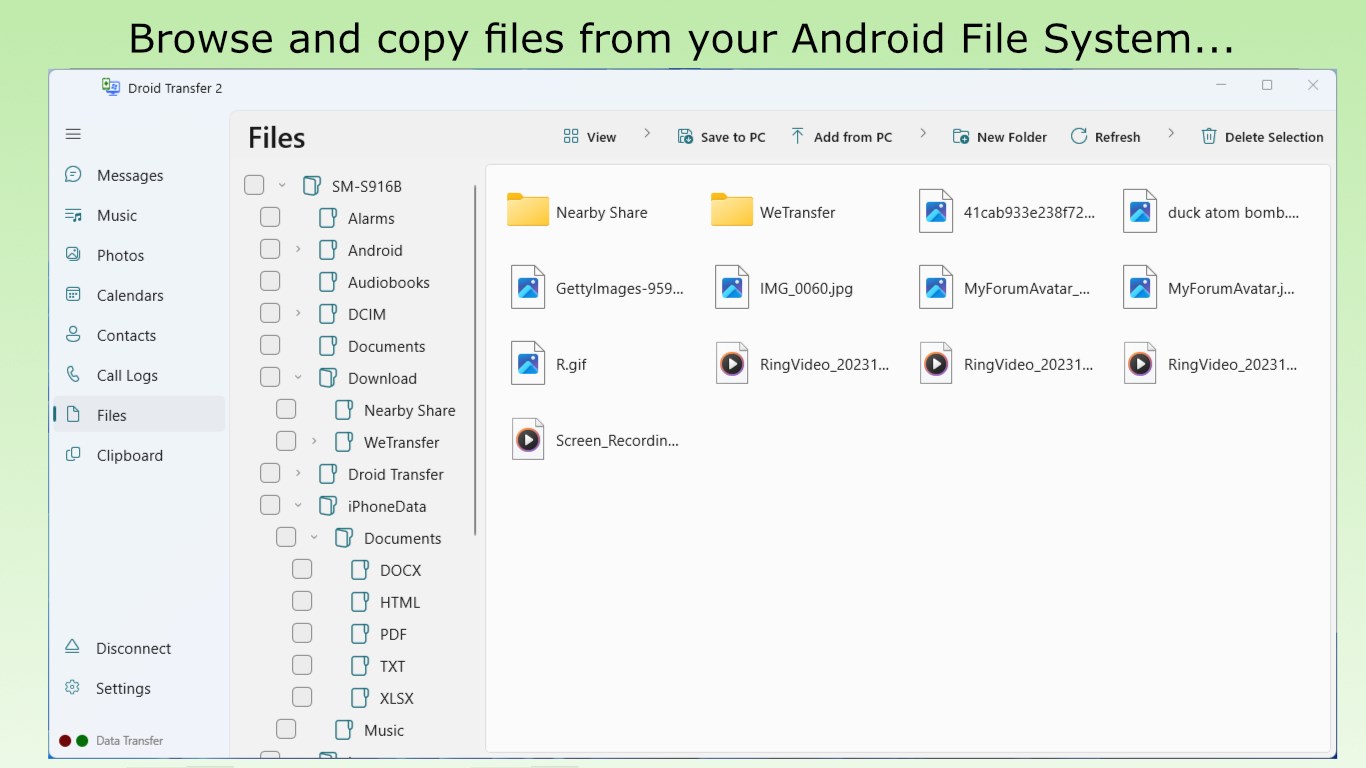
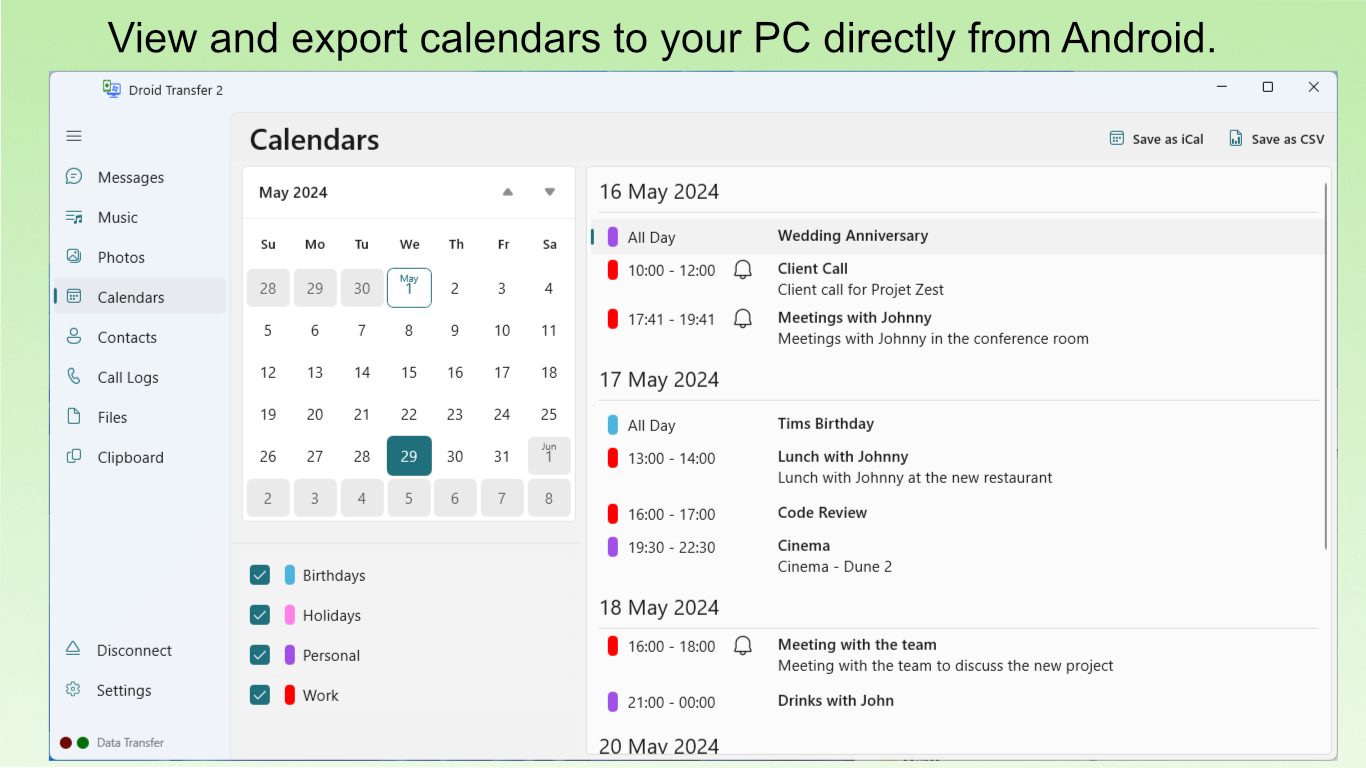
- Real-Time Data Access: Access your phone's data directly from your PC, enabling quick viewing, exporting, or editing without the need to connect devices repeatedly or use third-party storage.
- Backup & Restore Capabilities: Create complete backups of your device data, safeguard your information, and restore it whenever needed, providing peace of mind for data security.
Targeted at Android users who want a straightforward way to manage their phone data from a Windows environment, this app is particularly appealing to those seeking both simplicity and comprehensive functionality.
Vivid Experience: Navigating Droid Transfer
Stepping into the world of Droid Transfer feels akin to opening a well-organized digital filing cabinet—everything's in its place, yet easy to find. The app's interface exudes a modern, minimalistic charm that invites exploration rather than intimidation. Its use of clear icons and step-by-step prompts makes starting a transfer as simple as a few clicks, even for first-time users.
Effortless Data Management and Accessibility
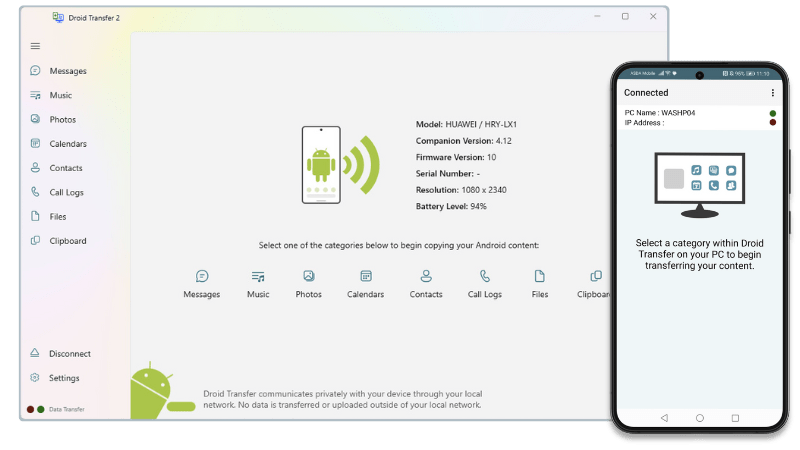
One of Droid Transfer's standout features is its ability to connect your Android device and PC instantly via Wi-Fi or USB, depending on your preference. This flexibility means you're not bound by cables, making it perfect for quick backups or data retrieval sessions on the go. Its real-time data access function allows you to browse your phone's contents directly from your desktop, a feature that elevates user productivity and convenience. No more fumbling with rooted devices or cumbersome file explorers—this app brings your data front and center, neatly organized and ready for action.
Backup & Restore – Your Digital Safety Net
Backing up data is akin to creating a safety deposit box for your cherished digital moments. Droid Transfer's backup feature is simple yet comprehensive, allowing you to snapshot everything from contacts to media files. Restoring data from backups is similarly streamlined, making device migration or recovery straightforward. This focus on data security and ease-of-use distinguishes Droid Transfer from many competitors that often overcomplicate or limit the types of data you can safeguard.
Strengths & Differentiation: What Sets Droid Transfer Apart?
While many data transfer utilities exist, Droid Transfer's most compelling advantage lies in its balance of simplicity and depth. Unlike basic file managers or cluttered transfer apps, it offers a unified interface for multiple data types with minimal fuss. Its ability to access the phone's content directly from your PC means less reliance on external storage or cloud services, providing a more immediate, private, and controllable experience. Furthermore, its seamless Wi-Fi connectivity sets it apart from wired-only methods, granting flexibility that's especially useful for those frequently swapping data or managing multiple devices.
Additionally, its clean design and straightforward workflow make it accessible even for users less comfortable with tech. This user-centric approach, combined with robust backup and restore functionalities, positions Droid Transfer as a compelling choice in the realm of utility tools for Android-PC interactions.
Final Thoughts and Recommendations
All in all, Droid Transfer stands out as a reliable, easy-to-use solution for anyone looking to simplify data management between their Android device and Windows PC. Its focus on core functionalities like comprehensive data transfer and secure backups, coupled with a polished interface and flexible connectivity options, makes it a solid addition to your digital arsenal. While it may not feature the most advanced editing or customization options, its straightforward approach will appeal to users seeking efficiency and peace of mind.
For casual users, students, or professionals needing quick, reliable data transfer without the headaches, Droid Transfer is definitely worth trying out. I'd recommend it for those who value a no-fuss, direct connection to their device data, especially given its standout backup and real-time browsing capabilities. Overall, it's a trustworthy companion for managing your Android data on Windows—just like having a helpful digital assistant right beside you.
Pros
- Easy data transfer between Android and PC
- Supports multiple data types
- User-friendly interface
- No need for root access
- Backup and restore functionality
Cons
- Initial setup can be time-consuming
- Limited free features
- Occasional connection stability issues
- File size restrictions for certain transfers
- Lack of extensive device support











